 English
 Magyar


In this brief guide, I’ll show you how to install an SSL certificate via the cPanel interface, including how to generate a CSR and a private key.
First, log in to the cPanel interface, then go to the ‘Security’ section and click on the ‘SSL/TLS’ menu item. Even if you have never installed an SSL certificate on your cPanel account before, there will already be at least one self-generated certificate there by default, although this is not valid on the internet.
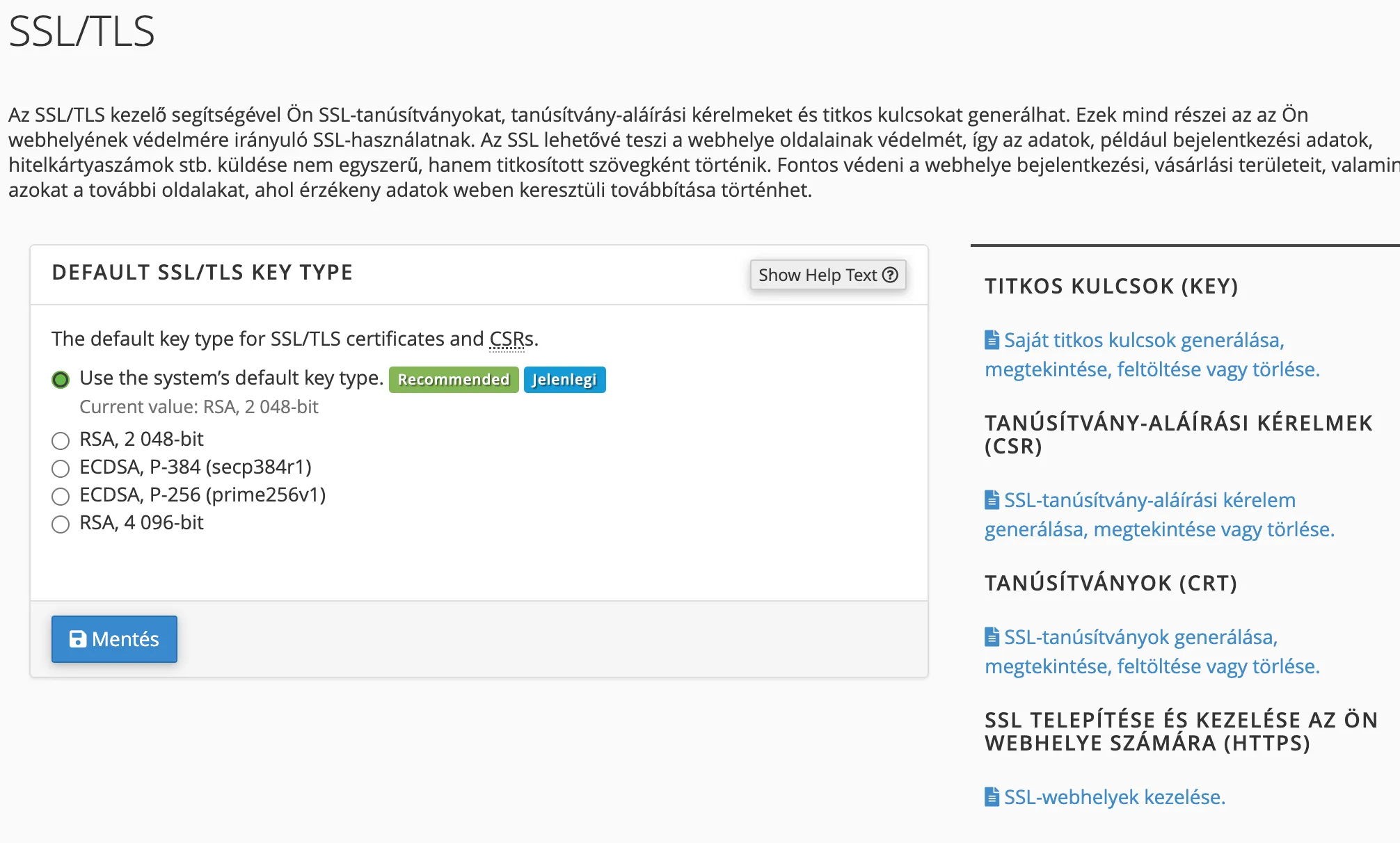
Our SSL certificate consists of two parts:
- Private key – which, as the name suggests, is secret; only we know it
- Public key – This is the counterpart to the private key; it is what our web browser sends to visitors
Generating a certificate request file
As only we know the private key, but the public key is generated based on it, we need to send a so-called Certificate Signing Request (CSR) file to the certificate authority.
On the cPanel interface, you can generate the private key and the CSR in a single step by clicking on the ‘Generate, view or delete an SSL certificate signing request’ menu item on the SSL/TLS page.
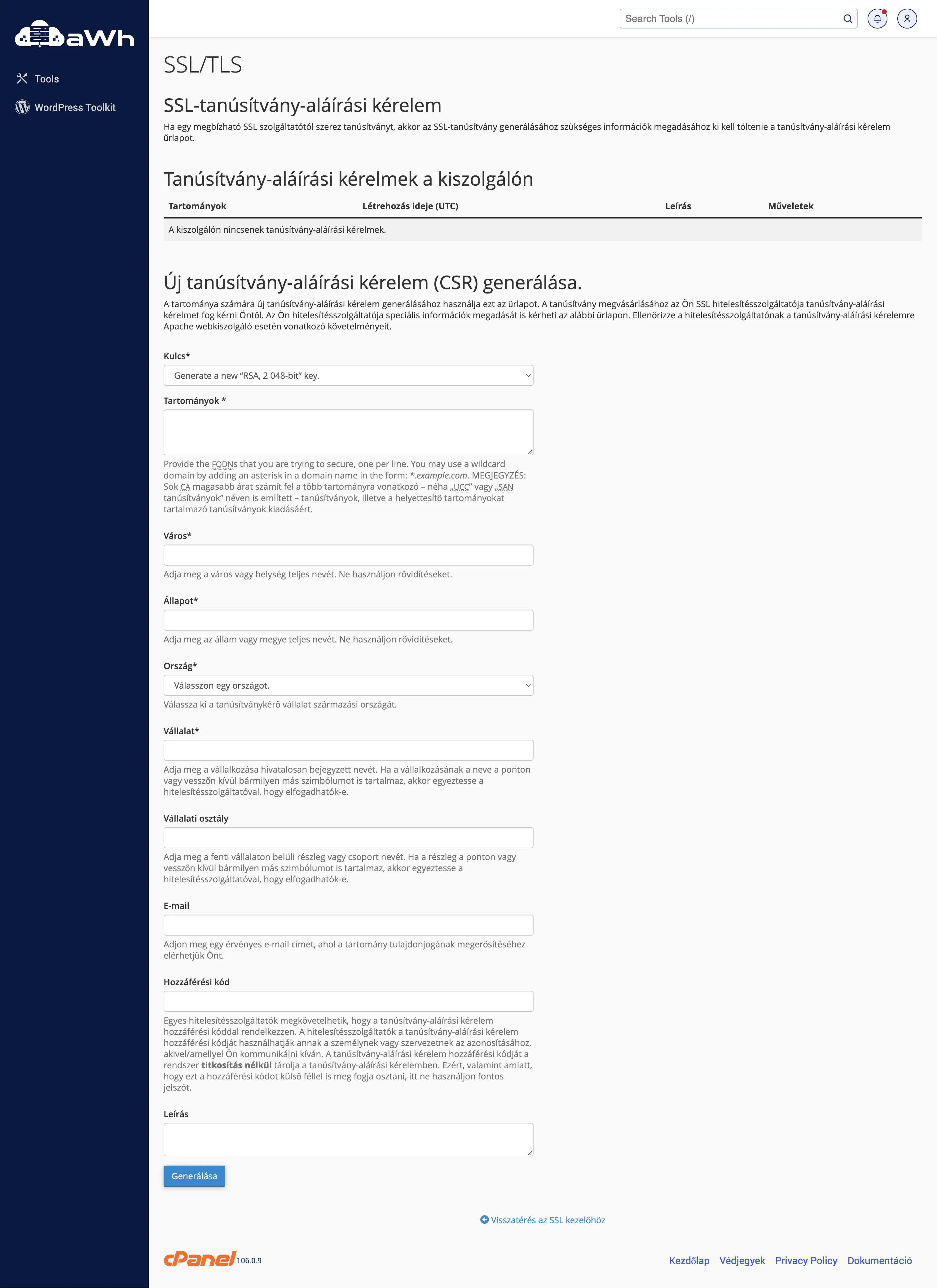
You’ll be taken to a form where you’ll need to enter various details:
- Key: under ‘Key’, select the ‘Generate new key’ option; this is the default setting.
- Domains: Enter the domain name you wish to cover with an SSL certificate here, e.g. awh.hu
- City / State / Country: These are your own address details; they must, of course, be filled in, although in most cases the content doesn’t matter, as the certificate authority does not take it into account.
- Company: enter our company name (if we have one); if not, enter our domain name
- Department: for companies, this refers to a department, e.g. IT. Otherwise, feel free to leave it blank.
- Email: our own email address
- Access code: A code or password, but only fill this in if the authentication server has requested it! The information entered here will not be encrypted, so do not enter your password here! You can usually leave this field blank.
- Description: a note for our own reference; this will appear on the cPanel interface.
Once you have filled in all the details, click the ‘Generate’ button and cPanel will create the certificate request file almost immediately.
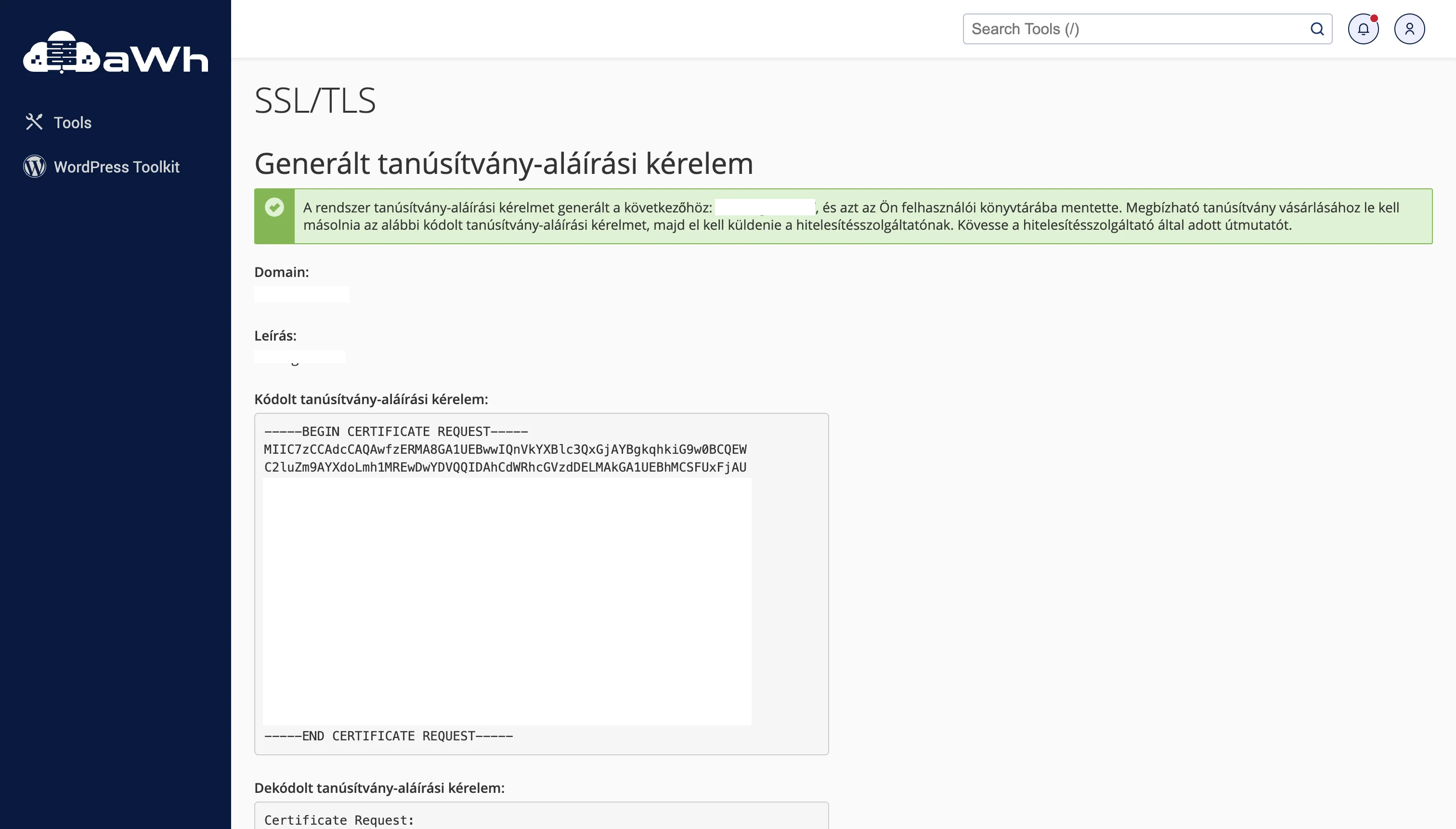
On this page, the content in the ‘Encrypted certificate signing request’ box is important; this is what we need to send or upload to the provider from whom we are purchasing the SSL certificate.
Installing an SSL certificate
Once we have received the SSL certificate, log in to cPanel again and open the SSL/TLS menu, but this time select the ‘Manage SSL Sites’ sub-menu.
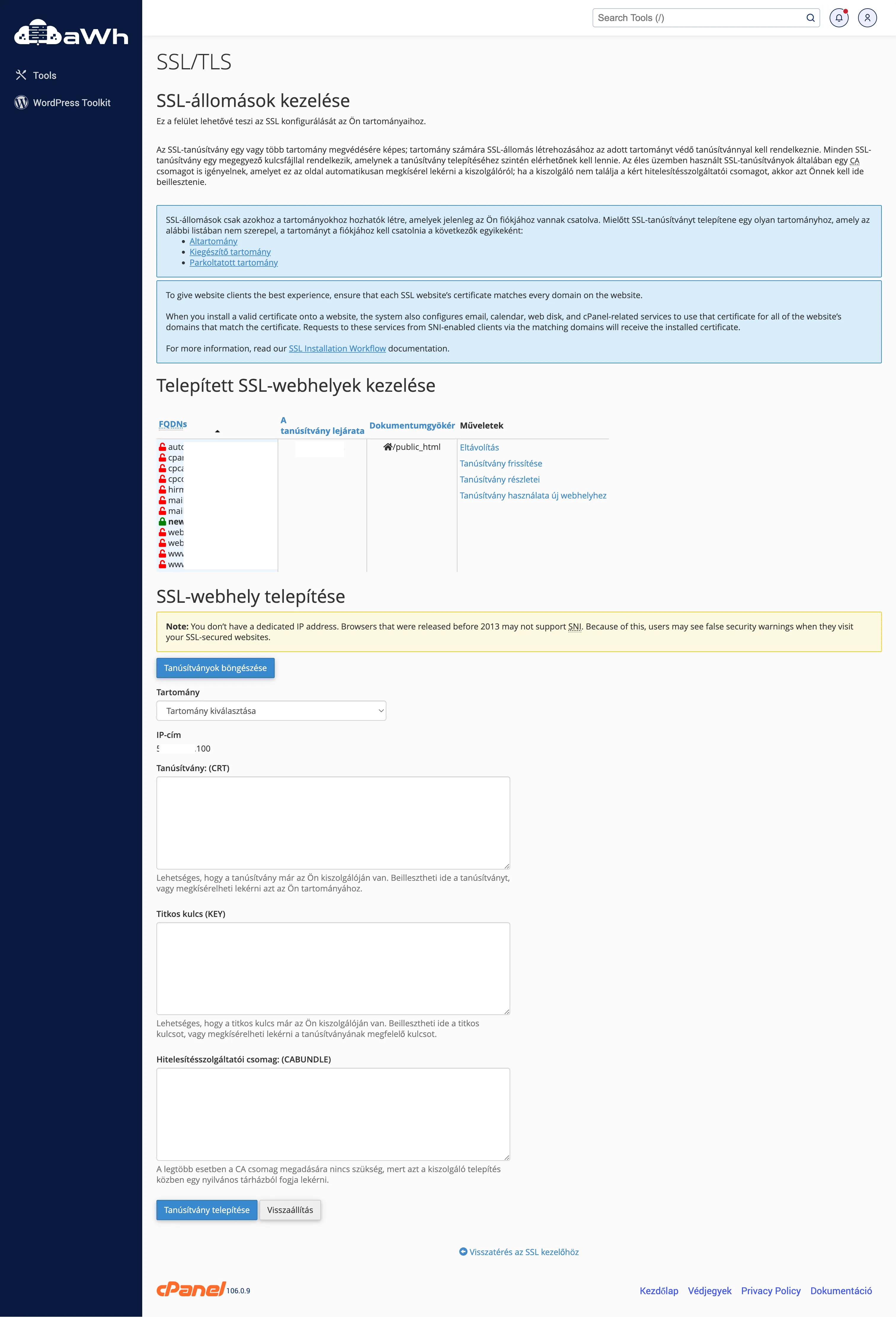
On this page, copy the contents of the file you have received into the ‘Certificate: (CRT)’ box, then under the ‘Domain’ section, select the domain name for which you wish to use the SSL certificate.
Finally, by clicking on the ‘Install Certificate’ button at the bottom of the page, you can activate it for your domain name.
Verification
Check using your favourite browser that the page opens correctly using HTTPS; you can also carry out this check using external tools, such as the one available at www.sslshopper.com/ssl-checker.html.