 English
 Magyar

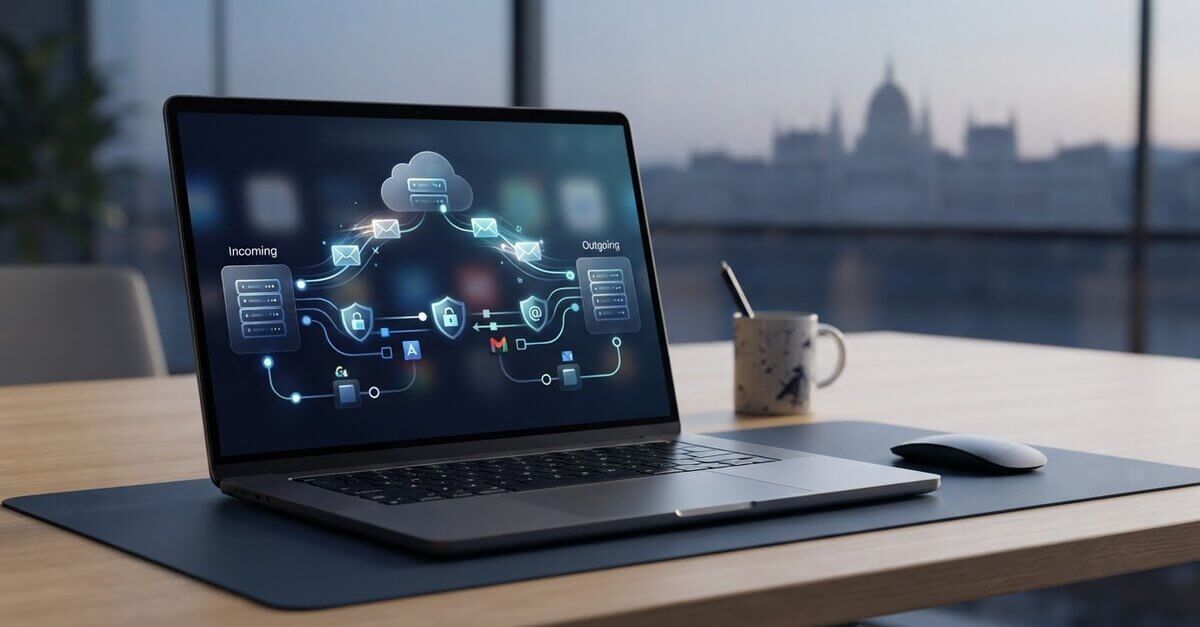
Why aren’t emails arriving, even though Outlook says the account is connected? With a mailbox on your own domain, getting Outlook to work properly isn’t a matter of guesswork: you need to enter the incoming and outgoing mail settings provided by your service provider in the correct version of Outlook.
The menu options in the new and classic versions of Outlook differ, but in both cases the server name, port and encryption method together determine the connection. Please take these details from your email provider’s documentation, not from the general settings.
This guide explains how to add an email account for your own domain, where the IMAP and SMTP details are located, and what to check in the event of a sending or synchronisation error. The steps also apply to mailboxes created with aWh. Use the exact server details from the settings associated with the mailbox.
Before setting up Outlook email: what information and account types do you need to know about?
Outlook is an email client that displays and manages your emails. However, the mailbox is provided by your email service provider, so when setting up Outlook, you may need your login details, account type and mail server settings as well as your email address. The Microsoft Outlook overview also provides background information on the different versions of Outlook.
A Microsoft account and an email address linked to your own domain and hosting are two separate account types. In the case of an address linked to your own domain, the mailbox is created by the email service provider, and you must enter their server details in Outlook. For mailboxes created on aWh’s email hosting service, you should also use the settings associated with that account. You can find further information about our email hosting solutions.
The server name, port and encryption method may vary depending on the provider. Always use the settings provided with your email account.
What information do you need to prepare to add an Outlook account?
Before setting this up, please have your full email address and the corresponding password to hand. You will also need the names of the incoming and outgoing mail servers, their respective ports and the encryption methods. You can find these in your provider’s documentation or in your email account’s control panel. Do not substitute them with the settings from another email provider.
The incoming server forwards new messages to Outlook, whilst the outgoing server handles the sending of emails. You must therefore enter the details in separate fields. To ensure a secure connection, use the encryption method specified by your provider and check the details for both servers.
IMAP, POP3 or Microsoft Exchange: which account type should you choose?
IMAP synchronises folders and message statuses across different devices. For example, changes made on your computer will also appear on your phone. POP3 works differently: it downloads emails to the device, so managing messages across multiple devices may differ. Only choose the Microsoft Exchange option if your email service supports it. For email accounts with your own domain, follow the account type specified by your service provider.
Step-by-step guide to setting up Outlook email on Windows
The menu options in Outlook depend on whether you are using the new or classic version. The labels may vary depending on the version and updates, but the process for adding an account is similar. The Microsoft Outlook Help section provides further guidance on using the application.
Adding an account in the new Outlook
In the new Outlook, you can start adding an account via the settings or the account menu. First, enter your full email address. The application may attempt to recognise your email details automatically, but if you have a mailbox on your own domain, you may need to configure the settings manually.
- Open the account menu or settings, then select ‘Add account’.
- Enter your full email address, follow the steps on the screen, and enter your mailbox password when prompted by Outlook.
- If Outlook recognises the account, complete the setup and then check that your emails are synchronising.
- If automatic detection fails, select the manual setup option and enter the IMAP details provided in your provider’s documentation.
Manual setup in classic Outlook
In the classic Outlook interface, you can usually start adding an account from the File menu. Look for the ‘Manual or advanced setup’ option, then select the IMAP account type if this is required by your email provider. The exact menu item names may vary depending on the version.
- In the IMAP fields, enter the name, port and encryption method of the incoming mail server.
- Enter the details of your outgoing mail server separately in the SMTP fields. Do not assume that the names of the incoming and outgoing servers are the same.
- Check your username, authentication settings and encryption. The username may be your full email address, but the provider’s requirements take precedence. Do not copy the server name, port or security mode from another provider.
Once set up, send a test message to another address that you can access, then reply to it. This allows you to check that messages are being sent and that incoming messages are synchronised. You can find information on email hosting solutions for mailboxes with your own domain.
IMAP and SMTP settings in Outlook: which details go in which fields?
When setting up Outlook manually, you must enter the details for incoming and outgoing mail separately. The IMAP server handles the receipt of messages and the synchronisation of folders, whilst the SMTP server is responsible for sending emails. Enter the details for both servers in accordance with your provider’s instructions.
IMAP and SMTP details, including the server name, port and encryption method, depend on the settings of your email provider.
| Field | Role | Source of the data |
|---|---|---|
| Account type | This determines how Outlook manages the mailbox. | A protocol supported by the provider. |
| Incoming mail server | This is required to receive messages and access folders. | Documentation from the email service provider. |
| Incoming port and encryption | Technical and security settings for IMAP connections. | Data provided by the service provider. |
| Outgoing mail server | It handles the forwarding of outgoing messages. | The SMTP section of the provider’s documentation. |
| Outgoing port, encryption and authentication | It regulates the connection and authentication required for transmission. | The SMTP settings specified by the provider. |
| Username and password | Outlook uses these to log in to your mailbox. | The details provided when creating an account and the provider’s guide. |
IMAP settings: synchronising incoming emails and folders
In the IMAP fields, enter the name and port of the incoming mail server. Select the encryption method as specified in your provider’s description of SSL/TLS encryption. Do not select a setting out of habit or based on another account. In the username field, use the format specified by your provider. This may be your full email address, but do not assume this is always the case.
SMTP settings: outgoing emails and authentication
Enter the SMTP details in the relevant fields for the outgoing mail server in Outlook. In the advanced account settings of the classic Outlook, you can check whether the outgoing server requires authentication and what login details it uses. Enter the authentication method, port and encryption method specified by your provider. Do not try entering unknown values at random, as incorrect settings may allow you to receive emails but not to send them.
After saving, send a test message. If sending or receiving does not work, first check that the relevant server fields, username and encryption method match the provider’s details.
Fixing Outlook configuration errors: checks to carry out in the event of sending and receiving problems
If an error occurs, first determine whether the problem lies with logging in, receiving or sending emails. When checking your Outlook email settings, start by identifying the symptom and change only one setting at a time. This makes it easier to determine whether the problem is caused by your account details, your Outlook settings or the connection.
- Failed login or repeated password request: please check your email address, password and that your username is in the correct format.
- No incoming emails: check the IMAP server name, port and encryption settings.
- Unable to send emails: please check your SMTP settings, outgoing server authentication and the encryption method used.
Outlook is not receiving or sending emails
If email reception is not working, compare your incoming mail settings with your provider’s documentation. If you encounter a sending error, check your SMTP settings. The settings for the two servers may differ, so do not automatically copy the values from one field to the other. Set the port and encryption method in accordance with your provider’s specifications.
Send a test message and make a note of the exact wording of the error message. This will help distinguish between an authentication problem and a connection error. If your email works in webmail or on another device but not in Outlook, check the account settings saved in Outlook. If the mailbox is also inaccessible on other platforms, the problem is not necessarily with the Outlook application.
Password error, repeated login attempt or certificate message
If you are prompted to re-enter your password, please check that you have entered the correct password for the relevant mailbox. Only use your full email address as your username if requested to do so by the service provider. Please also check your saved account details, as a mistyped server name or incorrect authentication value may still be causing the problem.
If you see a certificate warning message, do not ignore it. Check that the server name entered in Outlook matches the one listed in your provider’s documentation, then review your SSL/TLS encryption settings. You can find further email guides in the aWh knowledge base.
Secure Outlook email setup and next steps
The basis of a secure Outlook connection is using the server details associated with your mailbox, the correct authentication and the SSL/TLS encryption required by your service provider. Once you have completed the setup, check that sending, receiving and folder synchronisation are all working correctly.
Security checks after set-up
Check your account settings and ensure that Outlook is using the secure connection specified by your provider. Compare the server names and security settings with your email account’s documentation. If you receive a certificate warning, do not automatically accept it. Before trying again, check the server name and the encryption method.
Use a unique, hard-to-guess password and store it securely. Do not send it by email, and do not save it on a shared device that others can access. On a shared computer, after setting it up, check that your account details have not been left in a place where others can access them.
During the trial, please check all three areas of operation:
- Send: send a test message to another email address that you have access to.
- Setup: reply to the test message, then check that it arrives in Outlook.
- Synchronisation: check that the status of messages and folders is being updated correctly.
If any of the steps do not work, make a note of the error message, then check the saved account details again. This will help you determine whether the discrepancy lies in your Outlook settings or in your mailbox connection details.
Using email with your own domain in Outlook
You can link your own domain’s email account to Outlook using the connection and authentication details provided by your service provider. Once you have configured your Outlook email settings correctly, you can manage your business correspondence via the Outlook interface, whilst the email provider continues to host your mailbox. aWh’s email hosting solutions provide email hosting and related information for mailboxes with your own domain.
aWh’s email hosting solutions include dedicated email hosting and email solutions linked to web hosting.
Set up your email securely and use it with confidence
The basis for a working Outlook email setup is having the correct version of Outlook and entering the IMAP and SMTP details provided by your email service provider accurately. Do not guess the server name, port or SSL/TLS encryption method. After setting up, send a test message to check that you can send and receive emails, and that your folders are synchronising correctly.
To use your own domain’s email account in Outlook, you need an email hosting service for which the connection details are available. With over 10 years’ experience in the web hosting industry, aWh offers dedicated email hosting and email solutions linked to web hosting.
Take a look at aWh’s email hosting solutions and choose the one that best suits your business’s email needs.
Frequently asked questions about Outlook email settings
How do I set up an email address with my own domain in Outlook?
Add the account in your Outlook settings, then enter your full email address and the corresponding password. The application may attempt to detect the settings automatically, but manual configuration may be required for mailboxes on your own domain. Select the account type supported by your provider, enter the IMAP, SMTP, port and encryption details provided, then test sending and receiving emails.
Should I choose IMAP or POP3 when setting up Outlook email?
IMAP may be the right choice if you want to manage the same email account across multiple devices. It synchronises messages and folders, so changes made on one device will also appear on the others. POP3 downloads emails to the device, so the way folders and messages are managed may differ. When making your choice, follow your provider’s guidance.
What IMAP and SMTP server details do I need to enter in Outlook?
Enter the name and port of the incoming IMAP server provided by your service provider, as well as the corresponding encryption method. Outgoing emails may require a separate SMTP server name, port, encryption method and authentication. You may also need your username and password. The exact values are specified in your email provider’s documentation.
Why isn’t Outlook sending emails, even though it’s receiving them?
This may indicate that the incoming IMAP connection is working, but the outgoing SMTP settings need to be checked. Check the SMTP server name, port and encryption method, then ensure that outgoing server authentication is enabled if required by your service provider. Compare the settings with the details provided by your service provider and make a note of the exact wording of the error message.
Can the same email account be set up in both the new and classic versions of Outlook?
Yes, the same email account can usually be set up in both the new and classic versions of Outlook, provided that the application version and the account provider support the required connection method. The menu options and setup process may differ, so please enter or check your account details separately in both versions. Please refer to your provider’s instructions for server names, ports and encryption settings.
Is it safe to set up an email account in Outlook?
The setup can be secure if you use the encrypted connection and authentication method provided by your service provider. Check that the server name, port and SSL/TLS encryption in Outlook match the information in your service provider’s documentation. Use a unique, strong password and do not send it via email. Do not automatically accept a warning message about an unknown certificate; check the server details first.
What should I do if Outlook keeps asking me for my password?
Please check that you have entered the correct password for the relevant email account and the username specified by your provider. You may need to use your full email address as the username, but always follow your provider’s instructions. Also check the account settings saved in Outlook, as a misspelt server name or incorrect authentication method may cause you to be prompted to log in again. Then try connecting again.