 English
 Magyar


A cron job is a task that the server runs automatically at specified intervals: for example, a maintenance script, a database backup or scheduled WordPress tasks. It can be set up via the cPanel hosting control panel without any knowledge of the command line.
The ‘Cron Jobs’ menu item
Log in to cPanel and, in the ‘Advanced’ section, open the ‘Cron Jobs’ menu item. You can also find it by typing in the search box.
Creating a new cron job
- From the ‘Common Settings’ drop-down list, select a common schedule (for example, hourly or once a day), or fill in the fields individually.
- Enter the command you wish to run in the ‘Command’ field (see examples below).
- Click on the ‘Add new cron job’ button.
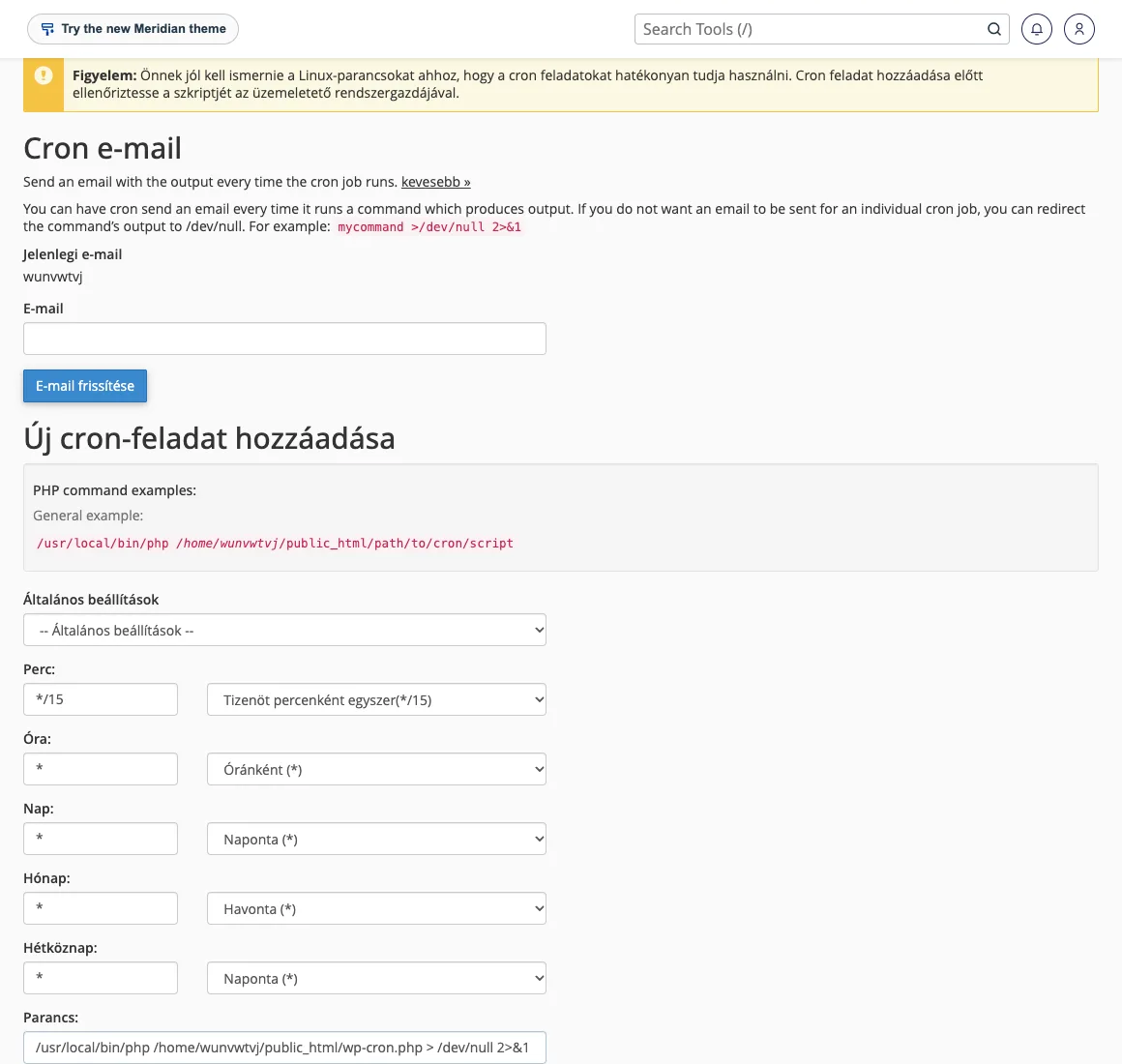
The tasks you have created will appear at the bottom of the page, in the ‘Current cron tasks’ list, where you can edit or delete them.
The scheduling fields
| Field | Values | Example |
|---|---|---|
| Perc | 0–59 | 15 = every hour at a quarter past |
| Clock | 0–23 | 3 = at 3 am |
| Day | 1–31 | 1 = on the first day of the month |
| Month | 1–12 | * = every month |
| Seven days ago | 0–6 (0 = Sunday) | 1 = Monday |
Some examples: 0 3 * * * runs every day at 3 am, */15 * * * * every quarter of an hour, 0 6 * * 1 every Monday at 6 am. The times are based on the server’s time zone.
Example commands
Running a PHP script using the PHP version configured on the hosting account:
/usr/local/bin/php /home/felhasznalonev/public_html/script.php
If a script requires a specific version of PHP, the path to that version can also be specified on CloudLinux servers; for example, for PHP 8.3:
/opt/alt/php83/usr/bin/php /home/felhasznalonev/public_html/script.php
Calling a web page URL (for example, an application’s own cron URL):
curl -s https://pelda.hu/cron.php > /dev/null
Email notification
The system sends the output of every run to the address specified in the Cron email field. If you do not wish to receive notifications, append the following to the end of the command: > /dev/null 2>&1. If you would like to review the output later, it is better to write it to a file:
/usr/local/bin/php /home/felhasznalonev/script.php >> /home/felhasznalonev/cron.log 2>&1
Useful tips
- Do not run the task more often than is strictly necessary: scripts that run every minute place an unnecessary strain on the hosting service’s resource limits.
- Where possible, store scripts outside the
public_htmlfolder so that they cannot be launched via the web. - With WordPress, it is advisable to replace the built-in WP-Cront with a genuine cron job; the steps are described in the article on replacing WordPress’s built-in cron.
You can read more about cron syntax in our article ‘Crontab syntax and scheduled tasks on Linux’, as cPanel uses the same syntax behind the scenes. For a more detailed overview, see our blog post: ‘Setting up a cPanel cron job’.