 English
 Magyar


If your WordPress site sometimes loads more slowly, or your scheduled posts do not appear on time, this is often due to WordPress’s built-in scheduler, WP-Cron. On cPanel hosting, you can replace this with a genuine, server-scheduled task.
What is WP-Cron, and what’s the problem with it?
WordPress runs its scheduled tasks (scheduled posts, checking for updates, plugin maintenance tasks, online shop emails) via the wp-cron.php file. However, this is not synchronised with the server’s clock: it runs whenever someone loads a page. The consequences of this are:
- if there are no visitors to the site at that moment, tasks are delayed (for example, a post scheduled for midnight will only appear when the first visitor arrives in the morning);
- On a high-traffic website, it runs unnecessarily often, and each run slows down the page load for that visitor;
- Due to certain cache extensions or incorrect DNS settings, it may not start at all.
The solution: disable WP-Cront, and have the server’s cron job run it regularly, for example every quarter of an hour. (For general information on cron, see the article on cPanel cron jobs.)
The easiest way: WP Toolkit
If WordPress is managed via WP Toolkit (the ‘WordPress Management’ menu item in cPanel), enable the** ‘Take over wp-cron.php’** option in the ‘Performance’ section of the website overview. WP Toolkit will then disable WP-Cron itself and configure server-side scheduling instead; the manual steps below are not required.
Manual configuration in the Cron jobs menu
-
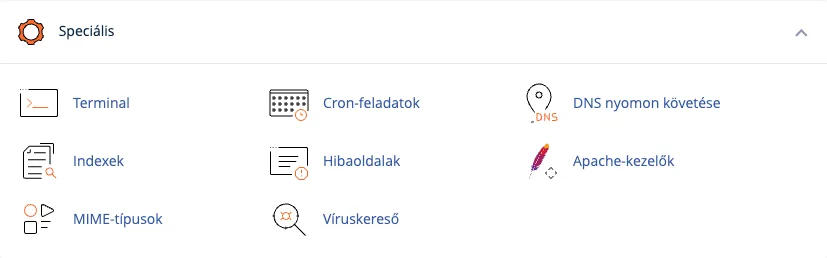
Log in to cPanel and, in the ‘Advanced’ group, click on the ‘Cron Jobs’ menu item.
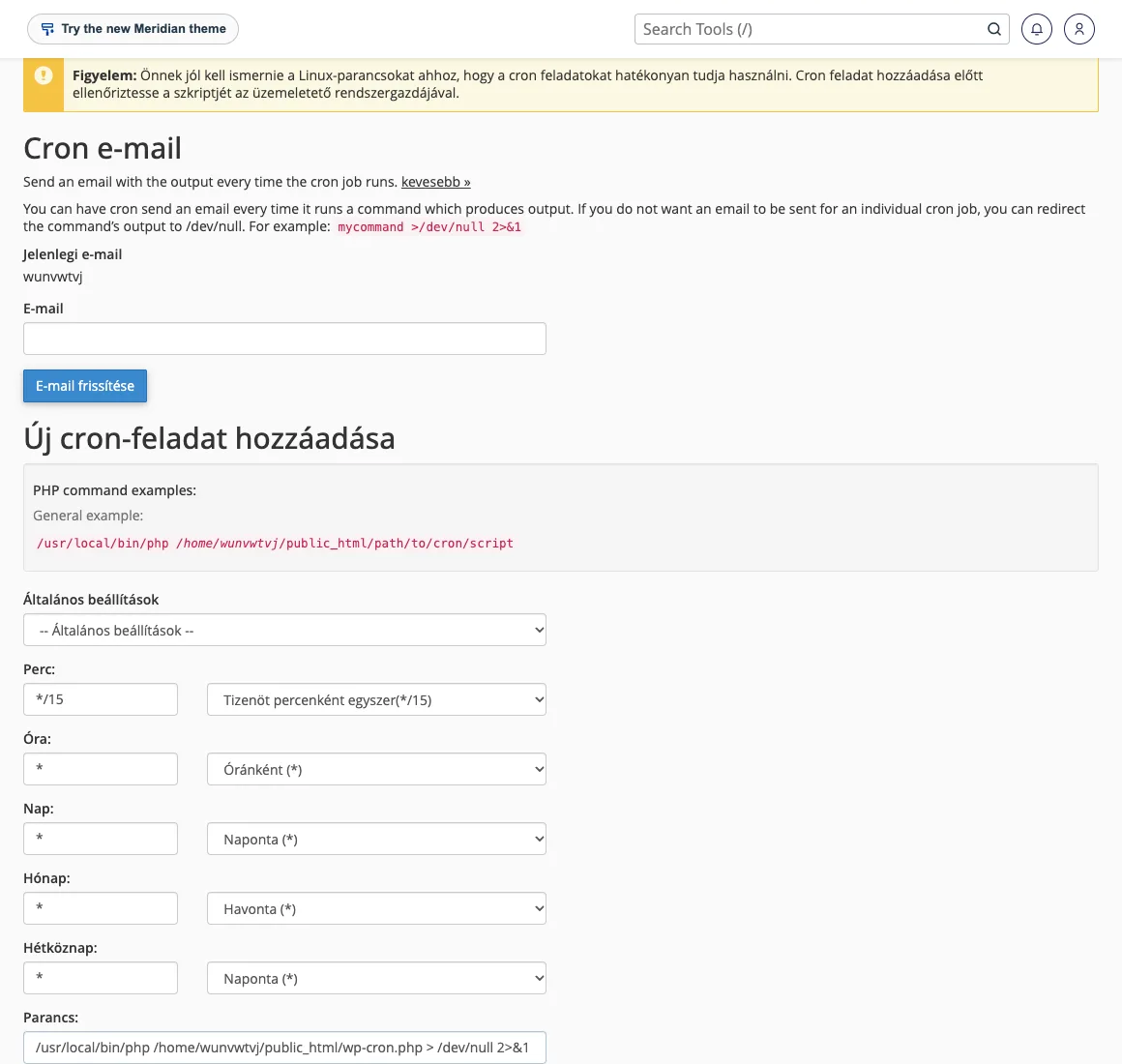
- In the ‘Add new cron job’ section, configure the schedule. To run the job every quarter of an hour, select ‘Once every fifteen minutes (*/15)’ from the list next to the ‘Minute’ field; leave the other fields (‘Hour’, ‘Day’, ‘Month’, ‘Weekday’) set to
*(all). -
In the Command field, enter one of the following commands (replace
felhasznalonevwith your cPanel username and ‘mappa’ with your WordPress directory; for the main domain, this ispublic_html):Using PHP, directly (recommended; does not depend on DNS or the web server):
/usr/local/bin/php /home/felhasznalonev/public_html/wp-cron.php > /dev/null 2>&1Using WP-CLI (runs only the scheduled tasks):
/usr/local/bin/wp cron event run --due-now --path=/home/felhasznalonev/public_html > /dev/null 2>&1Please use this direct link to the website if the above does not work for any reason:
wget -q -O - https://pelda.hu/wp-cron.php?doing_wp_cron > /dev/null 2>&1Due to the
> /dev/null 2>&1part, the system does not send an email for every run. -
Click on the ‘Add new cron job’ button.
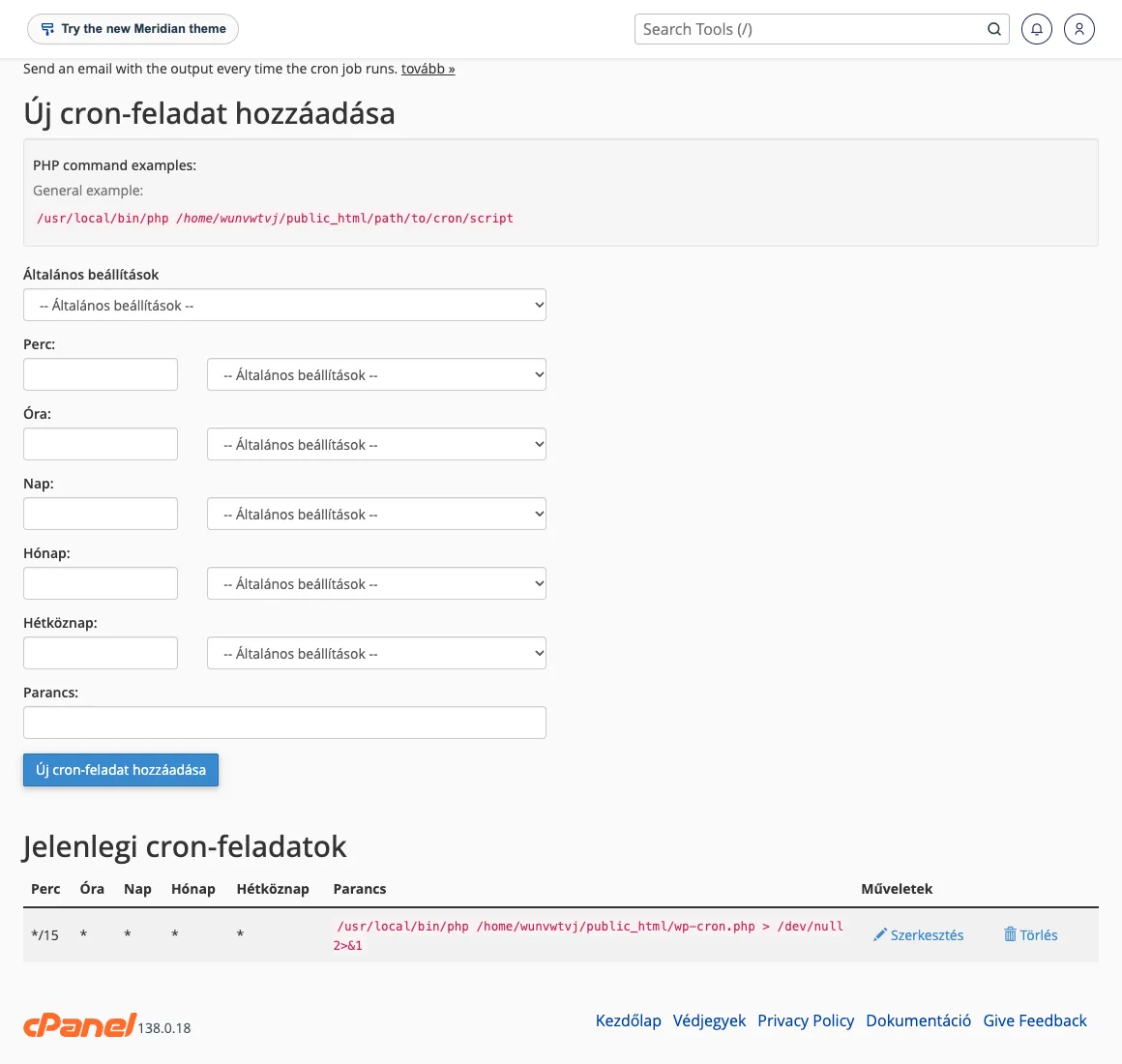
The task appears at the bottom of the page, in the ‘Current cron tasks’ list, where you can edit or delete it using the ‘Edit’ and ‘Delete’ links.
Disabling WP-Cron
If your server’s cron job is already running, disable WordPress’s built-in scheduler, otherwise both would run. To do this, add the following to the wp-config.php file in the WordPress root directory, before the line /* That's all, stop editing! */:
define('DISABLE_WP_CRON', true);
You can edit the file in cPanel’s File Manager (File Manager).
Verification
- Schedule a test post for a few minutes later and check whether it appears after the next cron run.
- The WordPress Tools › Site Health page alerts you if scheduled events are delayed.
- If the command returns an error, temporarily remove the
> /dev/null 2>&1part from the end, and enter your email address in the Cron email field: you will receive the output of the next run by email.