 English
 Magyar


The website’s files are located in the folder named public_html, and the website’s subfolders correspond to this directory: for example, the file public_html/kepek/logo.png can be accessed at the address https://pelda.hu/kepek/logo.png. Files outside the public_html folder (such as those in the mail or etc folders) are not accessible via the web.
If you add further domains or subdomains to your hosting account, they will be assigned their own folder (Document Root), which you can specify or accept when adding them. You can see which domain uses which folder on the Domains interface; this is covered in the article on the website’s root directory.
There are several ways to manage files and folders on cPanel hosting.
cPanel File Manager
cPanel also provides a File Manager that can be accessed via a web browser, located in the ‘Files’ section. Its interface is similar to that of a desktop file manager, and it supports all the most common operations:
- Uploading and downloading files (Upload, Download), including drag-and-drop uploading,
- viewing and editing files (Edit, or HTML Editor for HTML files), for example to modify a
wp-config.phpor.htaccess, - Compressing (Compression) and decompressing (Decompression) files and folders, which is much faster than uploading large numbers of files individually,
- Changing permissions (Permissions),
- copying, moving, renaming and deleting.
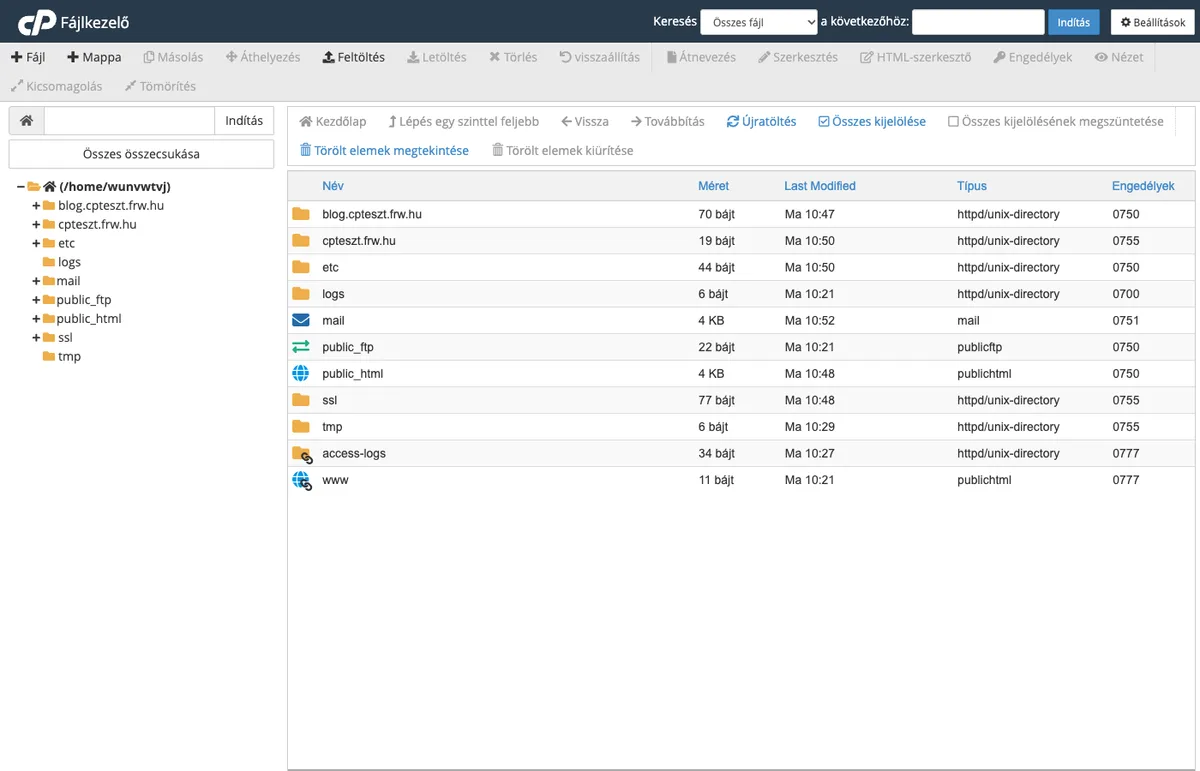
Some useful information:
- Hidden files: files beginning with a dot (e.g.
.htaccess,.user.ini) may be hidden by default. To display them, click the Settings button in the top right-hand corner, tick the ‘Show hidden files (dotfiles)’ option, then click the Save button. You can also configure which folder the File Manager should open in (for example, always in the Web Root (public_html or www) folder) in the same place.
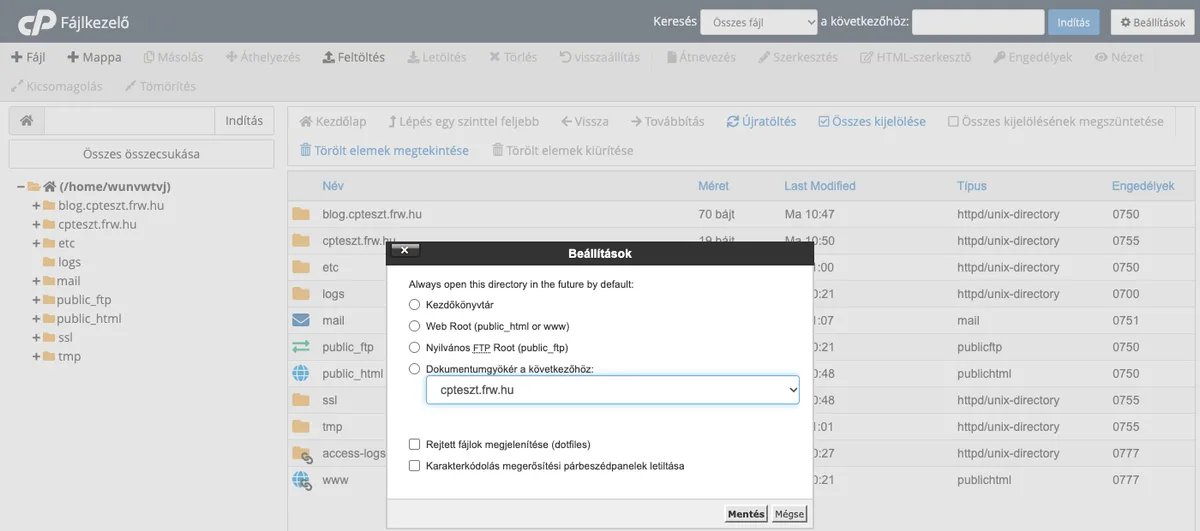
- Recycle Bin: deleted files are moved to the Recycle Bin (the
.trashfolder), where they continue to take up space until you empty the Recycle Bin. You can view the contents of the Recycle** Bin and restore files using **the ‘View Deleted Items’ **button, or permanently delete **them using the ‘Empty Recycle Bin’ button. If you choose to bypass the Recycle Bin in the deletion dialogue box, the file will be deleted immediately and permanently. - Permissions: the standard permissions for files are
644, and for folders755. A more permissive setting (such as777) poses a security risk and may even cause a 500 error on some servers. There is a separate article on chmod and chown file permissions.
Although it is excellent for quick tasks, a desktop program is more convenient for regularly modifying large numbers of files via FTP or SFTP.
FTP and FTPS
FTP (File Transfer Protocol) is a protocol that allows you to connect to the server from your own computer and upload or download files. Popular FTP programs include FileZilla, WinSCP, Cyberduck and Total Commander. To log in, you can use your cPanel username and password, or a separately created FTP account. For an encrypted connection, select the ‘FTP over TLS’ mode (port 21) in the program and enter the server’s hostname as the server.
You can create additional FTP accounts via the ‘FTP Accounts’ menu item in cPanel and restrict them to specific folders; further details can be found in the article on managing FTP users.
SFTP and SSH
SFTP is a more secure file transfer solution than FTP, operating via the SSH protocol. SSH access is available in the cP Premium, cP Pro and cP Pro 100 plans; it is recommended to use an SSH key to log in, and the process for setting this up is explained in the article on creating and uploading an SSH key. In the SFTP client, you must enter the main cPanel username, port 4231 and the same key as for SSH login; you cannot log in using a password.
Once logged in via SSH, you can manage your files from the command line or use the Midnight Commander (mc) file manager. You can find descriptions of the basics of SSH and common commands in the Linux category of our knowledge base.