 English
 Magyar


You may wish to restrict public access to a folder on your website (for example, a section under development, a test page or documents intended only for certain customers). cPanel’s Directory Privacy feature offers a simple solution to this: when the folder is opened, the browser will prompt for a username and password.
Enabling protection
- Log in to your cPanel account.
-
In the ‘Files’ group, click on the ‘Directory Security’ icon.
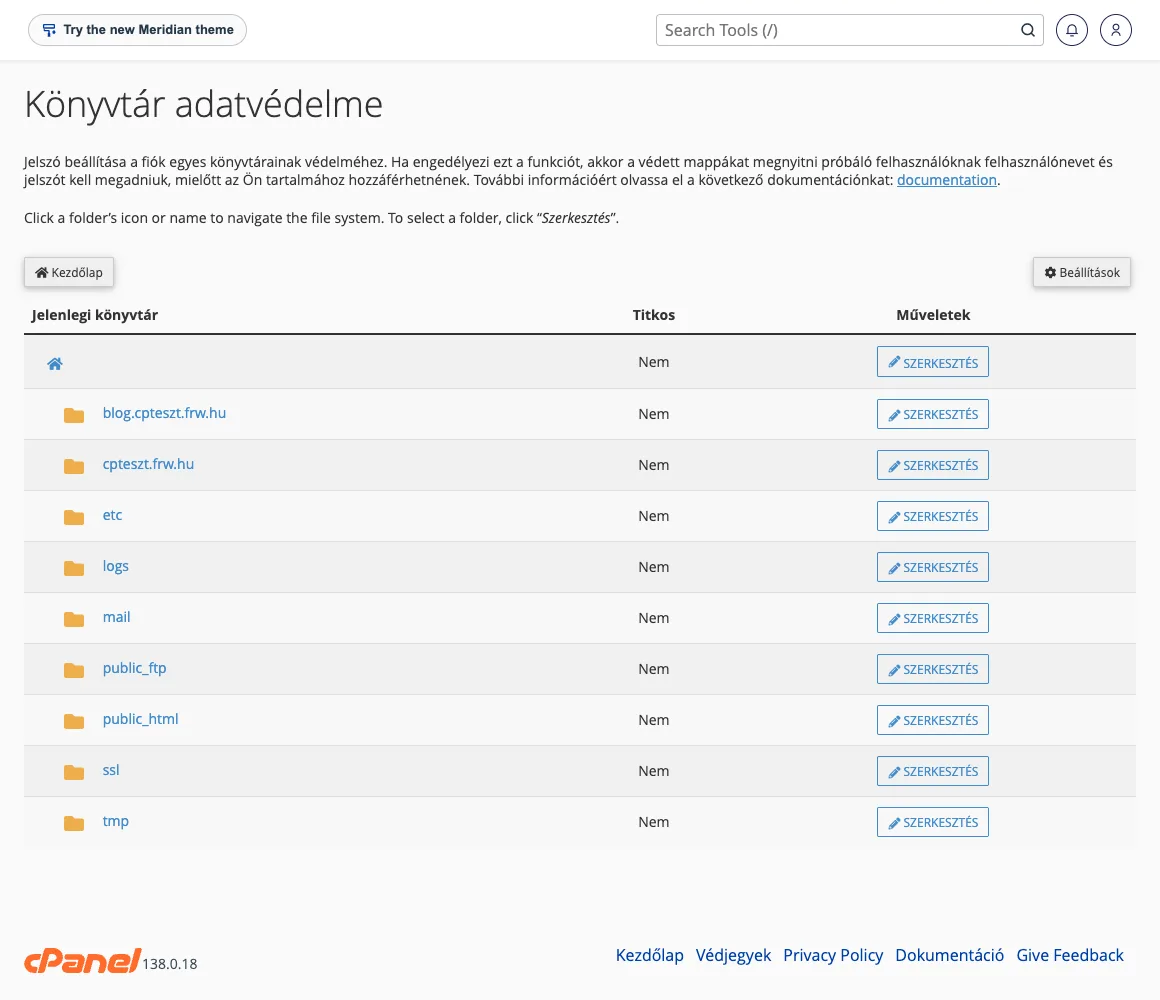
- In the folder list that appears, enter the folder by clicking on its name, or click the EDIT button next to the folder you wish to protect.
- In the Security settings section, tick the ‘Password protection for this directory’ tick box, and enter** a name in the ‘Enter a name for the protected directory’** field (this will be displayed by the browser in the login window).
- In the ‘Enter a name for the protected directory’ field, enter a name (for example, ‘Development’). This name may appear in the browser’s login window; it is not the actual name of the folder.
- Click the Save button, then the Back link.
Creating a user account
Security measures alone do not grant anyone access; you must create at least one user:
- On the same page, in the ‘Create User’ section, enter a username.
- Enter your password twice, or use the **‘Password **Generator’ button.
- Click the Save button.
A single folder can have multiple users associated with it; for example, you can grant each customer their own separate access. You can change a user’s password by saving a new password under the same username. To delete a user, select them from the Authorised Users list and click the Delete User button.
Verification
Open the folder path in a private (incognito) browser window. If a login window appears and you can log in using the correct details, the protection is working. Folders that are already protected are marked with a padlock icon in the Directory Privacy list.
Important information
- Subfolders are also protected: this protection applies to the entire contents of the folder.
- This only protects web access: the folder remains accessible via FTP, SFTP or the File Manager with the appropriate login details.
- Use HTTPS: the browser sends the password with every request, so it could be intercepted over an unencrypted HTTP connection. There is a separate article on redirecting the website to HTTPS.
- How it works: the function writes rules to the .htaccess file in the folder and stores passwords in a
.htpasswdfile. The contents of the folder are not encrypted, but access to them is restricted.
Common errors
- Protecting the WordPress
wp-adminfolder: WordPress also uses thewp-admin/admin-ajax.phpfile on the public-facing side of the site, so protecting the entire folder may prevent certain plugins (such as forms or shopping trolleys) from working. In such cases, it is better to protect the login page instead; this is covered in the article on basic WordPress security settings. - The password is not being accepted: please check that the user has been created for this folder and that no old password is stored in the browser.
- Unable to create a user: this may be due to folder permissions; in this case, please open a ticket.
- To disable protection: untick the ‘Password protection for this directory’ box and click the ‘Save’ button.