 English
 Magyar


A dynamic website (such as WordPress, WooCommerce, Joomla or a custom PHP application) stores its content in a MySQL database. If you are installing the application manually, you must first create a database and a database user, and link them together. The cPanel Database Wizard performs this in a single step.
If you install WordPress using WP Toolkit (see the steps for installing WP Toolkit), it will create the database for you, in which case this step is not necessary.
1. Creating a database
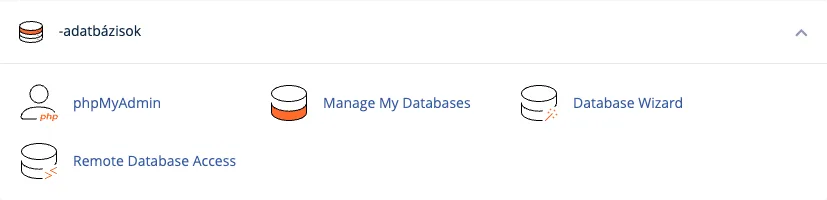
Log in to cPanel and, in the Databases section, click on the Database Wizard icon.
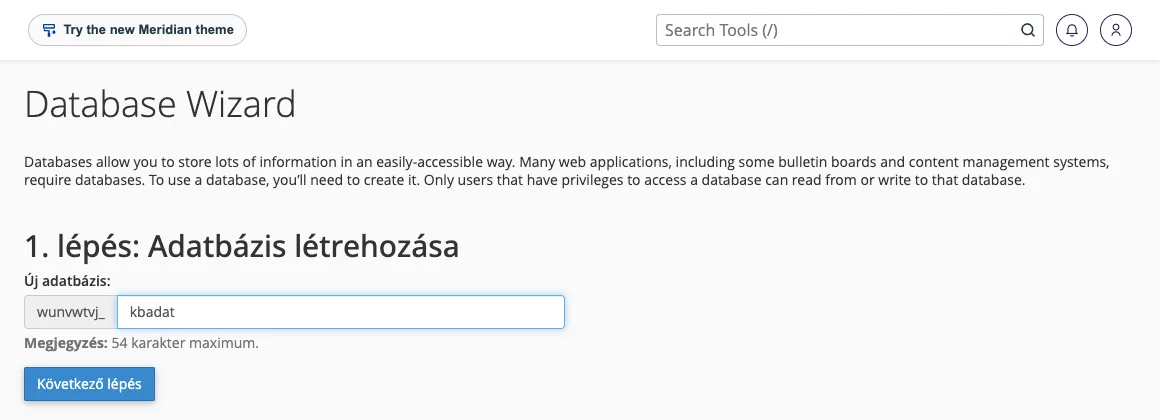
The first step is to enter the name of the database. The beginning of the name is fixed: your cPanel username, followed by an underscore, and you are free to choose the part that comes after that. Choose a descriptive name; for example, ‘wp’ or ‘webshop’ is better than ‘db’, so that you’ll know later which database belongs to which website.
Once you have completed the ‘New database’ field, click the ‘Next step’ button.
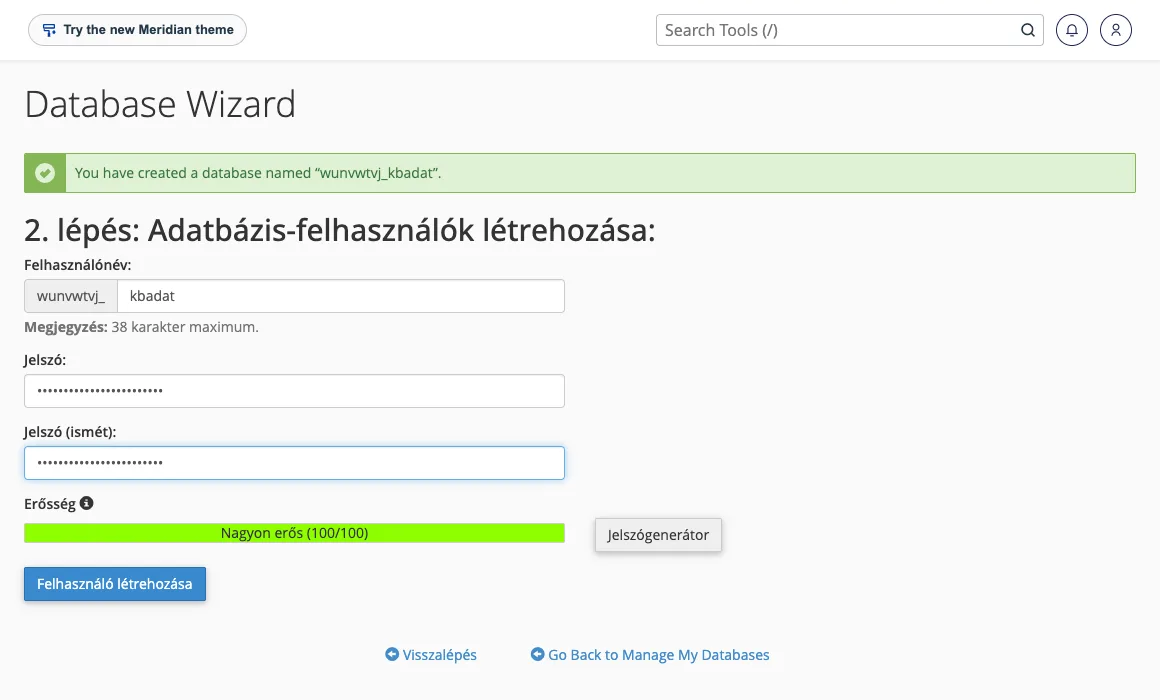
2. Creating a user
On the next page, enter the database user’s name and password. The simplest option is for the user name to be the same as the database name. Use the built-in Password Generator to create a password, and make sure to save it, as you will need it when configuring the application. Then click the ‘Create User’ button.
3. Assigning permissions
In the final step, you assign the user to the database. Applications almost always require all permissions, so tick the ‘ALL PERMISSIONS’ box (this selects all the permissions listed below it), then click the ‘Next step’ button.
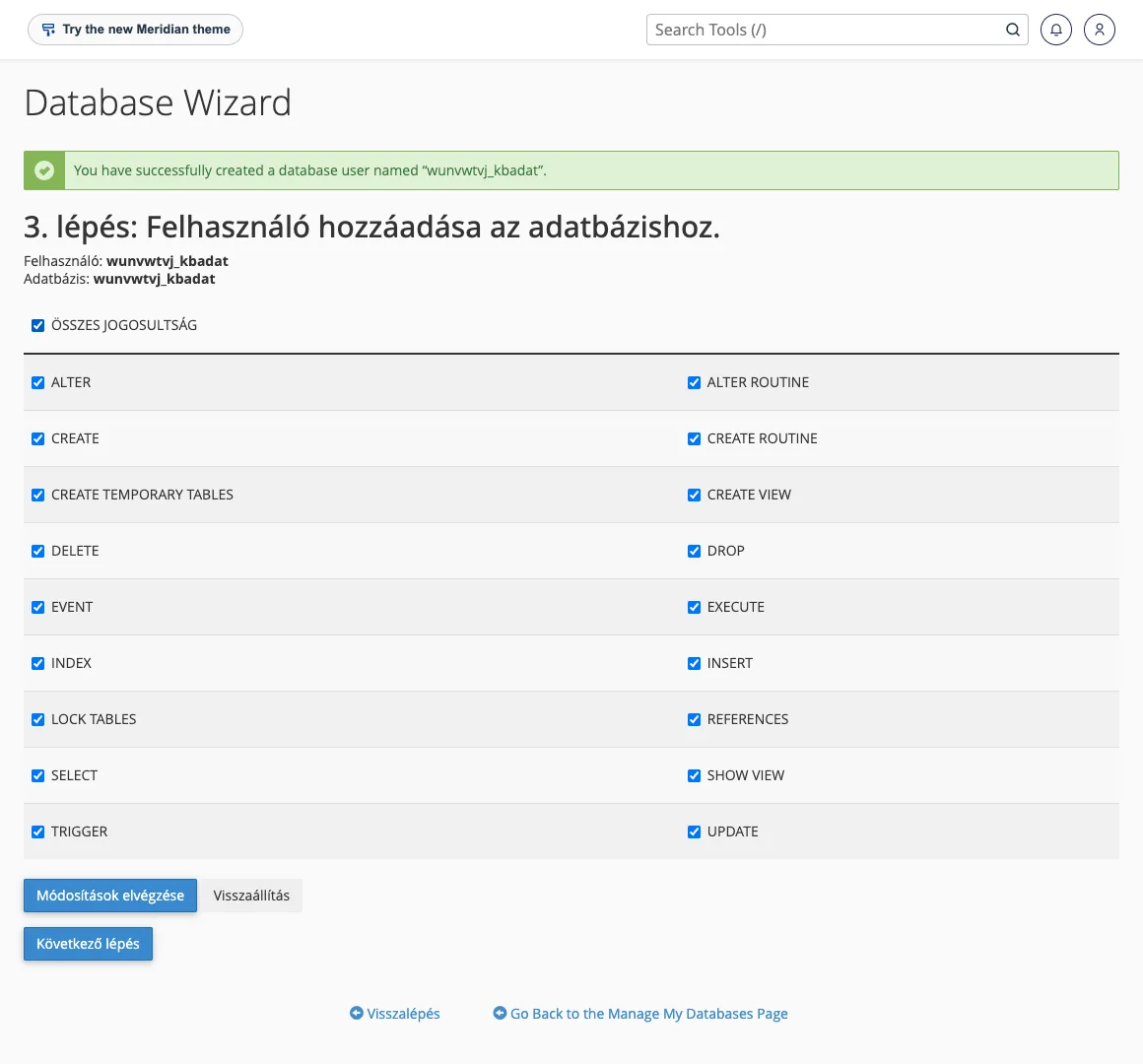
The database, the user and the mapping are now complete.
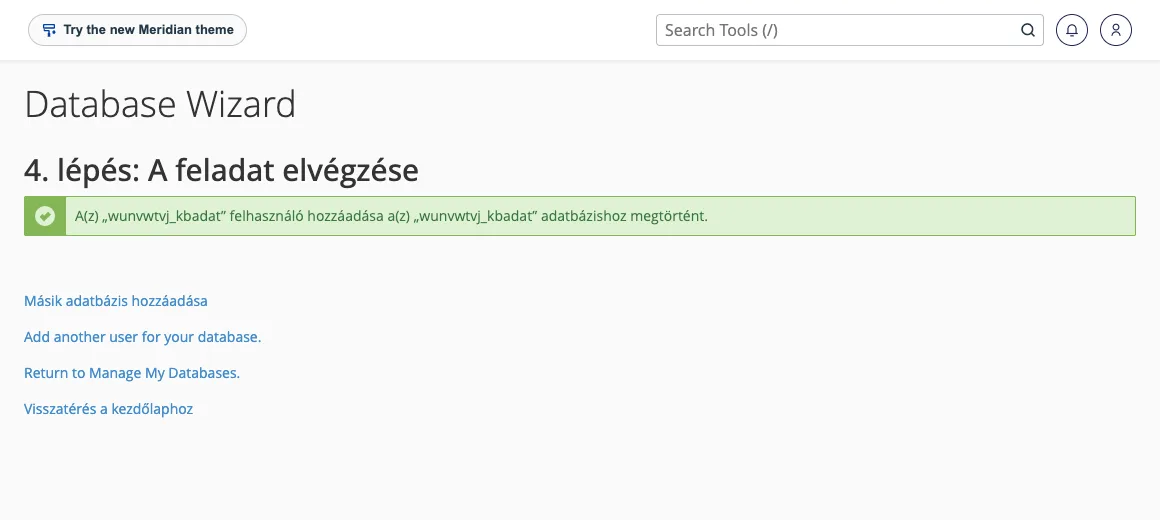
You can manage your databases and users later via the ‘Manage My Databases’ menu: here you can create new ones, assign a user to an existing database, or check and repair the database (‘Check Database’, ‘Repair Database’).
Setting up the application
You must enter the following details in the application’s installer or configuration file:
| Settings | Value |
|---|---|
| Database name | the full name with a prefix, for example felhasznalonev_wp |
| Username | the full name with a prefix, for example felhasznalonev_wp |
| Password | the password entered in step 2 |
| Server (host) | localhost |
In WordPress, these are placed in the wp-config.php file; the manual installation process is described in the article on installing WordPress manually.
Next steps
- You can view and edit the contents of the database via the phpMyAdmin interface, which can also be found in the Databases section.
- If you wish to connect from another machine (for example, your own computer), you must enable remote access separately; this is covered in the article on remote access to the database.
- The process of restoring a database from a backup is described in the article on restoring files and databases from JetBackup.