 English
 Magyar


If you have accidentally deleted an important file, an update has corrupted your website, or you need to restore the database to a previous state due to an incorrect change, you have two options on cPanel hosting: from the daily backups of your hosting account, which are stored in a geographically separate location via the JetBackup interface, or from a backup that you downloaded yourself previously.
Restoring from the daily backup (JetBackup)
This is the simplest solution if you know on which day everything was still working properly.
-
Log in to cPanel and, in the ‘Files’ section, open the JetBackup 5 interface (you can also find it by typing in the search box).
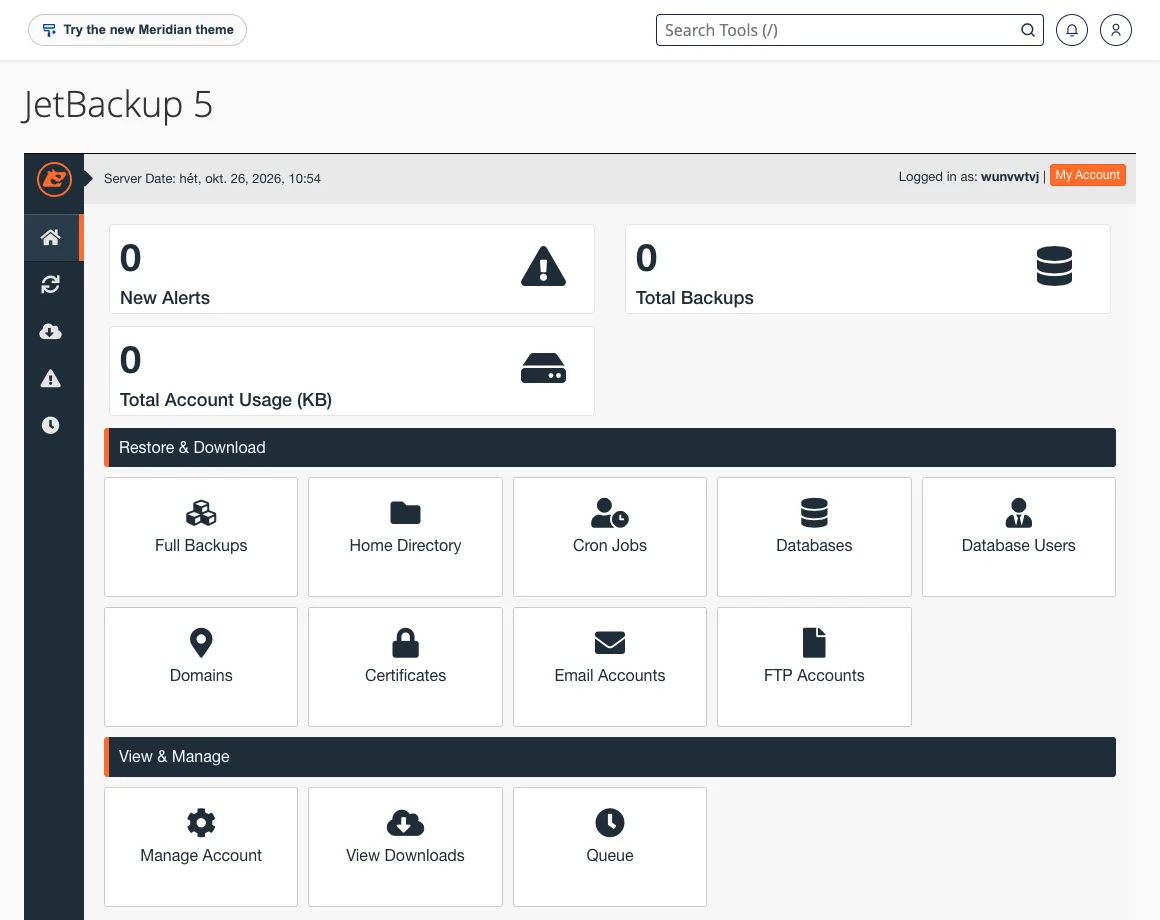
- Select what you would like to restore:
- Home Directory (files and folders),
- Databases (MySQL databases),
- Email Accounts (content of email accounts),
- or Full Backups (the entire account).
- Select the backup date. The list starts with the most recent backup.
- For files, you can use the ‘Change Files Selection’ button to select the specific files or folders you wish to restore, so you do not need to restore the entire storage space.
- Click the ‘Restore’ button. If you simply wish to view the backup, you can also prepare it for download using the ‘Download’ button.
The restoration runs in the background; you can monitor its progress via the menu on the left or under the ‘Queue’ menu item in the ‘View & Manage’ group. JetBackup can also restore the settings for Cron Jobs, Database Users, Domains, Certificates and FTP Accounts separately. For larger storage spaces, this may take a few minutes.
What should you look out for?
- **Restoration **will overwrite the current contents of the selected files and databases with the state captured in the backup. For databases, any data received since the backup (such as orders or comments) will be lost.
- Before you begin: if you are unsure, first back up the current state so that you can revert to it if necessary.
- Full account restore: only select this option if you really need to restore the entire account; in the event of an error affecting a single file or database, a targeted restore is quicker and carries less risk.
- When using WordPress, ensure that you restore both the database and the files to the same date; otherwise, the plugin versions and the database structure may differ.
Restoring from your own backup (Backup Wizard)
If you have previously downloaded a backup via the cPanel Backup or Backup Wizard interface, you can perform a partial restore from it:
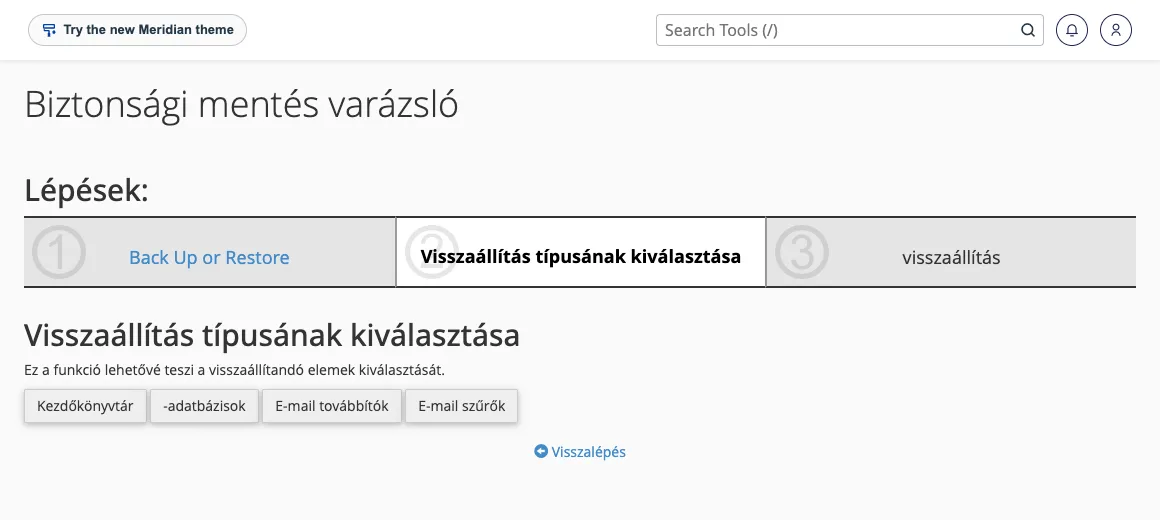
- Open the Backup Wizard interface in the Files section and click the Restore button.
- Select the type of backup:
- Home directory: backup of the home directory (
.tar.gz), - Databases: backup of a database (
.sqlor.sql.gz), - Email forwarders or email filters.
- Home directory: backup of the home directory (
- Use the ‘Choose File’ button to select the file, then click the ‘Upload’ button.
The full account backup cannot be restored automatically via the cPanel interface. If you need to restore your entire account from such a backup, please open a ticket and we will carry out the restoration for you. For information on creating your own backup, please refer to the article on full cPanel account backups.
Manual restoration of individual files
If you only need one or two files from a downloaded backup, upload the archive to a temporary folder in File Manager, extract it, then copy the required files back to their original locations. In a full backup, the website’s files are located in the homedir/public_html directory. You can read more about this in our article ‘Managing files on cPanel hosting’. Afterwards, delete the temporary folder, as it takes up space on your hosting account.
Restoring a database using phpMyAdmin
If you have a SQL format database backup, select the destination database on the left-hand side in phpMyAdmin, then upload the file via the ‘Import’ tab. If the backup does not contain any DROP TABLE statements, it may conflict with existing tables; in this case, you should first empty the database, but only if you are certain you no longer need the current state.
We have a separate article on backup and restoration for WordPress sites.