 English
 Magyar


On cPanel hosting plans, the email archiving (Archive) feature automatically creates backups of emails from the domain’s mailboxes on the server. This is useful if you need to be able to retrieve emails even after the user has deleted them from their inbox, for example, in the case of customer complaints, accounting queries or internal regulations.
What does the system archive?
- Incoming email messages: emails received at any address on the domain.
- Outgoing email messages: emails sent from the domain’s accounts.
Archiving takes place before the email filters are run, which is why emails marked as spam are also included in the archive. Emails received before the feature was enabled are not saved retrospectively.
Steps to activate the service
- Log in to your cPanel interface.
-
In the ‘E-mail’ group, click on the ‘Archive’ menu item.
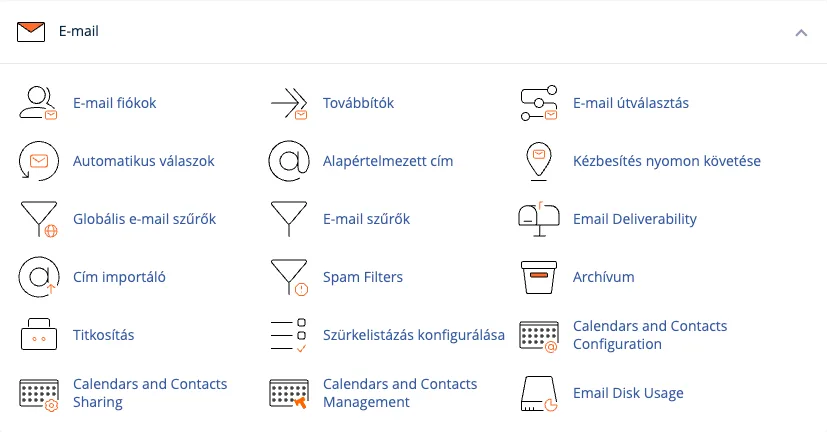
- In the ‘Archiving Management’ table, under the ‘Domain’ column, tick the option you wish to archive (Incoming email messages, Outgoing email messages).
-
From the list displayed next to the selected type, choose the retention period: 1 month, 3 months, 6 months, 1 year, 2 years, 5 years, 10 years, Forever or Custom (specified in days). Once the retention period has expired, the system will automatically delete older archived emails. The setting takes effect immediately, without the need to save it separately.
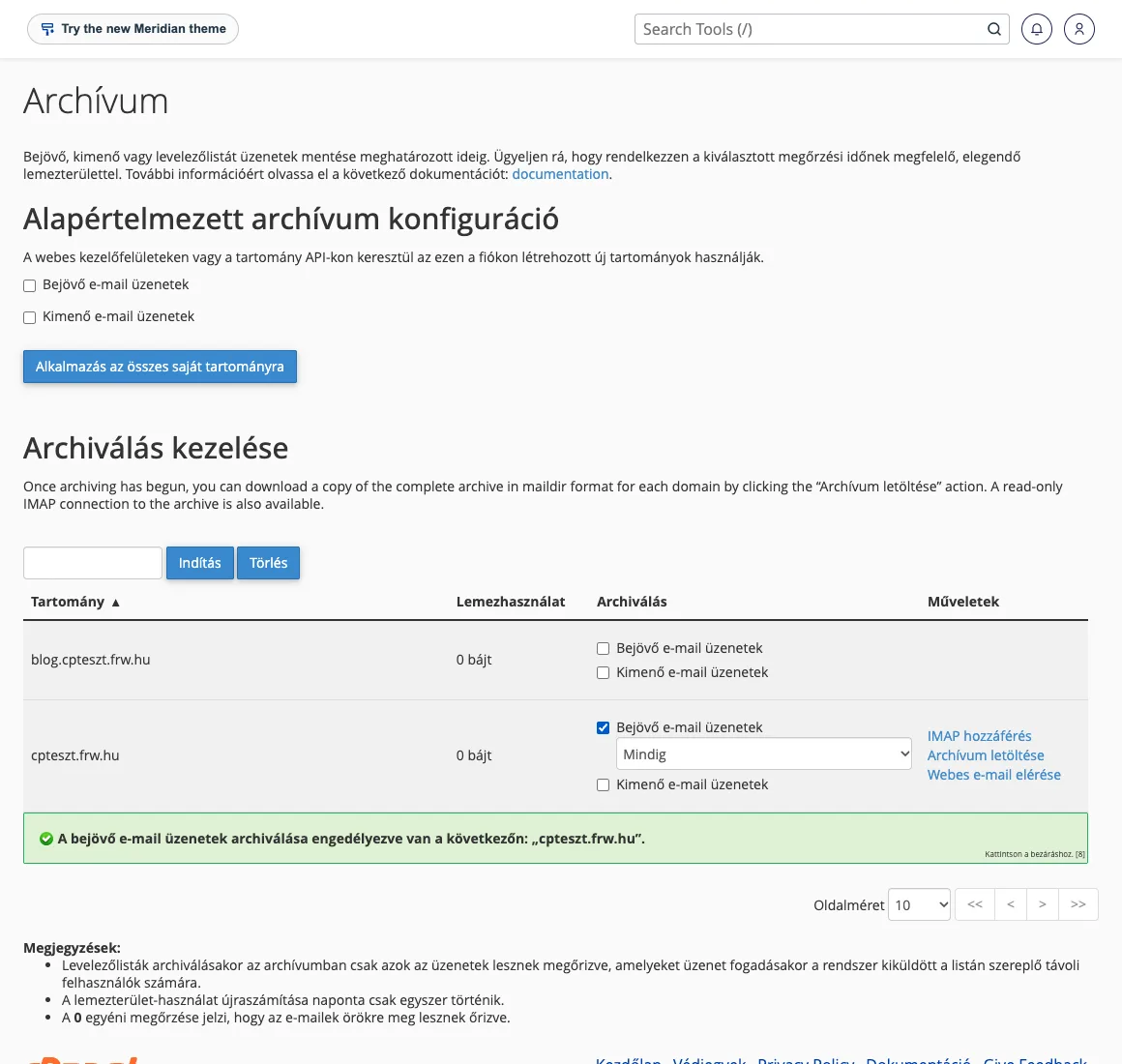
At the top of the page, in the ‘Default archive configuration’ section, you can specify which types the system should archive for new domains added at a later date; by clicking the ‘Apply to all my domains’ button, this setting will also apply to all existing domains.
Accessing the archive
If archiving is enabled, three links will appear in the domain row:
- IMAP access: can be configured in your email client (Thunderbird, Outlook, etc.); this is a read-only archive account. The incoming server is
mail.az-on-domainje.hu, port 993 (SSL/TLS). Emails are displayed in folders organised by day. - Download the archive: the archive can be downloaded as a
.zipfile. - Accessing webmail: the archive opens in your browser, within the webmail interface.
The archive can also be found in the mail folder in the home directory, so it is accessible via FTP or in File Manager.
The names of the daily folders and the sorting of emails are based on the GMT (UTC) time zone; therefore, for example, an email sent shortly after midnight may also appear in the previous day’s folder.
Hosting and storage
The archive is stored on the same storage space as the mailboxes and counts towards your plan’s storage quota. For high-traffic mailboxes, long-term (e.g. unlimited) retention can quickly take up a lot of space, so it is worth checking your disk usage from time to time. If you are running out of space, reduce the retention period or download and delete the old archive. For information on managing mailbox sizes, see the article on mailbox quotas and freeing up space.
It is important to note that the archive is not a substitute for a backup: the emails are stored on the same server as the originals. The article on restoring files and databases explains which data can be restored from the daily backup of the storage space.
If you cannot see the ‘Archive’ menu item
The Archive interface will only appear if it is enabled at server level. If you cannot find it in cPanel (even when searching for it in the search box), please open a ticket on the client portal and we will assist you.