 English
 Magyar


An automatic daily backup is taken of your cPanel hosting account, from which you can restore your data yourself via the JetBackup interface (restore steps). If, in addition, you would like your own downloadable copy of your entire account (for example, before a major reorganisation, or to move your account to another provider), you can create a full account backup via the ‘Backup’ menu item.
Creating a full backup
-
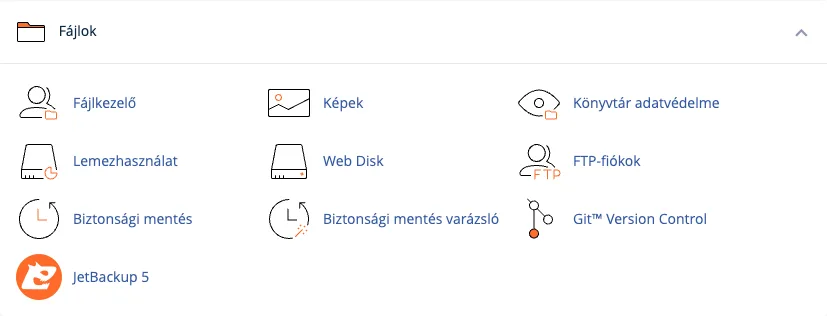
Log in to cPanel and, in the ‘Files’ section, click on the ‘Backup’ icon (you can also find it by typing ‘Backup’ into the search box).
-
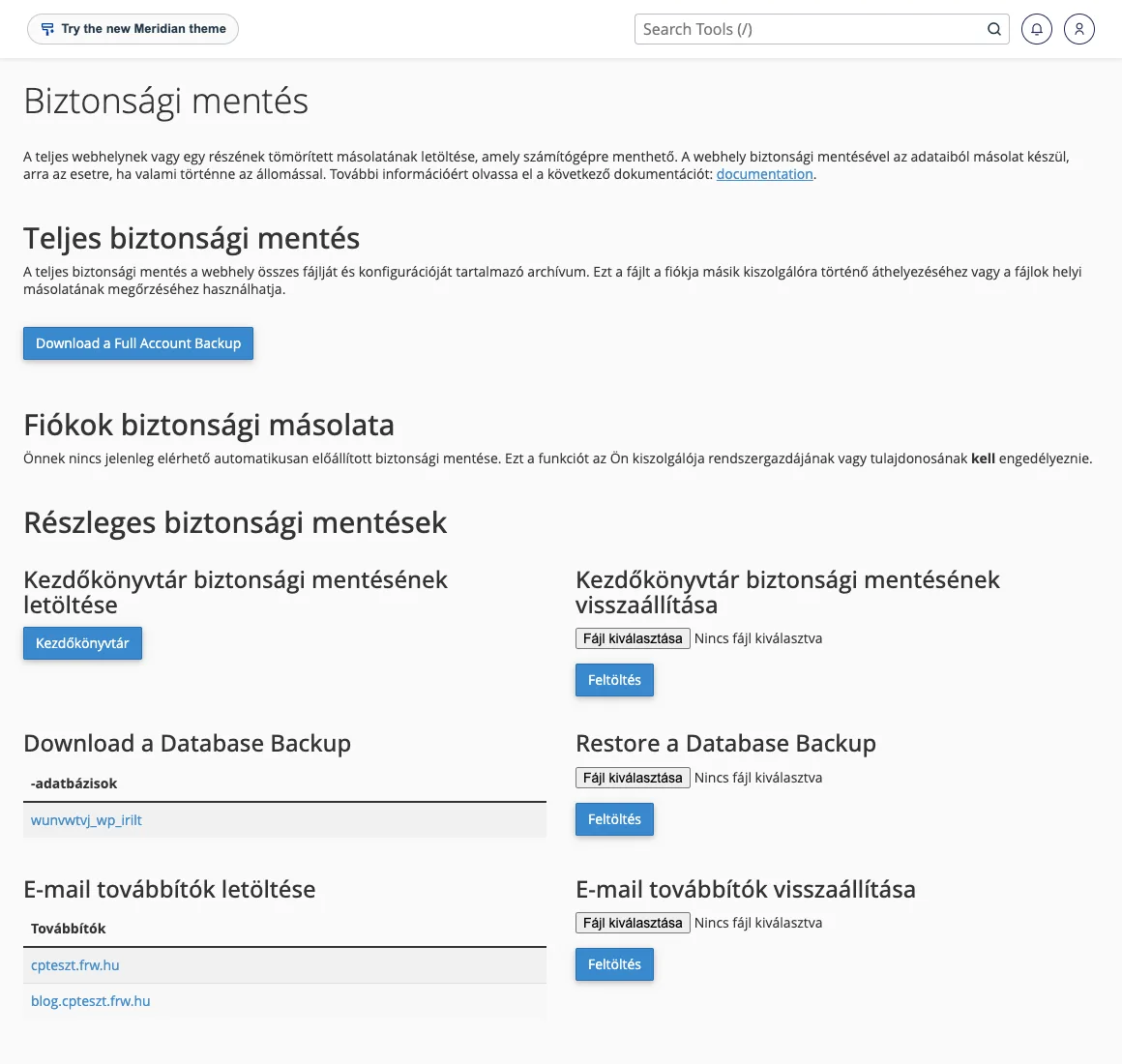
In the ‘Full Backup’ section, click on the ‘Download a Full Account Backup’ button.
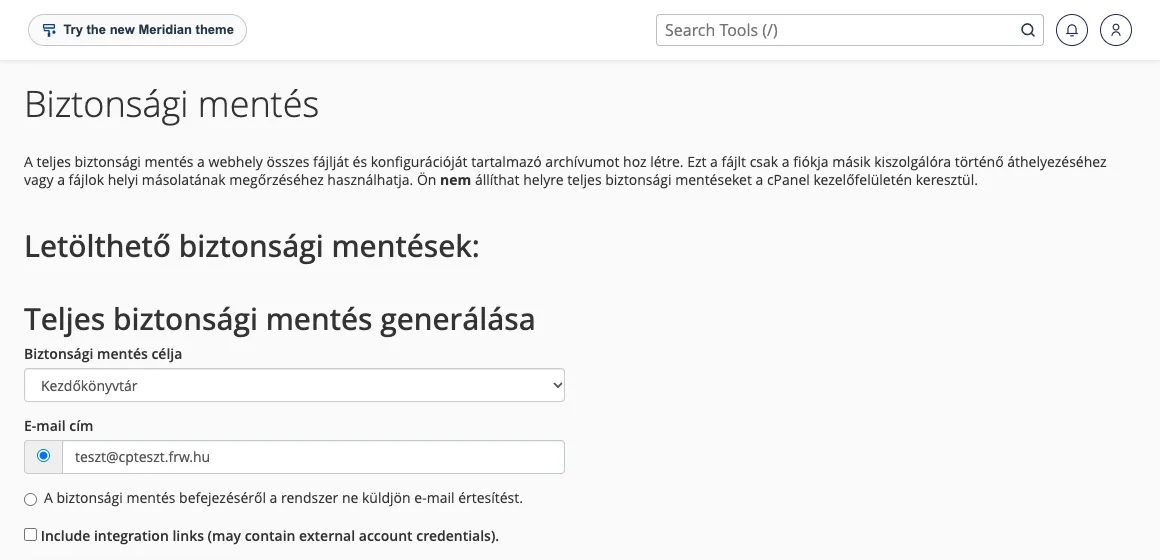
- On the** ‘Create a Full Backup’** page, select the purpose of the backup:
- Home directory: the backup is saved to the home directory of your hosting account, from where you can download it. In most cases, you should select this option.
- Remote FTP server or Remote FTP server (passive mode transfer): once the backup is complete, it is transferred to another server; you must specify its address, username, password, port and directory. Passive mode is required if the remote server is behind a firewall.
- Secure Copy (SCP): file transfer to another server via SSH.
- In the ‘Email address’ field, enter the address to which the system should send a notification once the backup is complete, or choose not to receive a notification.
-
Click on the ‘Generate backup’ button.
The backup runs in the background; depending on the size of your account, it may take anywhere from a few minutes to an hour. Once complete, it will appear on the Backups page, in the list of Downloadable Backups (named backup-…tar.gz); click on it to download.
What should you look out for?
- Backups take up space: a backup file created in the home directory counts towards your storage quota. After downloading, please delete it in File Manager, otherwise there will not be enough space for the next backup, and your disk usage will increase unnecessarily (disk usage).
- Restoration: It is not possible to restore a full backup via the cPanel interface. It is intended for moving the account to another server or for keeping a local copy. You can download and restore individual parts of the hosting account (home directory, database, email forwarders and filters) separately via the ‘Partial Backups’ section on the ‘Backup’ page; you can also restore data from the daily automatic backup via the JetBackup interface.
- Moving to us: if you’re moving from another provider, you don’t need to make a backup and upload it yourself; we’ll carry out the hosting migration free of charge.