 English
 Magyar


Within the cPanel interface, you can create separate FTP accounts, for example for a web developer or a colleague who can only upload files to a specific folder. The number of FTP accounts is unlimited in cPanel hosting plans.
Important: You can also log in via FTP using your cPanel username and password. This account has unrestricted access to all files and folders on your hosting account, so do not share it with anyone; always create a separate FTP account for third parties.
Creating an FTP account
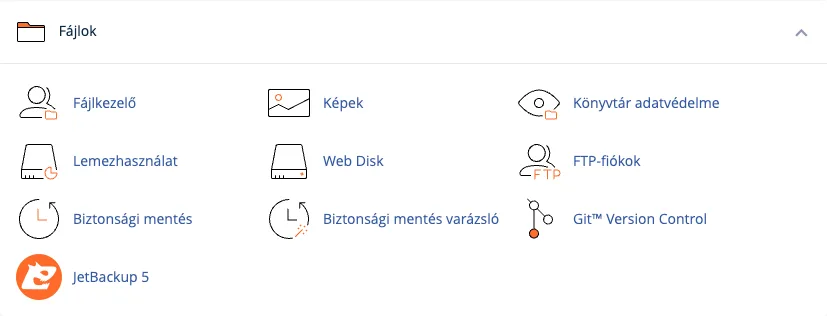
On the cPanel home page, in the ‘Files’ section, click on the ‘FTP Accounts’ icon.
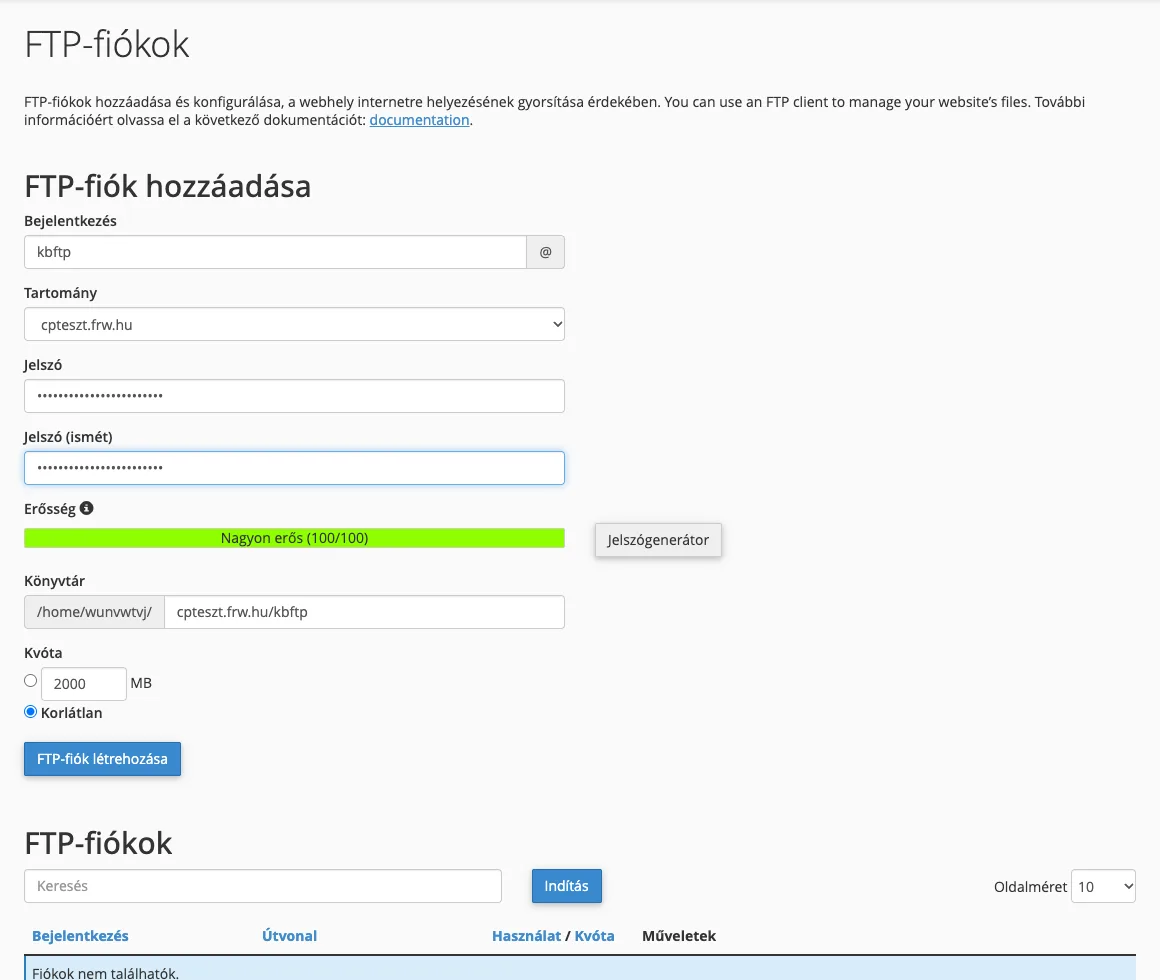
In the** ‘Add FTP Account**’ section, please complete the form:
- Log In: your username. The full FTP username includes the domain name after the @ symbol (for example,
fejleszto@pelda.hu); you can select the domain from the Domain list next to it. - Password: a strong, unique password; you can use the Password Generator.
- Directory: the folder to which the account has access, including its subfolders. This field is automatically populated based on the username, but you can edit it. If the account can only manage one website, enter its folder (for example,
public_htmlfor the main domain, or the folder for an additional domain). The account cannot see any files outside the specified folder. - Quota: the maximum amount of data that can be uploaded via the FTP account. If you do not wish to set a specific limit, select the ‘Unlimited’ option; in this case, the limit specified in your hosting plan will still apply.
Finally, click on the ‘Create FTP Account’ button.
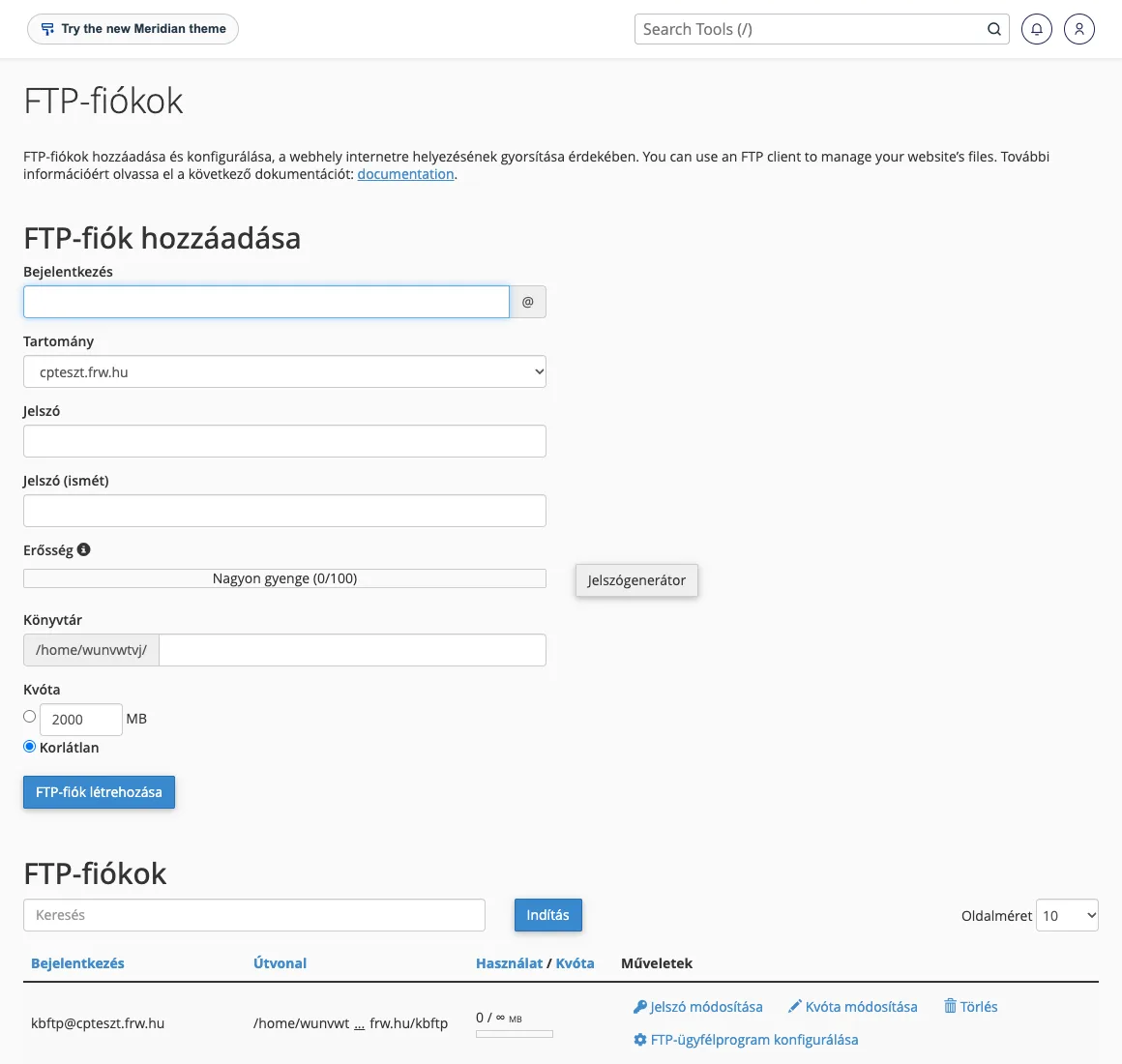
Once created, the new FTP user will appear in the list, where you can change their password and quota at a later date.
Setting up the FTP client
In your FTP program (e.g. FileZilla, WinSCP, Cyberduck), enter the following:
- Server: the name of the server. For an encrypted connection, use the server’s hostname rather than your own domain name, as FTP does not support multiple domains on a single server each having their own certificate; using your domain name may cause the program to report a certificate error.
- Encryption: select the ‘explicit FTP over TLS (FTPS)’ option so that your password and files are encrypted during transmission. The port is 21.
- Username: the full FTP username
fejleszto@pelda.huand the corresponding password.
In the list, next to each account, there is a link labelled ‘Configure FTP client’ which allows you to download configuration files for certain programs.
SFTP operates via the SSH protocol; therefore, it cannot be used with separate FTP accounts, but rather with the main cPanel user (preferably using an SSH key) in those plans where SSH is also available. A separate article covers how to set up SSH key-based access.
Deleting an FTP account
To delete an FTP user, click the ‘Delete’ link next to their name. In the ‘Delete account?’ prompt that appears, you can choose what to do with the account’s folder:
- If you do not tick the ‘Delete user’s home directory’ box, only the account will be deleted; the files will remain. In most cases, you should do this.
- If you tick this box, the root directory and all its contents will be deleted along with the account. If the account had access to the
public_htmlfolder, the website files will also be deleted!
Finally, click the Delete button (or the Cancel button if you have changed your mind). In the same row, you can also change your account password and quota using the** Change password** and Change quota links.
Common errors
- 530 Login authentication failed: the username is missing the
@domainpart, or the password is incorrect. If necessary, set a new password via your account. - Certificate error on connection: enter the server’s hostname instead of the domain name.
- The folder listing gets stuck, time-out: set the program to passive (PASV) mode; if you have a firewall on your network, this may also be the cause.
- When uploading, the message ‘Disk quota exceeded’ appears: you have reached your FTP account quota or hosting limit; please check your disk usage.