 English
 Magyar


You can change the password for the primary user of your cPanel hosting account via our client portal. Once you have logged in to the client portal, you can set a new password even if you do not know your old one.
Changing your password on the client portal
-
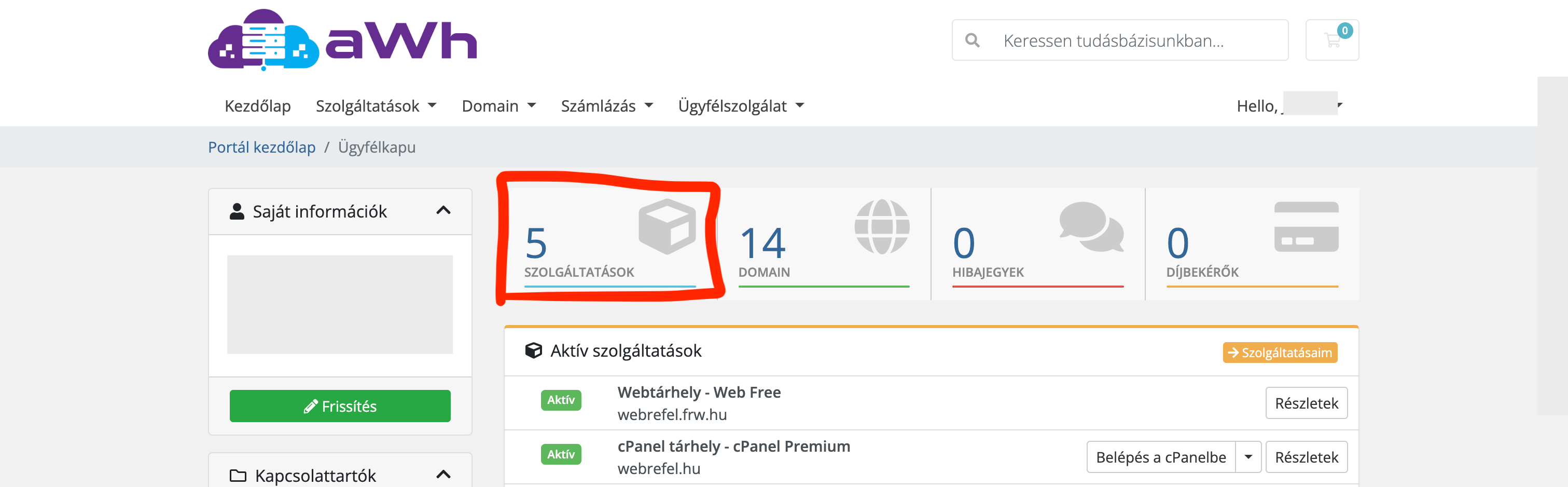
Log in to the client portal and click on the ‘Services’ box on the home page.
-
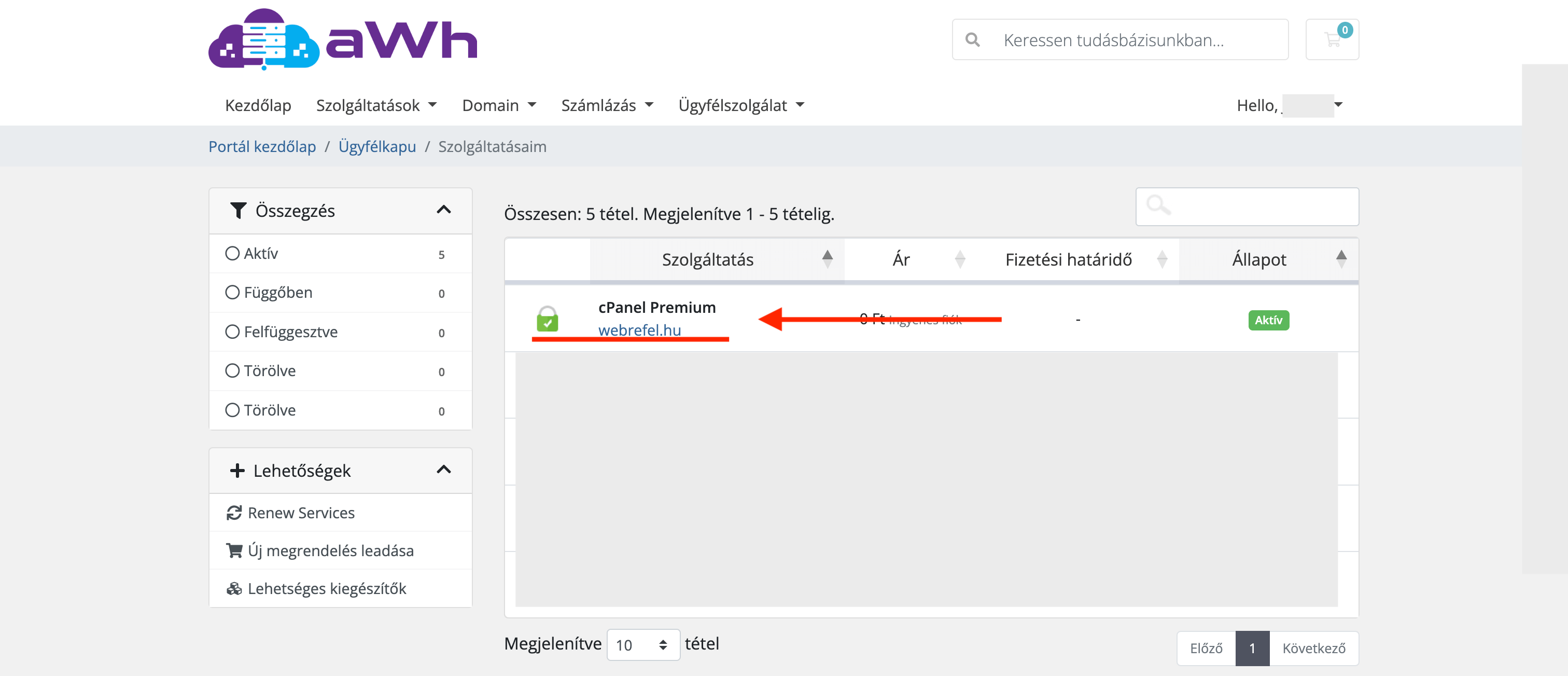
All services are listed on the following page. Click on the hosting account for which you wish to change the password.
-
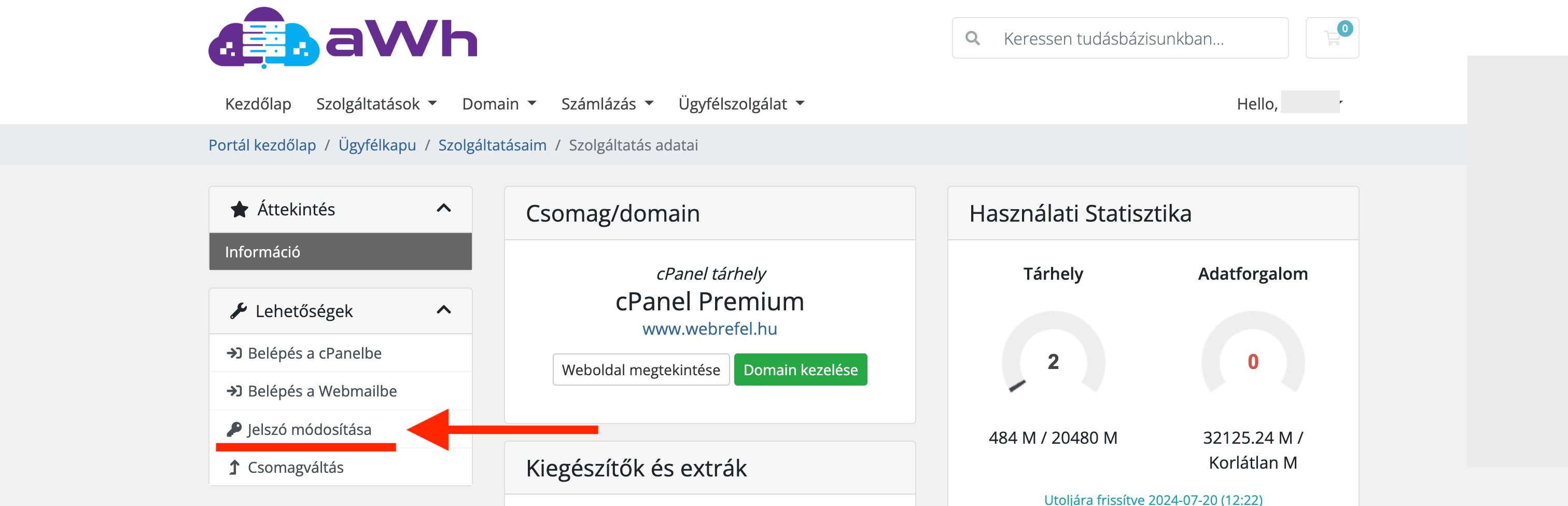
On the hosting page, in the ‘Options’ box on the left-hand side, click on the ‘Change password’ menu item.
-
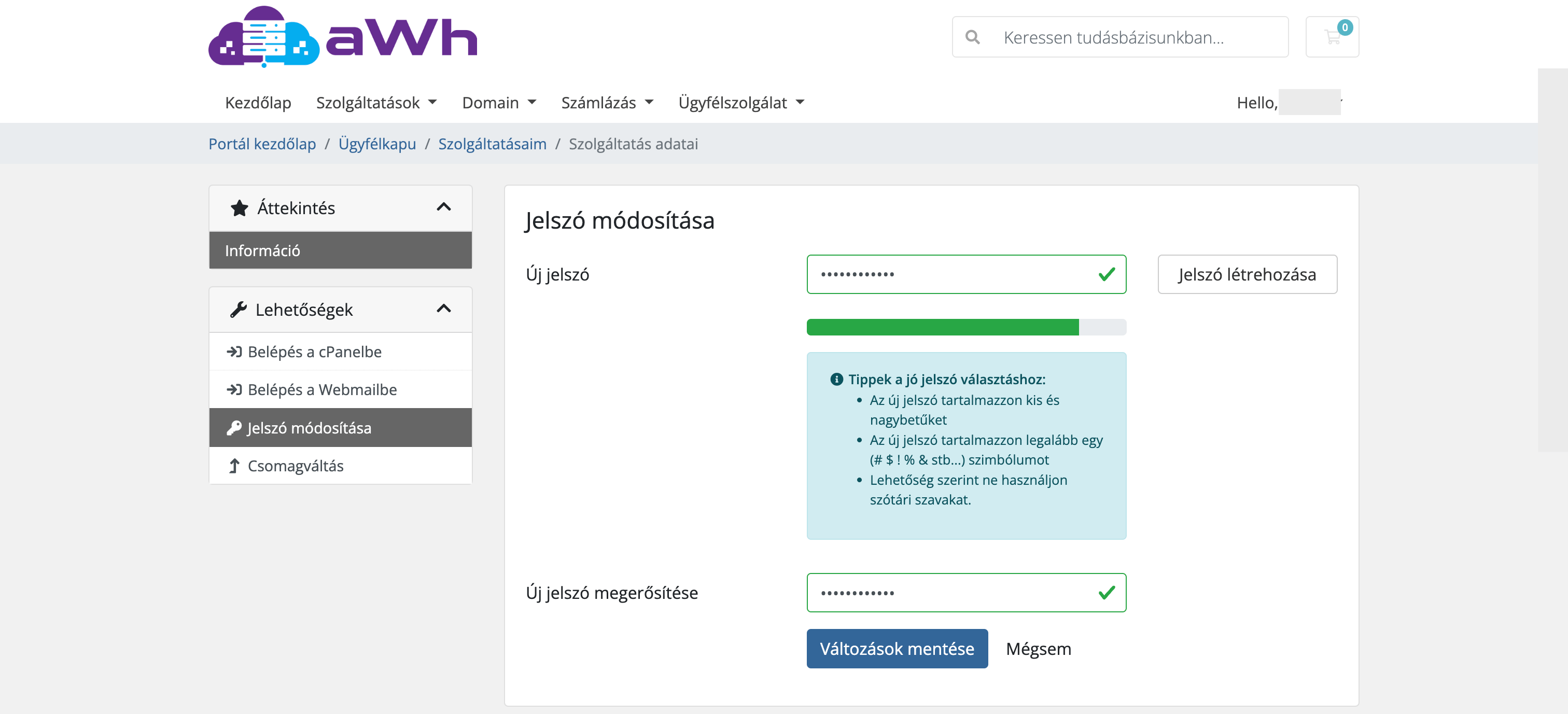
Enter your new password twice. By clicking the** ‘Create Password’** button, the client portal will generate a secure password for you, but you can also enter your own password.
-
Click the ‘Save changes’ button. You can then log in to cPanel using your new password.
What should the new password be?
- At least 12 characters long, containing lower-case and upper-case letters, numbers and punctuation marks.
- Do not use it with any other service, and do not include your domain name or username in it.
- Save it in a password manager so you don’t have to remember it.
As well as your password, it is worth enabling two-factor authentication, so that knowing your password alone is not enough to log in.
What does the change affect?
- The main FTP account uses your cPanel username and password, so you will need to enter this password in your FTP program (such as FileZilla) as well.
- Email accounts, separately created FTP accounts and database users each have their own passwords; these are not affected by the change.
- The password for the client portal is a separate password: you can change it on the portal in the top-right menu, under your account settings.
If, after the change, you repeatedly attempt to log in with an incorrect password (for example, because a program has remembered an old password), the server’s firewall may temporarily block your IP address. In this case, please read what you can do if the firewall has blocked your IP address.