 English
 Magyar


Two-factor authentication (2FA) adds a second layer of security to your cPanel account: in addition to your password, you must also enter a time-based, one-off code to log in, which is generated by an authentication app on your mobile phone. This means your account remains protected even if someone obtains your password, for example through a phishing email or from a compromised device.
What will you need?
A TOTP-compatible authentication app on your phone, such as Google Authenticator, Microsoft Authenticator, Aegis (Android, open-source, can be used without an account), Duo Mobile or the built-in code generator in a password manager.
Steps to activate the service
- Log in to your cPanel account.
-
In the Security section, click on the Two-Factor Authentication icon.
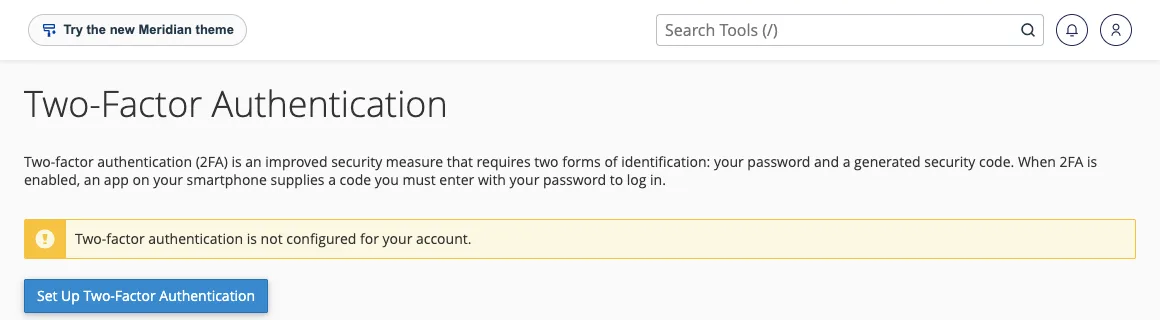
- Click on the ‘Set Up Two-Factor Authentication’ button.
- Scan the QR code that appears using your authentication app, or enter the Account and Key values shown next to it manually.
- Enter the six-digit code generated by the app into the ‘Security Code’ field before it expires (the code changes every 30 seconds).
- Click on the ‘Configure Two-Factor Authentication’ button.
From now on, every time you log in, you must enter the code currently displayed in the application after your password.
Setting up the authentication app on Android
The steps for setting up the phone are similar across apps; the images below were taken using version 3.4.3 of Aegis on Android 17 with a sample key.
- Install the authentication app. When you first launch Aegis, you will be asked to choose a protection method: select the ‘Password’ option to ensure that only you have access to the codes.
-
Tap the + button in the bottom right-hand corner, then select ‘Scan QR code’ and scan the code displayed in cPanel. If the camera does not work, select the ‘Enter manually’ option: enter a recognisable name in the ‘Name’ field, ‘cPanel’ in the ‘Issuer’ field, and the ‘Key’ value displayed in
cPanelin the ‘Secret’ field, then tap the ‘Save’ button.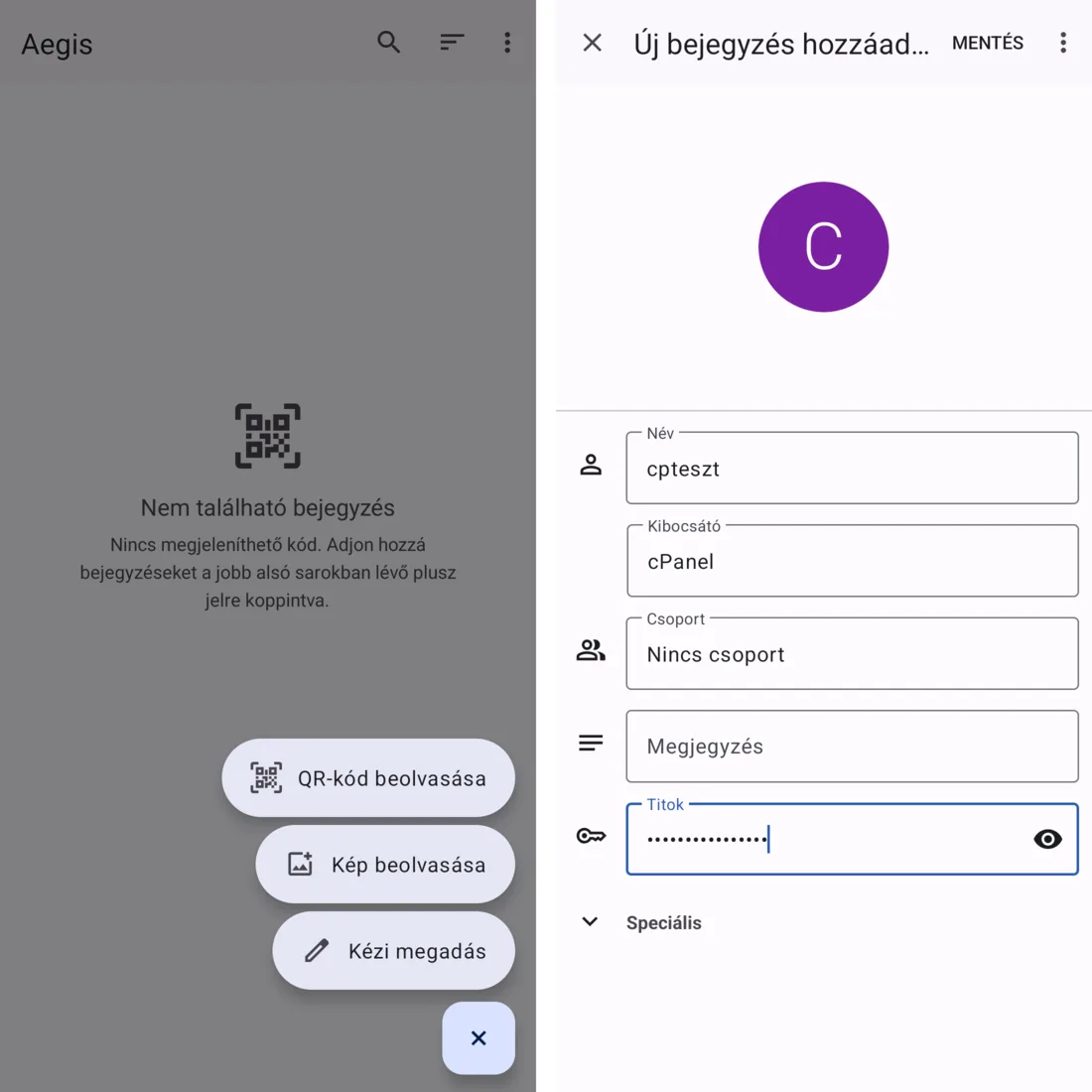
-
The entry with the six-digit code will appear in the list. Enter this into the cPanel Security Code field. The code changes every 30 seconds; do not include a space.
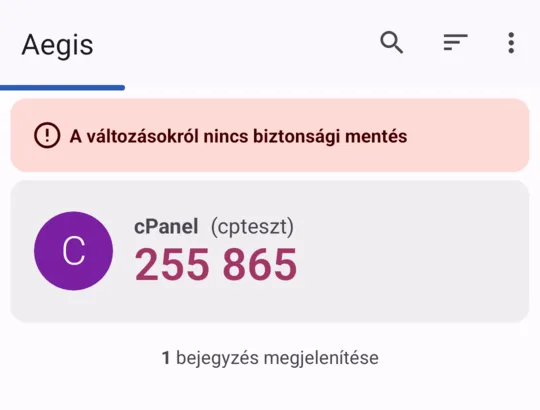
Aegis blocks screenshots by default to prevent codes from being leaked. The red ‘No backup for changes’ bar warns you that the codes have not yet been backed up: configure this in the app’s ‘Backups’ menu, otherwise you will lose your codes if you lose your phone.
Verification
Please log out and then log in again. If, after entering your password, the system asks for a six-digit code and you are able to log in using it, 2FA is working. You can reconfigure this on the Two-Factor Authentication page at a later date (for example, if you have a new phone) or disable the feature.
A backup in case you lose your phone
cPanel does not provide backup codes. It is therefore advisable to make arrangements for backups during the initial set-up:
- Make a note of the Key value and keep it in a safe place (for example, in a password manager), as you can use it to set up the same code generator on a new phone,
- Or scan the QR code on two devices at the same time.
If you do not have either your phone or your key, please open a ticket via the client portal: we will disable 2FA on your account, after which you can set it up again.
Common errors
- “The security code is invalid”: this is most often caused by the time on your phone being incorrect. Enable automatic time and time zone settings on your phone. If the error persists, please contact us, as it may also be caused by the server’s time.
- Expired code: if the code changes whilst you are typing it, please wait for the next one and enter that instead.
What does this not apply to?
- cPanel 2FA protects access to cPanel. Users log in to webmail using their own passwords; 2FA can be enabled for each account individually in the webmail settings.
- API calls requiring a password are not automatically protected by 2FA; it is advisable to use an API token for integrations.
A strong, unique password is just as important; there is a separate article on changing your cPanel password.