 English
 Magyar


On our cPanel hosting servers, ImunifyAV+ monitors the files on the hosting accounts and flags those containing malicious code: PHP backdoors (web shells) smuggled into compromised websites, phishing pages, email-sending scripts and code snippets that redirect visitors to other sites. If you have received a notification that malware has been found on your hosting account, this article explains where you can view the flagged files and what you need to do to make your website secure again.
Where can I see what was found?
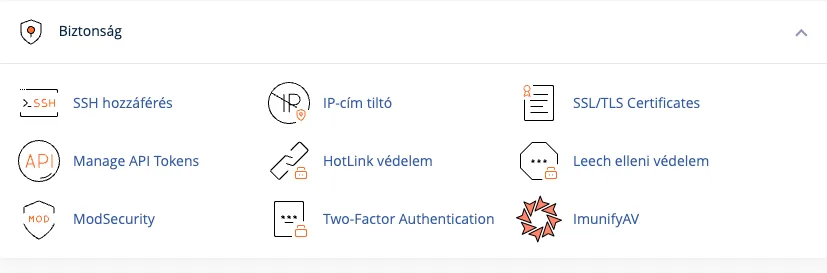
On the cPanel home page, in the Security section, click on the ImunifyAV icon.
The Malware Scanner page has three tabs:
- MALICIOUS: a list of files identified as malicious, showing the scan date, the file path, the name of the malware detected (Reason) and its status (Status).
- SCAN: a list of scans run on the account: when, in which directory, how many files were scanned, and what the result was.
- HISTORY: a log of events involving files: when, what happened to which file, and who initiated it (the system or the user).
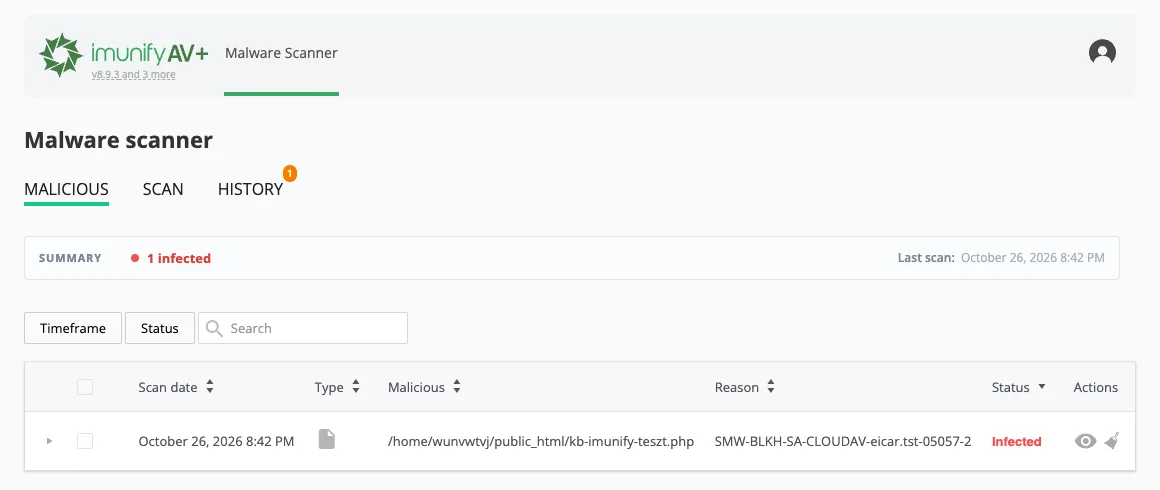
The scans are carried out by the server; they cannot and do not need to be initiated from the account. The SUMMARY bar above the list shows the number of files selected and the time of the last scan (Last scan). The Status filter allows you to filter files by their status:
| Status | Meaning |
|---|---|
| Infected | The file contains malicious code and has not yet been cleaned. |
| Clean-up in progress | The clean-up is currently in progress. |
| Cleaned | The system has removed the malicious part; the rest of the file remains intact. |
| Content removed | The entire contents of the file were malicious, so the system removed them. |
Viewing and cleaning up files
At the end of each file row, in the ‘Actions’ column, there are two icons:
- Eye icon (View item): opens the file. The ‘View content’ tab displays the file’s contents, whilst the ‘Diff’ tab shows the changes. This allows you to check whether the file is part of the website or was created by an attacker.
- Broom icon (Clean up malicious code): removes malicious code. You can start the process by clicking the YES, CLEAN UP button in the confirmation window.
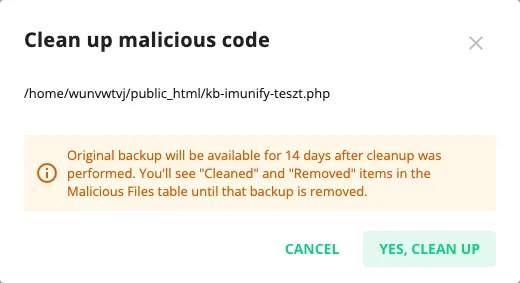
Before cleaning, the system creates a backup of the original file, which remains available for 14 days. If only part of the file was malicious, the rest remains intact and its status becomes ‘Cleaned’. If the entire contents were malicious, the file remains empty in its place and its status becomes ‘Content removed’. After cleaning, a clock icon (Restore original item) appears in place of the dustpan: this allows you to restore the pre-cleaning version – which was likely infected – if the cleaning process has corrupted a file that you actually need. Cleaned files remain in the list for the 14-day backup period.

cPanel checks files uploaded via the file manager as they are being uploaded: if it detects a known malware in a file, it rejects the upload with the message ‘The uploaded file contains a virus, so the system has cancelled the upload’.
Why has the hosting account been infected?
Malware almost never gains access via the server, but rather through the website or by using a stolen password. The most common causes are:
- Outdated CMS, plugin or template: an attacker uploads a file to your hosting account via a known security vulnerability. This is most common with WordPress, Joomla and e-commerce platforms.
- Cracked (nulled) premium plugins or themes: the ‘free’ versions often contain backdoors from the outset; this is discussed in the article on the dangers of nulled plugins.
- Stolen password: your cPanel, FTP or website administrator password has been compromised, for example from an infected computer or a previous data breach.
- Unsecured upload form: the website allows visitors to upload PHP files.
What should you do?
- Do not simply delete the files indicated. Attackers usually leave backdoors in several places, so if you delete the indicated file without addressing the root cause, the infection will return within a matter of days.
- Change your passwords: your cPanel account password, your FTP account passwords, your database user passwords and the passwords of all website administrators. Enable two-factor authentication in cPanel. If the password may have been leaked from an infected computer, scan your own computer with an antivirus program first.
- Update everything: the CMS core, all plugins and themes. Delete any plugins and themes you are not using; do not just deactivate them. With WordPress, automatic plugin updates help ensure this does not happen again.
- Manage the selected files:
- Delete files marked as ‘Infected’ using the dustpan icon, or replace them with the original, clean versions (for example, from the official CMS or plugin package). Delete any files created by the attacker that do not belong to the website.
- The malicious content has already been removed from files with the ‘Cleaned’ and ‘Content removed’ statuses. Please check that the website is still functioning correctly; if a cleared file was part of the website, replace it with the clean version.
- If a large number of files are affected, it may be easier to restore the website from a pre-infection backup. The article on restoring from a backup explains how to do this. After the restoration, do not skip steps 2 and 3, otherwise they will gain access again through the same vulnerability.
- Check for anything that isn’t a file: attackers often create a new administrator user on the website, inject malicious code into the database, or set up a scheduled task (cron job). Check the website’s users and the cPanel Cron Jobs page.
- If you’re having trouble, please open a ticket via the client portal. We’ll tell you which files are affected and since when, which will help you identify the point of entry; the website developer can then carry out the necessary fixes to the website’s code.
To help you secure your WordPress sites, our article on basic WordPress security settings provides a checklist.
Why might we restrict an infected hosting account?
Infected hosting accounts are often used to send spam, host phishing sites or attack other servers. This also puts other customers on the server at risk, for example by causing the server’s IP address to be blacklisted. In accordance with the General Terms and Conditions, if we detect infected content on your hosting account, we may place the content in quarantine, notify you of this, and you must take immediate action to remove the infection. If you do not commence this process within 7 days, or if the infection poses a threat to other systems, we may take further protective measures, following a graduated approach.
If your hosting account has been suspended for this reason, please let us know via a support ticket once you have resolved the issue, and we will reactivate it. For other reasons for suspension, please refer to the article on service suspension.
How can this be prevented?
- Please update your website’s engine, plugins and templates regularly.
- Only install extensions and templates from official sources.
- Use a separate, strong password for each platform and, where possible, two-factor authentication.
- Where possible, please use SFTP or the cPanel file manager instead of FTP, and delete any FTP accounts that are no longer in use.
- You should also make your own backups regularly so that, in the event of an infection, you have a clean state to revert to.