 English
 Magyar


WordPress is the most widely used content management system on the web, which is why it is also the most frequently targeted. This is not because it is insecure, but because attackers know that a WordPress vulnerability can be exploited on many millions of websites. As soon as a WordPress site goes live, automated bots begin scanning it in search of weaknesses.
Security hardening used to be a lengthy, manual process, but with the WP Toolkit it can be carried out in just a few clicks. The video and the steps below outline the most important settings to configure after installation.
Opening the WP Toolkit
- Log in to cPanel and click on ‘WordPress Management’ in the left-hand menu (you can also find this in the ‘Domains’ section on the home page).
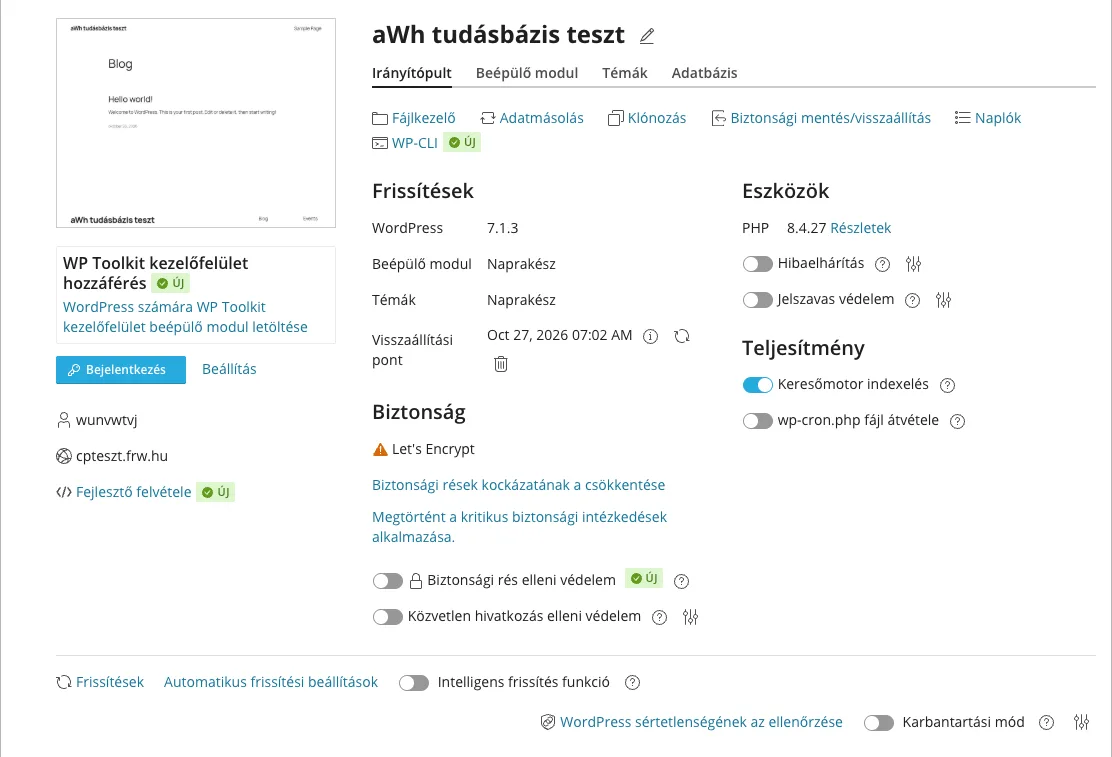
- In the WP Toolkit dashboard, open your website’s details page by clicking the arrow at the start of the row. On the details page, you will see your WordPress version, updates, and security and performance settings.
Security status
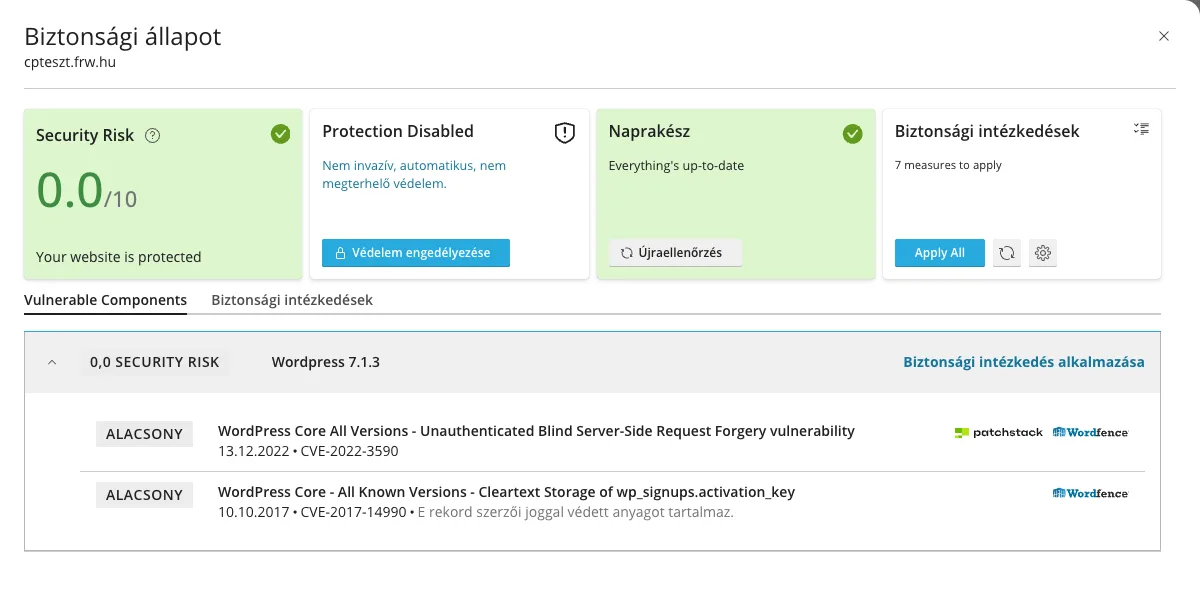
In the Security section of the details page, click on the** ‘Reduce security vulnerabilities’** link (or the ‘Security Risk’ label in the website row). At the top of the Security Status window, four boxes summarise the website’s status:
- Security Risk: A risk score between 0 and 10 based on the website’s known vulnerabilities; a score of 0.0 means there are no serious known vulnerabilities.
- Protection Disabled (Enable Protection): WP Guardian’s virtual patches, which use a plugin to protect vulnerable plugins with firewall rules until a patch is released. This is a separately purchasable licence and is not included in the hosting plan; the risk score and list of vulnerabilities still function without it.
- Up to date: updates for WordPress, plugins and themes; you can check for new updates immediately using the ‘Check Again’ button.
- Security measures: how many measures can still be applied; the ‘Apply All’ button applies them all at once.
The ‘Vulnerable Components’ tab lists known vulnerabilities found in the WordPress core, plugins and themes, ranked by severity; the steps to take are described in the article on vulnerable plugins.
Security measures
WP Toolkit automatically applies the critical measures during installation (this is indicated on the details page by the line ‘Critical security measures have been applied’). You will need to select the rest yourself:
- In the Security Status window, open the Security Measures tab. Measures that have already been implemented are marked with a green tick at the bottom of the list, whilst those that are still missing are marked with an orange symbol at the top.
- Please tick the measures you wish to apply.
- Click the ‘Secure’ button.
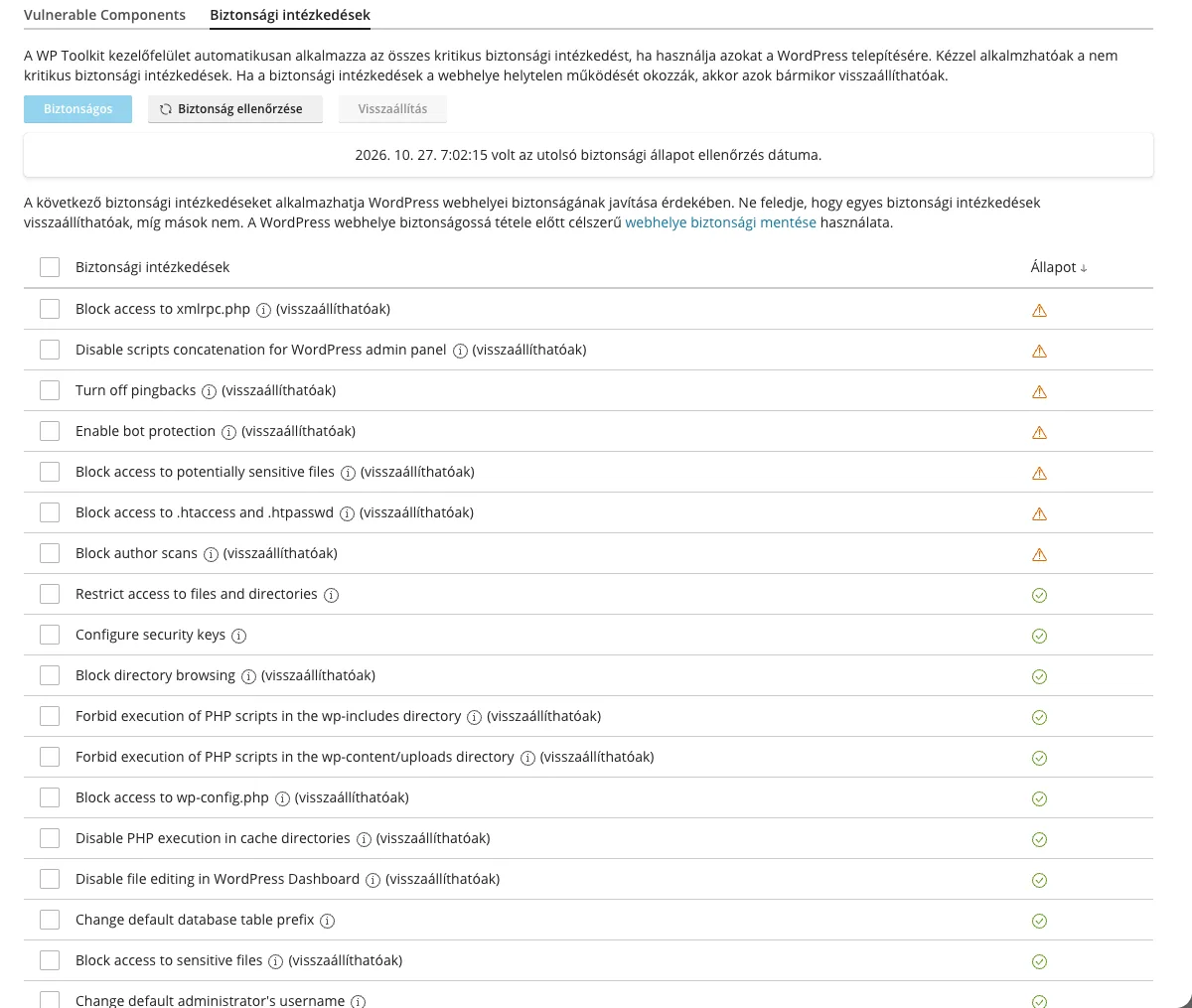
The names of the actions are displayed in English on the control panel. The most important ones are:
- Disable the execution of PHP scripts in the wp-content/uploads directory and … in the wp-includes directory: this prevents PHP from running in these directories, meaning that any malicious files uploaded cannot be executed.
- Disable file editing in the WordPress Dashboard: this disables the theme and plugin editors in the admin panel, meaning that even a compromised admin account cannot be used to insert code.
- Block access to potentially sensitive files and Block access to wp-config.php: prevents access to sensitive files (such as logs,
wp-config.phpand its copies). - Block author scans: prevents bots from reading usernames from author pages.
- Block directory browsing: prevents visitors from listing the contents of directories.
- Change default administrator’s username: changes the ‘admin’ username, which is the first one attackers try.
- Block access to xmlrpc.php and disable pingbacks: this blocks the frequently targeted XML-RPC interface.
Certain actions may affect the operation of specific plugins: disabling xmlrpc.php, for example, prevents Jetpack and the WordPress mobile app from connecting. If something stops working after a change, select the action and click the ‘Revert’ button to undo it. Actions without the ‘(reversible)’ note (such as changing the administrator username or the table prefix) cannot be undone. Before applying multiple actions at once, make a backup; this is covered in the article on backing up and restoring WordPress.
Further settings on the details page
- Search engine indexing: disable this whilst the site is under development to prevent the unfinished site from being indexed by search engines. When disabled, WordPress adds a ‘noindex, nofollow’ tag to the pages, and the
robots.txtfile also blocks crawlers; therefore, be sure to re-enable it when the site goes live. - Maintenance mode: during maintenance, visitors are shown an information page. Using the settings icon next to it, you can customise the text, add a countdown timer and include social media links.
- Password protection: hides the entire site behind a username and password, which is useful for test sites.
- Troubleshooting: WordPress error reporting is disabled by default. Only enable it for testing purposes; keep it disabled on live sites, as error messages may reveal sensitive data.
- Hotlink protection: prevents other websites from embedding your images and thereby using your hosting’s traffic.
- Taking over the wp-cron.php file: WordPress’s scheduled tasks are run by a regular scheduled task rather than on a per-visit basis; this is the subject of the article on replacing WP-Cron.
- Automatic update settings and the Smart Update feature: automatic updates for WordPress, plugins and themes, as well as the option to test updates on a copy of your site; see the article on configuring automatic updates for further details.
- Checking the integrity of WordPress: this compares the core WordPress files with the checksums provided by wordpress.org, and if any discrepancies are found, you can reinstall them using the** ‘Reinstall WordPress Core’** button without losing any content. This is useful if you suspect an infection; the article on ImunifyAV malware removal explains what to do.
If an orange SSL/TLS label appears next to the website name, WP Toolkit is indicating that the permanent (301) redirect from HTTP to HTTPS is not enabled; the article on redirecting to HTTPS explains how to configure this.
We include the Deluxe version of WP Toolkit with our cPanel and WordPress hosting plans, which helps with detecting vulnerable plugins, cloning sites and intelligent updates. In addition to the WP Toolkit settings, strong passwords and two-factor authentication are also important; further steps are outlined in the article on WordPress security settings to prevent hacking.