 English
 Magyar


WordPress plugins (known as ‘modules’ in the WP Toolkit) add new features to your site, whilst themes (known as ‘templates’ in WordPress) determine its appearance. You can manage both via the WordPress control panel, but via the cPanel WP Toolkit interface (WordPress Management) you can do so without logging in, and if you have multiple websites, you can manage them all at once. The video demonstrates how to install, configure and delete a plugin.
Website plugins and themes
- Open the WordPress Management interface in cPanel, and open the website’s details page using the arrow at the start of the row.
- Switch to the ‘Plugins’ (or ‘Themes’) tab.
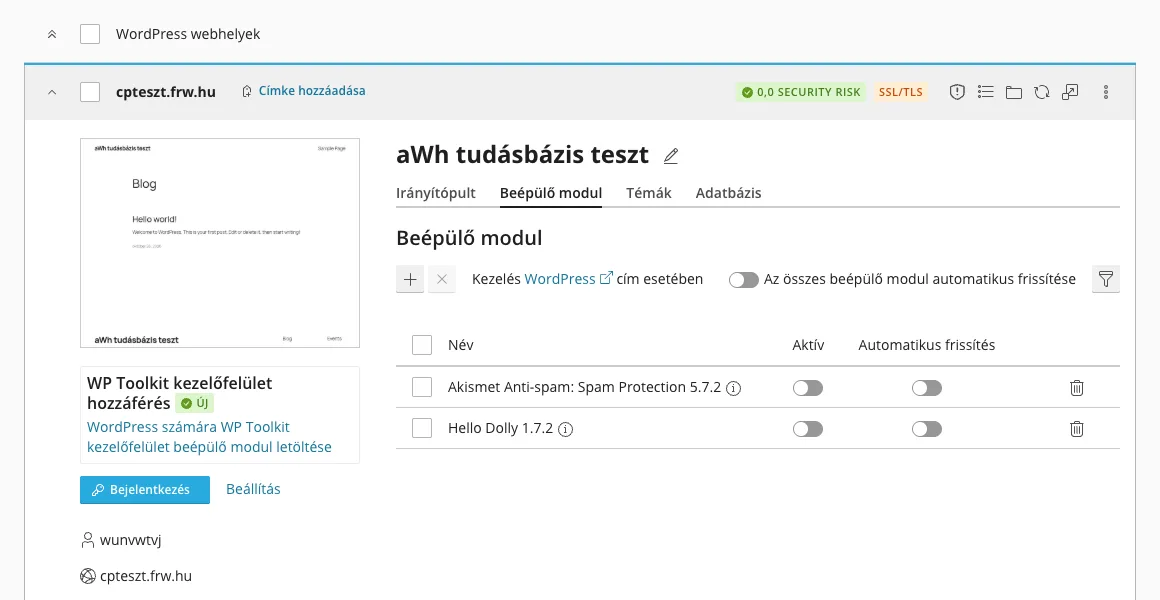
Next to each extension in the list, there are two toggles:
- Active: enables or disables the extension. A disabled extension remains on the hosting server but does not run.
- Automatic updates: if you enable this, new versions of the extension will be installed automatically. You can enable this for** all extensions at once using the ‘Automatically update all extensions’** toggle.
The bin icon at the end of the row deletes the plugin. On the Themes tab, you can activate another theme in the same way, or delete any you no longer use.
Installing a new plugin or theme
- On the Plugins **tab, click the **+ button (on the Themes tab, click the Install button). The Plugins and Themes window will open; you can search for a theme on the Themes tab.
- Enter the name of the plugin in the search box. In the ‘Filter’ section on the right, you can filter for plugins that are compatible with your version of WordPress, have been installed frequently, or have received good reviews.
- Click the ‘Install’ button next to the selected plugin. WP Toolkit will download, install and activate it from wordpress.org.
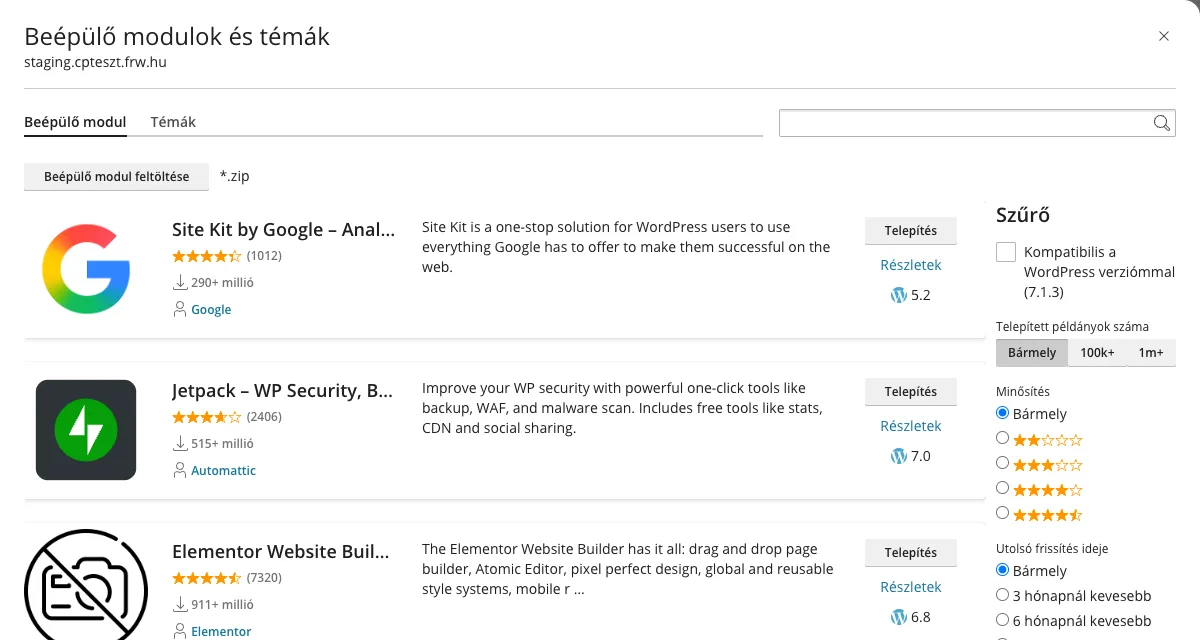
If you have purchased a (premium) plugin or theme that is not available on wordpress.org, you can upload it as a ..zip file using the ‘Upload Plugin’ button. Only install packages downloaded from the developer’s official website; ‘cracked’ versions often contain malware (see: the dangers of nulled plugins).
All websites at once
On the** ‘Plugins’** and ‘Themes’ tabs at the top of the WP Toolkit, you can see a list of all the plugins and themes for your hosting account’s WordPress websites, along with details of which websites they are installed on and whether they are active there.
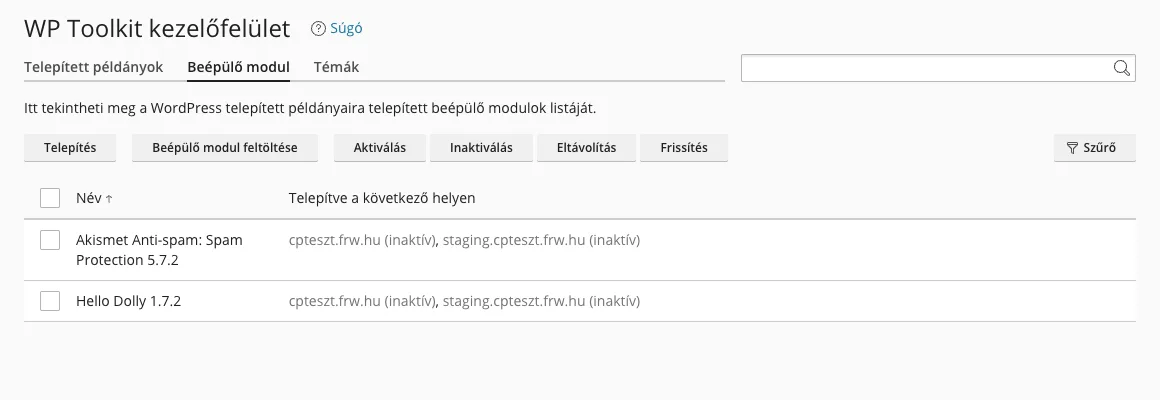
- You can use the ‘Install’ button to install a plugin on multiple websites at once, and the ‘Upload Plugin’ button to upload a
.zipfile. - Tick the boxes next to the extensions and click the Activate, Deactivate, Update or Remove button to carry out the operation.
Please note: clicking ‘Remove’ here will delete the selected plugin from every website on which it is installed. If you only wish to remove it from one website, do so via the ‘Plugins’ tab on that website’s details page.
Keep your plugins up to date
- Delete any unused plugins and themes. The files for a deactivated plugin remain on the hosting server, and an old, vulnerable plugin still poses a risk even if it is not running. It is worth keeping a default theme (such as the latest Twenty Twenty-…) as a backup.
- Please update regularly. There is a separate article on automatic update settings; if WP Toolkit flags a vulnerable plugin, the steps to take are described in the article on vulnerable plugins.
- Fewer plugins, faster site. Every plugin can slow down your site; this is discussed in the article on speeding up WordPress.
- Before making any major changes, please create a backup or test them on a staging site.