 English
 Magyar


Editing a WordPress website is like tinkering with your car whilst driving on the motorway. You might arrive at your destination on time and looking good. But then again, it could all go horribly wrong – and if you do it often enough, your luck will run out sooner or later.
If your website generates revenue – for example, a WooCommerce online shop – then experimenting on the live site is risky: a faulty update or template modification could ruin the site right in front of your visitors’ eyes. On the staging (test) site, you can try out the same changes safely and only transfer the changes that have been tested and approved to the live site.
With cPanel’s WP Toolkit, you can set up a staging site in just a few clicks, and revert any changes just as easily. The video shows the entire process: cloning, labelling and data copying.
What is a staging site?
The staging site is a clone of the live site: it contains the same files and data, but runs on a separate subdomain (for example, staging.pelda.hu) and with a separate database. Anything that happens there does not affect the live site until you migrate it. As it runs on the same hosting server, with the same PHP version and settings, it behaves exactly like the live site, making it a reliable testing environment.
Creating a backup like this manually involves several steps: exporting and importing the database, copying the files, creating the subdomain and updating the website address, then reverting the changes in exactly the same way. WP Toolkit does all of this for you.
When should you use it?
Any changes that are more complicated than simply publishing a post should be tested on the staging site first:
- Testing new landing pages, forms or payment processes before they are made available to visitors;
- a major update to WordPress, plugins or the PHP version (in simpler cases, this is also carried out by the Smart Update function);
- trying out a new template or customising an existing one;
- Custom code, development of new features.
A staging site is also useful when a developer or designer is working on the site and does not wish to make changes directly on the live site; there is a separate article on the access rights that can be granted to developers.
Creating a staging site by cloning
- In cPanel, open the WordPress Management (WP Toolkit) menu item and view the details of the website you wish to back up.
- Click on the ‘Cloning’ link.
- In the ‘Destination’ section, leave the ‘Create subdomain’ option selected: by default, WP Toolkit suggests the
stagingsubdomain (e.g.staging.pelda.hu), but you can also specify a different name. With the** ‘Use existing domain’** option, you can also clone to an existing domain or subdomain. - In the ‘Database’ section, WP Toolkit suggests a new database name; you may leave this as it is.
- Click the Start button.
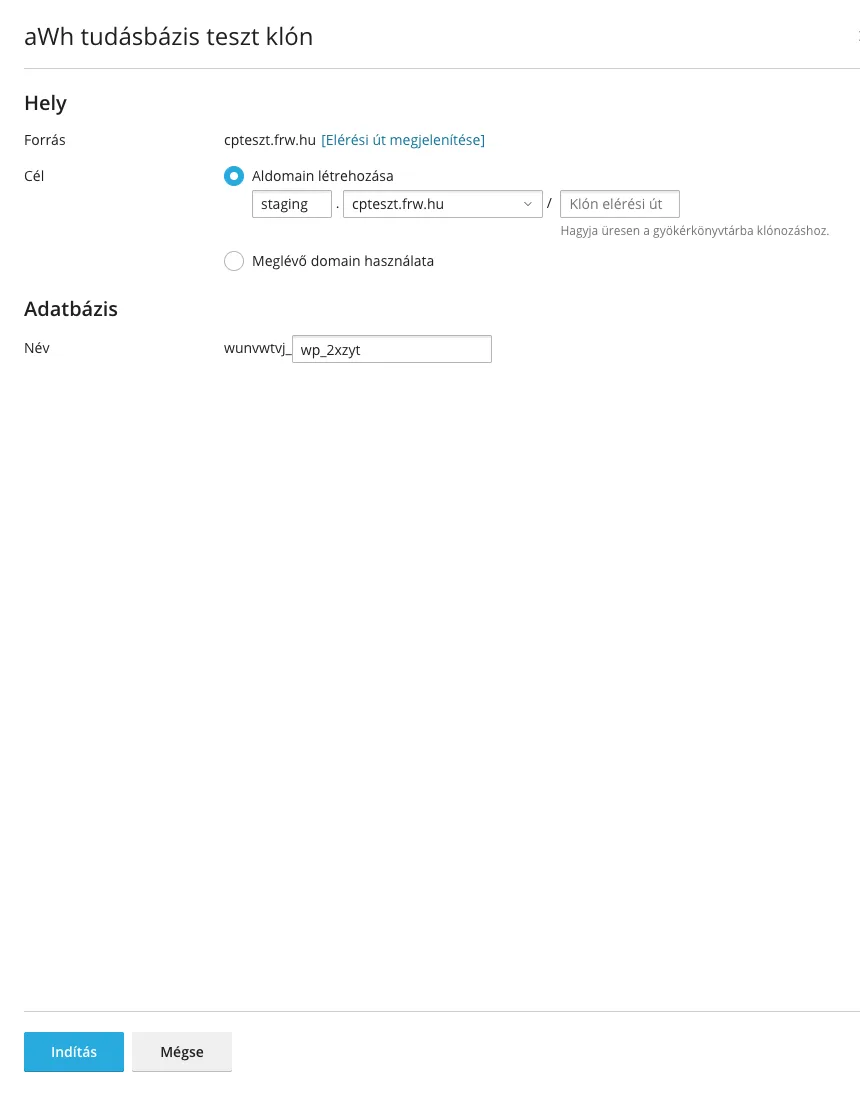
Cloning takes a few minutes, depending on the size of the website. WP Toolkit copies the entire website folder, including files and folders not belonging to WordPress; it excludes any additional WordPress websites within the folder (such as another site installed in a subdirectory). Once complete, the new website appears in the WP Toolkit list alongside the live website. If you already have a staging subdomain, WP Toolkit will suggest a different name (for example, staging-p).
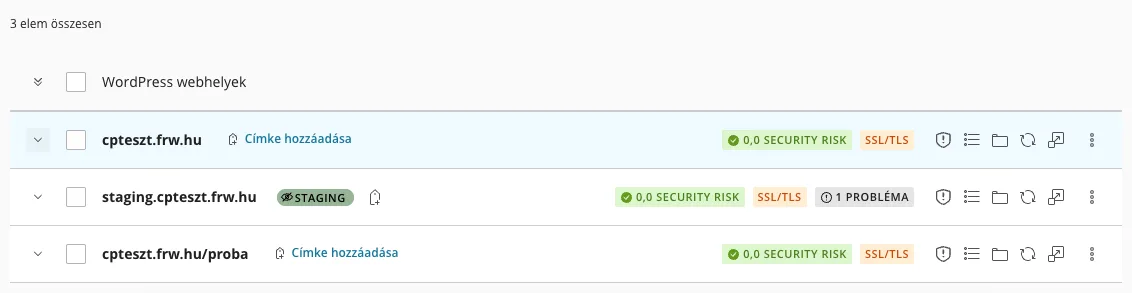
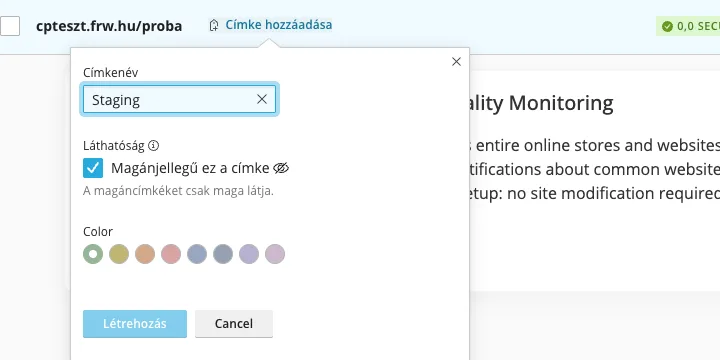
To easily distinguish the test site from the live site, give it a tag: click on the** ‘Add tag’** link next to the site name, enter a word such as ‘Staging’ in the ‘Tag name’ field, select a colour, and click the ‘Create’ button. If you set this label to ‘Private’, only you will be able to see it. You can use the labels to filter and sort the list using the ‘Filter and Sort’ menu in the top right-hand corner.
cPanel’s AutoSSL feature will issue a certificate for the new subdomain within a few minutes. On the clone, WP Toolkit automatically disables the ‘Search Engine Indexing’ option to prevent the test site from appearing in search engines; this is indicated in the list by the ‘1** PROBLEM’** status, which is correct for a test site. If you do not want unauthorised users to view it either, enable the ‘Password protection’ option as well.
Critical security measures are not applied on the clone: in the Security section of its details page, a red ‘Apply critical measures’ link is visible. Click on it and apply the missing measures on the Security Measures tab; for details, see the article on the default settings of WP Toolkit.
Deploying changes to the live website
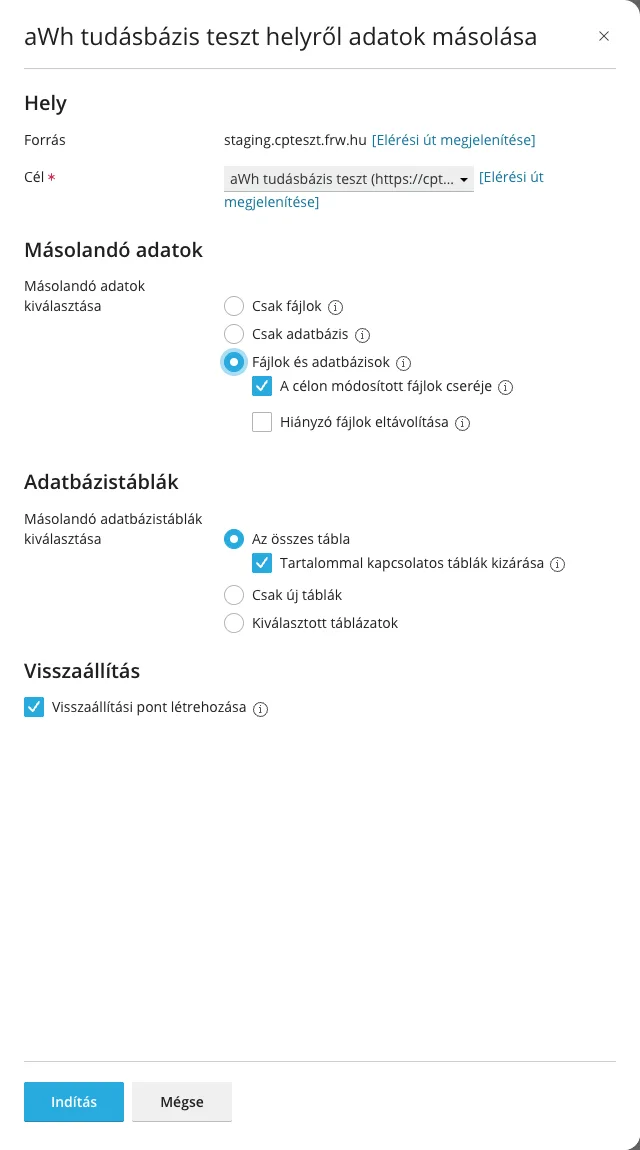
If you have tested a new feature or design on your staging site, you can use the WP Toolkit Data Copy tool to transfer the changes to your live site:
- In the staging site details, click on the ‘Data Copy’ link.
- In the ‘Destination’ list, select the live website.
- In the ‘Data to be copied’ section, select what you wish to transfer: ‘Files only’, ‘Databases only’ or ‘Files and databases’. For files, you can specify whether to overwrite files that have been modified at the destination (Replace files modified at the destination) and whether to delete files that exist at the destination but are missing from the source (Remove missing files).
- In the ‘Database Tables’ section, you can choose between: ‘All tables’, ‘New tables only’ or ‘Selected tables’. The ‘Exclude content-related tables’ option, which is ticked by default, excludes items such as posts and users, ensuring that content published on the live site (comments, orders, new users) is not lost; please leave this option ticked.
- Once you have selected the target, the ‘Create restore point’ option will also be ticked. Leave it as it is and click the ‘Start’ button.
After copying, the restore point will appear with its date in the ‘Updates’ section of the live website’s details page. If something isn’t working as it should, you can use the circular arrows next to it to restore the site to its state prior to the backup, and use the bin icon to delete any restore points that are no longer needed. Copying data does not disable the ‘Search engine indexing’ setting on the live site. For online shops, pay particular attention to database copying: a complete database replacement may overwrite the live site’s more recent orders with older orders from the staging site.
For a more detailed overview of this topic, see our blog: WordPress staging: setting up and using a test environment securely in 2026.