 English
 Magyar


If a developer, web designer or agency is working on your website, do not give them your client portal, cPanel or WordPress passwords. Grant them separate access that is limited to the work required: this way, you can revoke it at any time without having to change your own passwords, and you can see afterwards who did what.
What access does a developer need?
- For content, themes and plugins: a dedicated WordPress user account. This is sufficient for most tasks.
- For files (unique code, uploading template files): a separate FTP account with access only to the website folder.
- You will rarely need access to the full cPanel (email accounts, DNS, databases). If you do, please provide your cPanel password for the duration of the work, then change it afterwards via the client portal. Do not disclose your client portal login details: this would give access to billing information and the ability to cancel services.
Creating a WordPress user
- Log in to your WordPress control panel (via the ‘Log in’ button on the cPanel WordPress Management interface; see: logging in to the WordPress admin panel).
- In the menu on the left, select Users › Add user.
- Please enter your Username (required) and Email address (required): the email address must be that of the developer.
- In the Password field, WordPress generates a strong password. If the ‘Send user notification’ option is ticked, the developer will receive a link via email to set their own password; this is more secure than if you were to send the password yourself.
- In the ‘Role’ list, select the appropriate permission, then click the ‘Add user’ button.
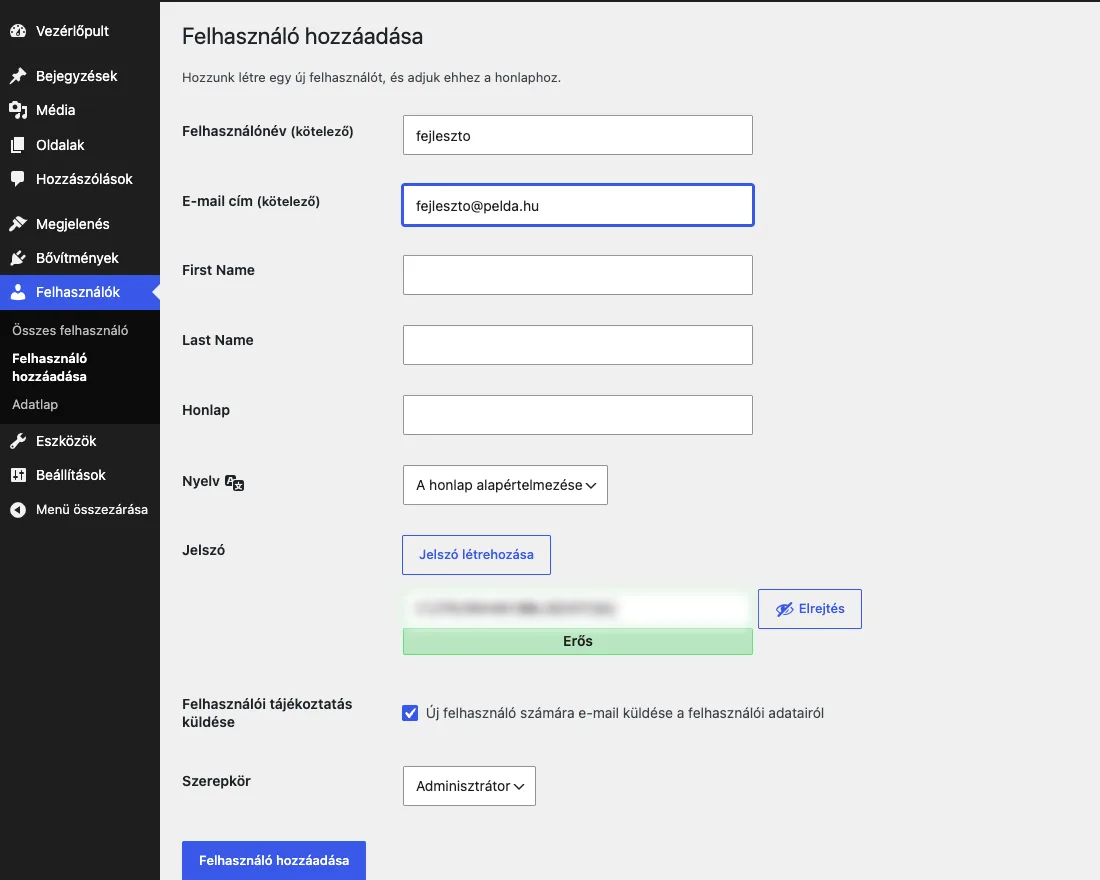
For each role, grant only the rights necessary for the job:
- Editor: write, edit and publish posts and pages, including those created by others. Suitable for copywriters and content managers.
- Author and Contributor: only their own posts; contributors cannot publish anything.
- Administrator: has access to everything and can install templates and plugins. This is generally required for developers working on the design or plugins.
FTP account for files
If a developer needs to upload files, create a separate FTP account for them in the cPanel FTP Accounts menu and, in the Directory field, restrict access to the website folder (for example, public_html). The steps are described in the article on managing FTP users. Additional FTP accounts can connect via plain or TLS-encrypted FTP; SFTP and SSH are associated with the main cPanel user.
Development on the staging site
It is advisable to carry out major work not on the live site, but on a copy of it: using the WP Toolkit cloning function, this can be done in a few minutes, and you can then transfer the completed changes to the live site. The steps are described in the article on setting up a staging WordPress site. Be sure to make a backup before you start work.
Revoking access at the end of the job
- WordPress user: in the Users › All Users list, hover over the developer’s user and click the Delete link. If the user has any posts or pages, WordPress will ask you who to assign them to; select a user who will remain, then click the Confirm Deletion button.
- FTP account: delete it from the FTP Accounts menu in cPanel. Do not tick the ‘Delete user’s home directory’ box, otherwise the website files will be deleted along with the account’s folder (e.g. the
public_htmlfolder). - Passwords: if the developer also knew the password for cPanel or a shared WordPress account, please change them.
- Check: please check that there are no other administrators listed in the Users list of whom you are unaware.
Further advice on WordPress and cPanel security can be found in the article on basic WordPress security settings and the article on cPanel two-factor authentication.