 English
 Magyar


In cPanel hosting and WordPress hosting plans, you can install WordPress with just a few clicks using the WP Toolkit. The WP Toolkit also manages WordPress after installation: you can use it to carry out updates, configure security settings, create clones (test environments) and perform backups. In web hosting plans, the KeyHelp application installer performs the same tasks; this is covered in the article explaining the first steps of the KeyHelp control panel.
Opening the WP Toolkit
- Log in to cPanel.
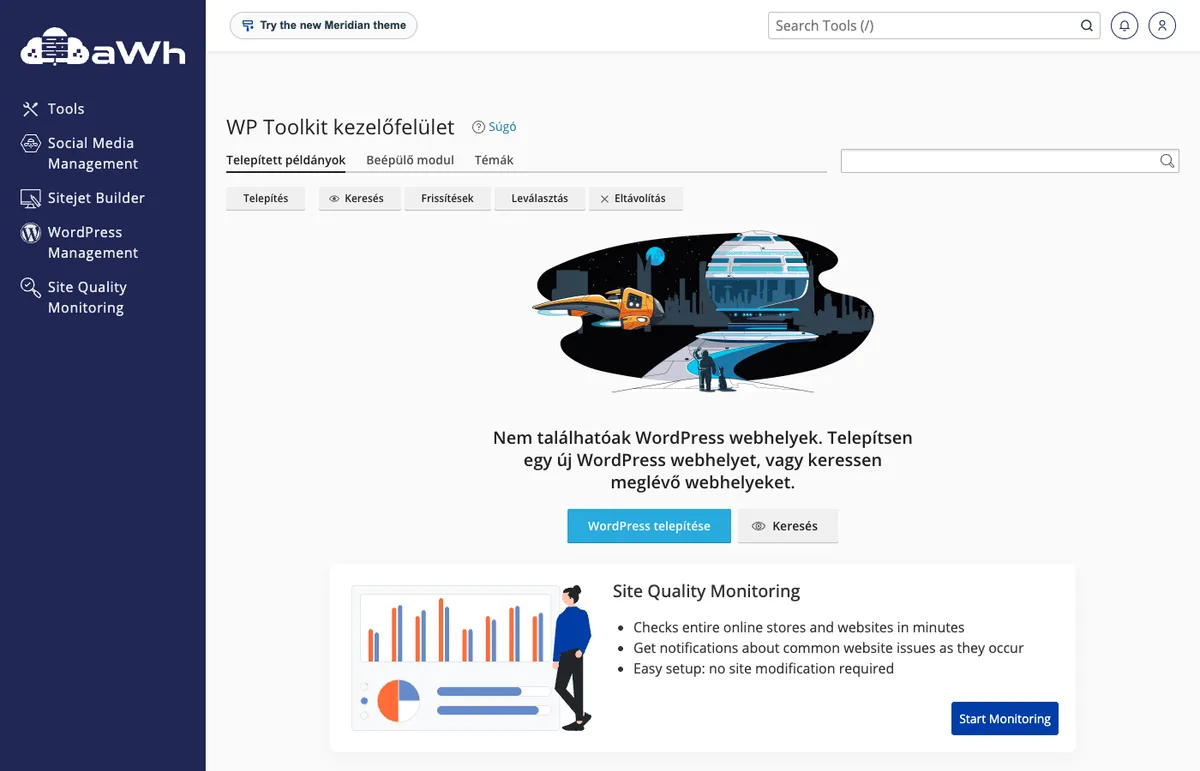
- Click on the ‘WordPress Management’ menu item in the left-hand menu (you can also find it in the ‘Domains’ group). This will open the WP Toolkit dashboard.
- If you do not yet have WordPress on your hosting account, click the ‘Install WordPress’ button; if you already have it, click the ‘Install’ button above the list.
Installation settings
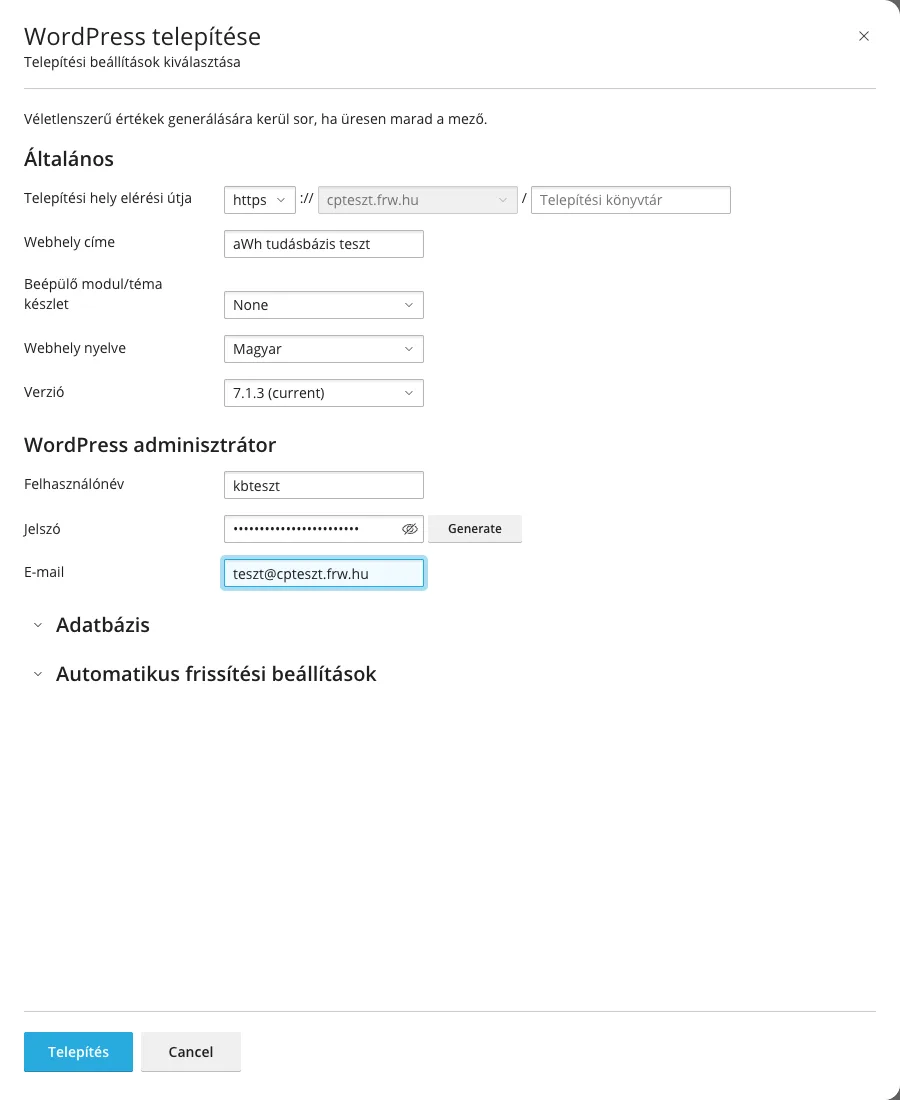
In the WordPress installation window, most fields are pre-filled; if you leave any blank, the system will generate a random value.
General
- Path to the installation location: select the
httpsprotocol and the domain. Leave the directory field blank if WordPress is to be installed in the root of the domain (for example,https://cegnev.hu/); if you intend to install it in a subdirectory (for example,blog), enter its name here. - Website address: the name of the website, which can be changed at any time in WordPress.
- Plugin/theme pack: you can install a pre-configured plugin package alongside WordPress (for example, WordPress Essentials or the E-Commerce pack). If you only want the bare-bones WordPress installation, leave the setting at ‘None’.
- Website language: Hungarian by default.
- Version: leave it set to the latest (current) version.
WordPress administrator
- Username: WP Toolkit suggests a random username; if you enter your own, it must not be
admin. - Password: You can use the ‘Generate’ button to request a strong password; make a note of it or save it in your password manager.
- Email: your own, active email address. This is where WordPress notifications and password reset emails will be sent.
Database and automatic updates
By opening these sections, you can change the database name, the table prefix and the database user, as well as whether updates to WordPress, plugins and themes are installed automatically. By default, all updates to the core WordPress system are installed automatically (Yes, all updates (minor and major)), whilst plugins and themes follow their own settings (Custom). This is suitable for most sites; if a plugin or theme is sensitive to major WordPress version changes, select the ‘Minor (security) updates only’ option and test major updates in a staging environment first.
Installation
Click the ‘Install’ button. WP Toolkit will download WordPress, create the database, configure the installation and apply critical security settings. This usually takes one or two minutes. In the** ‘Installation Complete’** window, WP Toolkit offers to install plugins (‘Install Plugins’); you can skip this for now (‘No, thank you’) and do it later.
After installation
The new website appears in the WP Toolkit dashboard list. You can log in to the WordPress control panel without a password using the ‘Log in’ button (details: logging in to the WordPress admin area), and from there you can access further features:
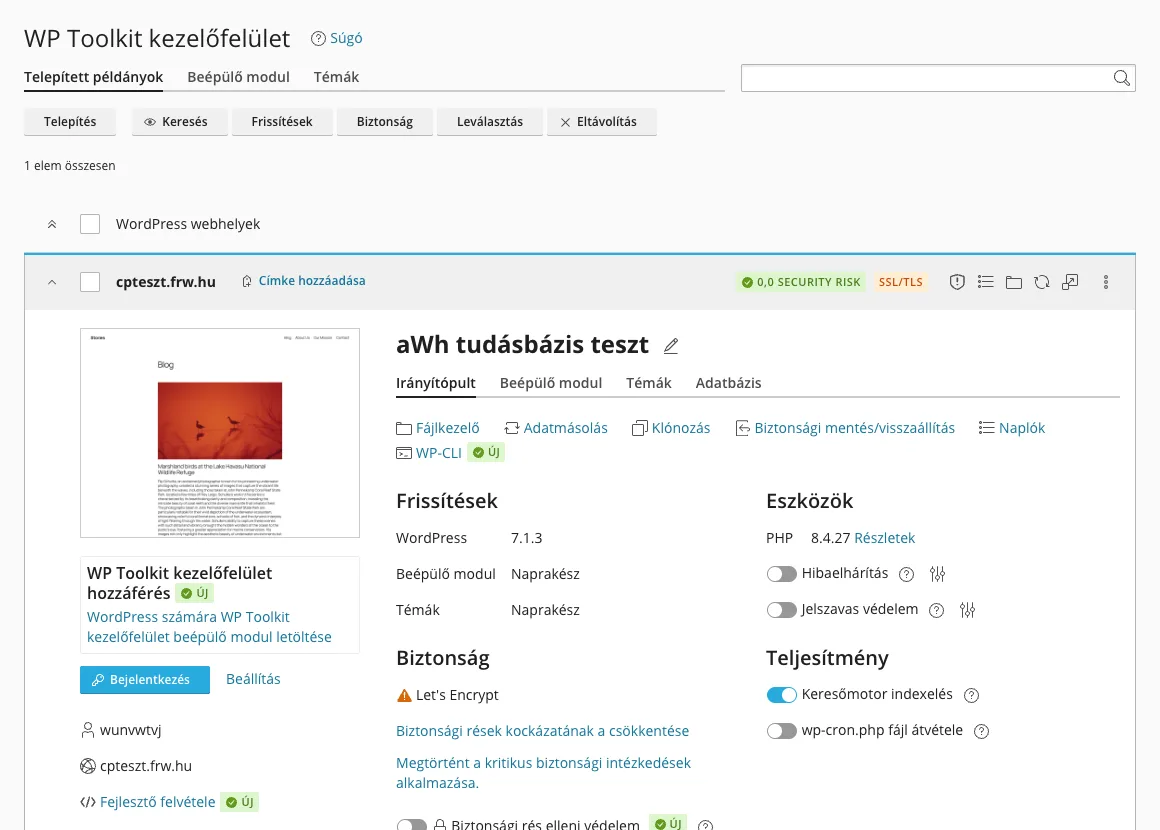
- Updates: updates to WordPress, plugins and themes, and automatic update settings.
- Security: You can enable additional security settings via the** ‘Reducing the risk of security vulnerabilities’** link.
- Cloning: you can create a copy of your website on a subdomain, for example for a test environment; this is covered in the article on creating a staging site using WP Toolkit.
- Backup/restore, Logs, WP-CLI, as well as Maintenance Mode and Password Protection for temporarily locking the site.
An article covering the initial WordPress setup explains the basic settings of the WP Toolkit. If the domain does not yet point to the hosting account, the website will only be accessible once the DNS settings have been configured; the certificate required for HTTPS is issued by cPanel’s AutoSSL function (AutoSSL errors).