 English
 Magyar


There are three ways to update the WordPress core, plugins and themes on cPanel hosting: via the cPanel WP Toolkit interface, via the WordPress admin interface, or via the command line using WP-CLI. All three methods download the same files from WordPress.org. The difference lies in where the process runs, what happens if it is interrupted halfway through, and what you get back if something goes wrong after the update.
In short: leave routine updates to WP Toolkit, as it creates a restore point before updating. WP-CLI is for major updates and scriptable tasks, whilst the admin interface is for the odd minor plugin update, accompanied by a fresh backup.
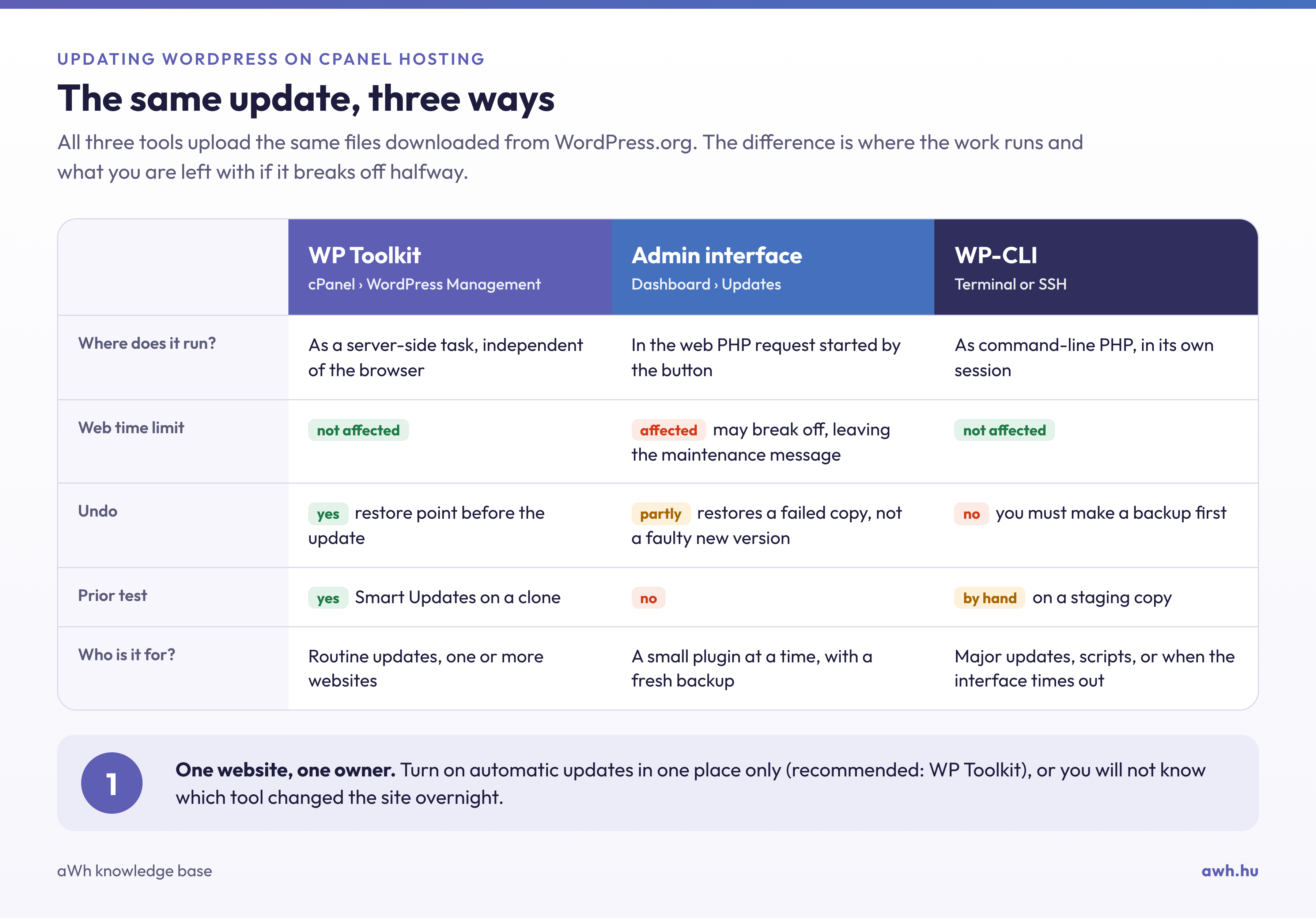
Where is the update taking place?
Admin interface. The ‘Update’ button initiates a web request, and the update runs within this request. If the request is interrupted halfway through due to a time-out by PHP, the web server or a proxy in front of it (such as Cloudflare), WordPress leaves a .maintenance file in the website’s root directory, and visitors will see this message: “Scheduled maintenance is currently underway, so the website’s content is temporarily unavailable.” Since WordPress 6.3, a plugin or theme update that fails whilst copying files will revert to the previous version; and since 6.6, automatic plugin updates are also rolled back if they cause a critical PHP error. However, it will not revert a new version that has been successfully uploaded but is malfunctioning.
WP Toolkit. The cPanel WordPress Management interface runs updates on the server as a task, independently of the browser loading. Before updating, you can create a restore point, from which you can revert with a single click. Our cPanel and WordPress hosting plans run WP Toolkit Deluxe, so the Smart Updates feature is also available: WP Toolkit performs the update on a copy of the website, compares the pages before and after, and only updates the live website if no differences are found.
WP-CLI. It runs as a command-line PHP application in the Terminal or via SSH, so it is not subject to web-based time limits and provides precise error messages. However, it does not perform any automatic backups: it is your responsibility to perform backups of your work. It is available in plans with SSH access (cP Premium, cP Pro, cP Pro 100); there is a separate article on using WP-CLI.
Which one should you choose?
WP Toolkit: if you maintain one or a few websites and want to be able to roll back any update, enable the restore point and let WP Toolkit handle the automatic updates. For online shops or booking systems, use the Smart Update feature: this is the only one of the three that tests the update in front of visitors. You’ll find this setting on the website’s card, under the ‘Updates’ section.
Admin interface: if you’re updating a minor plugin on a small website and you know there’s a backup from today. This is also the only option for those who only have WordPress login details and no cPanel access (for example, an editor). Do not use this for major updates (new major WordPress version, page builder, WooCommerce) on a slow or heavily loaded website.
Use WP-CLI if the admin interface has previously timed out, if you need to perform the same task on multiple websites, or if you want to carry out the same steps every time. If you keep your website’s code in Git, carry out the update in your development environment and install it from there (installing a theme from Git), otherwise the next installation will overwrite it.
One website, one host
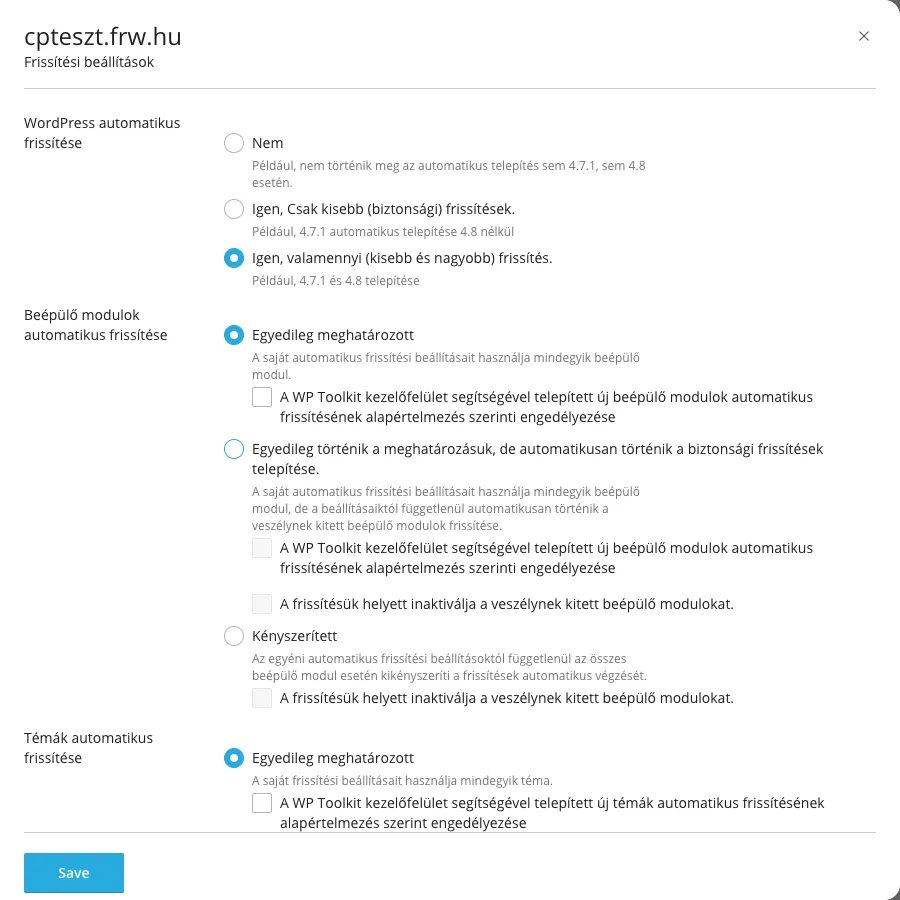
WordPress performs automatic updates itself, as does WP Toolkit. If both are enabled, you won’t be able to tell which one modified the website overnight. Choose one: if you have WP Toolkit, stick with that, and in the admin panel, on the Plugins and Appearance › Themes pages, adjust the automatic update toggles accordingly. There is a separate article on automatic plugin updates.
Major update using WP-CLI
First, make a backup, then update in this order, as the plugins have been tested on the version of WordPress on which they will be running:
cd ~/public_html
mysqldump --single-transaction --no-tablespaces "$(wp config get DB_NAME)" > ~/frissites-elott-$(date +%F).sql
wp core update
wp core update-db
wp plugin update --all
wp theme update --all
wp core verify-checksums
wp db export does not work on aWh’s cPanel servers (proc_open is disabled), so please use mysqldump-pal; the WP-CLI article describes how to configure the ~/.my.cnf file containing the password. This file contains only the database; the files are covered by the daily JetBackup backup or a WP Toolkit backup. The wp core verify-checksums command checks at the end that all core files have been uploaded in full.
You can also test a risky update on a staging copy before carrying it out on the live website.
If something has gone wrong
“Scheduled maintenance is in progress…” The update was interrupted partway through, usually in the admin interface, due to a timeout. Delete the .maintenance file from the website’s root directory in File Manager (you can enable the display of hidden files using the Settings button) or using the command rm ~/public_html/.maintenance. Then check the core files using the wp core verify-checksums command, or repeat the update in WP Toolkit.
“Another update is currently in progress.” WordPress locks the update whilst it is running, and this lock remains in place after an interrupted update. It will automatically be released after approximately 15 minutes; after that, use the wp core check-update command to check whether there are any pending updates.
WordPress is requesting FTP details for the update. WordPress is unable to write its own files because some of them do not belong to your user account (this may occur following a poorly executed migration or restore). Please do not provide the FTP details; contact our support team and we will restore the files to your cPanel user account.
According to WP Toolkit, the update was successful, but the site is malfunctioning. Roll back to a restore point on the website’s dashboard, then update the plugins one by one to identify which one is causing the error. If the restore point was not enabled, you can restore from the daily backup (restore from JetBackup). If you see a 500 error, the article on 500 errors following a plugin update will help.
Unexpected changes overnight. It is likely that two tools are updating automatically. Check the automatic update settings in WP Toolkit and the toggles in the admin panel, and disable any that you do not use.
When is this not the question?
- The website is installed from Git. Carry out the update in the repository and install it from there; any updates made on the server will be reverted by the next installation.
- There is no tested backup. None of the methods is safe without one. Try performing a restore on a staging copy before committing to any of the update methods.
- The plugin has not been updated for years. An abandoned plugin should not be updated, but replaced. WP Toolkit also flags vulnerable plugins (WP Toolkit flags a vulnerable plugin).