 English
 Magyar


WP-CLI is the command-line interface for WordPress: you can use it to deactivate or update plugins even if the admin interface fails to load, change your website’s address, and carry out tasks in a matter of seconds that would otherwise require numerous clicks in a browser. The wp command is pre-installed in our cPanel hosting plans and is available in plans with SSH access (cP Premium, cP Pro, cP Pro 100).
This article explains how to work securely, what to look out for on aWh’s cPanel servers, and lists the commands used on a daily basis.
Opening the terminal
- cPanel Terminal: in the cPanel ‘Advanced’ section, click on the Terminal icon. The command line that opens in your browser is the same as an SSH connection and runs as your own user by default.
- SSH: You can log in from your own computer via port 4231 using an SSH key (there is no password-based login). The process for setting up the key is described in the article on creating an SSH key.
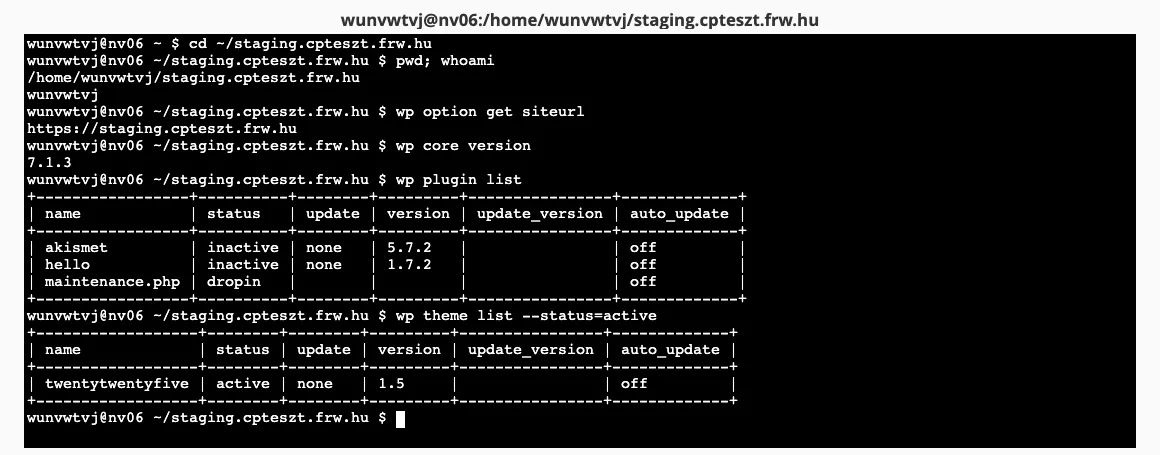
Always work on the correct website
WP-CLI operates from the directory it is currently located in, or from the directory specified using the --path switch. If you have multiple WordPress installations on your hosting account (for example, a live site and a staging copy), running wp plugin deactivate --all from the wrong directory will take the other site offline. Therefore, before starting any work, please check:
cd ~/public_html
pwd
wp core is-installed && wp option get siteurl
If siteurl is not the address of the website you wanted to work on, you are in the wrong folder.
Where are the websites located? The main domain is in the public_html folder. When you add a new domain or subdomain, cPanel creates a folder with the domain name next to public_html: for example, the WordPress installation for the subdomain staging.pelda.hu is located in the ~/staging.pelda.hu folder, not under public_html. You can see the exact path in the ‘Document Root’ column on the ‘Domains’ page (for details, see: What is my website’s root directory?).
For one-off commands, specify the path instead of changing directories:
wp --path=/home/felhasznalonev/staging.pelda.hu plugin list
Features of aWh’s cPanel servers
- PHP version: the command-line
php, and therefore WP-CLI, uses the PHP version set in the ‘Select PHP Version’ interface (PHP extensions and settings). Command-line PHP has no memory limit, so a large import will run here even if it gets stuck in the browser. - Some of the
wp dbcommands do not work. Due to security settings, PHP cannot launch external programs (proc_openis disabled), sowp db export,wp db import,wp db query,wp db checkandwp db cliterminate with the following error:The PHP functions proc_open() and/or proc_close() are disabled. For the same reason,wp --infoalso displays an error at the end of its output.wp db prefix,wp db tables,wp db sizeandwp db searchwork, as dowp search-replaceandwp option. To perform a database backup and run SQL queries, use themysqldumpandmysqlcommands directly (see below), or use phpMyAdmin. - The table prefix is not always
wp_. During installation, WP Toolkit assigns a random prefix (for example,1vL7334_options). Thewp db prefixvariable sets your own prefix; use this in SQL queries.
Database backup and SQL using the mysql command
The mysqldump and mysql commands require you to specify the database username and password. To prevent the password from appearing in the command line (and in the command history), copy it from the wp-config.php file into a file that only you can read:
cd ~/public_html
umask 077
printf '[client]\nuser=%s\npassword="%s"\nhost=localhost\n' \
  "$(wp config get DB_USER)" "$(wp config get DB_PASSWORD)" > ~/.my.cnf
The host should always be set to localhost, even if the localhost:3306 is specified in the wp-config.php file. Then:
# Mentés a webről nem elérhető home könyvtárba
mysqldump --single-transaction --no-tablespaces "$(wp config get DB_NAME)" > ~/mentes-$(date +%F).sql
tail -1 ~/mentes-$(date +%F).sql

# Lekérdezés
mysql "$(wp config get DB_NAME)" -e "SELECT COUNT(*) FROM $(wp db prefix)posts"

# Visszaállítás a mentésből
mysql "$(wp config get DB_NAME)" < ~/mentes-2026-10-27.sql
The last line of a full backup -- Dump completed on …; if this is missing, the backup was interrupted. If you no longer need the ~/.my.cnf file once the job is complete, delete it (rm ~/.my.cnf), and if you change the database password, rewrite it.
Be careful with modification commands
- Try it out first. Wherever there is a
--dry-runswitch (for example, with thewp search-replacecommand), run it with that switch first, check the result, and only then run it in production. - Backup first. Following a failed bulk operation, you can restore from the daily backup (restore from JetBackup), but a fresh
mysqldumpis quicker. - Maintenance mode hides the ‘under construction’ status from visitors:
wp maintenance-mode activate
wp plugin update --all
wp maintenance-mode deactivate
- Log your session if you are carrying out a lot of steps: after running the command
script ~/wp-cli-$(date +%F-%H%M).log, everything you type and the machine’s responses will be recorded in the file (to exit, typeexit).
The most common commands
Website status
wp core version                      # WordPress-verzió
wp core check-update                 # van-e új verzió
wp core verify-checksums             # sérültek-e az alapfájlok
wp option get siteurl                # a webhely címe
wp option get home
wp db size --size_format=mb          # az adatbázis mérete
Plugins and themes
wp plugin list
wp plugin list --update=available    # amelyekhez van frissítés
wp plugin install contact-form-7 --activate
wp plugin deactivate contact-form-7
wp plugin update --all
wp plugin update woocommerce --version=9.8.1   # adott verzióra
wp plugin delete hello

wp theme list
wp theme activate twentytwentyfive
wp theme update --all
Users
wp user list --role=administrator
wp user create szerkeszto szerkeszto@pelda.hu --role=editor
wp user update 1 --user_pass='ÚjErősJelszó'
wp user session destroy 1 --all      # kijelentkeztetés minden eszközről
wp user delete 5 --reassign=1        # a tartalmai az 1-es felhasználóhoz kerülnek
Settings, temporary data, cache
wp option get blogname
wp option update blogname "Új név"
wp transient delete --expired        # lejárt átmeneti adatok törlése
wp cache flush                       # objektum-gyorsítótár ürítése
wp rewrite flush                     # közvetlen hivatkozások újraépítése
Scheduled tasks
wp cron event list
wp cron event run --due-now          # az esedékes feladatok futtatása
wp cron test
Media
wp media regenerate --yes            # bélyegképek újragenerálása
wp media import ~/kep.jpg --title="Kép címe"
Domain name change
wp search-replace 'regi-domain.hu' 'uj-domain.hu' --all-tables --skip-columns=guid --dry-run
The process of changing the URL following a domain change is described in detail in the relevant article.
Configuration
wp config get DB_NAME
wp config set WP_DEBUG true --raw
wp config list
The --raw switch writes a logical value (true, false) or a number to the file without quotation marks; for text, it omits them.
Most commands can output the result in a different format using the --format=json, --format=csv or --format=count switches, and wp help <parancs> shows all the available options. A separate article describes how to reinstall the core WordPress files: Reinstalling WordPress using WP-CLI.
If you do not have SSH access
The cP Basic plan does not include SSH or Terminal. In this case, you can carry out most tasks via the WP Toolkit (WordPress Management) interface: updates, managing plugins and themes, backups and cloning. You can also run WP-CLI commands: on your website’s details page, click the WP-CLI link and enter the command in the Command field of the window that opens, omitting the word wp (for example, plugin list). WP Toolkit displays the result at the bottom of the window.
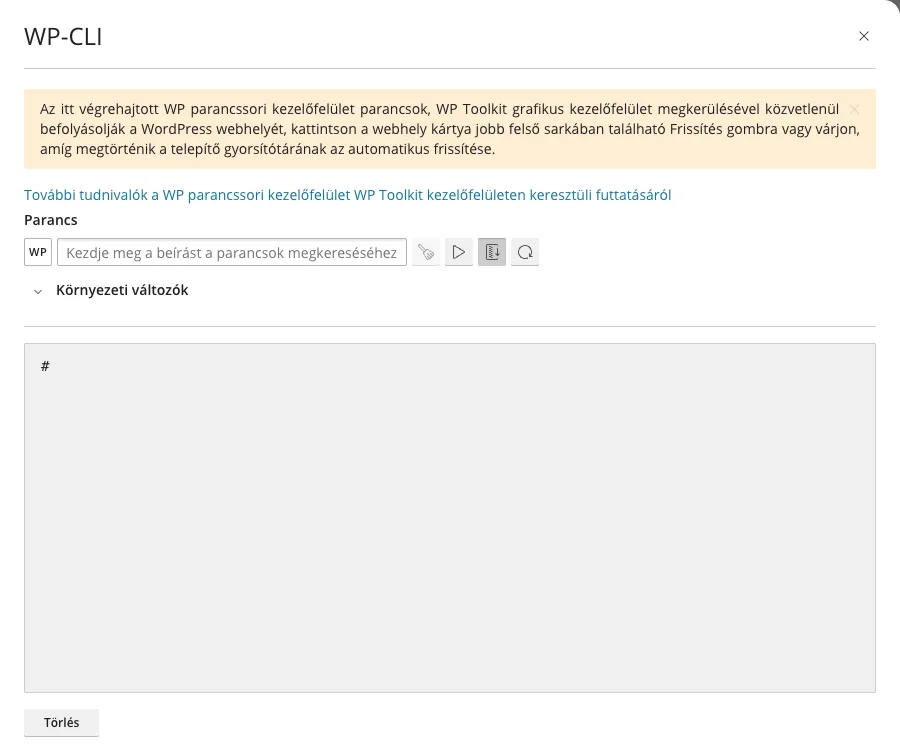
If you regularly work in the command line, it is worth switching to a plan that includes SSH access.