 English
 Magyar


On cPanel hosting, the easiest way to install WordPress is using WP Toolkit (WordPress Management › Installation, see: Installing WordPress using WP Toolkit). This configures the security measures, and the website immediately appears in the WP Toolkit list, along with updates, backups and cloning options.
Manual installation may be necessary if you wish to install WordPress with custom settings or would like to understand what is happening in the background. The installation consists of five parts: the WordPress files in the domain’s document root, a database and an associated user, the wp-config.php file containing this information, a valid SSL certificate, and finally the installation wizard. We’ll show you two methods: using File Manager (included in all plans) and via the Terminal, using WP-CLI (in SSH plans). We’ve also run through the latter on our test account.
1. Where is WordPress installed?
It is not always in the public_html folder. This is the document root for the main domain; when adding an additional domain or subdomain, cPanel creates a folder by default with the same name as the domain next to public_html (for example, ~/blog.pelda.hu). You can see the exact path in the ‘Document Root’ column on the ‘Domains’ page (What is my website’s root directory?). If you install it in the wrong folder, the domain will not display WordPress.
If the domain is not yet on your hosting account, please add it first (adding domains and subdomains) and wait until the DNS points to your hosting account.
2. SSL first
Before installation, check whether the domain has already been issued with an AutoSSL certificate: in the cPanel Security section, on the SSL/TLS Certificates page, under the Status tab. If the certificate is already in place, open the installer at https://: WordPress saves the address where you carried out the installation, so you won’t need to change it afterwards. If the certificate isn’t in place yet, the article on AutoSSL errors will help.
3. Database and user
In the cPanel ‘Databases’ section, launch the Database **Wizard: create a database, a user with a strong password, and grant them **‘ALL PRIVILEGES’ access to the database. cPanel prepends the account name and an underscore (felhasznalonev_wp) to both names. You will need the database name, the username and the password for the wp-config.php file; the steps are illustrated with images in the article on creating a MySQL database.
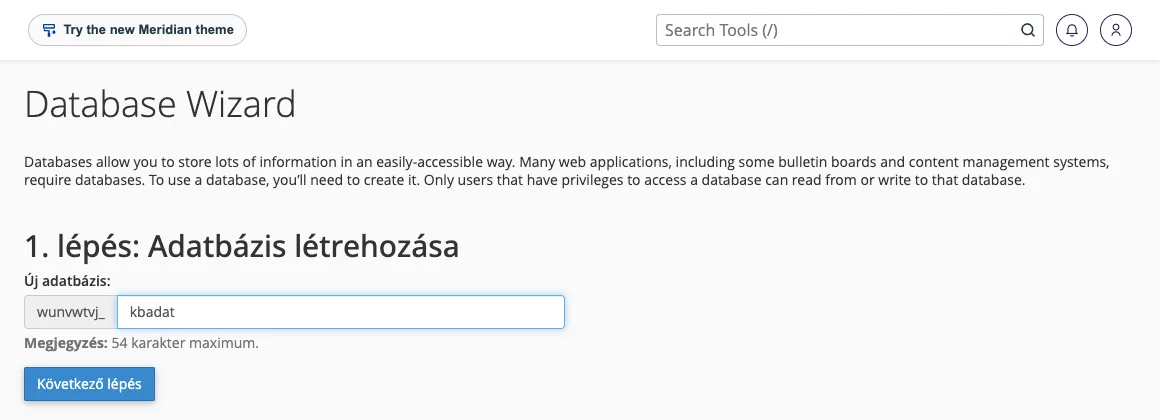
The database server is localhost.
4/A. Installation using File Manager
- Download WordPress from hu.wordpress.org (ZIP).
- In the cPanel File Manager interface, open the domain’s document root and use the Upload button to upload the ZIP file.
- Select the ZIP file and click the ‘Extract’ button on the toolbar. WordPress will be placed in a folder named
wordpress. - Go into the
wordpressfolder, select all the files (Select All), and use the Move button to move them one level up to the document root. Then delete the emptywordpressfolder and the ZIP file. - Open the domain
https://in your browser. The installer will ask for the database name, username, password, server (localhost) and table prefix, and will use these to create thewp-config.phpfile. - In the next step, enter the website address and the administrator’s username, password and email address.
There is a separate article on how to use the File Manager.
4/B. Installation using WP-CLI
For plans with SSH access (cP Premium, cP Pro, cP Pro 100), there are just a few commands available in the cPanel Terminal interface (Advanced group). In the document root:
cd ~/public_html
wp core download
wp config create --dbname=felhasznalonev_wp --dbuser=felhasznalonev_wp --dbhost=localhost --prompt=dbpass
Due to the --prompt=dbpass option, WP-CLI prompts you for the database password, so it is not recorded in the command history. It then checks the connection and generates the wp-config.php file with unique security keys. The installation then proceeds as follows:
wp core install --url=https://pelda.hu --title="A webhely neve" --admin_user=valasszon-nevet --admin_email=admin@pelda.hu
wp language core install hu_HU --activate
The wp core install command displays the generated admin password; make a note of it, or specify it in advance using the --admin_password switch. Avoid using the admin username, as this is the first one bots will try. When running wp core download --locale=hu_HU on the latest WordPress release, it may not yet find a Hungarian language pack; that is why we downloaded the base package and then installed the Hungarian language pack afterwards.
The basics of WP-CLI are described in the article on using WP-CLI.
5. After installation
- Permalinks. On the Settings › Permalinks page, select a structure (for example, Post name) and click the Save Changes button. WordPress will then generate the rules for the
.htaccess. - Permissions. Files should have
644permissions and folders755; do not use777. Thewp-config.phpfile may be set to a stricter level (600). - Remnants of the installer. Delete the uploaded ZIP file and, if they are not required for the website, the
readme.htmlandwp-config-sample.phpfiles. - The WP Toolkit. You can also manage manually installed websites in the WP Toolkit: you can find them using the Search button in the WordPress Management interface (adding WordPress to the WP Toolkit). You can then manage updates, backups and security measures from there as well.
- PHP version. Check the ‘Select PHP Version’ interface to ensure that your website is using the PHP version recommended and supported by WordPress (setting the PHP version).
Verification
cd ~/public_html
wp core verify-checksums
wp option get siteurl
curl -sI https://pelda.hu/ | head -3
The URL should start with siteurl https://, and the curl response should be 200. Open the website and the /wp-admin/ address in your browser.
Common errors
“Error establishing a database connection”. Either the database name, username or password is incorrect, or the user is not assigned to the database. Please ensure you enter the account name correctly, including the underscore at the start of the name. You can check the assignment in the ‘Manage My Databases’ interface.
The domain is not pointing to WordPress, but to an empty folder or an old page. It has been installed in the wrong folder; check the ‘Document Root’ column on the ‘Domains’ page. The domain may also prioritise the index.html file over index.php: delete any old index.html files from the folder.
The subpages are returning a 404 error. The .htaccess file is missing or does not contain the WordPress rules. Please save the Permalinks settings again or run the command wp rewrite flush --hard.
The website remains at the address http://. The installation was carried out without a certificate. Update the URLs on the Settings › General page, or using the wp search-replace command, then redirect traffic to HTTPS (HTTPS redirect).