 English
 Magyar


In addition to the main domain, you can add further domains and subdomains to your cPanel hosting account. A new domain can be either a standalone website with its own root directory (additional domain) or an alias pointing to the content of the main domain (parked domain); a subdomain (for example, blog.pelda.hu) is created under an existing domain. All three can be created on the same page, under the ‘Domains’ menu item.
The Domains page
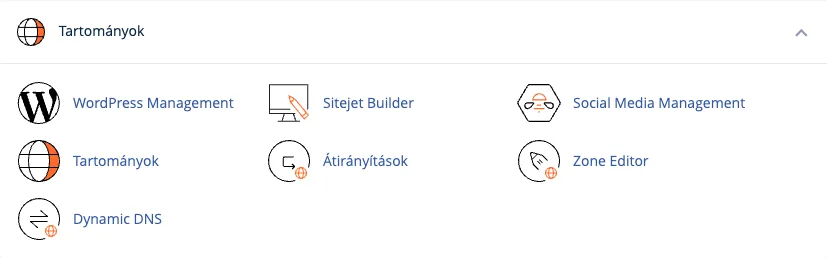
Log in to cPanel and, in the Domains section, click on the Domains icon.
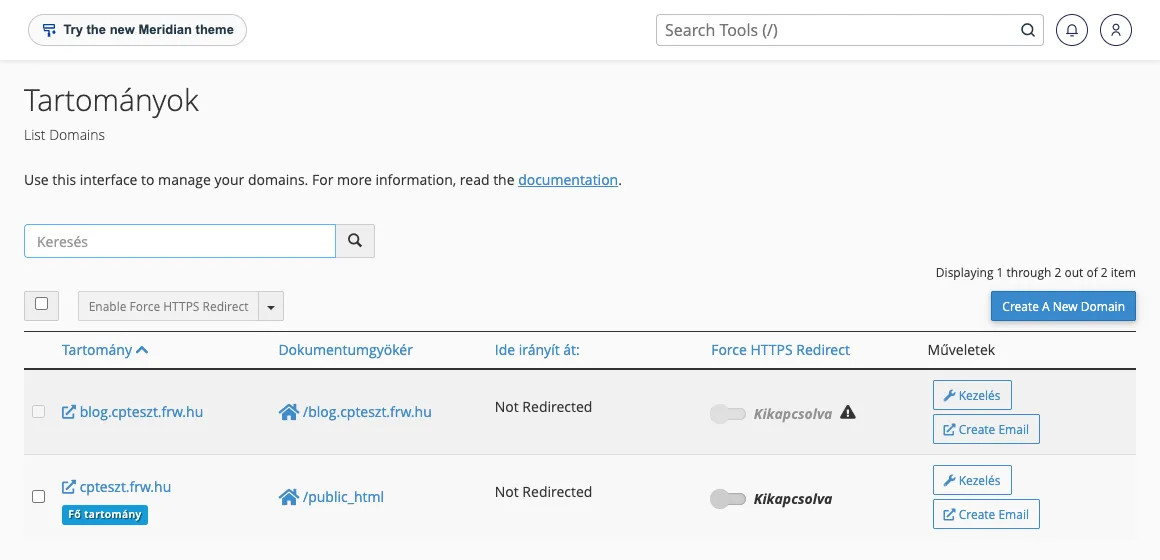
In the list, you can see the domains and subdomains associated with the account, their document root directories, any redirects, and whether Force HTTPS Redirect is enabled (automatic redirection of http:// addresses to https:// addresses). You can use the ‘Manage’ button to change the domain’s settings later, and the ‘Create Email’ button to create an email account for it straight away.
Registering a new domain or subdomain
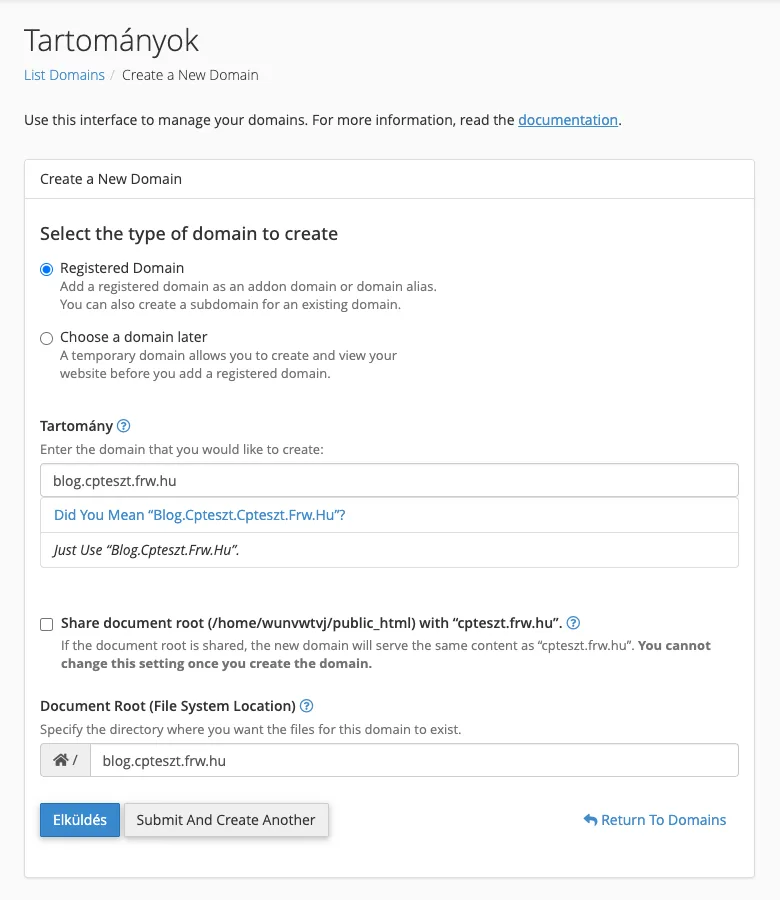
- Click on the ‘Create A New Domain’ button.
- Leave the ‘Registered Domain’ option selected.
- In the ‘Domain’ field, enter the domain name (for example,
masikdomain.hu) or the full name of the subdomain (for example,blog.pelda.hu), withoutwww. - Decide whether the domain will host its own content:
- For a standalone website (additional domain or subdomain), untick the ‘Share document root’ option. The ‘Document Root’ field will then appear: cPanel suggests a folder in the home directory that matches the domain name (for example,
/home/felhasznalonev/blog.pelda.hu), but you can specify any path you wish. This is where you should upload your website files. - For alias (parked) domains, leave the ‘Share document root’ option ticked: the domain will display the same content as the main domain (
public_html). This setting cannot be changed at a later date.
- For a standalone website (additional domain or subdomain), untick the ‘Share document root’ option. The ‘Document Root’ field will then appear: cPanel suggests a folder in the home directory that matches the domain name (for example,
- Click the ‘Submit’ button (you can add another one straight away using the ‘Submit And Create Another’ button).
cPanel also configures the DNS zone for the domain, email management and the application for a free certificate. For the domain to point to the hosting account, its name servers or A record must point to the hosting account; for subdomains, this happens automatically in the main domain’s zone if the main domain uses our name servers. The certificate is usually issued within a few minutes of the domain being registered (see: AutoSSL errors).
In the case of an alias domain: redirection
If two domains display the same content, search engines will see the same page at both addresses. It is therefore advisable to redirect the alias domain to the main domain using a 301 redirect; you can set this up in the ‘Redirects’ menu (steps for redirecting a domain). A separate article provides more details on parked domains.
What should you look out for?
- The number of add-on and alias domains you can register depends on your plan; you can see how many you are using in the ‘Statistics’ box on the right-hand side of the cPanel homepage.
- Additional domains use the storage and resources of the same cPanel account, and their files are also stored within a single account. If one website is hacked, this could put the others at risk as well. If you operate many independent websites (for example, for clients), the reseller hosting service will provide them with separate cPanel accounts.
The article ‘What is a subdomain?’ explains when it is advisable to use a subdomain rather than a subdirectory or a separate domain. Our blog post ‘Add-on domains vs. subdomains’ provides a detailed explanation of the difference between add-on domains and subdomains.