 English
 Magyar


If you wish to redirect a domain or a subpage to another address (for example, when changing domains, or redirecting an alias domain to the main domain), you can set this up in the cPanel ‘Redirects’ menu without having to edit any files. cPanel writes the rule to the domain’s .htaccess file.
Setting up a redirect
Log in to cPanel and, in the Domains section, click on the Redirects icon. In the Add Redirect section, fill in the form:
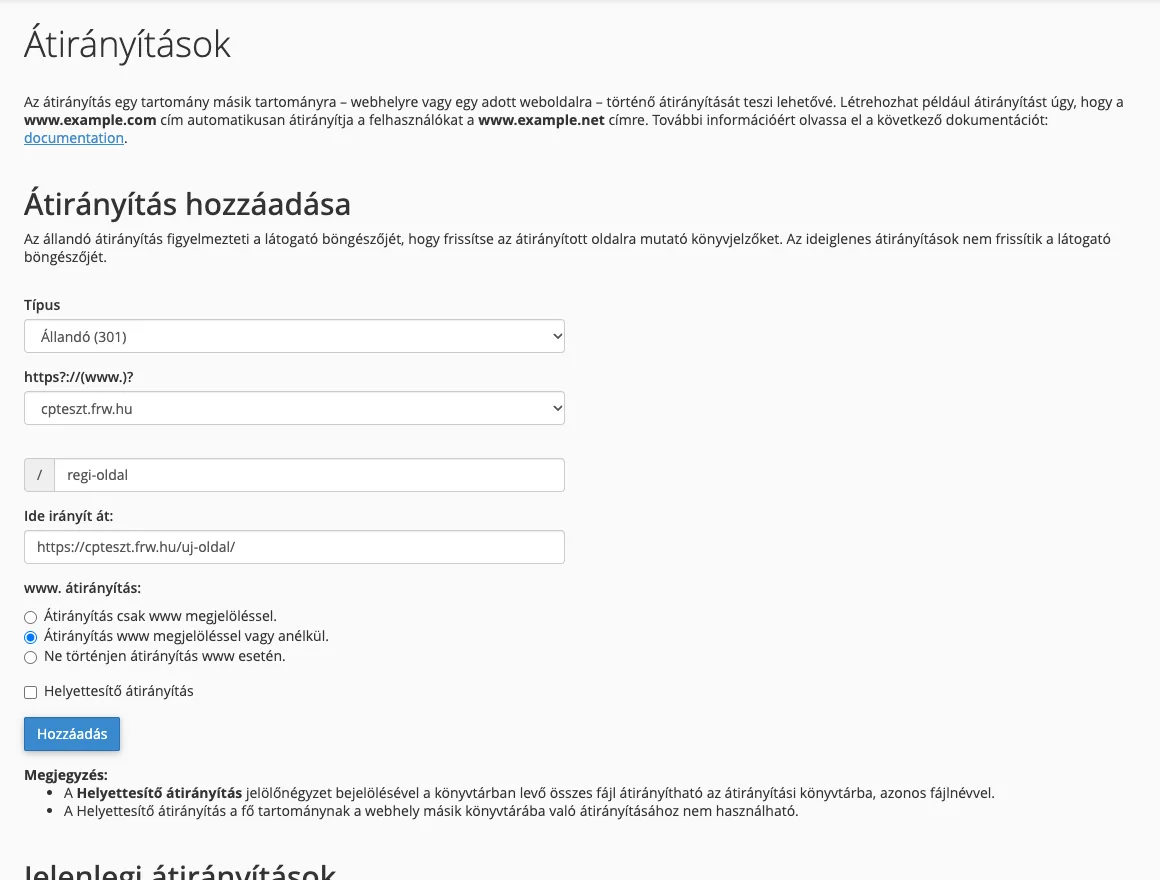
- Type:
- Permanent (301): the URL has been permanently moved elsewhere. Browsers and search engines will record the new URL, and any links to the old URL will be redirected to the new one. Select this option for domain changes and alias domains.
- Temporary (302): the URL only redirects to another location temporarily (for example, during maintenance or a short-term campaign); search engines retain the old URL.
- https?://(www.)?: select the domain you wish to redirect, or choose the ‘All public domains’ option to apply this to all domains in your account.
- The
/field next to the domain: if you are redirecting the entire domain, leave it blank; if you are only redirecting a subpage or directory, enter its path (for example,regi-oldalorwordpress). - This redirects to: the full destination address, including the protocol (for example,
https://ujdomain.hu/). - www. redirection: in most cases, redirection with or without the ‘www’ prefix is the best option, so both addresses with the
www.prefix and those without it will be redirected. - Substitute redirection: if you tick this box, every subpage of the original domain will be redirected to the same subpage on the new domain (for example,
regidomain.hu/kapcsolat→ujdomain.hu/kapcsolat). When changing domains whilst keeping the URL structure unchanged, it is advisable to enable this; in such cases, the destination URL should not end with a specific page.
Click the ‘Add’ button. The redirect will take effect immediately and will appear at the bottom of the page in the ‘Current redirects’ list, where you can also remove it using the ‘Delete’ button.
Verification
Open the old address in a private browser window: the new address should appear in the browser’s address bar. From the command line, the command curl -I https://regidomain.hu/regi-oldal will display both the redirect code (301 or 302) and the destination address (location). If the browser behaves as before, clear its cache: browsers retain 301 redirects for a long time, so it is worth trying a 302 redirect first whilst testing.
Common errors
- Infinite redirect: the destination URL points to the same domain and path as the one being redirected, or a WordPress plugin is also redirecting to the same location. Please also check the domain’s
.htaccessfile. - HTTP and HTTPS: Redirecting
http://addresses tohttps://addresses should not be configured here, but rather in the Domains list, using the ‘Force HTTPS Redirect’ toggle next to the domain (Domains). - The redirect isn’t working: it’s being overridden by a previous rule in the
.htaccessfile. We’ve written a separate article explaining what the .htaccess file is and what it’s used for.