 English
 Magyar


On our cPanel servers, you can use the CloudLinux PHP Selector to choose from several versions, ranging from PHP 5.1 to 8.5, during hosting. This means you can always use the PHP version that is best suited to the application you are running.
Which version should you choose?
In terms of performance, functionality and security, it is advisable to run the latest, still-supported version of PHP. Older versions no longer receive security patches from the PHP developers. However, there are some older applications, templates and extensions that do not work with newer versions; in such cases, you may need to use an older version temporarily whilst you update the application.
Before upgrading, check the documentation for your application (such as WordPress, WooCommerce or your theme) to see which PHP versions it supports, and make a backup.
Changing the version
-
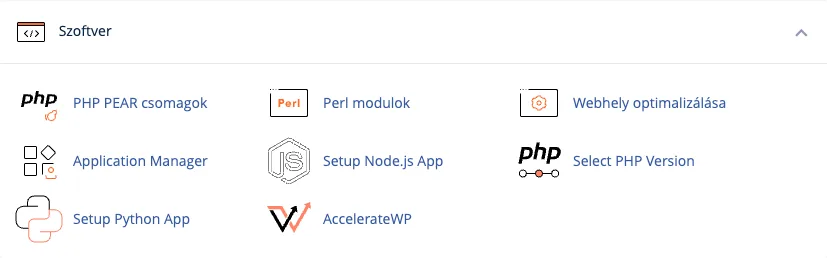
Log in to cPanel and, in the Software section, click on the ‘Select PHP Version’ menu item.
-
On the PHP Selector page, under the ‘Account Global Settings’ tab, in the ‘PHP version’ row, click on the current version (for example, ‘8.4 (current)’) and select the desired version from the list. The change will be saved immediately.
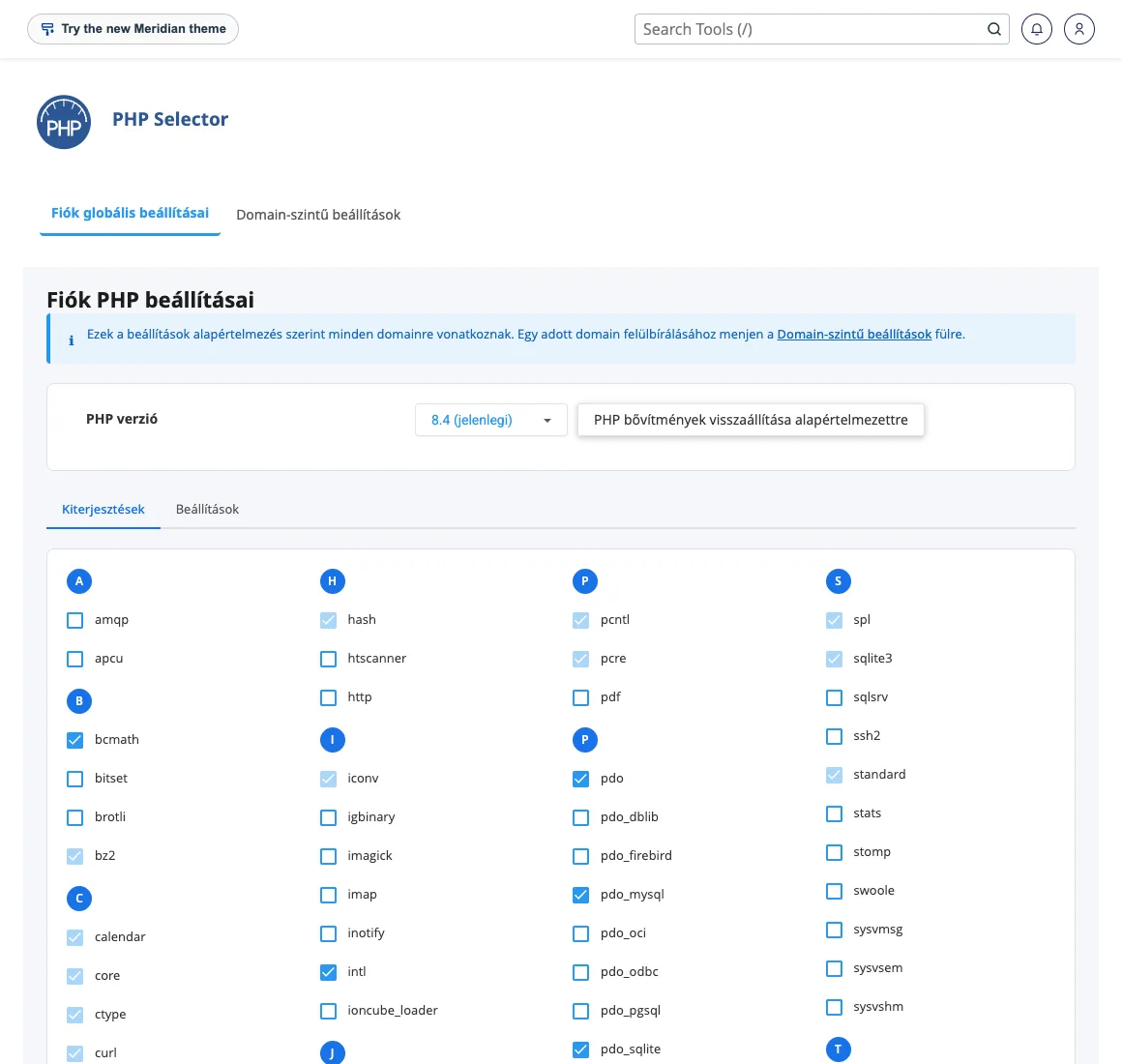
- Below that, on the ‘Extensions’ tab, you can see the PHP extensions (modules) available for the selected version. You can enable or disable these according to your application’s requirements; details are set out in the article on managing PHP extensions.
- Open your website and check that everything is working properly.
The version change takes effect immediately, and you can revert to the previous version at any time if the site displays an error.
PHP settings
In the same place, on the ‘Settings’ tab, you can also adjust the settings that control how PHP operates, such as the maximum size of files that can be uploaded or the memory limit. There is a separate article on changing the maximum PHP upload size (upload_max_filesize).
Multiple pages, multiple versions
The version configured here applies to all websites on the hosting account. (On the ‘Domain-level settings’ tab, website isolation would be required for per-domain settings; this is not enabled on our hosting plans.) If an older application requires a different version to the other sites, you can also set a different PHP version per directory; the steps are outlined in the article on setting different PHP versions per directory.
If the page displays an error
The most common error following a version update is a blank page or a ‘500 Internal Server Error’. In this case, revert to the previous version, then check the application’s error log to identify which plugin or theme is causing the problem. For WordPress, the article on the ‘White Screen of Death’ will help you troubleshoot the issue.