 English
 Magyar


In this article, we’ll look at a few optimisation options that can help websites running on cPanel hosting (whether WordPress or another content management system) load faster. These don’t cover every possible option, but they offer significant benefits with minimal effort.
Enabling Gzip compression
Compression reduces the size of text files (HTML, CSS, JavaScript) sent from the server to the browser, so the page loads more quickly. It is disabled by default in cPanel, but can be enabled with just a few clicks:
- Log in to cPanel and, in the Software group, click on the Website Optimisation icon.
- In the ‘Content Compression’ section, select the ‘Compress all content’ option (or the ‘Compress specified MIME types’ option if you only wish to compress certain types; the default list includes text types).
- Click on the ‘Update Settings’ button.
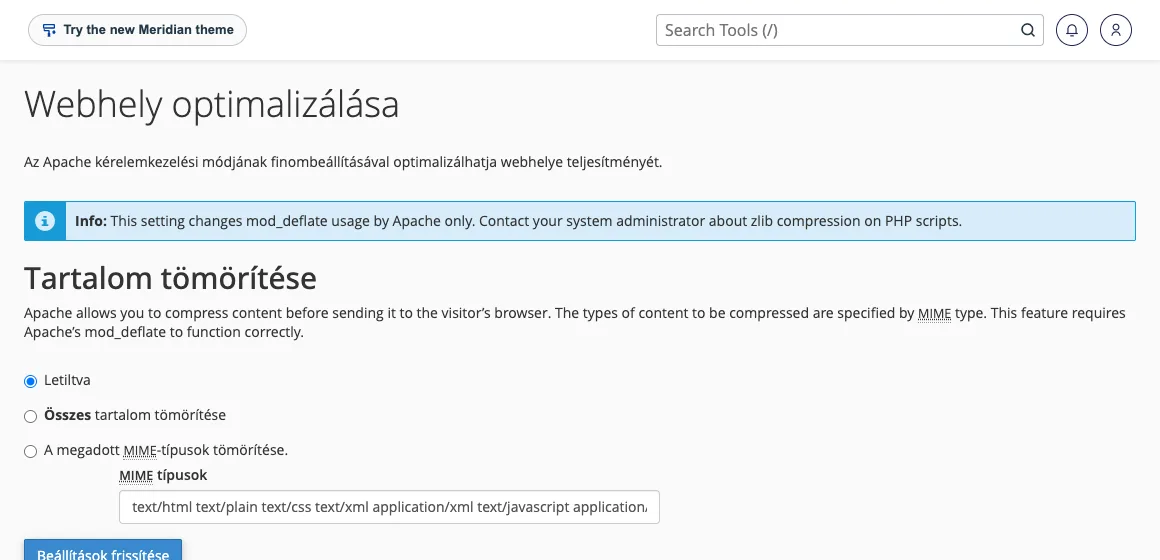
This setting applies to all websites within the cPanel account (it works with Apache’s mod_deflate module). If you require different settings for each website, you can specify the relevant lines in the .htaccess file. Some applications (such as WordPress speed-optimisation plugins) handle the compression of PHP-generated pages themselves.
Enabling PHP OPcache
OPcache stores the compiled (bytecode) version of PHP scripts in memory, so PHP does not need to reinterpret the files with every request. It noticeably speeds up performance, particularly for applications consisting of many files (WordPress, WooCommerce, Laravel). In PHP 8.5, OPcache is already part of PHP; in older versions, it must be enabled as an extension:
- In the Software group, open the Select PHP Version menu item.
- On the ‘Extensions’ tab, tick the ‘opcache’ extension (the change is saved immediately).
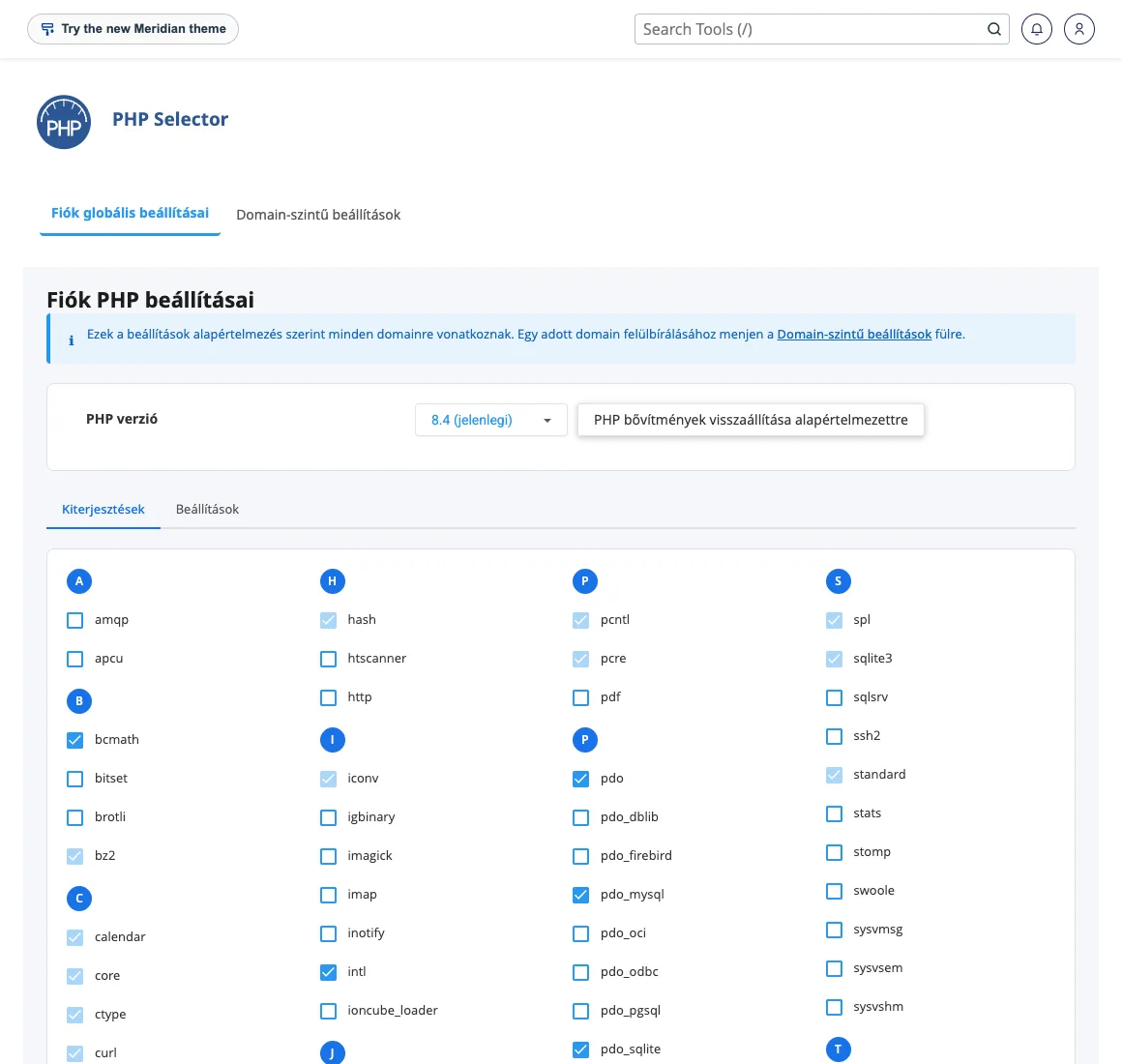
Important: during development or debugging, the effects of a modified PHP file may not be immediately apparent. In such cases, temporarily disable the opcache extension. For information on using the PHP Selector, see the article on managing PHP extensions and settings.
Making use of the browser’s cache
Expires headers tell the end user’s web browser how long it should cache different types of content. Expires headers are standard HTTP headers, so any method that allows an HTTP header to be set is a valid method for setting Expires headers.
In the cPanel system, the mod_expires Apache module is installed by default; therefore, the method described in this guide uses mod_expires to configure the headers, as this ensures easier use.
To use this, simply open the website’s .htaccess file for editing, then add the following code at the end of the file:
<IfModule mod_expires.c>
ExpiresActive On
# Images
ExpiresByType image/jpeg "access plus 1 year"
ExpiresByType image/gif "access plus 1 year"
ExpiresByType image/png "access plus 1 year"
ExpiresByType image/webp "access plus 1 year"
ExpiresByType image/svg+xml "access plus 1 year"
ExpiresByType image/x-icon "access plus 1 year"
# Video
ExpiresByType video/mp4 "access plus 1 year"
ExpiresByType video/mpeg "access plus 1 year"
# CSS, JavaScript
ExpiresByType text/css "access plus 1 month"
ExpiresByType text/javascript "access plus 1 month"
ExpiresByType application/javascript "access plus 1 month"
# Others
ExpiresByType application/pdf "access plus 1 month"
ExpiresByType application/x-shockwave-flash "access plus 1 month"
</IfModule>
Optimising images
Many website owners who face this problem are not even aware of it. Yet knowing how to optimise images in WordPress can make all the difference. As well as causing visitors to lose interest, large images can result in pages loading more slowly than expected, and may also lead to a decline in the site’s SEO (Search Engine Ranking) metrics. If your website is built on WordPress, there are plugins designed specifically for this purpose – two examples are Smush and TinyPNG. As a general rule, images should be smaller than 500 KB, so double-check the file sizes when uploading and make sure you’re using the correct resolution.
WordPress cache plugins
We always recommend using a caching plugin where possible, as it enables your website to handle higher traffic volumes and more concurrent users, whilst also providing visitors with a better user experience.
To cache your WordPress posts and pages as static files, you can use a caching plugin. Installing a caching plugin in WordPress is fairly straightforward; all you need to do is go to wp-admin -> Plugins -> Add New. Then enter the name of the plugin you wish to install. There are many different caching plugins available, and your experience with them will really depend on your theme and the mix of plugins you’re currently using. It’s a case of trial and error to find out what works best for your website. Here are the three we think are the best and are worth checking out:
WP Super Cache
This plugin is one of the most popular; it offers a wide range of settings, yet is user-friendly and largely pre-configured out of the box. Without the need for any configuration, this is the sort of plugin you can simply install and it will speed up your website without requiring any further knowledge or fine-tuning.
W3 Total Cache
W3 Total Cache is another plugin that is extremely popular. We often find that it works well with WooCommerce, making it a really good choice for e-commerce and retail websites.
WP Fastest Cache
WP Fastest Cache is a caching plugin that does the same as others, but it also generates static HTML pages from your website’s content, which can further improve loading times. What’s more, this plugin also features GZIP compression as an option, allowing you to reduce the size of the files sent to your server.
Please do not install or activate more than one caching plugin on your WordPress site at the same time – this is likely to cause a conflict, which could even break your website.