 English
 Magyar


The cPanel ‘Select PHP Version’ interface is the CloudLinux PHP Selector tool. Here, you can not only select the PHP version for your hosting account (as described in our article on changing the default PHP version), but you can also enable the PHP extensions required for your website and modify your PHP settings.
Opening the interface
- Log in to cPanel.
- In the Software section, click on the Select PHP Version icon.
- On the ‘Account Global Settings’ tab, the current version is displayed in the ‘PHP version’ field (for example, ‘8.4 (current)’). If necessary, click on it and select a different version; the change will be saved immediately.
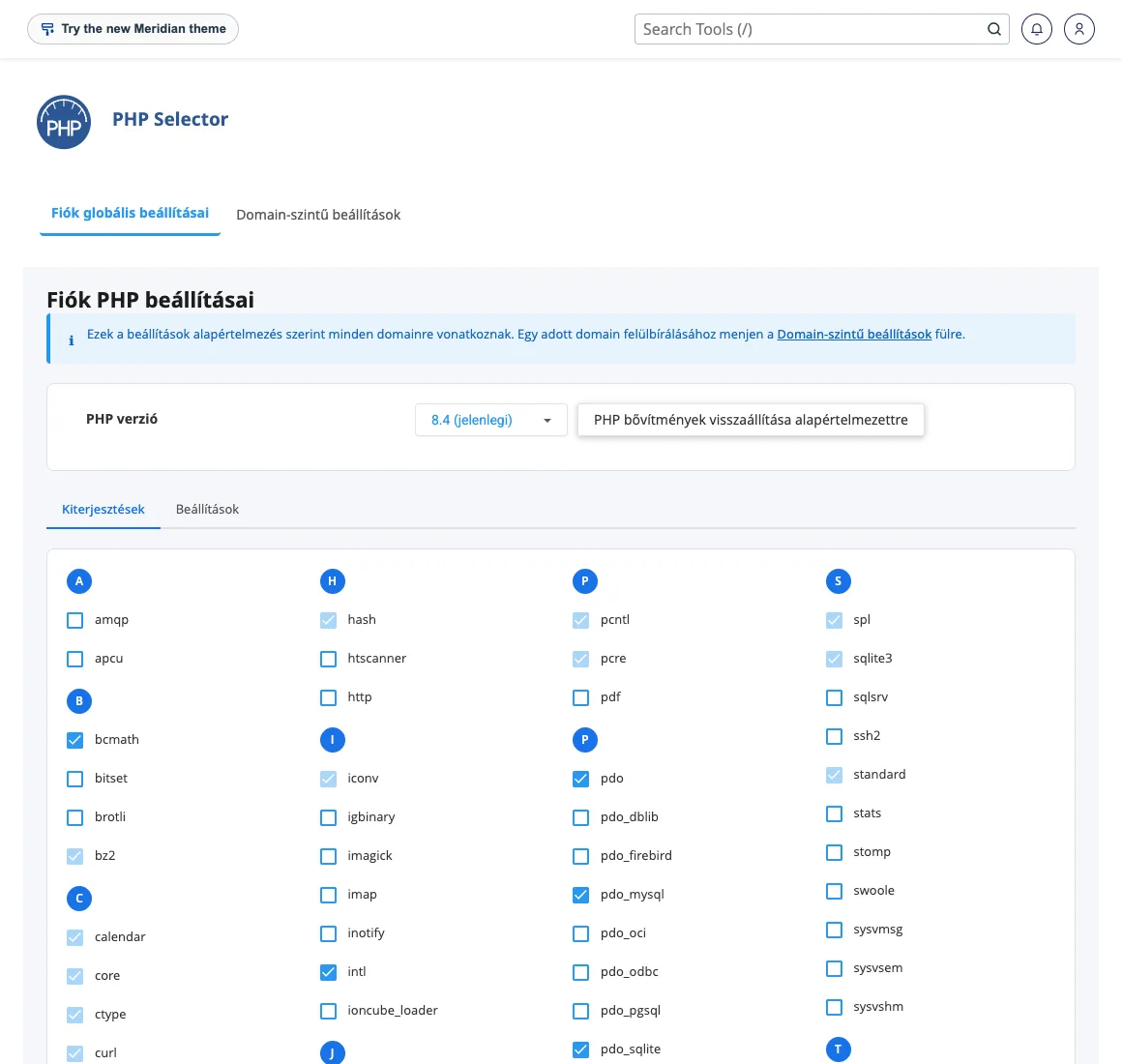
Important: Extensions and settings can only be modified for versions provided by CloudLinux (e.g. 8.2, 8.3). If the version field displays the native value, please select a specific version first.
Enabling and disabling PHP extensions
In the list of add-ons, there is a tick box next to each add-on. Tick the box for the add-ons you require, or untick those you do not need. Changes are saved automatically; there is no need to click a separate save button.
Commonly required add-ons:
| Plugin | What is it for? |
|---|---|
imagick |
image processing, such as WordPress thumbnails and PDF previews |
intl |
Internationalisation, date and currency formatting (WooCommerce, Laravel, Symfony) |
ioncube_loader |
Running extensions and software encoded with ionCube |
sodium |
modern encryption |
opcache |
Caching of compiled PHP code, faster page loading |
zip |
Managing ZIP files, for example when installing extensions |
If a piece of software reports a missing extension (for example, ‘PHP extension intl is missing’), you can enable it here. Do not enable any unnecessary extensions, as every extension increases the memory requirements of PHP processes.
Changing PHP settings
- Click on the ‘Settings’ tab (next to the ‘Extensions’ tab).
- Change the value as required, for example:
memory_limit: the amount of memory that can be used by a PHP script;max_execution_time: the maximum execution time of a script, in seconds;upload_max_filesizeandpost_max_size: the maximum size of files that can be uploaded (see the article on changing the upload_max_filesize setting);max_input_vars: the number of fields that can be submitted in a form (this may need to be increased for large WordPress menus or template settings);display_errors: display of errors in the browser (should be disabled on the live site).
- Changes are automatically saved here too, as indicated by a ‘backup completed successfully’ notification. You can return to the extensions by clicking on the ‘Extensions’ tab. The ‘Reset PHP extensions to default’ button allows you to restore the extensions to their original state.
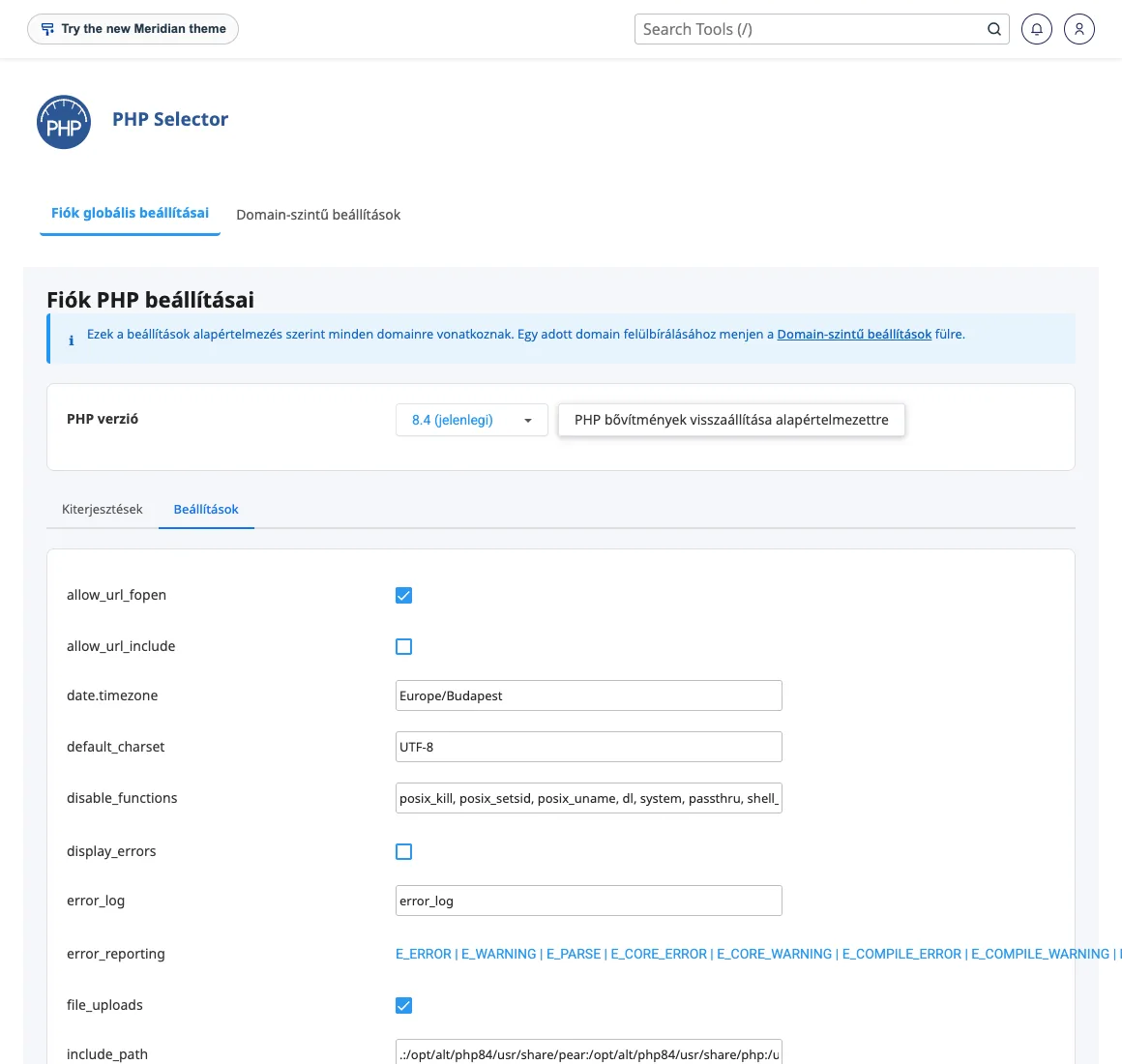
The memory_limit cannot exceed the memory limit associated with your plan. If a script reaches your account’s memory limit, CloudLinux may terminate it, regardless of how high a memory_limit value you have set.
Good to know
- Settings are stored on a per-version basis. Extensions and settings are specific to the relevant PHP version. If you switch versions, please also check the extensions and settings for the new version.
- Restore to default settings. Use the ‘Reset to default’ button to restore the extensions for that version to their default settings.
- Different settings per directory. You can specify certain PHP settings on a per-directory basis using the .user.ini file, and the PHP version in the .htaccess file.
- Older versions of PHP. You can read about the security of older versions in the article on HardenedPHP.