 English
 Magyar


If the size of the file you wish to upload to your website exceeds the upload size limit, you will receive an error message and the upload will stop. In this case, you will need to increase the default upload limit.
What is the maximum file size for uploads?
The “upload_max_filesize” value determines the maximum size of files that can be uploaded to the website. Files exceeding the size set by this value cannot be uploaded using standard PHP upload methods.
In other words, the ‘maximum file size for uploads’ determines the size of files that can be uploaded to the website.
By default, this value is set to 32 MB for our cPanel hosting plans.
How can I increase the maximum upload size in cPanel?
-
Log in to cPanel and, in the Software group, click on the Select PHP Version menu item.

- On the PHP Selector page, click the Settings tab (next to the Extensions tab).
-
At the bottom of the list, locate the ‘upload_max_filesize’ line, click on its value (32M by default) and select the new value (for example, 128M). The change is saved immediately, as indicated by a ‘backup completed successfully’ notification.
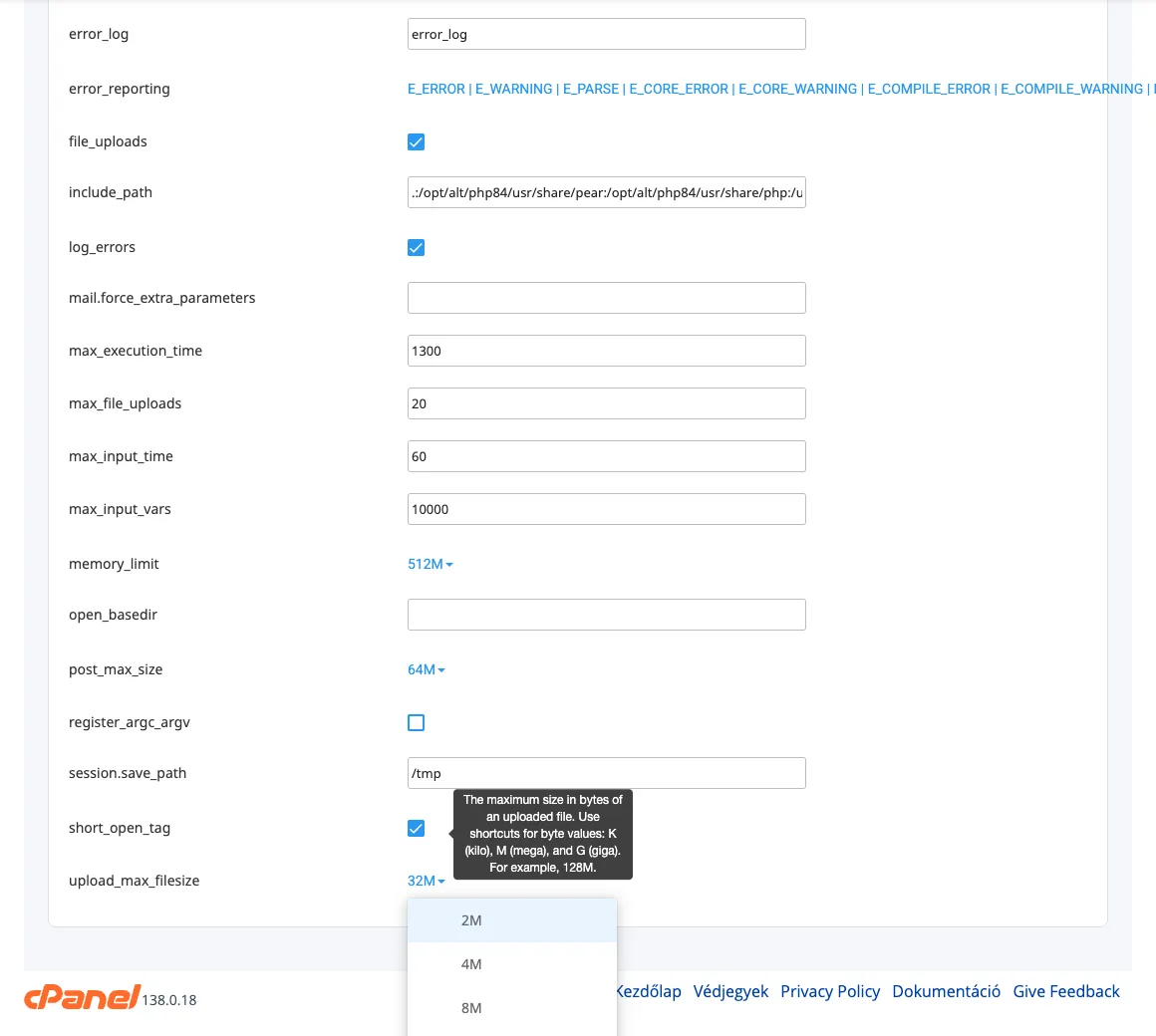
- Similarly, increase the value of
post_max_size(the default is 64M) so that it is at least as large as the new upload limit.
What should you look out for?
- When increasing the maximum file size for uploads, the value of
post_max_sizemust also be adjusted so that it is equal to or greater than theupload_max_filesizevalue. There is another setting calledmemory_limit, which must also be equal to or greater than thepost_max_sizevalue. It essentially looks like this:
Maximum file size for uploads ≤ Maximum POST size ≤ Memory limit - This limit applies when uploading files directly to the website (e.g. via the WordPress File Manager into the /wp-content/uploads folder). In cPanel’s File Manager, the upload file size is independent of the hosting account’s PHP limit and is always capped at 2 GB.
- For uploading larger files, we always recommend using an FTP/FTPS or SSH connection.