 English
 Magyar


PHP returns the fatal error “Allowed memory size of 268435456 bytes exhausted” when a single request attempts to use more memory than permitted by the memory_limit setting. The request stops immediately: the visitor sees a blank page or the message ‘A serious error has occurred on our website’, and any upload or refresh is interrupted.
The solution involves two steps: raise the limit to the level applicable to your website, and check whether the error is caused by a runaway plugin or image processing. In the latter case, raising the limit will merely delay the next outage.
What does the error message say?
PHP Fatal error: Allowed memory size of 268435456 bytes exhausted (tried to allocate 20480 bytes) in /home/felhasznalonev/public_html/wp-includes/class-wp-image-editor-gd.php on line 118
Allowed memory size of 268435456 bytes: the limit in bytes. To convert to MB, divide by 1,048,576: 134217728 = 128 MB, 268435456 = 256 MB, 536870912 = 512 MB.tried to allocate 20480 bytes: this refers to the single allocation that could not be accommodated, not the total requirement of the request. If this is small, the request had already reached the limit.in … on line …: the code that requested the memory. If it points to a plugin folder (wp-content/plugins/<név>/), that is the likely culprit. If it points to the WordPress core (wp-includes), that is merely the executor; we’ll show you how to find the real cause further down.
On aWh’s cPanel servers, PHP writes error messages to the logs/php.error.log file in the home directory:
grep -h "Allowed memory size" ~/logs/php.error.log ~/public_html/error_log 2>/dev/null | tail -n 3
Three limits, nested within one another
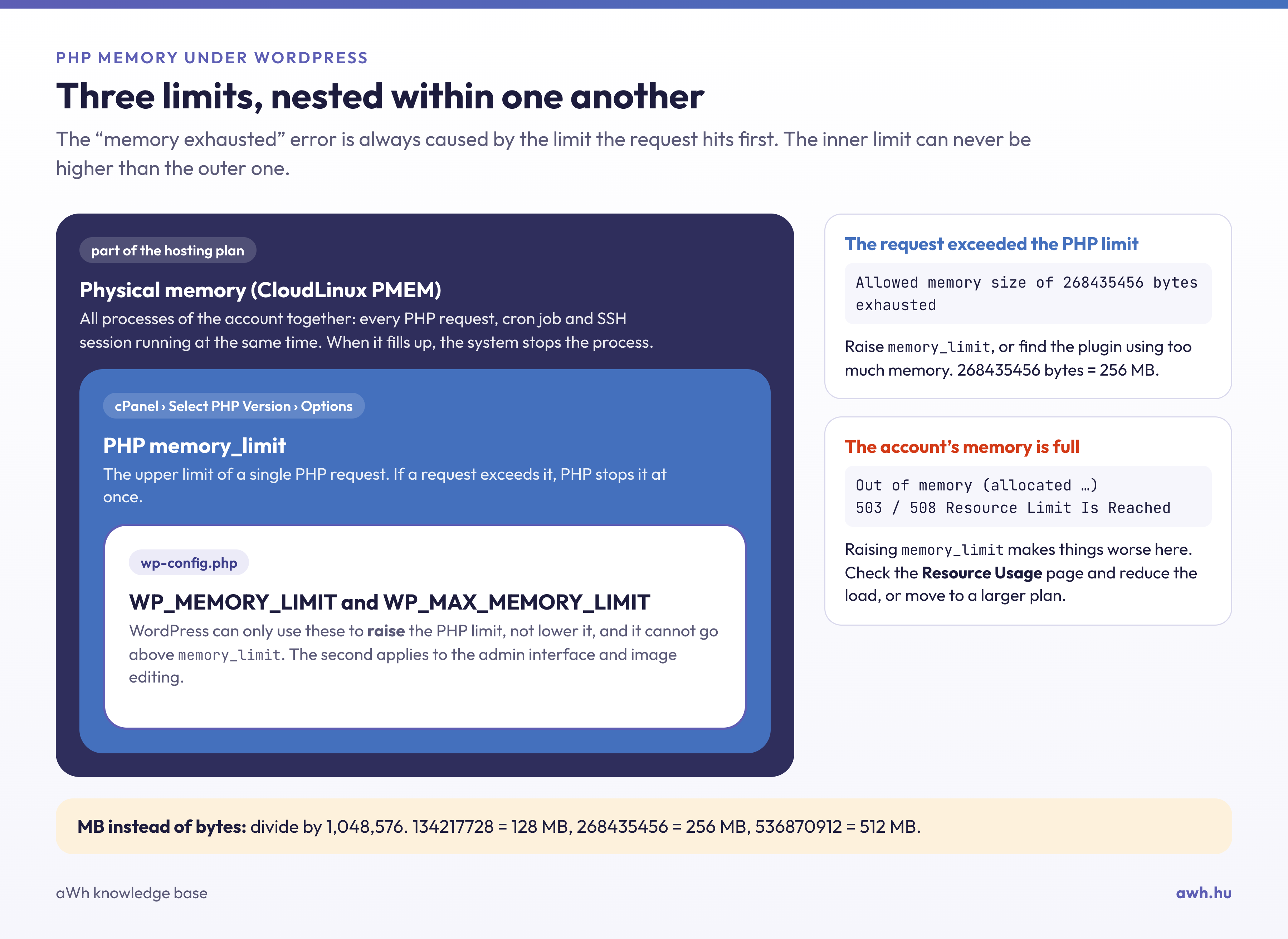
- The account’s physical memory (CloudLinux PMEM). This is part of the cPanel hosting plan and applies collectively to all processes running on the account: all concurrent PHP requests, cron jobs and SSH connections. The values are listed in the article on resource limits for the plans.
- The PHP
memory_limit. The maximum limit for a single PHP request. This can be set in cPanel via the ‘Select PHP Version’ interface. - The WordPress constants
WP_MEMORY_LIMITandWP_MAX_MEMORY_LIMITare defined in thewp-config.phpfile. WordPress can only use these to increase the PHP limit, not to decrease it, and cannot exceed the PHPmemory_limit. If these are not specified, the default values are 40 MB for visitor pages and 256 MB for the admin interface and image editing; however, if the PHP limit is higher than this, the higher value will take precedence.
Of the three, the ‘Allowed memory size’ error is always caused by the memory_limit setting. If the account’s physical memory is running out, the symptoms are different (see below), and increasing the memory_limit in that case will make the situation worse.
1. Check the current limit
The easiest way is via the admin interface: Tools › Site Health › Information, in the Server section under the PHP memory limit line. The values for WP_MEMORY_LIMIT and WP_MAX_MEMORY_LIMIT can be found there, in the WordPress constants section.
The command line won’t help here, because command-line PHP on aWh’s servers has no memory limit (the value of wp eval 'echo ini_get("memory_limit");' is -1, meaning unlimited). You can query the web-based value using a temporary file, which you then delete immediately:
echo '<?php echo ini_get("memory_limit"), PHP_EOL;' > ~/public_html/memteszt-7f3k.php
curl -s https://pelda.hu/memteszt-7f3k.php
rm ~/public_html/memteszt-7f3k.php
2. Increase the value of memory_limit
- Log in to cPanel and, in the Software group, click on the Select PHP Version icon.
- Click on the Settings tab.
- In the
memory_limitline, select a higher value from the list. The change is saved automatically and will take effect from the next request.
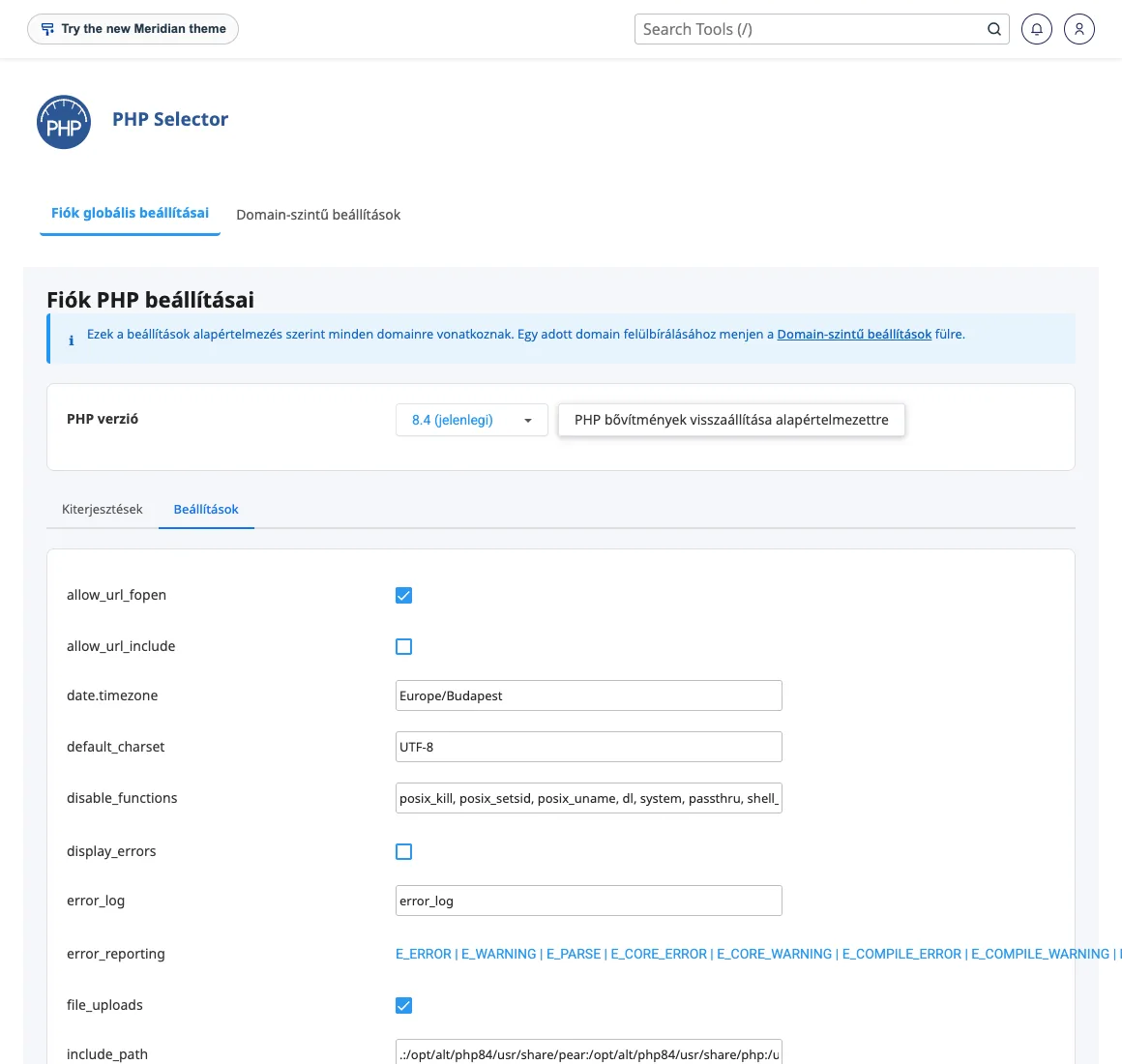
This setting applies to all websites within the account that use the specified PHP version. Further details are provided in the article on managing PHP extensions and settings. You can specify a different value for a single directory using the .user.ini file (using the .user.ini file); PHP caches this file for up to 5 minutes, so the change may take some time to take effect.
You can also set the value for a folder by adding the line php_value memory_limit 256M to the .htaccess file; this also works on our servers. Keep the setting in one place, because if **‘Select PHP **Version’, .user.ini and .htaccess specify different values, it is difficult to determine which one takes precedence.
3. WordPress permalinks
If the PHP limit is high enough, WordPress constants are not usually required. If a plugin specifically requests them, or if the Site Health page shows a low value, set them as follows:
cd ~/public_html
wp config set WP_MEMORY_LIMIT 256M
wp config set WP_MAX_MEMORY_LIMIT 512M
When editing manually, the two define() lines must appear above the comment /* That's all, stop editing! */. If nothing changes after making the adjustment, either the PHP memory_limit is set too low, or a plugin is subsequently overwriting it: run grep -rn "memory_limit" ~/public_html/wp-content --include=*.php.
4. Is the limit really the problem?
An average WordPress site can run on just a few tens of MB of memory. If even 512 MB is not enough for a single request, something is going wrong, and a higher limit will only buy you time until the next error occurs. Here’s how to find the cause:
- Trace the error message. If it points to a plugin folder, that is the likely culprit. If it points to the WordPress core, install the Query Monitor plugin, which shows peak memory usage per query, and open the page causing the error.
- The process of elimination. Save the list of active extensions, disable them all, reproduce the error, then re-enable them in groups until the error reoccurs (it is advisable to carry this out on a staging copy):
wp plugin list --status=active --field=name > ~/aktiv-bovitmenyek.txt
wp plugin deactivate --all
# ... a hiba ellenőrzése, majd a visszakapcsolás:
wp plugin activate $(cat ~/aktiv-bovitmenyek.txt)
- Image processing. If the error occurs in the
class-wp-image-editor-gd.phpfile, resizing a large photograph is consuming memory. GD stores the unpacked image in memory at approximately 4 bytes per pixel, so a 24-megapixel photo is already around 100 MB before thumbnails are generated. Resize images to a smaller size before uploading, or regenerate thumbnails for existing images via the command line, where there is no memory limit:wp media regenerate --yes. On the ‘Select PHP Version’ page, you can also enable theimagickextension; WordPress will then use this instead of GD. - Bulk tasks. Do not run a product import or a large order export in your browser. Run them using WP-CLI or the plugin’s background mode, so you don’t have to impose a high limit on every web request.
If the error is not ‘Allowed memory size’
If the log shows Out of memory, or if a visitor receives a 503 error or the ‘508 Resource Limit Is Reached’ page, it is not a single request but the entire account that has reached the plan’s physical memory limit or concurrent process limit. In such cases, increasing the memory_limit will make the situation worse, as each request may take up a larger portion of the shared pool. Check the Resource Usage page (error counters) in the cPanel Metrics section, identify what is putting a strain on the account, and if the website has simply outgrown the plan, upgrade to a larger one. There is a separate article on error 508.
If your website displays a blank page but there are no memory errors in any of the logs, the article on the white screen will help.