 English
 Magyar


The cPanel Resource Usage page not only shows the current load but also indicates how many times the hosting account has reached the resource limits associated with its plan. CloudLinux refers to these instances of exceeding the limits as ‘faults’, or ‘error counts’.
You can access this page in the cPanel Metrics section by clicking on the Resource Usage icon. On the older interface, it is labelled ‘CPU and concurrent connection usage’. For a quick overview of the current values, see the article on monitoring LVE resource usage in real time.
Sections of the site
- Dashboard (Overview): if your account has been restricted by the system within the last 24 hours, you can see here which resource caused the restriction. Click the ‘Details’ button to view the details. If there are no issues, the overview page will be blank.
- Current Usage: graphs and tables for the selected period.
- Snapshot: snapshots taken at the time the limit was reached.
The columns in the table
The current usage table shows four values for each resource:
| Column | Meaning |
|---|---|
| Description | Resource name |
| Usage | The value of using it |
| Limit | the limit associated with your plan |
| Fault | the number of limit exceedances |
The table showing data by period contains the following abbreviations: A stands for average usage, L for the limit, and F for the number of errors.
The colours in the graphs are as follows: green represents average usage, red represents the limit, blue represents database usage, and greenish-blue represents errors.
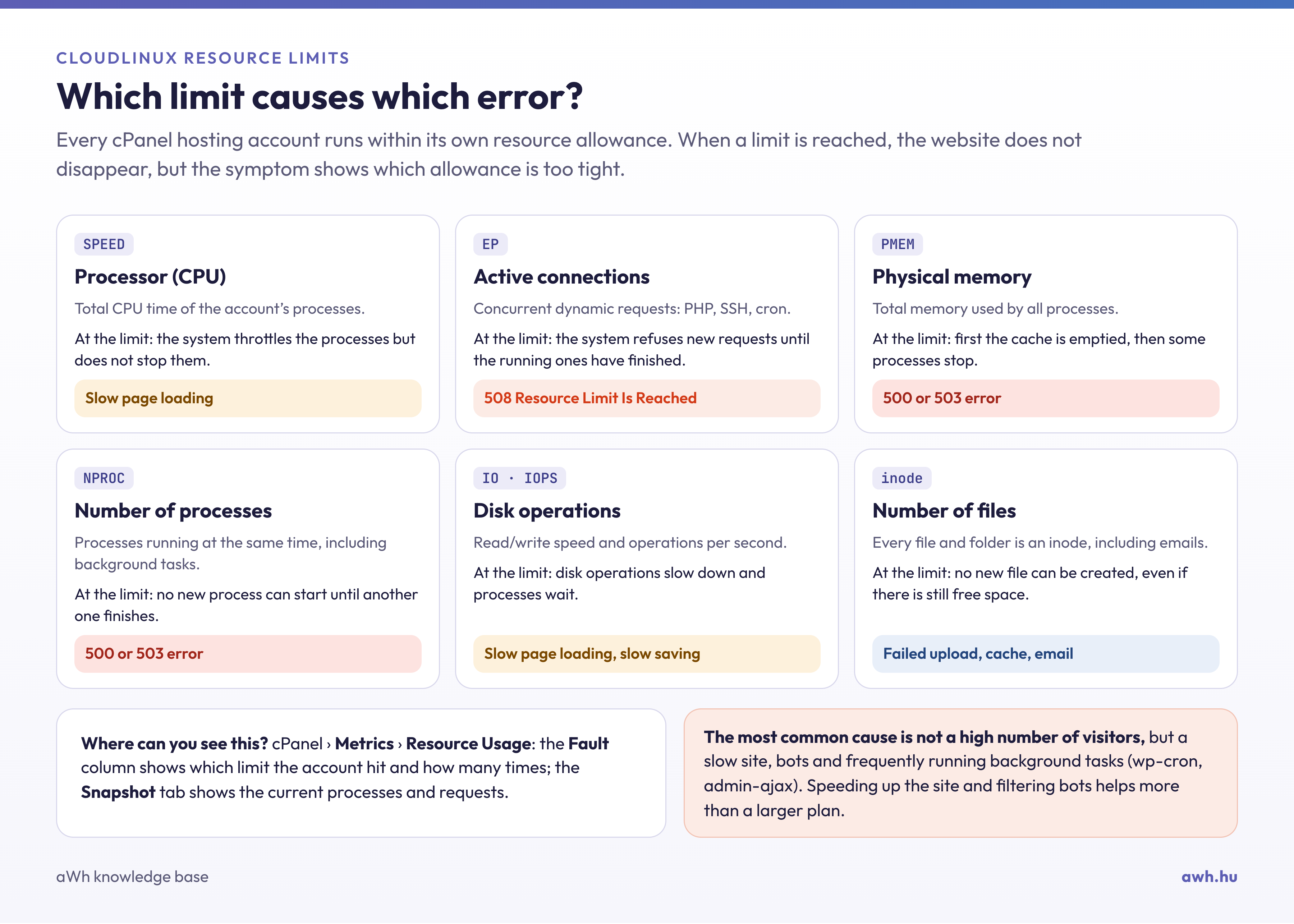
What do the error messages for each resource mean?
| Resources | What happens when the limit is reached? | What does the visitor experience? |
|---|---|---|
| CPU (SPEED) | The system throttles the account’s processes, but does not stop them. | Slower page loading |
| EP (Entry Processes, active connections) | The system rejects any further requests. | Error 508 |
| PMEM (physical memory) | The system first clears the cache; if that is not sufficient, it stops certain processes. | 500 or 503 error |
| NPROC (number of processes) | A new process cannot start until another one has finished. | 500 or 503 error |
| IO and IOPS | Disk operations are slowing down, and processes are being put on hold. | Slower page loading |
When should you be concerned?
A few errors over the course of a month are not a cause for concern: they may be caused by a brief traffic spike or a bot, and the system imposes limits precisely to ensure that the other pages continue to function without disruption. It is worth looking into the matter if:
- Errors occur regularly, either on a daily basis or at a specific time (in which case a cron job is often to blame);
- average usage is consistently close to the limit;
- These errors are EP, PMEM or NPROC errors, as visitors see them as error messages.
The Snapshot tab
When an account reaches a particular limit, CloudLinux takes a snapshot of what was running on the account at that moment. The snapshots consist of three parts:
- Process list: the process ID (PID) of running processes, the command (CMD), and their CPU and memory usage.
- Database queries: MySQL queries running at the time the snapshot was taken.
- HTTP requests: URLs served at the time of the snapshot.
Snapshots are the most useful tool for identifying the cause of a problem. If the same URL (for example, wp-cron.php, admin-ajax.php or a search page) or the same script appears repeatedly in the snapshots, that is where optimisation is needed. If long database queries appear in the snapshots, please also read the article on MySQL Governor.
If you are unsure what the data you see means, please contact our support team and we will help you understand it.