 English
 Magyar


CloudLinux OS supports the following resource limitations:
| Limit | Unit | Default value | Description |
|---|---|---|---|
| SPEED | a % of a core, or Hz | 100% | CPU speed limit, relative to a single core, or specified in Hz. |
| PMEM | KB | 1024MB | Physical memory limit (RSS ps/RES top). This includes both shared memory and disk cache. |
| VMEM1 | KB | 0 | Virtual memory limit (VSZ in the ps output, or VIRT in the top output) |
| IO | KB/s | 1024KB/s | IO speed – a combination of read and write operations |
| IOPS | operations per second | 1024 | Limits the number of read/write operations per second. |
| NPROC | piece | 100 | Maximum number of processes within an LVE |
| EP | piece | 20 | Limits on login processes. This generally refers to the maximum number of concurrent connections for Apache dynamic scripts, as well as for SSH and cron jobs running simultaneously. |
Below you will find recommendations for typical shared hosting configurations. These recommendations do not depend on server performance. They depend solely on how ‘fast’ you want your hosting accounts to be.
| Limit | Standard hosting account | Higher-performance account |
|---|---|---|
| SPEED | 100% | 200% |
| PMEM | 1GB | 2GB |
| VMEM | 0 | 0 |
| IO | 1024 KB/s | 4096 KB/s |
| IOPS | 1024 | 1024 |
| NPROC | 100 | 150 |
| EP | 20 | 40 |
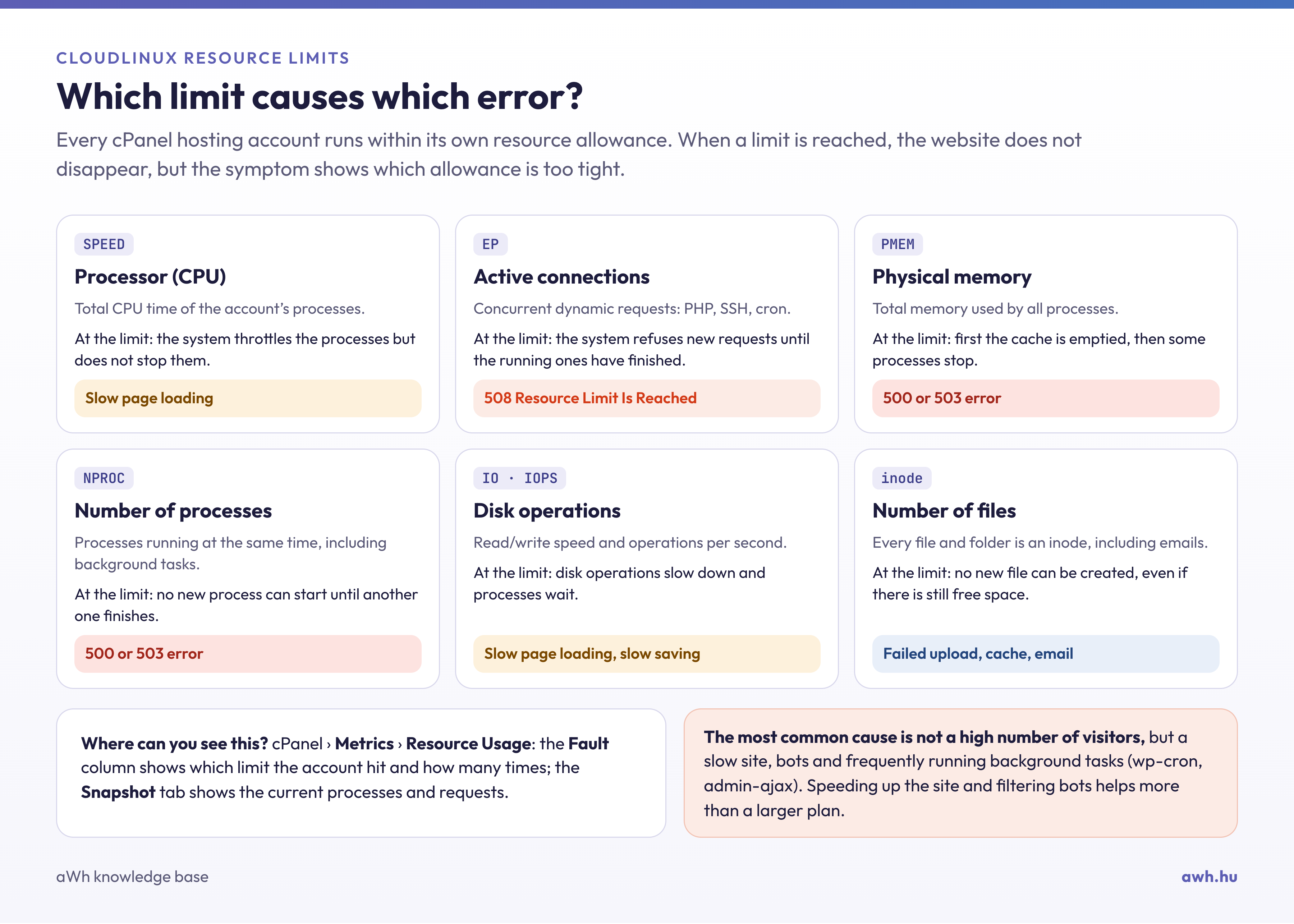
Explanation of the limits
LVE is a kernel-level technology developed by the CloudLinux team. The technology has its roots in container-based virtualisation and, in its latest incarnation, utilises cgroups. It is lightweight and transparent. The aim of LVE is to ensure that no single website can bring down the web server.
Without LVE, a single website is capable of consuming all CPU, I/O and memory resources or Apache processes – and bringing the server to a standstill. LVE prevents this from happening. This is achieved through the cooperation of the Apache module, the PAM module and the kernel.
mod_hostinglimits is an Apache module which:
- detects the VirtualHost from which the request originated;
- detects whether it is intended to be a CGI or PHP script;
- The Apache process used to serve the request is placed in the LVE for the user specified by the SuexecUserGroup directive for the given virtual host;
- allows Apache to serve the request;
- Removes the Apache process from the user’s LVE.
The kernel ensures that every LVE receives a fair share of the server’s resources and that no single customer can use more than the limits set for that customer. Restrictions can be placed on CPU, memory (virtual and physical), I/O, the number of processes, and the number of incoming processes (concurrent connections to Apache).
Each LVE limits the number of incoming processes (Apache processes entering the LVE) to prevent a single website from exhausting all Apache processes. If the limit is reached, mod_hostinglimits will be unable to place an Apache process within the LVE and will return a 508 error code. Consequently, very resource-intensive websites will slow down and start returning 508 errors, without this affecting other users.
- If the website is constrained by CPU or I/O, it will respond more slowly.
- If the website is limited by memory or the number of processes, the user will receive a 500 or 503 error indicating that the server is unable to execute the script.
Checking the LVE installation
To use LVE, you need to have CloudLinux OS installed on the shared kernel and the LVE module loaded. You can check the kernel by running the following command:
uname -r
You should see something like 4.18.0-425.3.1.lve.1.el8.x86_64. The kernel name must include ‘lve’. If you want to check whether the lve kernel module has been loaded, run the following:
$ lsmod|grep lve
kmodlve             34320384  11
Configuring LVE limits
The best way to check LVE values is to use the LVE manager found in your preferred control panel (e.g. cPanel). Alternatively, you can use the lvectl command-line tool to manage the limits. The limits are saved to the /etc/container/ve.cfg file.
<?xml version="1.0" ?>
<lveconfig>
 <defaults>
         <cpu limit="25"/>
         <ncpu limit="1"/>
         <io limit="1024"/>
         <mem limit="262144"/>
         <other maxentryprocs="200"/>
         <pmem limit="262144"/>
         <nproc limit="0"/>
 </defaults>
 <lve id="532">
         <cpu limit="30"/>
         <ncpu limit="5"/>
 </lve>
</lveconfig>
The values above set the CPU limit to 25 per cent, the I/O limit to 1024 KB/s, the virtual memory limit to 1 GB (the memory limit is set as the number of 4096-byte pages, so the value must be multiplied by 4096), the physical memory limit to 1 GB, the number of CPU cores to 1 per LVE, the maximum number of entry processes to 200, and places no limit on the number of processes for all LVEs. For the LVE with ID 532, it sets a 30 per cent CPU limit and 5 CPU cores.
Note: The CPU (cpu) and CPU core (ncpu) limits shown in the example are obsolete; the SPEED limit is now used instead.
SPEED limit
The CPU SPEED limit allows you to set the CPU limit as a percentage of a core’s speed or as a fixed Hz value.
--speed=XX% would set the performance relative to a core.
For example:
- –speed=50% would equate to 1/2 CPU core.
- –speed=100% would mean 1 core,
- –speed=150% would equate to 1.5 cores.
- –speed=XXmhz automatically detects the CPU speed of each core and configures the CPU scheduler so that the user cannot exceed this limit.
For example, with a 1 GHz CPU, setting –speed=2 GHz would mean 2 cores, whilst with a 4 GHz CPU, the same setting would mean 1/2 a core.
This would enable web hosting providers to set approximately the same performance limits for different hardware configurations using a single setting.
Note: We strongly recommend that CPU speed limits are not set to less than 100 per cent. This is because such limits cause CPU context switches, which result in an increased %sys value.
Physical memory limit
The physical memory limit corresponds to the amount of memory actually used by end-user processes. You can view the physical memory usage of individual processes by monitoring the RES column in the process’s top output. As similar processes (such as PHP) share a lot of memory, physical memory usage is often much lower than virtual memory usage.
In addition, physical memory includes the shared memory used by the customer, as well as the disk cache. In the case of the disk cache, if a user begins to run out of physical memory, the memory allocated to the disk cache is released without causing any memory errors.
When an LVE exceeds its physical memory limit, CloudLinux OS Shared first frees up the memory used for the disk cache; if this is not sufficient, it terminates some processes within that LVE and increases the fPMEM counter. This usually results in the web server returning 500 and 503 errors. Physical memory limiting is a much better way of limiting memory for shared hosting.
IO
I/O limits restrict the performance of the customer’s disk access. These are specified in KB/s. When the limit is reached, processes are throttled (put into sleep mode). This ensures that processes within the LVE do not exceed the limit. However, they do not stop working, nor are they terminated – they simply run more slowly when the limit is reached.
The I/O limits only apply to DISK I/O; they have no effect on the network. They also do not take into account access to the disk cache. Therefore, even if a file is loaded 1,000 times from the disk cache, this does not count towards the I/O limits.
IOPS
IOPS limits restrict the total number of read/write operations per second. When the limit is reached, read/write operations are suspended until the end of the current second.
Entry processes
The ‘entry processes’ limit regulates the number of entries into the LVE. Each time a process ‘enters’ the LVE, the counter increases; when it exits, the counter decreases. Processes created within the LVE are not counted. This is also known as the ‘Apache concurrent connections’ limit.
The process enters the LVE when a new HTTP request is received by CGI/PHP.
This limit was introduced to prevent DoS attacks against the web server. One particularly common attack involves tying up all Apache connections by accessing one of the server’s slow pages. Once all Apache sockets are exhausted, no one else can connect to the web server, so it appears to be down. The problem is further exacerbated by CPU limits, as if the server starts to slow down due to the CPU limit, it will respond to requests more and more slowly, causing an increasing number of connections to be tied up.
The limit on login processes (often referred to as concurrent connections) was introduced to address this issue. This limits the number of concurrent connections to Apache, causing the web server to return a 508 error page (‘Resource Limit Reached’) as soon as the number of concurrent requests to the website exceeds the limit.
When working with the LiteSpeed web server, the implementation of access control differs from that in Apache.
Therefore, if there is the same load from concurrent requests for both Apache and LiteSpeed, the limit on login processes may vary depending on the web server.
In the case of LiteSpeed, the ‘Entry processes limit’ increases in line with the number of lsphp master processes; for example, in cluster mode, the web server starts only one lsphp master process, and this process then forks child processes to handle requests without the ‘Entry processes limit’ increasing.
If you wish to configure the concurrent connection limit using LiteSpeed, you can use standard web server tools such as https://docs.litespeedtech.com/cp/cpanel/antiddos/#connection-throttling.
Number of processes
NPROC controls the total number of processes and threads within the LVE. Once the limit is reached, no new processes can be created (until another one terminates). When this happens, the NPROC counter increments. In such cases, Apache may return a 500 or 503 error.
Inodes
The LVE Manager inodes limits extension allows customers to configure inode limits. An inode is a data structure in a file system used to store information about a file or folder. The number of inodes indicates how many files and folders there are in an account. The inode limit operates at the disk quota level and will only be enabled on the /home partition. This feature is available in the cPanel, Plesk and DirectAdmin control panels.
The LVE Manager allows you to set soft and hard inode limits.
- A hard limit prevents the user from writing data to the disk.
- The soft limit may be exceeded for a certain period of time. The grace period is seven days by default and can be adjusted using the
edquota -tcommand. Once the grace period has expired, the user will not be able to create any further files.
Inode limits can be set in the LVE Manager in exactly the same way as any other LVE limit.
Compatibility matrix
| Web server / PHP | CPU | Virtual and physical RAM | EP | NPROC | IO | CageFS | PHP Selector |
|---|---|---|---|---|---|---|---|
| Apache / suPHP | Yes | Yes | Yes | Yes | Yes | Yes | Yes |
| Apache / FCGID | Yes | Yes | Yes | Yes | Yes | Yes | Yes |
| Apache / CGI | Yes | Yes | Yes | Yes | Yes | Yes | Yes |
| Apache / PHP-FPM | Yes2 | Yes | Yes | Yes | Yes | Yes2 | No |
| Apache / mod_php (DSO) | Yes | No | Yes | Yes | Yes | No | No |
| Apache / mod_ruid2 | Yes | No | Yes | Yes | Yes | No | No |
| Apache / MPM ITK | Yes | No | Yes | Yes | Yes | Yes3 | No |
| LiteSpeed | Yes | Yes | Yes | Yes | Yes | Yes | Yes |
| NGINX / PHP-FPM | Yes2 | Yes | No | Yes | Yes | Yes | No |
| SSH | Yes | Yes | Yes | Yes | Yes | Yes2 | Yes |
| Cron | Yes | Yes | Yes | Yes | Yes | Yes | Yes |
| Apache / mod_lsapi | Yes | Yes | Yes | Yes | Yes | Yes | Yes |
Note: Please note that mod_lsapi does not work if php-fpm is enabled, as php-fpm is a PHP handler just like mod_lsapi.
Note: mod_lsapi is an Apache module, whilst LiteSpeed is a standalone solution and does not use any Apache modules (as it provides its own implementation of these modules). Furthermore, it is advisable to leave the Apache configuration unchanged in case you decide to switch back from LiteSpeed.
-
It is always better to disable the VMEM limits altogether (set them to 0) on your system, as this is an outdated setting and may cause unexpected errors. ↩
-
PHP binaries sourced from a source other than DirectAdmin/CloudLinux OS must be recompiled with the CloudLinux patches. ↩ ↩2 ↩3 ↩4
-
A patched version of MPM-ITK is required. The CL httpd RPM includes the ITK worker along with the modification. ↩