 English
 Magyar


If the message ‘508 Resource Limit Is Reached’ appears instead of your website, your hosting account has reached the limit on the number of concurrent requests it can handle. The page has not crashed or disappeared: the server is temporarily unable to accept any further requests for the account until the current requests have been completed. This usually takes anywhere from a few seconds to a few minutes.
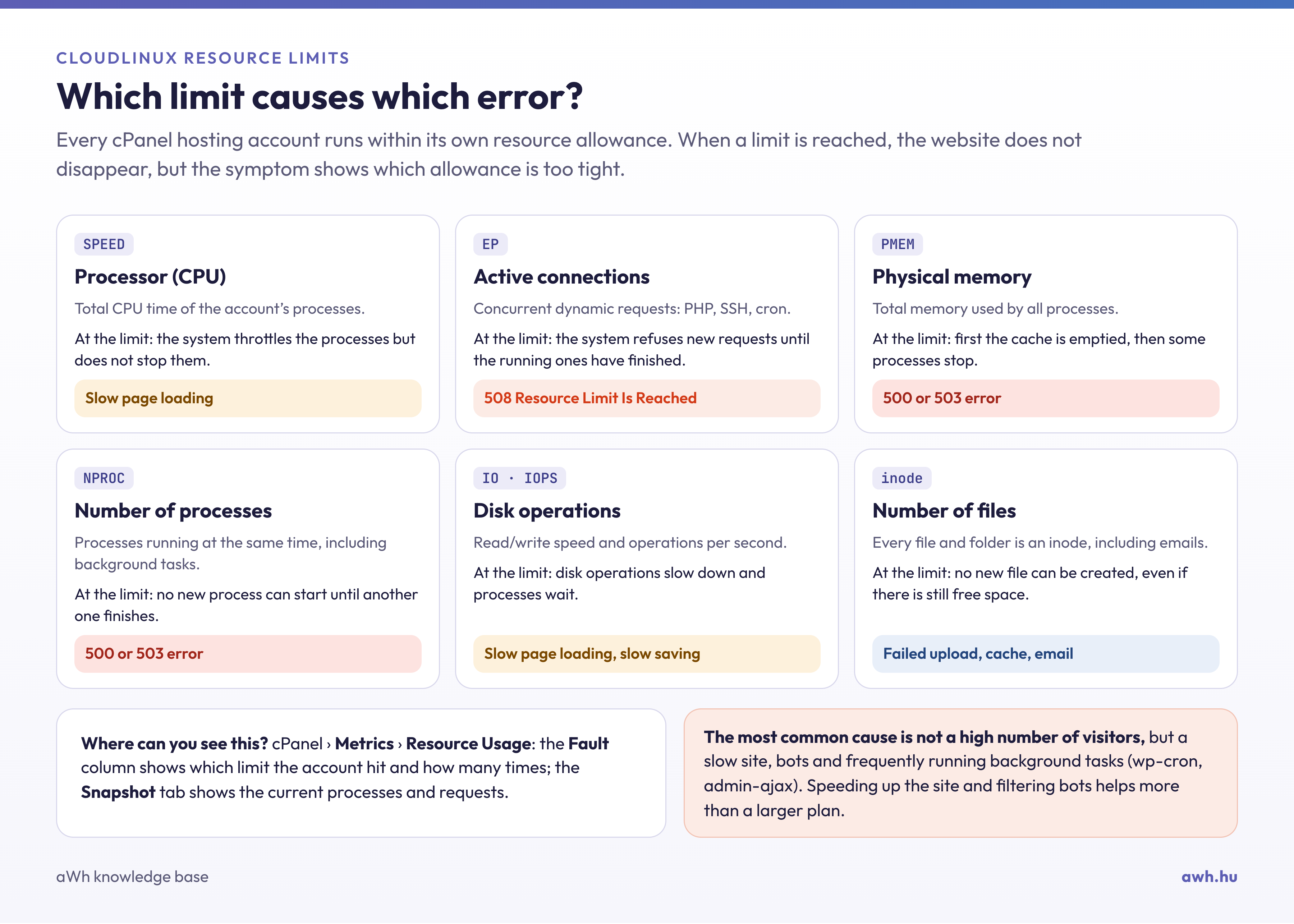
What causes this?
Our hosting plans run on the CloudLinux operating system, which isolates each account within its own resource quota. One component of this quota is the Entry Processes (EP) limit, listed in the plan as ‘Active Connections’ – that is, the number of dynamic requests (PHP scripts, SSH sessions, cron jobs) running simultaneously. When this limit is reached, any further requests will return a 508 error. You can find the limits for each plan in the article on resource limits for hosting plans.
The limit is rarely reached by genuine visitors. The most common reasons are:
- Slow pages: if a page takes several seconds to load, the request occupies a slot for the entire duration. Even a few slow requests are enough to fill the queue.
- CPU limit: if the account reaches its CPU limit as well, all requests will slow down, thereby taking up more space, and the two limits reinforce each other.
- Bots and attacks: aggressive search engine bots, SEO analysis bots, and password guessing attempts targeting the WordPress login page (
wp-login.php) or thexmlrpc.phpfile. - Background processes: calls to WordPress’s
wp-cron.phpandadmin-ajax.php, the Heartbeat API, and cron jobs that run frequently or overlap with one another. - Actual traffic peak: for example, following the sending of a newsletter or the launch of a campaign.
How can the exact cause be identified?
- Check the cPanel Resource Usage page; see: How can I monitor my CloudLinux LVE resource usage in real time? Reaching the EP limit is indicated by the error count in the EP column. If there are also errors relating to the CPU, this is the main cause of the slowdown.
- On the Snapshot tab, you can see which processes and what HTTP requests were running when the limit was reached. This often reveals immediately whether a bot or a specific URL is to blame. The article on fault counters explains how to interpret these counters.
- The ‘Visitors’ and ‘Raw Access’ logs, found in the cPanel Metrics section, show where the high volume of requests came from and which pages they were directed to.
What can you do about it?
- Caching: the caching plugin serves most pages without running PHP, which drastically reduces the number of concurrent requests. Tips: Improving cPanel hosting performance and How can I speed up my WordPress site?
- Replacing the WordPress cron:
wp-cron.phpmay run on every visit. Replace it with a proper cron job; see: How to replace WordPress’s built-in cron with cPanel scheduled tasks? - Restricting bots: block unnecessary bots in the
robots.txtfile and block attacking IP addresses. If you do not use it, disable access toxmlrpc.phpas well. - Slow plugins and queries: replacing slow plugins and maintaining the database will result in shorter response times.
- Scheduling cron jobs: run resource-intensive tasks (such as imports and backups) during off-peak periods, and do not allow multiple instances to run simultaneously. Details: How do cron and SSH count towards resource limits?
- Using a CDN: a CDN, such as Cloudflare, not only delivers static content but also filters out some attacks.
If the error still occurs regularly after all this, you have probably outgrown your plan. In this case, please upgrade to a larger plan or contact our support team, and we will help you find the right solution.
Errors 500 and 503 are not the same
Error 508 indicates only the limit on concurrent requests. If the account reaches the memory (RAM) or process count (NPROC) limit, this usually results in a 500 or 503 error. Other causes of these errors are discussed in the article ‘What to do in the event of a 500 error?’.