 English
 Magyar


When you browse a website, your browser sends a request to the website’s server. The server processes the request and sends the files required to display the page, along with the HTTP header and an HTTP status code.
The status code informs the browser of the status of the request. For example, a 200 indicates that everything is fine. If you receive a 500 response, this means that an error has occurred at server level, but the server is unable to provide further information about the cause of the error.
Error 500 is therefore a code that indicates an internal server error, a contingency that prevents the server from responding correctly to the request.
If you encounter a 500 error, you need to act quickly, as your entire website is no longer working.
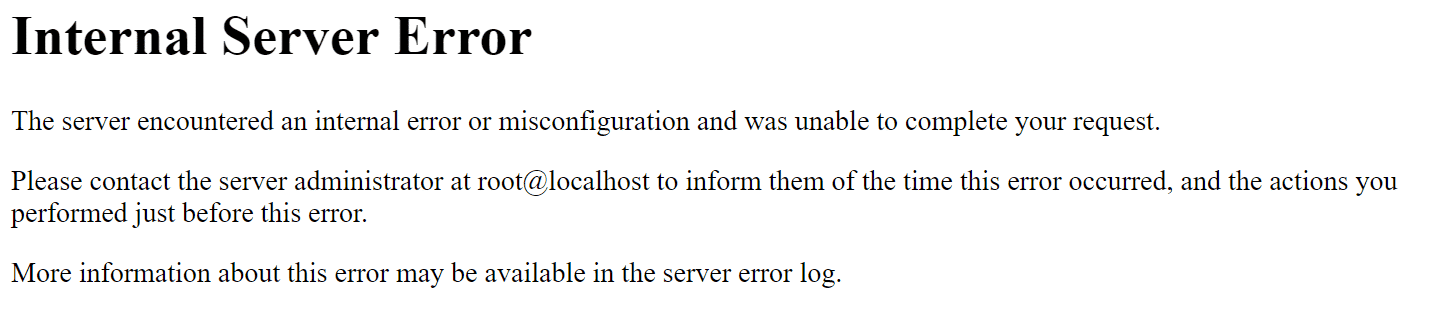
How can you identify the causes of a 500 error?
The first question you should ask yourself is: ‘What action did I just carry out?’.
If you are currently working on your website and this error appears, it is likely related to a change you have just made.
However, if you haven’t done anything, it may be due to an automatic plugin update, for example; here are a few tips to help you pinpoint the source of this error.
Check the log files
On every hosting account provided by aWh, you will find an ‘error.log’ or ‘error_log’ file, which can be accessed via FTP or through the hosting control panel’s file manager.
Check the most recent ‘Fatal error:’ log file to find out what caused the 500 error on your hosting account.
Check the .htaccess file
Once you have connected to your hosting account’s FTP server, you will see a file called ‘.htaccess’ in the ‘public_html’ folder or at the root of the folder named after your domain.
This file contains rewrite rules and special configuration parameters.
Once you have identified this file, rename it to ‘.htaccess_old’ so that it is no longer active.
If your website is working again, the problem lies in the .htaccess file. You will need to open it and check it line by line until you find the line that is causing the 500 error. For WordPress, the process of creating a new default file and reloading the rules is described in the article on restoring the .htaccess file.
Note: Prefix each line with a # to indicate that it is a comment. Then remove them one by one and test the script: this will make it easier to find the line causing the error.
Check your PHP version
If you have recently changed the PHP version for your hosting account, this may be the cause of the 500 error.
During version updates, certain features may disappear, which can cause this type of error.
Check the code
If the error is related to a syntax issue in your PHP code, the error type and the relevant line will be displayed on the 500 error page.
All you need to do is open the file in question, locate the line and correct the problem.