 English
 Magyar


If your website isn’t loading, the problem could lie in one of five areas: your internet connection, your domain settings, the SSL certificate, the service itself (for example, due to an outstanding invoice), or the website itself. The sequence of steps below follows the quickest route: first, you can check whether the page is only not working for you, then narrow down, step by step, where the loading is getting stuck.
For most steps, we recommend using aWh’s free tools, which require no registration, available at tools.awh.hu. The results of each test open in a separate window, so if you do need to open a ticket, you can send us the link.
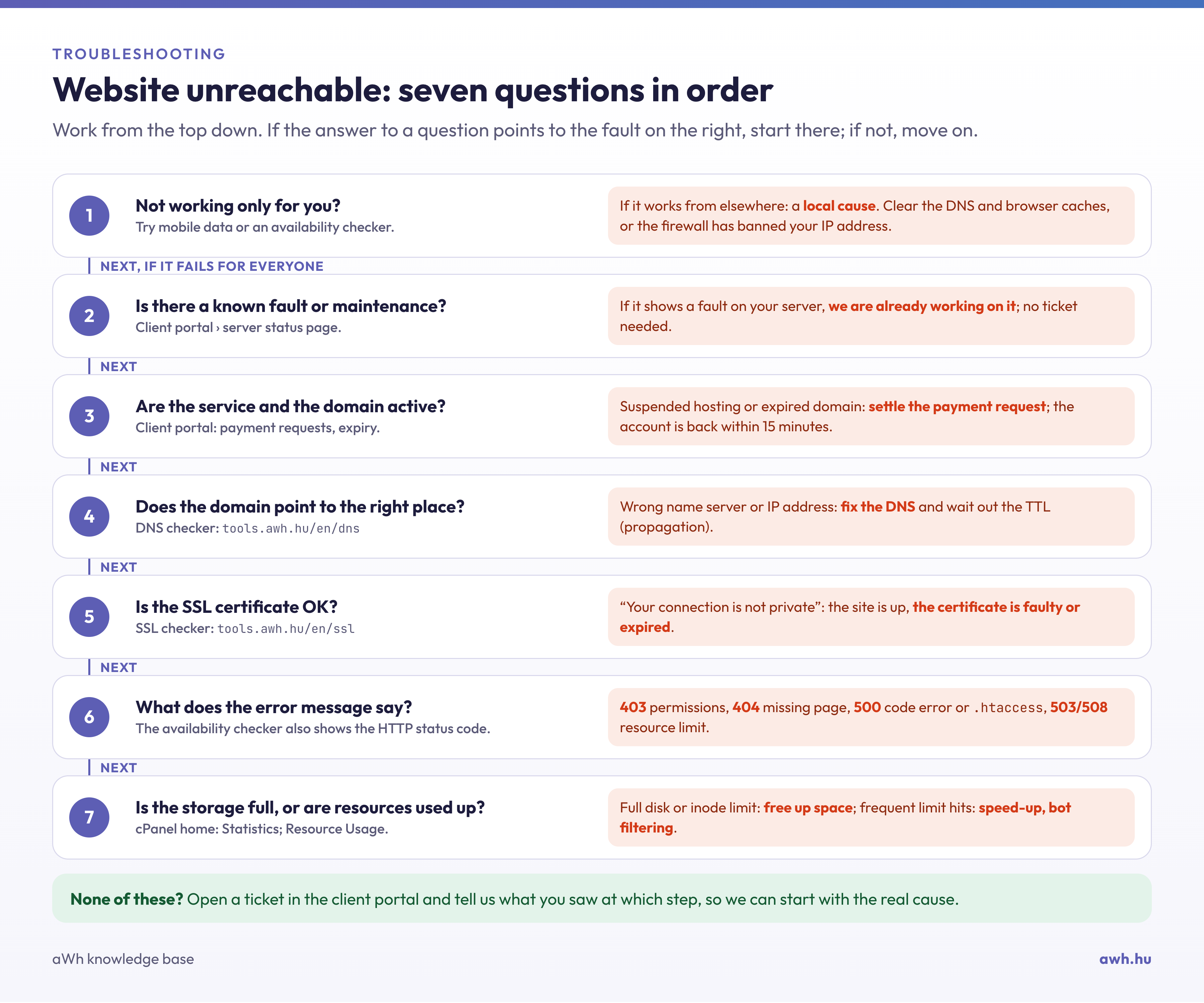
1. Is it only not working for you, or is it the same for everyone?
This is the most important question, as every subsequent step depends on it.
Open our website availability and response time monitoring tool and enter the website address. The tool checks the site from two locations:
- Via your browser, i.e. via your internet connection.
- From data centres, including Frankfurt, Warsaw and a server in Budapest. Here, you can see the domain resolution, connection, encryption and response times, together with the HTTP status code.
Based on the result:
- It loads from everywhere except your browser: the website is working; the problem lies with your network. The most common reason is that the server’s firewall has blocked your IP address, for example, because an email client was attempting to log in with an old password. The article on firewall IP blocking explains how to identify and resolve this issue. Less commonly, your computer may be storing outdated DNS data; in this case, clear your local DNS cache.
- It is not loading from anywhere: the problem is not with your connection. Please proceed with the following steps.
A quick test without any tools: switch off Wi-Fi on your phone and open the page using your mobile data. If it works there, it is almost certain that the IP address of your home or office connection is blocked.
2. Are there any known issues or maintenance works?
Please check the server status page on the client portal. If you see that troubleshooting or maintenance is currently underway on your server, we are already working on it and you do not need to open a separate ticket.
3. Are the service and the domain active?
A common reason is that the service behind the website or the domain is not active:
- Unpaid invoice: if both the due date and the grace period for the hosting renewal invoice have expired, your hosting account will be suspended. Please check the ‘Billing › Invoices’ page in the client portal to see if there are any outstanding payments; the article on invoices and bills explains how to make a payment. Once payment has been made, your account will automatically be reactivated; details are set out in the article on account suspension.
- Expired domain: a WHOIS lookup shows the domain’s expiry date and status. If the domain has expired, both the website and email services will cease to function; the steps to take are summarised in the article on domain expiry.
- Registration still in progress: a new .hu domain will only be active once registration has been completed. If you have not confirmed the verification email, or if the registry requests a declaration, the domain will remain unavailable until this is resolved. The domain status on the client portal shows the current stage of the process.
4. Does the domain point to the correct location?
If the domain is active but does not point to its hosting, visitors will be directed to an old server, a blank page or nowhere at all. Check this using our DNS checker: it shows which name servers are responsible for the domain and what they respond with, whilst listing any errors along with the steps you need to take. The DNS record query displays the domain’s A record – that is, the IP address to which requests for the website are sent.
Typical scenarios:
- New hosting, old domain: after ordering hosting, you must either change the domain’s name servers to those specified in the hosting welcome email, or set the A record to the hosting IP address. The difference between these two solutions is explained in the article ‘A record or name server change’.
- Recent DNS server change: the change takes between a few minutes and 48 hours to propagate worldwide; it rarely takes longer than that. This is covered in the article on DNS propagation and the article detailing errors that may occur following a DNS server change.
- The DNS is hosted elsewhere, for example with Cloudflare: if we have moved your hosting to a new server and sent you a notification to this effect, you will need to update the new IP address with your external DNS provider. As long as the old IP address is still listed there, the site will be inaccessible.
- The default page is displayed: if the server’s default page or an empty directory listing appears instead of the website, the domain points to the correct server but has not been uploaded to your hosting account, or the website files are not located in the root directory.
5. Is the SSL certificate OK?
If your browser displays a warning such as ‘This connection is not private’ or similar, the page is functioning but the certificate is invalid or has expired. Our SSL checker shows the certificate’s expiry date, any missing intermediate certificates, and whether the certificate is valid for the domain. The steps to take are described in the article on the “Your connection is not private” error, whilst the reasons for the free certificate not being issued are explained in the article on AutoSSL errors.
6. What does the error message say?
If the site is accessible from everywhere but displays an error message, the error code can be very revealing. Our availability monitoring tool also displays the HTTP status code.
- “This website is unavailable”, DNS_PROBE or NXDOMAIN: the domain cannot be resolved because it has expired, has not yet been registered, or the DNS is incorrect. This is checked in steps 3 and 4.
- Timeout (ERR_CONNECTION_TIMED_OUT): the server is not responding. This may be due to a blocked IP address, a server outage or an incorrect IP address in the DNS; see steps 1, 2 and 4.
- 403 Forbidden: the server rejects the request due to incorrect file permissions, an .htaccess rule or a security filter. The article on HTTP status codes will help you understand this.
- 500 Internal Server Error: there is an error in the website’s code or in the .htaccess file; the steps to take are described in the article on the 500 error.
- 503 Service Unavailable: the server is overloaded, or the hosting account has reached one of its limits; see step 7.
- 508 Resource Limit Reached: the hosting account has reached its limit on concurrent processes; this is discussed in the article on error 508.
- Errors 520–526 on the Cloudflare side: Cloudflare cannot access the hosting server or is receiving an SSL error from it. The settings are explained in the article ‘SSL behind Cloudflare’.
- White, blank page: usually a PHP error; in WordPress, this is often caused by a plugin; see the article on the WordPress white screen of death.
- “Error establishing a database connection”: the website cannot access the database because the login details are incorrect or the storage space is full; see step 7.
7. Is your storage space full, or have you run out of resources?
If your storage space is full, the website will be unable to write new files, sessions or database entries, resulting in a 500 or 503 error, or a database connection error. For cPanel hosting, you can view disk usage on the cPanel disk usage page; for KeyHelp-based web hosting, you can view it on the dashboard homepage. If you need more space, delete old backups, log files and emails, or upgrade to a larger plan.
If your website only slows down or stops during peak periods, it may be reaching its hosting resource limit. The cPanel Resource Usage page features an article on monitoring CloudLinux LVE usage in real time, whilst the article on improving hosting performance covers the causes and solutions.
If none of these steps have helped
Please open a ticket via the client portal. We can assist you more quickly if you include the following details in your ticket:
- the website’s address and how long it has been down;
- the error message displayed in the browser, preferably with a screenshot;
- a link to the results page of the availability checker or the DNS checker;
- if it is not working for you alone, your public IP address;
- whether they have made any changes recently (name server, DNS, plugin, update).