 English
 Magyar


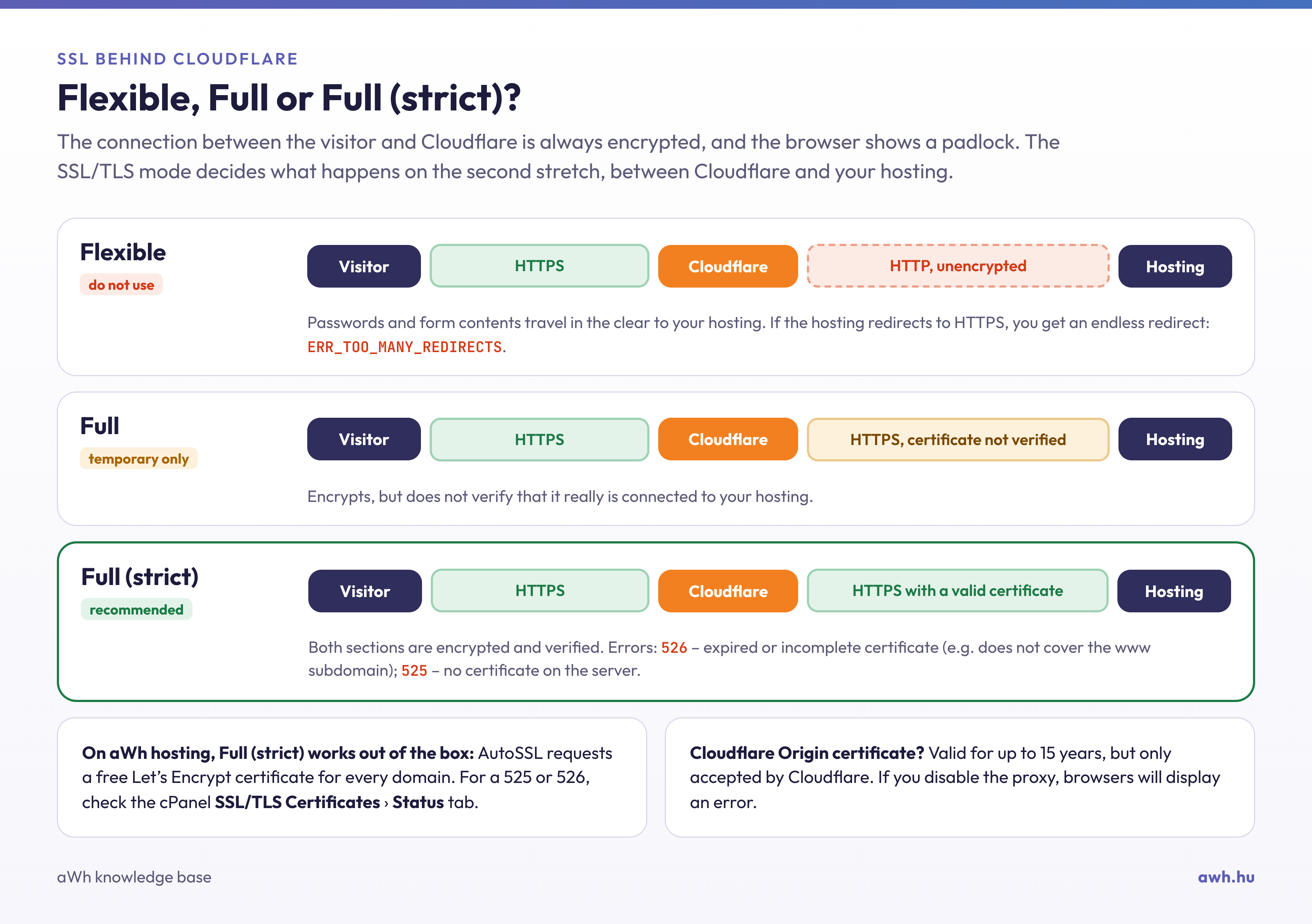
If your website operates behind the Cloudflare proxy (the orange cloud is enabled in the DNS), the visitor’s browser connects to Cloudflare, which then forwards the request to the hosting provider. Encryption therefore consists of two stages:
- visitor → Cloudflare: this is protected automatically by Cloudflare’s own certificate;
- Cloudflare → hosting (origin): this is determined by the SSL/TLS encryption mode setting.
This setting can be found on the Cloudflare dashboard, in the domain’s SSL/TLS menu, on the Overview page.
The modes
| Edit | Cloudflare → hosting connection | Recommended? |
|---|---|---|
| Off | No encryption | No |
| Flexible | unencrypted HTTP | No |
| Full | HTTPS, but the hosting certificate is not verified | Only temporarily |
| Full (strict) | HTTPS with a valid certificate | Yes |
Why ‘Full (strict)’?
Flexible mode gives the impression that the site is secure (a padlock is displayed in the browser), but data – such as passwords and form content – travels unencrypted between Cloudflare and the hosting provider. Full mode encrypts the data, but does not verify that it is actually being sent to the hosting provider.
Full (strict) mode encrypts both sections and verifies the hosting provider’s certificate. This requires a valid certificate on the hosting account. This is already provided on our hosting plans: AutoSSL automatically requests a free Let’s Encrypt certificate for every domain (see: Enabling the free Let’s Encrypt certificate on web hosting). This means that Full (strict) mode can be set up at no extra cost.
Common errors
Too many redirects (ERR_TOO_MANY_REDIRECTS)
This is a classic error with Flexible mode. Cloudflare requests the page via HTTP, but the hosting server is configured to redirect to HTTPS, so the hosting server redirects back to HTTPS, Cloudflare requests it again via HTTP, and so on ad infinitum.
Solution: set the mode to ‘Full (strict)’. You can leave the redirect in place on your hosting account, or alternatively enable the ‘Always Use HTTPS’ setting in Cloudflare.
Error 526 (Invalid SSL certificate)
This error appears in full (strict) mode if the hosting account’s certificate is invalid, has expired, or does not cover the domain (for example, it only covers pelda.hu-ra, but not www.pelda.hu-ra). Check the ‘Status’ tab on the cPanel SSL/TLS Certificates page to see if there is a valid certificate for the domain and the www subdomain. If not, the article on AutoSSL errors will help.
Error 525 (SSL handshake failed)
Cloudflare was unable to establish an encrypted connection to the hosting server, usually because there is no certificate for the domain on the server at all. The solution is the same as for error 526.
Cloudflare Origin certificate
In the Cloudflare SSL/TLS → Origin Server menu, Cloudflare also provides a free Origin CA certificate, valid for up to 15 years, which you can install on your hosting account. However, this certificate is only accepted by Cloudflare; browsers do not accept it. If you later disable the proxy, or if someone accesses the hosting directly, the certificate will return an error. As AutoSSL is free on our hosting plans and provides a certificate accepted by browsers, the Origin certificate is generally not required.
Does AutoSSL work behind Cloudflare?
Yes, in most cases. The verification request also reaches the hosting provider via Cloudflare. Issues may arise if ‘I’m Under Attack’ mode, strict firewall rules, country filtering or a redirect affecting the /.well-known/ path are enabled in Cloudflare. In such cases, create an exception for the /.well-known/acme-challenge/ path, or temporarily disable the rule whilst AutoSSL is running. The steps are outlined in the article ‘AutoSSL behind Cloudflare’.
You can read about other benefits of using Cloudflare in the article ‘Speeding up your website using a CDN’.