 English
 Magyar


On our cPanel hosting plans, AutoSSL requests and renews a free Let’s Encrypt certificate for every domain. To request the certificate, the certificate authority retrieves a verification file from the domain’s /.well-known/acme-challenge/ directory. If the domain is behind the Cloudflare proxy (orange cloud), this request also passes through Cloudflare and reaches the hosting service without any issues in a default Cloudflare zone. The redirection to HTTPS does not interfere with this either.
If you do run into a problem, it is almost always because a Cloudflare feature is intercepting or modifying the request: a firewall rule challenge, Bot Fight Mode, ‘I’m Under Attack’ mode, a redirection rule, or Cloudflare being unable to reach the hosting server at all. The solution is to make the verification path untouchable within Cloudflare; you shouldn’t have to struggle with AutoSSL.
Why doesn’t the DNS-based check help?
If the file-based verification fails, AutoSSL attempts DNS-based verification: it places an _acme-challenge TXT record in the domain’s DNS zone. However, if the domain’s name servers point to Cloudflare, nobody queries the cPanel zone, so the record does not appear in Cloudflare. Consequently, this fallback method always fails behind Cloudflare, and a single error thus results in the certificate not being renewed “for weeks”.
1. Check the AutoSSL error message
In the Security section of cPanel, open the SSL/TLS Certificates interface and click on the Status tab. For domains marked in yellow or red, the error message will explain what prevented the certificate from being issued.
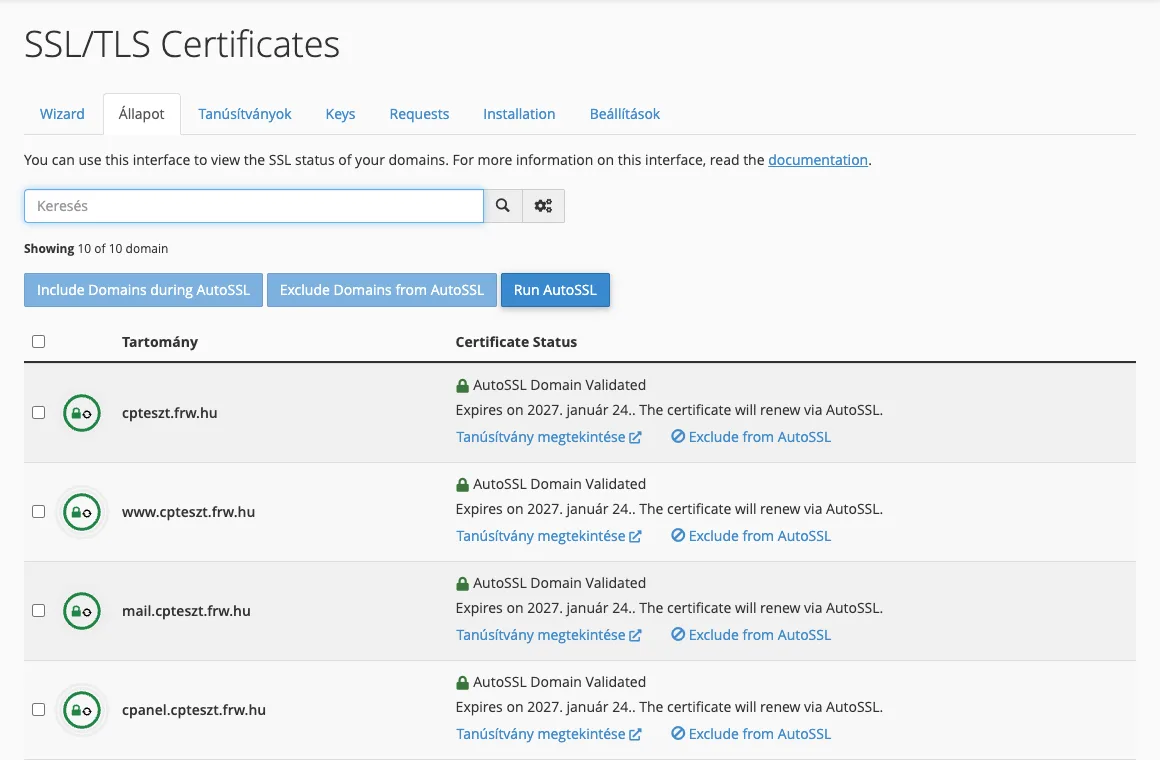
If the error message states that the domain is not pointing to our server, or if there is another issue not related to Cloudflare, the article on AutoSSL errors will help.
2. Find out whether Cloudflare or your hosting provider is blocking it
Place a test file in the verification path. In the cPanel Terminal interface (or by creating the .well-known/acme-challenge folder in the domain’s document root via File Manager):
mkdir -p ~/public_html/.well-known/acme-challenge
echo proba > ~/public_html/.well-known/acme-challenge/proba.txt
Next, retrieve it from your own machine, once via Cloudflare and once directly from the hosting server (replace 203.0.113.10 with your hosting server’s IP address; you’ll find this in the ‘General Information’ box on the cPanel homepage, under the ‘Shared IP Address’ line):
curl -si http://pelda.hu/.well-known/acme-challenge/proba.txt | head -12
curl -si --resolve pelda.hu:80:203.0.113.10 http://pelda.hu/.well-known/acme-challenge/proba.txt | head -12
- If a direct request returns the text
proba, whilst a request routed via Cloudflare returns a403error, a challenge page, or the response header containscf-mitigated: challenge, then Cloudflare is the one blocking the request. - If the file is not returned even when requested directly, the problem lies with the hosting account; this is usually due to a redirect or block in the
.htaccess. The article on AutoSSL errors discusses this.
Once you have finished, delete the test file: rm ~/public_html/.well-known/acme-challenge/proba.txt.
3. The fix in Cloudflare
Exclude the inspection path in the firewall. In Cloudflare, on the Security › WAF › Custom rules page, create a rule: set the condition to ‘URI Path starts with /.well-known/acme-challenge/, the action to ‘Skip’, and select the protections that blocked the request (for example, other custom rules and managed rules). Move the rule to the top of the list. This is a permanent solution and works with all Cloudflare plans.
Bot Fight Mode. No exceptions can be set for the Bot Fight Mode toggle in the free plan, and it is known to block verification requests as well. If setting an exception does not help, please disable it. Bot protection in paid plans (Super Bot Fight Mode) can be customised for authorised bots.
Redirect and rewriting rules. If a rule redirects or rewrites requests under /.well-known/ (for example, a ‘redirect all requests to www’ rule to another server), the validation file will not be received. Exclude this path from the rule. A simple HTTP-to-HTTPS redirect will not cause any issues.
“I’m Under Attack” mode. Whilst this is enabled, all visitors – including the certificate authority – will be redirected to a verification page. Please disable this mode or apply the exception mentioned above.
Cloudflare cannot access the hosting server. If the website itself returns a 522 or 523 error, the check will fail as a result; this must be resolved first.
After making the correction, click the ‘Run AutoSSL’ button on the ‘Status’ tab and wait until the domain is marked green.
Temporary workaround: grey cloud
On the Cloudflare DNS page, you can switch the domain record to ‘DNS only’ (grey cloud) mode, enable AutoSSL, and then re-enable the proxy. This works, but it’s a manual process; whilst the proxy is disabled, the hosting provider’s IP address is publicly visible, and the same error will occur at the next renewal. It’s useful for determining whether Cloudflare is to blame; it’s not a permanent solution.
Wildcard certificate and fully secured zone
A wildcard certificate (*.pelda.hu) can only be issued via DNS validation, and as we have seen above, AutoSSL cannot write records to Cloudflare. If you need a wildcard certificate, or if the zone is so restricted that file-based validation is not permitted, there are two options:
- The Cloudflare Origin CA certificate, which you install on your hosting server. It is valid for up to 15 years and has no validation cycle, but is only accepted by Cloudflare: if you disable the proxy, browsers will display an error. The article ‘SSL behind Cloudflare’ discusses this.
- DNS verification via the Cloudflare API, using an ACME client that writes the TXT record to Cloudflare. This is standard practice on a VPS or your own server (with wildcard Let’s Encrypt DNS verification).
What not to do
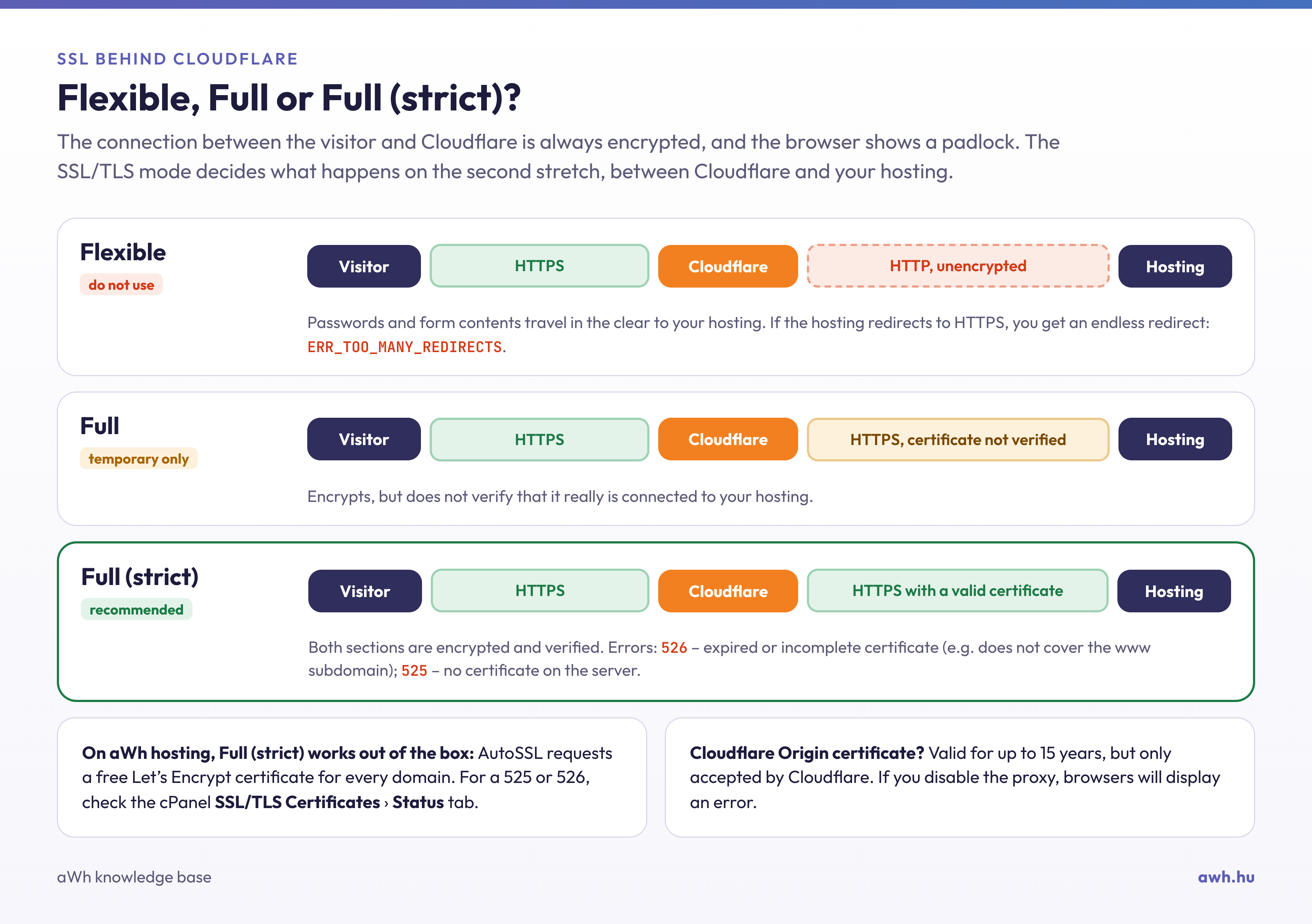
- Do not set the Cloudflare SSL/TLS mode to ‘Flexible’ in order to ‘make SSL work’. This may cause a redirect loop, and data will be transmitted unencrypted between Cloudflare and the hosting provider. The correct mode is ‘Full (strict)’.
- Do not disable the firewall completely; simply create an exception for a single route.
- Do not exclude the domain from AutoSSL simply to stop receiving warning emails: the certificate will still expire.
- Do not leave test files in the
public_htmlfolder.
Prevention
If you host multiple domains behind Cloudflare, add the exception /.well-known/acme-challenge/ to the default settings for each zone. Check the Status tab quarterly, or monitor the expiry dates of your certificates (how to check expiry dates), to ensure that any issues are identified as errors via email rather than as expired certificates. If you get stuck, please contact our support team.