 English
 Magyar


In all our web hosting plans, including the free Web Free plan, the free Let’s Encrypt certificate can be enabled for every domain with just a few clicks. KeyHelp automatically handles the issuance, installation and renewal of the certificate.
Let’s Encrypt is a free, automated, public certificate authority (CA) operated by the non-profit Internet Security Research Group (ISRG). Its certificates are just as trustworthy to browsers as paid domain-validated certificates.
Before you switch it on
Let’s Encrypt will only issue a certificate if it can verify that the domain actually points to the hosting account. Therefore, before enabling it:
- Ensure that the domain’s name servers or A records already point to the web hosting, and that the DNS changes have propagated fully;
- The
wwwsubdomain should point to your hosting account, if you are using one; - If the domain is behind a Cloudflare proxy, the SSL/TLS mode should not be set to ‘Flexible’ (find out more about Cloudflare’s SSL/TLS modes).
Enabling the certificate
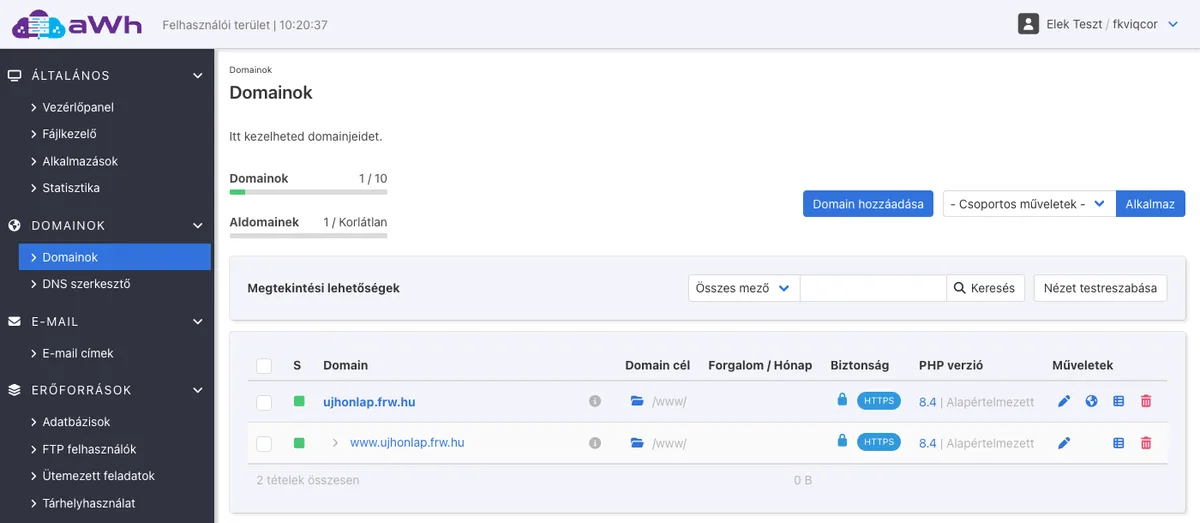
Log in to the web hosting control panel, then select the ‘Domains’ menu item from the menu on the left. On the next page, you will see a list of the domains hosted on your account. For the domain for which you wish to obtain a certificate, click on the pencil icon (Edit) at the end of the row.
On the** ‘Edit Domain’** page, click on the ‘Security’ tab, then under ‘SSL/TLS Certificate’, select the ‘Let’s Encrypt’ certificate option.
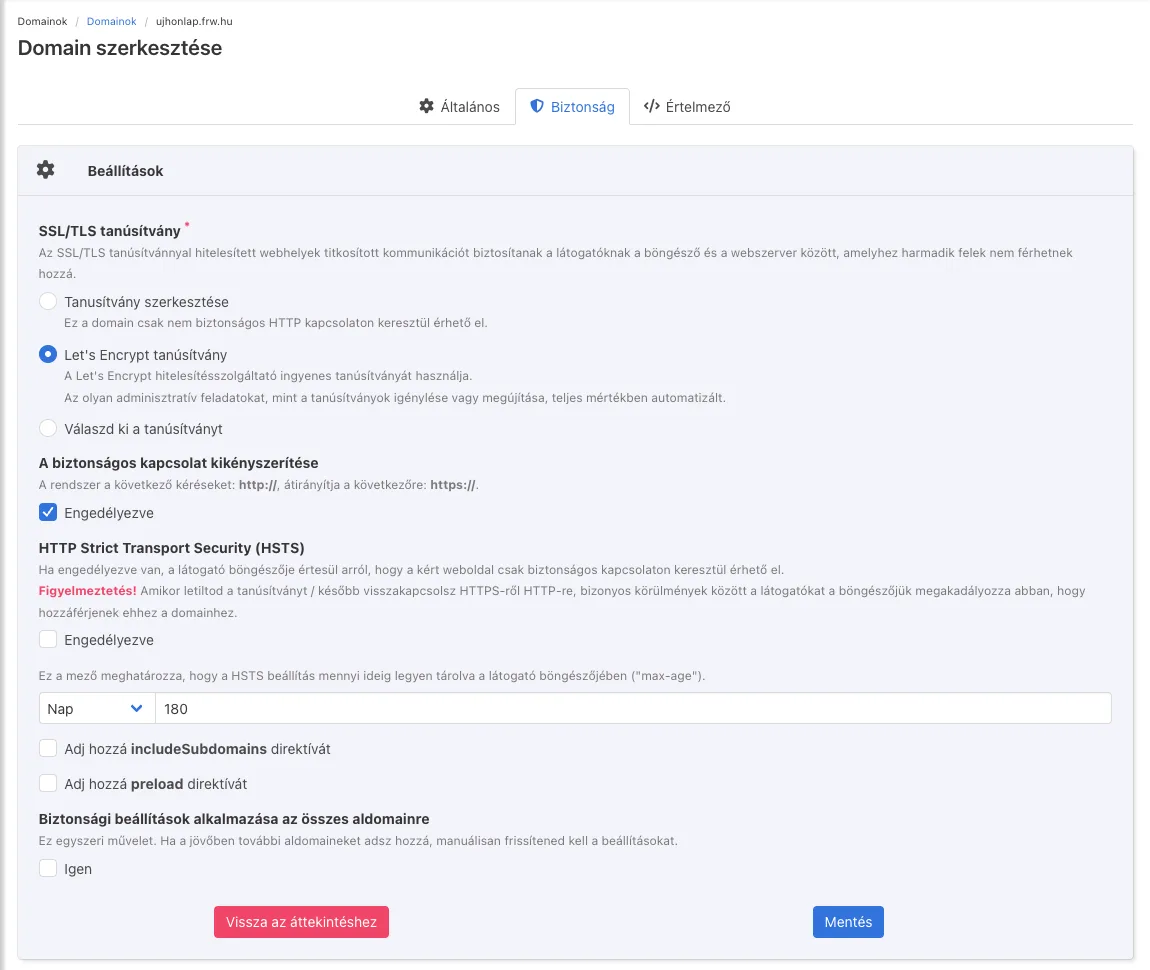
The settings that appear after selecting Let’s Encrypt:
- Enforcing a secure connection: if you tick the ‘Enabled’ option, the server will automatically redirect requests to the address
http://to the addresshttps://(using a 301 redirect). It is worth enabling this. - HTTP Strict Transport Security (HSTS): instructs browsers to open the domain only via a secure connection for the specified period. You should only enable this once the site and all its subdomains are already functioning flawlessly over HTTPS, as it is difficult to disable once enabled.
- Applying security settings to all subdomains: this setting will also apply to the domain’s existing subdomains (such as
www-re), and these will also be issued with their own certificates. This is a one-off operation: if you add a new subdomain later, you will need to enable the certificate for that subdomain separately.
Click the Save button. If the domain is already pointing to the hosting account, the certificate is usually issued within a few minutes. In the Domains list, a padlock and an HTTPS indicator will then appear in the Security column.
When registering a new domain (Add Domain), you can enable the Let’s Encrypt certificate and HTTPS redirection during the creation process.
How do you check this?
- Open the website with the prefix
https://: no warning should appear in the browser’s address bar. - Click on the icon at the start of the address bar and check the certificate details to ensure that the issuer is Let’s Encrypt and that the certificate covers the domain (and the
wwwversion). - Enter the address with the
http://prefix: if you have enabled forced HTTPS, the browser will redirect to the HTTPS address. - Use our free SSL checker: it shows whether the certificate is valid, who issued it, when it expires, whether the certificate chain is complete, and which domain names it covers. You can enter multiple addresses at once, for example
pelda.hu, www.pelda.hu, so you can check thewwwversion in a single step.
Renewal
Let’s Encrypt certificates are currently valid for 90 days, and this period is gradually being reduced (to 64 days from February 2027 and 45 days from February 2028). KeyHelp automatically renews them before they expire; you do not need to do anything, provided the domain remains pointed to the hosting service.
Common errors
- The certificate cannot be issued: the domain does not yet point to the hosting service, or a firewall or Cloudflare rule is blocking the
/.well-known/acme-challenge/path. - Infinite redirect: Cloudflare’s ‘Flexible’ mode causes a forced HTTPS redirect loop.
- Missing padlock in the browser: some of the page’s images or scripts are still loading from
http://; you can resolve this by fixing the mixed content.