English
 Magyar


Installing an SSL certificate can be done in just a few steps on our web hosting plans. In this guide, we’ll walk you through the process of requesting and configuring a paid SSL certificate, starting with generating the CSR (Certificate Signing Request) file, followed by installing the SSL certificate and linking it to your website.
Creating a CSR (certificate request)
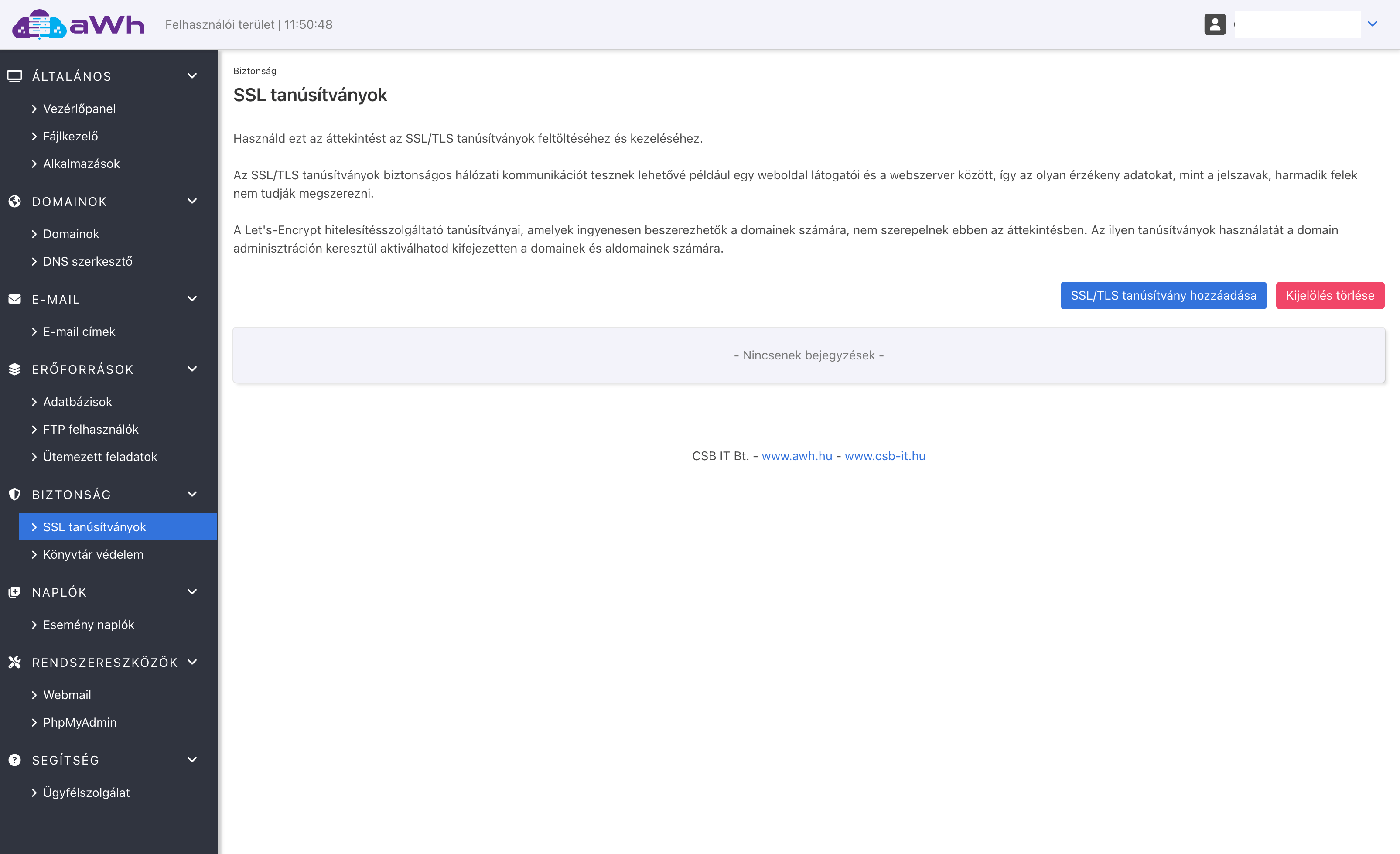
First, log in to the control panel for your web hosting plan. Here, in the menu bar on the left, click on the ‘SSL Certificates’ menu item under the ‘Security’ section. If you do not yet have an SSL certificate, this page will be blank. Click on the blue ‘Add SSL/TLS Certificate’ button.
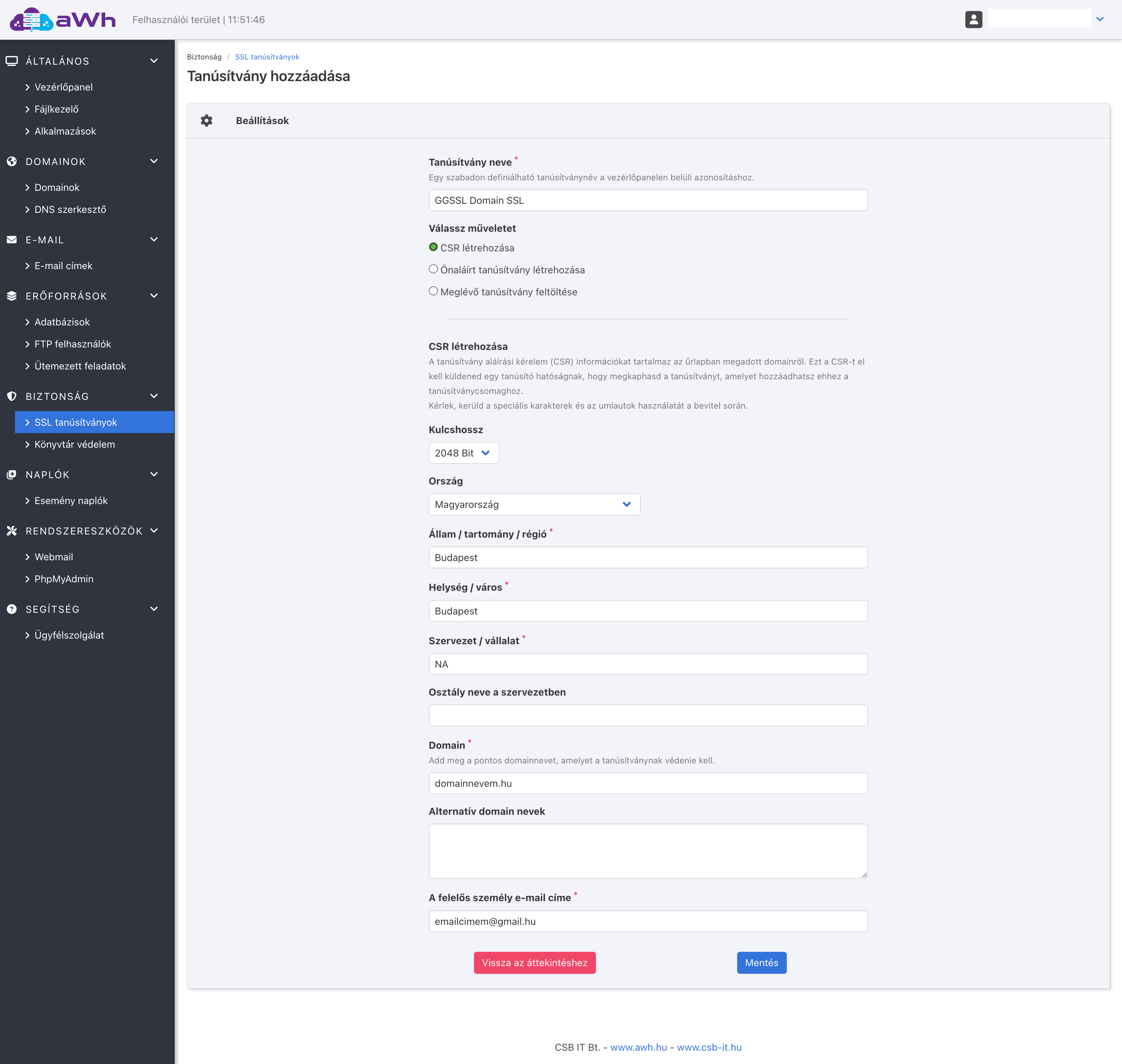
On the ‘Add Certificate’ page, you must first select that you wish to create a CSR (Certificate Signing Request) file. You must also enter your details and, in the ‘Domain’ section, the domain name for which you wish to obtain a certificate (without ‘www’). Once you have filled in all the details, simply click the ‘Save’ button.
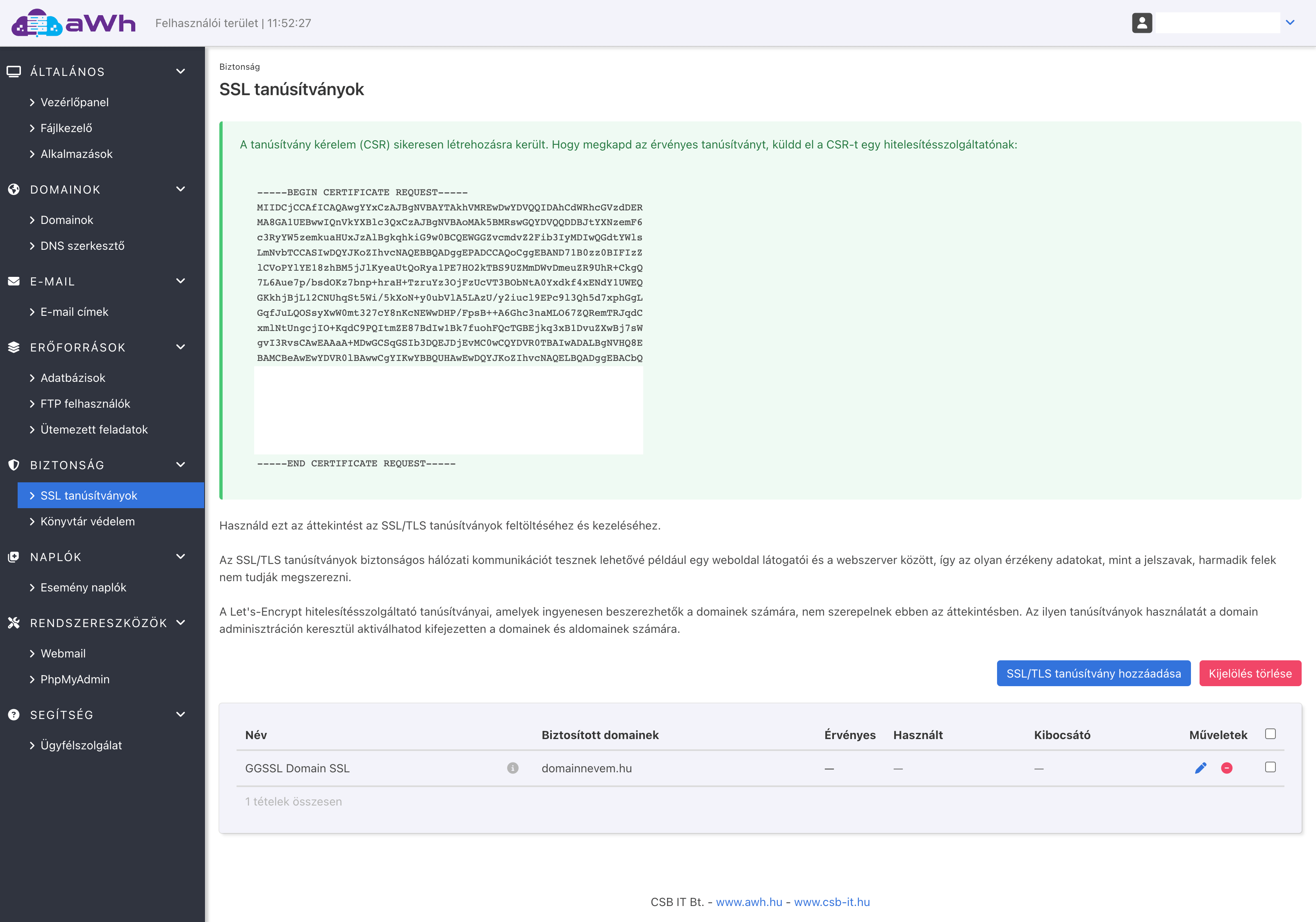
After saving, you must store the certificate request text in the green box (from the lines starting with —- BEGIN .. to the lines ending with —- END) and send it to the provider from whom you are purchasing the SSL certificate.
Uploading a completed certificate
Once the SSL certificate has been issued and we have received it, it must be uploaded via the web hosting control panel. Under the ‘SSL Certificates’ menu item, click the pencil icon next to the previously created request to edit it and upload the CA and CERT files.
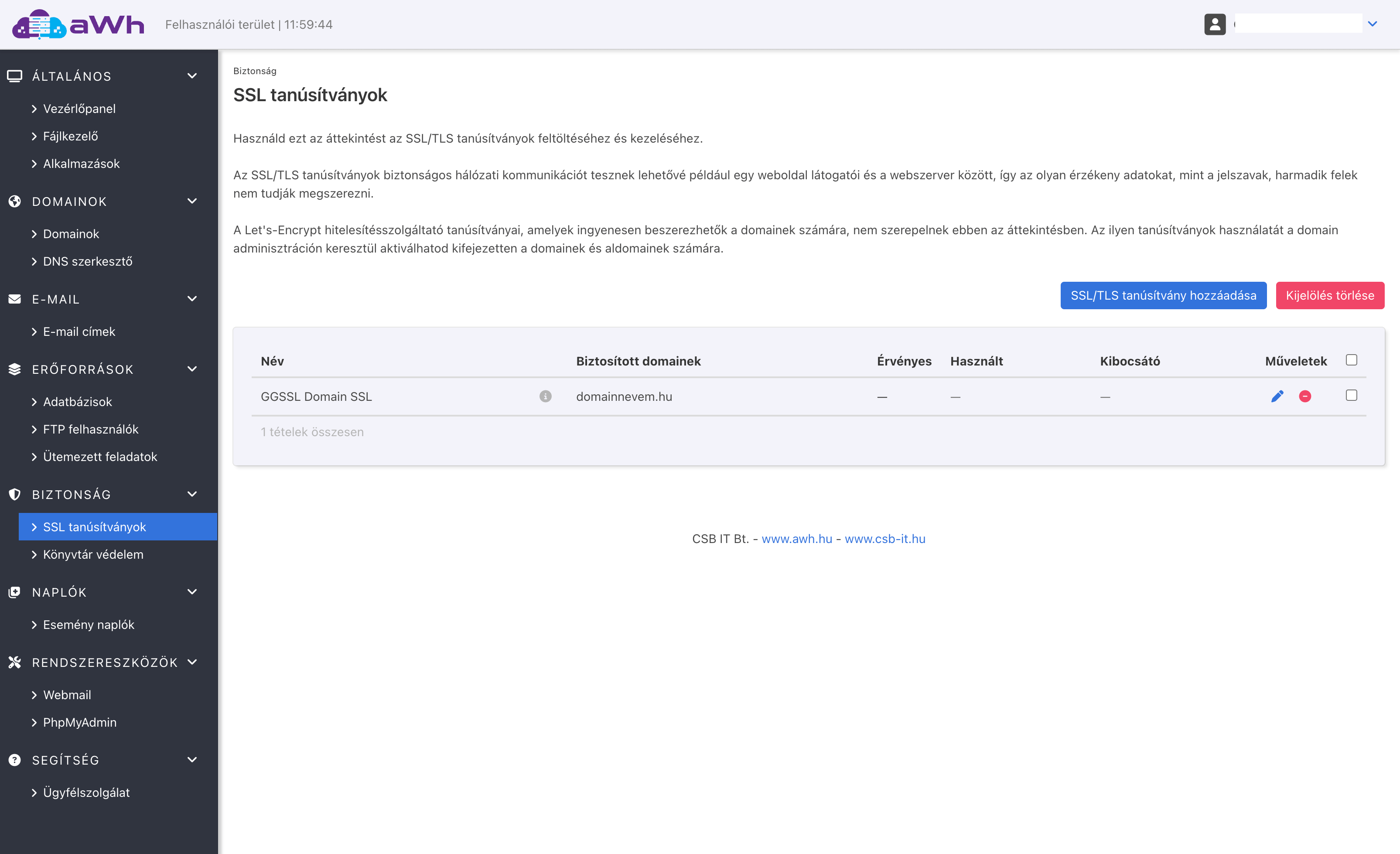
On the next page, paste the certificate into the ‘Certificate’ box or upload the CRT file containing the certificate, whilst placing the intermediate certificate in the ‘CA Certificate’ box. Once these have been entered, click the ‘Save’ button.
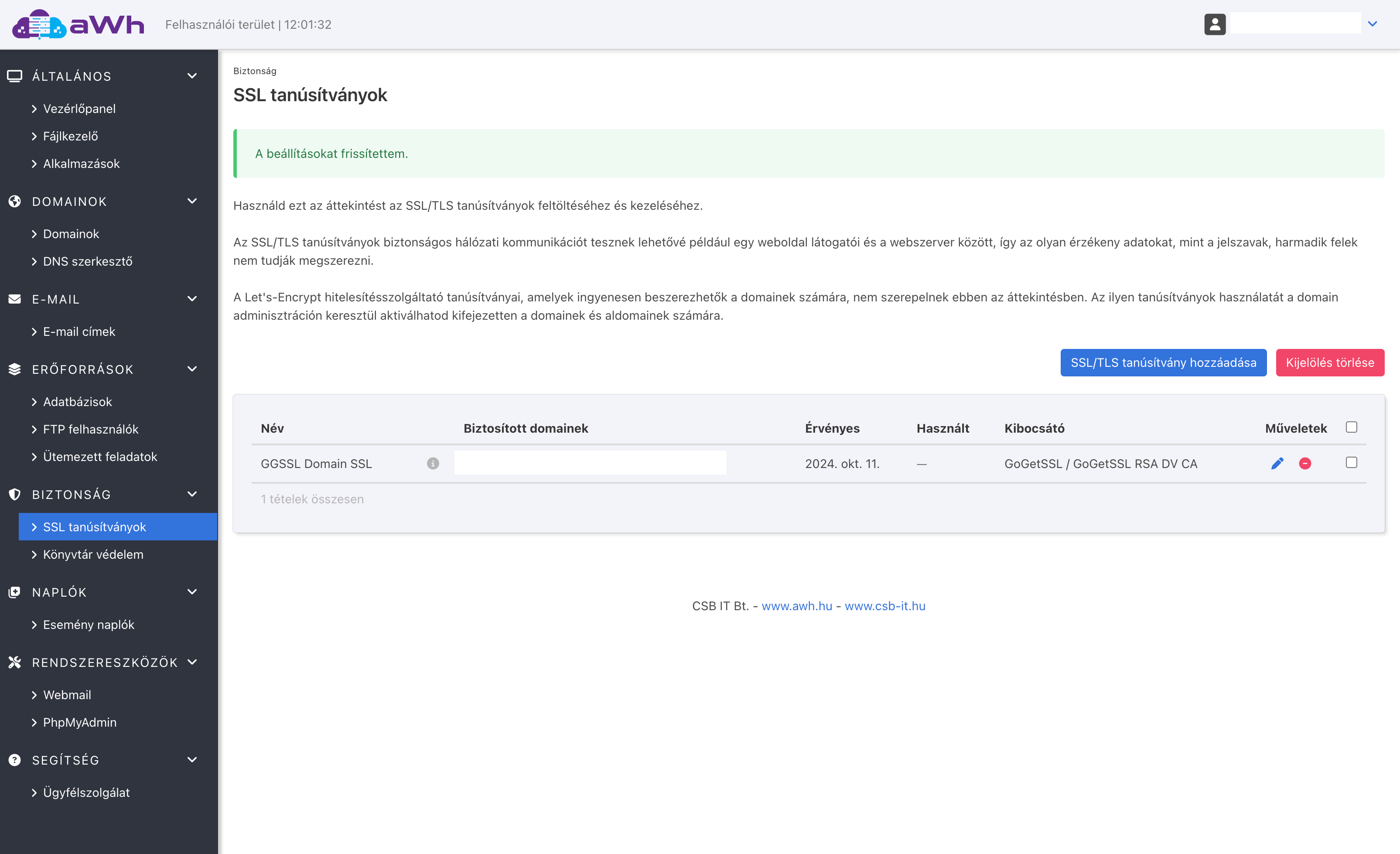
On the SSL certificates page, you can then see the certificate’s expiry date and the domain names it covers.
Enabling SSL on your website
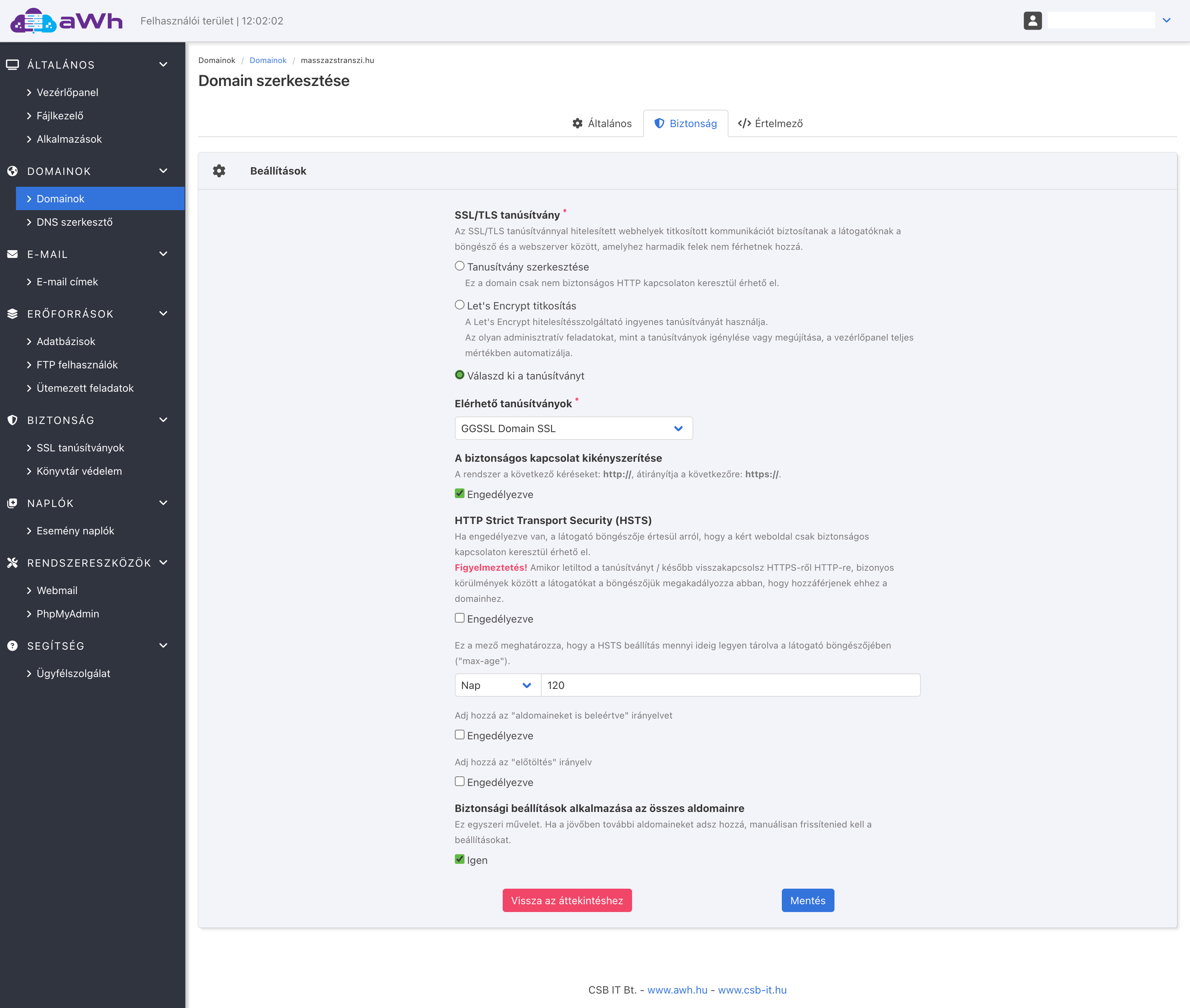
Finally, you’ll also need to enable the SSL certificate on your website. To do this, in the web hosting control panel, click on the ‘Domains’ menu item, and in the list, click on the pencil icon next to the domain name (the version without ‘www’!) to open it for editing.
Then, on the next page, under the ‘Security’ tab, select the ‘Select certificate’ option and choose the SSL certificate you uploaded earlier from the drop-down list. Optionally, you can tick the box to have HTTP traffic automatically redirected to HTTPS.
Also, tick the box next to the option to apply the security settings to all subdomains. Within a few minutes of saving, your site will be accessible via HTTPS.