 English
 Magyar


DNS propagation refers to the period during which a DNS change – such as a new IP address for an A record or a change to a domain’s name servers – takes effect everywhere. During this time, some visitors will already be accessing the new server, whilst others will still be accessing the old one; you may even find that the old website loads on your own computer. This is not a fault: the change will automatically reach everyone in accordance with the set timings.
The term is somewhat misleading, as the change does not actually ‘propagate’ anywhere. DNS servers do not forward the new data to one another; instead, they store the previously queried response in their caches for a certain period of time and only query it again once it has expired.
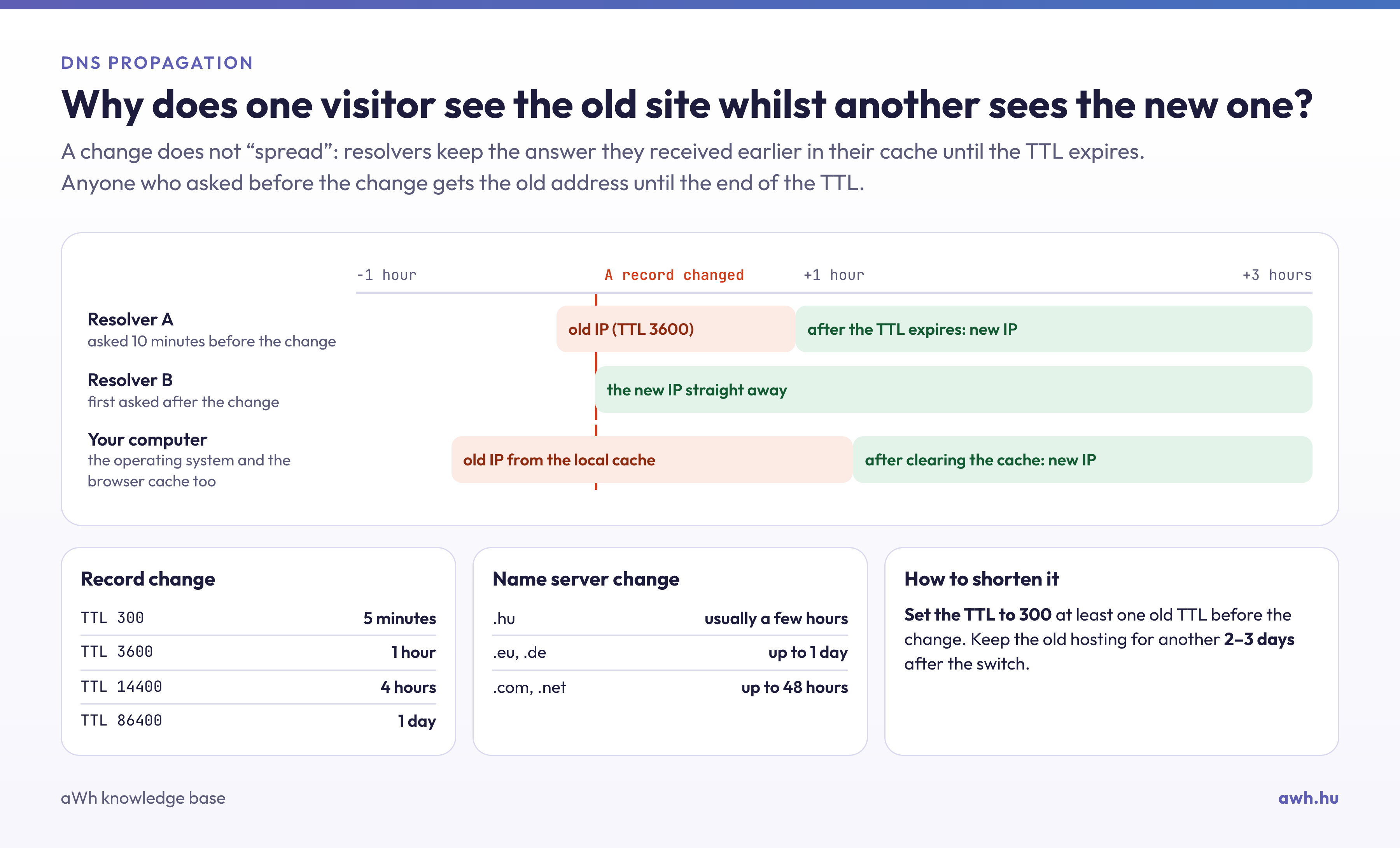
How do DNS changes reach visitors?
When someone types pelda.hu into their browser, their computer does not query the domain’s name server directly, but instead queries a recursive DNS server (resolver). This is usually the internet service provider’s server, or a public service such as Cloudflare’s 1.1.1.1 or Google’s 8.8.8.8. If the resolver does not already know the answer, it queries the chain: it finds out from the root servers which servers are responsible for the .hu extension, from the .hu registry servers which are the name servers for pelda.hu, and finally, from these authoritative name servers, it obtains the domain’s IP address.
Each response is accompanied by a TTL (Time To Live) value in seconds, which specifies how long the resolver may use the response without making a further query. If the A record for pelda.hu points to the address 192.0.2.10 with a TTL of 3,600 seconds, and this is changed to the address 203.0.113.20, then the resolver that queried the domain before the change will continue to return the old address for up to one hour. As each resolver made its query at a different time, visitors will gradually switch over to the new server one by one over the course of an hour.
As well as the resolver, your computer’s operating system and browser also cache DNS responses, which is why you may still see the old page on your home computer even when the new one is already loading elsewhere.
How long does it take?
The waiting time depends on what you are changing.
Modifying records within a zone (A, AAAA, CNAME, MX, TXT): up to the TTL of the old record that was in the caches at the time of the change. The usual values are:
| TTL | Longest wait |
|---|---|
| 300 | 5 minutes |
| 3600 | 1 hour |
| 14400 | 4 hours |
| 86400 | 1 day |
The new TTL value has no effect on responses that have already been cached: if the old record was valid for one day, even if you set the TTL to 5 minutes after the change, the old address will remain in use on some resolvers for another day.
Name server change: this involves a series of steps. The registrar forwards the change to the registry, which publishes the new name servers in the extension zone; the resolvers must then also forget the old name server data. The TTL for this is determined not by you, but by the registry:
| Extension | The TTL of the name server data |
|---|---|
| .hu | 1 hour |
| .eu, .de | 1 day |
| .com, .net | 2 days |
As long as a resolver is aware of the old name servers, it queries them and thus receives the old zone records. A change to the name servers for a .hu domain is therefore usually visible everywhere within a few hours, whilst for a .com domain it can take up to 48 hours. The rare instances where it takes 72 hours are typically caused by resolvers that retain the responses for longer than the TTL.
Adding a new record: a new subdomain or record is usually available immediately. However, if someone (including yourself) has already queried it before it is created, the resolver will also record the ‘no such record’ response for the duration specified in the zone’s SOA record (this is typically between a few minutes and a few hours). It is therefore advisable to create a subdomain first and only then test it.
How can you shorten it?
- Reduce the TTL in advance. Before making the planned change, set the TTL of the records to be modified to 300 seconds for at least the duration of the current TTL (one day for a TTL of 86,400 seconds). After the change, everyone will receive the new address within a few minutes, after which you can reset the TTL to its previous value. In your web hosting control panel, you can do this when editing the DNS records. You cannot change the TTL of the nameserver data; therefore, if only the website is being moved, the quicker option is often to modify the A record (comparison of the two methods).
- Leave the old hosting service running for a few days. Until the changes have been fully implemented, some visitors and some incoming emails will still be directed to the old server. Do not cancel the old service for at least 2–3 days after the switch, and do not update the content on the old site whilst the migration is in progress.
- Test the new server before making the switch. You can temporarily map the domain to the new IP address in your computer’s
hostsfile, allowing you to view the site at its new location before updating the DNS; the steps are described in the article on the hosting migration.
How can you check your progress?
The most reliable way is to compare what the domain’s authoritative name servers say with what a public resolver returns. Our free DNS checker queries the authoritative name servers directly, so it usually displays the new value immediately after a change, whilst the DNS record query shows what Cloudflare’s 1.1.1.1 resolver currently has in its cache. If the two differ, the change has been applied correctly; you just need to wait for the caches to update.
From the command line (on Linux and macOS), the same information can be retrieved using the dig command:
dig NS pelda.hu +short
dig A pelda.hu @ns1.pelda-szolgaltato.hu +short
dig A pelda.hu @1.1.1.1 +noall +answer
The first command lists the domain’s name servers; the second queries an authoritative name server directly (enter the name server returned by the first command after the @); the third shows the response from the public resolver. In this, the second column shows the remaining TTL, i.e. the number of seconds until the resolver queries the record again:
pelda.hu. 2843 IN A 192.0.2.10
Under Windows, the command nslookup -type=A pelda.hu 1.1.1.1 returns a similar result. Further options for dig are outlined in the article on network troubleshooting. If the public resolvers are already returning the new address but your computer is not, clear your local DNS cache or try accessing the site via mobile data.
If it still isn’t working after waiting
If the authoritative name servers are still returning the old values, the change has not been made in the correct place: after switching name servers, the records must be edited in the new provider’s zone, not the old one. If the site is still unavailable after 48 hours, it is unlikely to be a propagation issue; the most common causes (incorrectly entered name servers, a missing zone file, or the old DNSSEC settings) are listed in the article ‘Why won’t my website open after a name server change?’. If you get stuck, please email us with your domain name and we’ll check the status of the resolution.