 English
 Magyar


In the KeyHelp web hosting control panel, under the ‘DNS Editor’ menu item, you can edit the DNS records for your domains yourself: you can add an A or CNAME record for a subdomain, configure the MX records for an external email service, or add a verification TXT record (for example, for Google Search Console). A separate article provides an overview of the different types of DNS records.
When do changes made in the DNS editor take effect?
The records configured in the control panel are only valid if the domain uses the hosting provider’s name servers (you can see their names in the SOA record and the NS records in the control panel). If the domain’s name servers are hosted elsewhere (for example, with Cloudflare or another registrar), you must amend the records there; changes made here will have no effect. To help you decide which solution is best, please refer to the article comparing A records and name server changes.
Opening the control panel
- In the menu on the left, open the ‘DNS Editor’ menu item under the ‘Domains’ group.
- On the** ‘Select a Domain’** page, click on the domain name in the ‘Domain list’ section. (In the list of domains, the DNS icon in the domain row takes you to the same place.)
At the top of the zone page, you will find the SOA record details (primary name server, timeouts); please do not modify these. Below this, the records are listed one by one: Server (the name), TTL (in seconds), Record Type and Value.
By default, a new domain’s zone file contains A and AAAA records pointing to the web hosting (to the domain and the * placeholder subdomain), the MX record required for email, the name servers (NS), and the SPF, DKIM and DMARC TXT records. You should only modify these if you know what you are doing: if an MX or SPF record is incorrect, emails may not be delivered or may end up in the spam folder.
Adding or editing a record
- Click the ‘Add record’ button below the records. A new, empty row will appear at the end of the list.
- In the ‘Server’ field, enter the name:
@refers to the domain name itself; for a subdomain, enter only the prefix (for example,blogor_dmarc), without the domain name following it. - In the TTL field, specify the number of seconds for which the DNS servers may cache the record (for example, 3600 = 1 hour). If you intend to modify the record again soon, select a lower value.
- Select the record type (A, AAAA, CAA, CNAME, HTTPS, MX, NS, PTR, SRV or TXT) and enter the record value in the ‘Value’ field. For MX records, the value begins with the priority (for example,
10 mail.pelda.hu.). - Click the ‘Save’ button at the bottom of the page. The change will appear on the hosting name servers in a few moments.
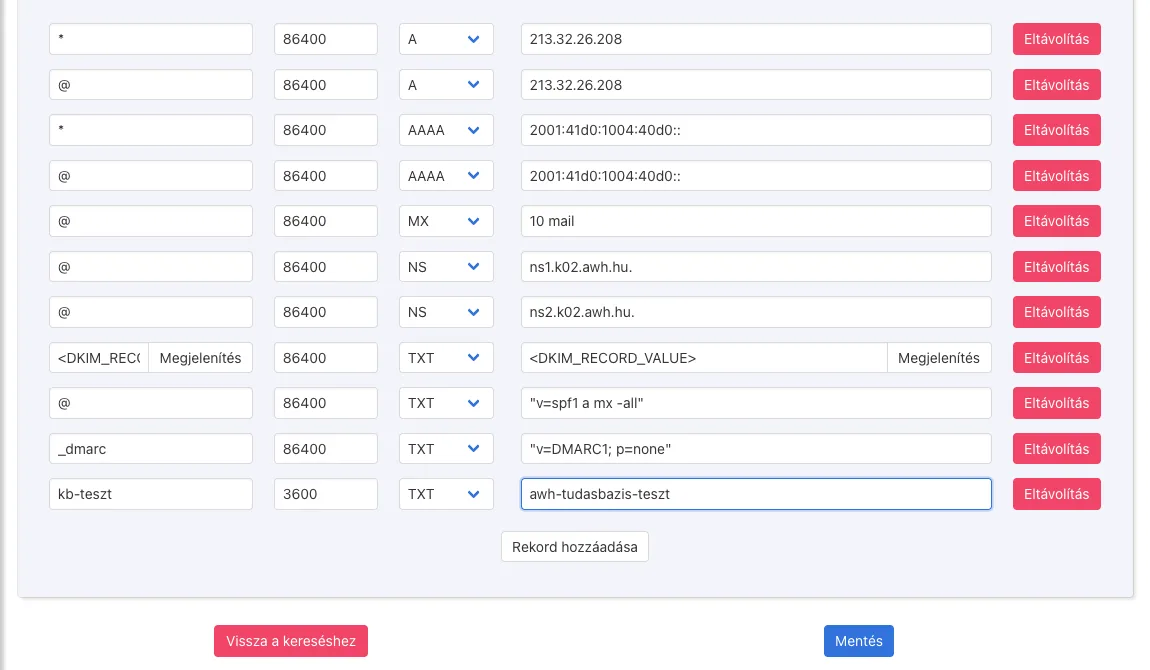
You can edit an existing record in exactly the same way, directly within its row, and delete it using the ‘Remove’ button at the end of the row before saving. Changes to the zone will only take effect once you have clicked the ‘Save’ button.
How do you check this?
The change will be visible immediately on the hosting provider’s nameserver, but on other DNS servers around the world it will only become visible once the TTL of the previous record has expired. You can check this via the command line (e.g. dig TXT pelda.hu or nslookup -type=TXT pelda.hu) or using an online DNS checker. The article on DNS propagation explains why this can sometimes take hours; if your own computer is still showing the old value, clear your local DNS cache.
Common errors
- Repeating the domain name: if
blog.pelda.huis entered in the ‘Server’ field, the record will be created forblog.pelda.hu.pelda.hu. Enter only the prefix. - Two SPF records: a domain can only have one SPF (
v=spf1 ...) TXT record. If you set up a new email service, please supplement the existing record (SPF record). - CNAME for the domain’s own name: a CNAME cannot be set for the
@name, as there are other records (NS, MX) there; an A record is required here.