 English
 Magyar


The DNS cache is stored on your local computer, so your computer does not need to query the DNS servers and retrieve the IP address every single time you access a website. Instead, it loads this directly from the DNS cache, taking you to the website much faster than usual. You may need to clear the DNS cache if you’re troubleshooting connection issues with your website, or if you’ve recently migrated your application to a new server. This article will show you how to do this on the most commonly used operating systems. Let’s get started.
Clearing the DNS cache in Windows 10
To clear the local DNS cache in Windows 10, do the following:
- Please click on the Windows icon. You should see this in the bottom left-hand corner of the screen.
- You can then use the keyboard to search for various items. In this case, please type the word ‘cmd’.
- The search above displays the command line. Right-click on it and select ‘Run as administrator’ from the drop-down menu.
- A black screen will appear, showing a flashing underline next to a line containing something similar to C:\Users\user\.
- This black window is also known as the command line or command-line interface. Please enter:
ipconfig /flushdns
majd nyomja le az ENTER-t
Clearing the DNS cache on Linux (Ubuntu and Debian-based systems)
To clear the local DNS cache on Linux Ubuntu and Debian-compatible distributions, you will need the following:
- Please open the command line interface, also known as the Terminal, by pressing the Ctrl + Alt + t key combination on your keyboard.
- When the Terminal appears, please enter the command:
sudo /etc/init.d/networking restart - You must enter your password for the sudo command, then press the ‘ENTER’ key again to complete the process.
Clearing the DNS cache on macOS systems
For MacOS Ventura or Monterey, follow these steps to clear the DNS cache:
- Open the terminal window and enter the following two commands:
sudo dscacheutil -flushcache
sudo killall -HUP mDNSResponder - The computer will prompt you for your password, and when you press the ‘ENTER’ key
Clearing the DNS cache on Android
There is no specific command for this on Android; the browser and the system store data separately.
-
Chrome: type
chrome://net-internals/#dnsinto the address bar and click the ‘Clear host cache’ button. (The page is in English, and no message will appear after clicking the button.)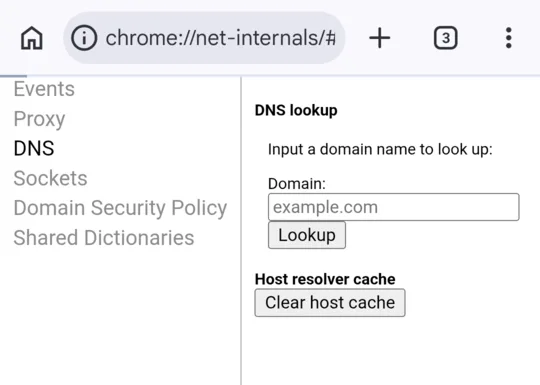
-
System: please restart your phone.
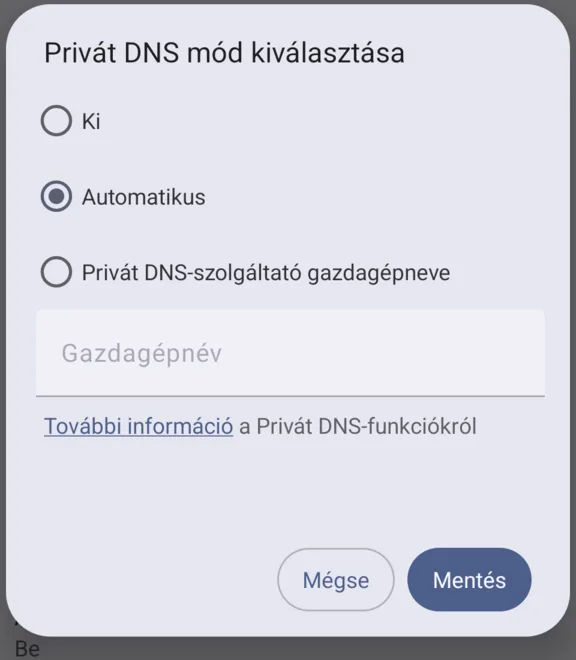
If the page still does not open, check the Settings > Network & Internet > Private DNS section. If a provider is specified here, your phone will query the domains via that provider, and you will see the change later than others. To test this, select ‘Automatic’ and tap the ‘Save’ button.
If you’re wondering whether the problem lies with your phone or the network, switch off Wi-Fi and try using your mobile data instead: the two networks use different DNS servers. If it only fails on one of them, it’s worth waiting; see: What is DNS propagation?