 English
 Magyar


You can access your email account on your mobile phone via your browser, without needing an email app. Webmail (Roundcube) is easy to use on a mobile phone; you don’t need to install or configure anything – all you need is your email address and password. It’s a convenient solution if you only check your emails on your mobile phone occasionally, or if you’re using someone else’s device.
We tested these steps in October 2026 on Android 17 using the Chrome browser, with one cPanel hosting account and one web hosting email account. If you regularly check your emails on your phone, it is better to set up an email app, as it will also send notifications about new emails: see the guides for Android and iPhone.
Log in
Open your browser and enter your webmail address:
| Hosting | Webmail address |
|---|---|
| cPanel hosting | webmail.<az Ön domainje> |
| Web hosting | /webmail after the name of the hosting server, for example k02.awh.hu/webmail |
Enter your full email address (in the Username field on the web hosting platform) and your email account password, then tap the Log in button. This is your email account password, not the password for the hosting control panel.
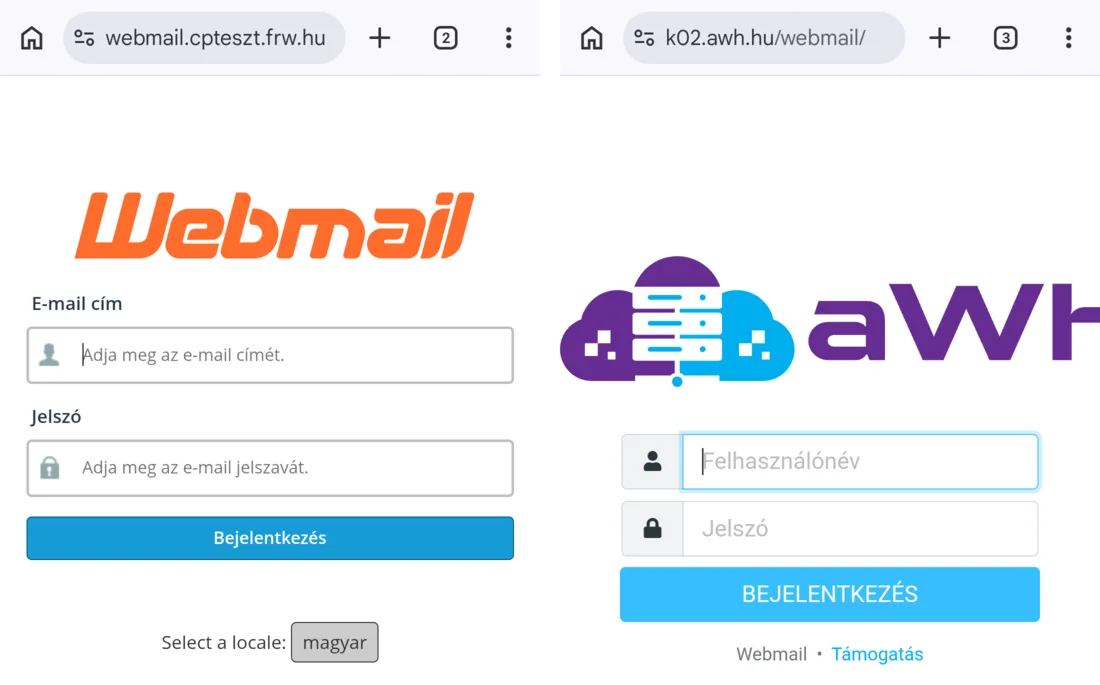
On cPanel hosting, the home page appears after you log in: click the ‘Open’ button below the Roundcube image. If you tick the ‘Open my inbox when I log in’ box, you’ll be taken straight to your emails next time. On web hosting, your emails appear immediately.
If your browser offers to save your password, only accept this on your own phone; do not do so on a device belonging to someone else.
Using webmail
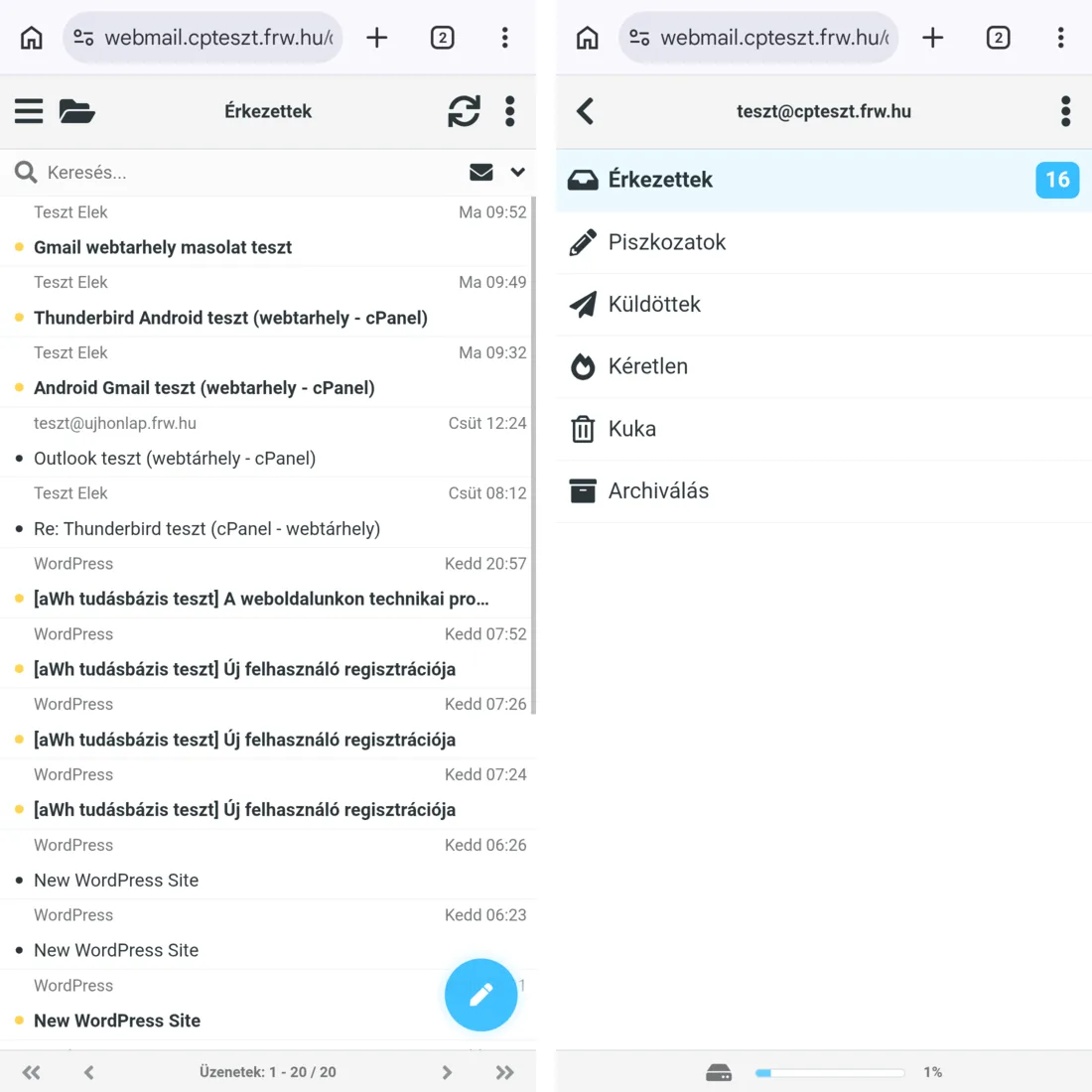
Tap the folder icon above the list of emails to switch between folders (Inbox, Drafts, Sent, Junk, Bin). The mailbox capacity is also displayed at the bottom of the folder list. You can write a new email using the pencil icon in the bottom right-hand corner.
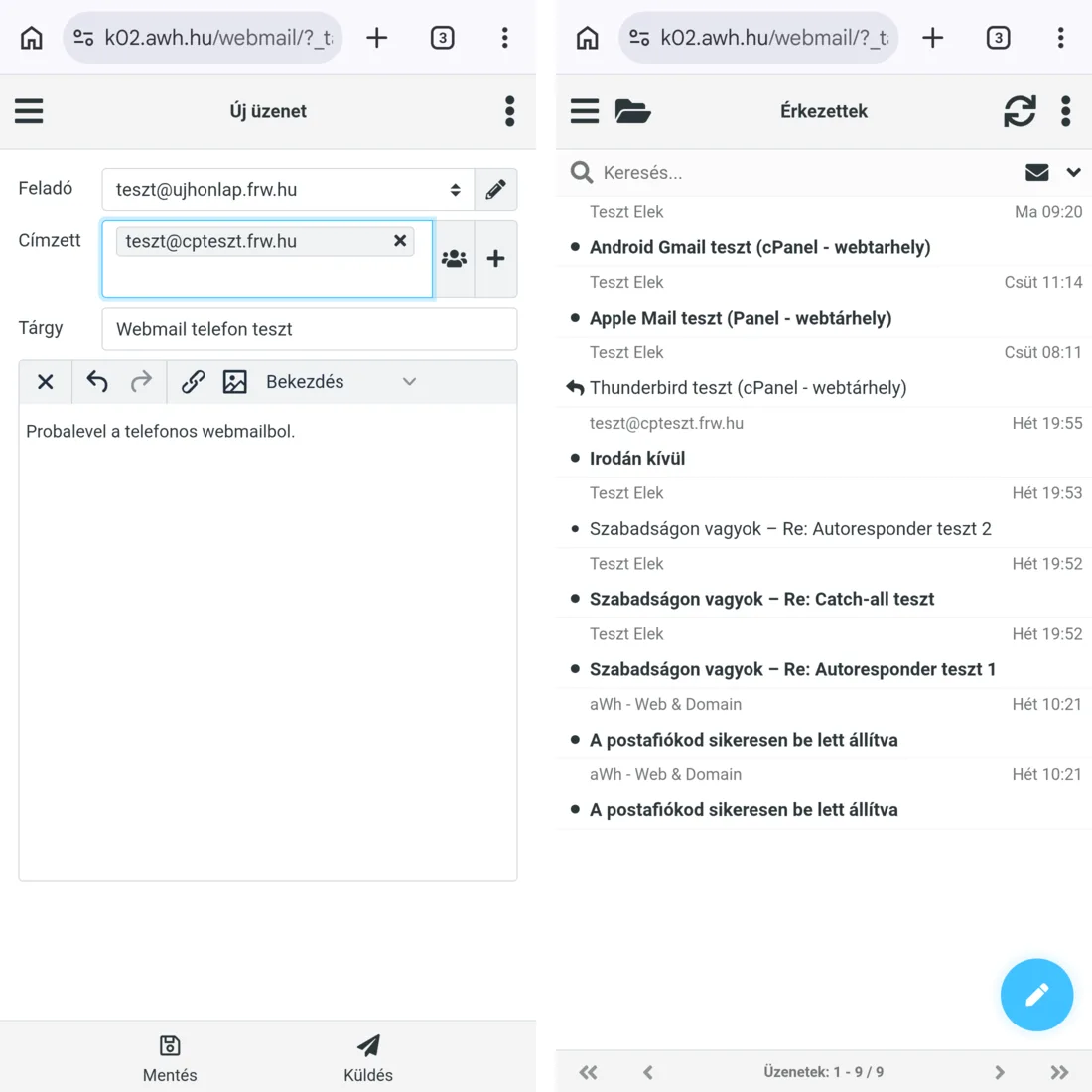
When composing an email, enter the address in the ‘To’ field, followed by the ‘Subject’ field and the body of the email. The ‘Send’ button is at the bottom of the screen. In the test, the email sent in this way was delivered, and a copy was placed in the server’s ‘Sent’ folder.
Icon on the home screen
If you use it frequently, add an icon to your phone’s home screen so you can launch it as an app.
- Open your webmail and log in.
- In the menu (⋮) in the top right-hand corner of Chrome, tap ‘Home’.
-
In the** ‘Create Shortcut’** window, enter a short name for the icon (for example,
Webmail) and tap the ‘Add’ button.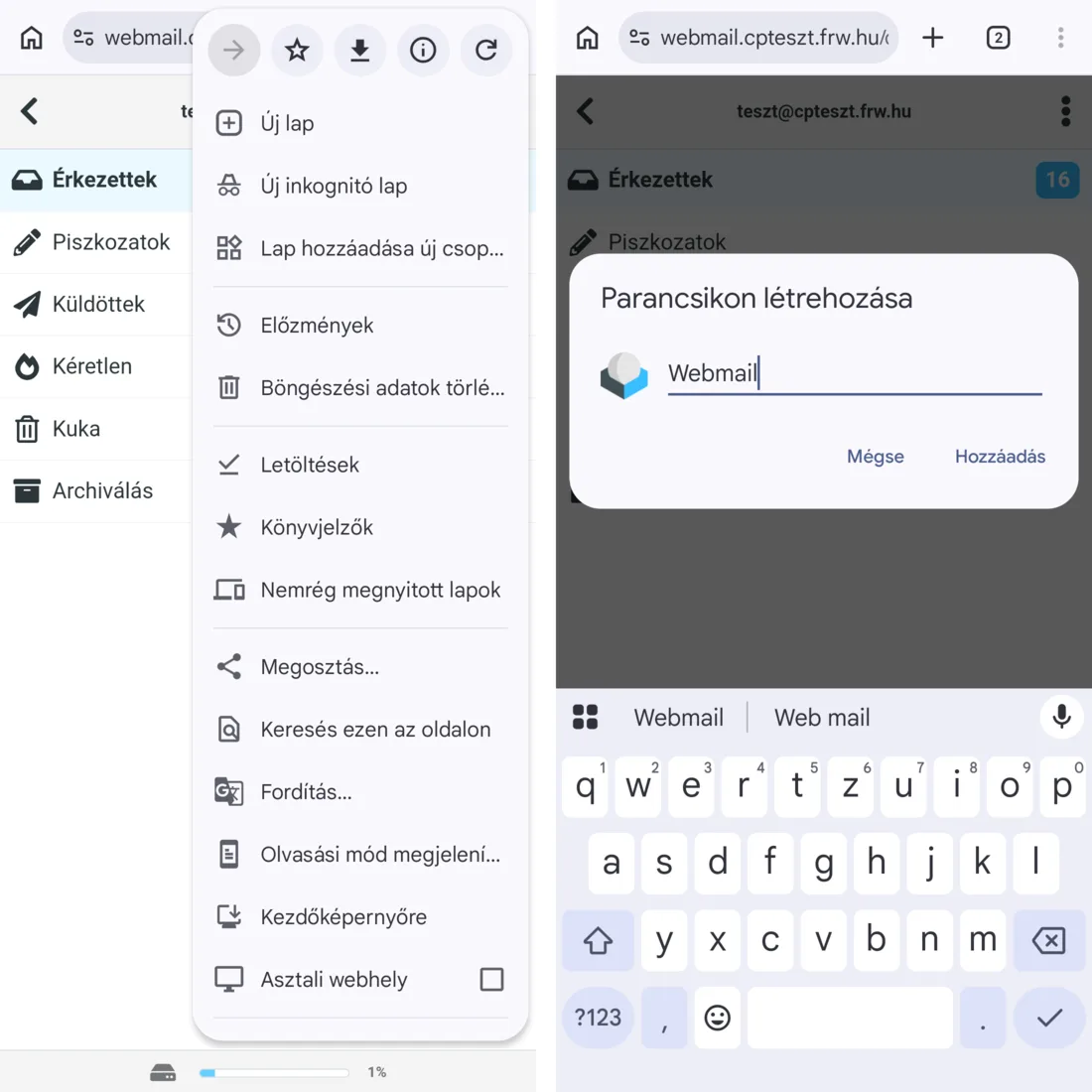
-
Tap the ‘Add to Home Screen’ button.
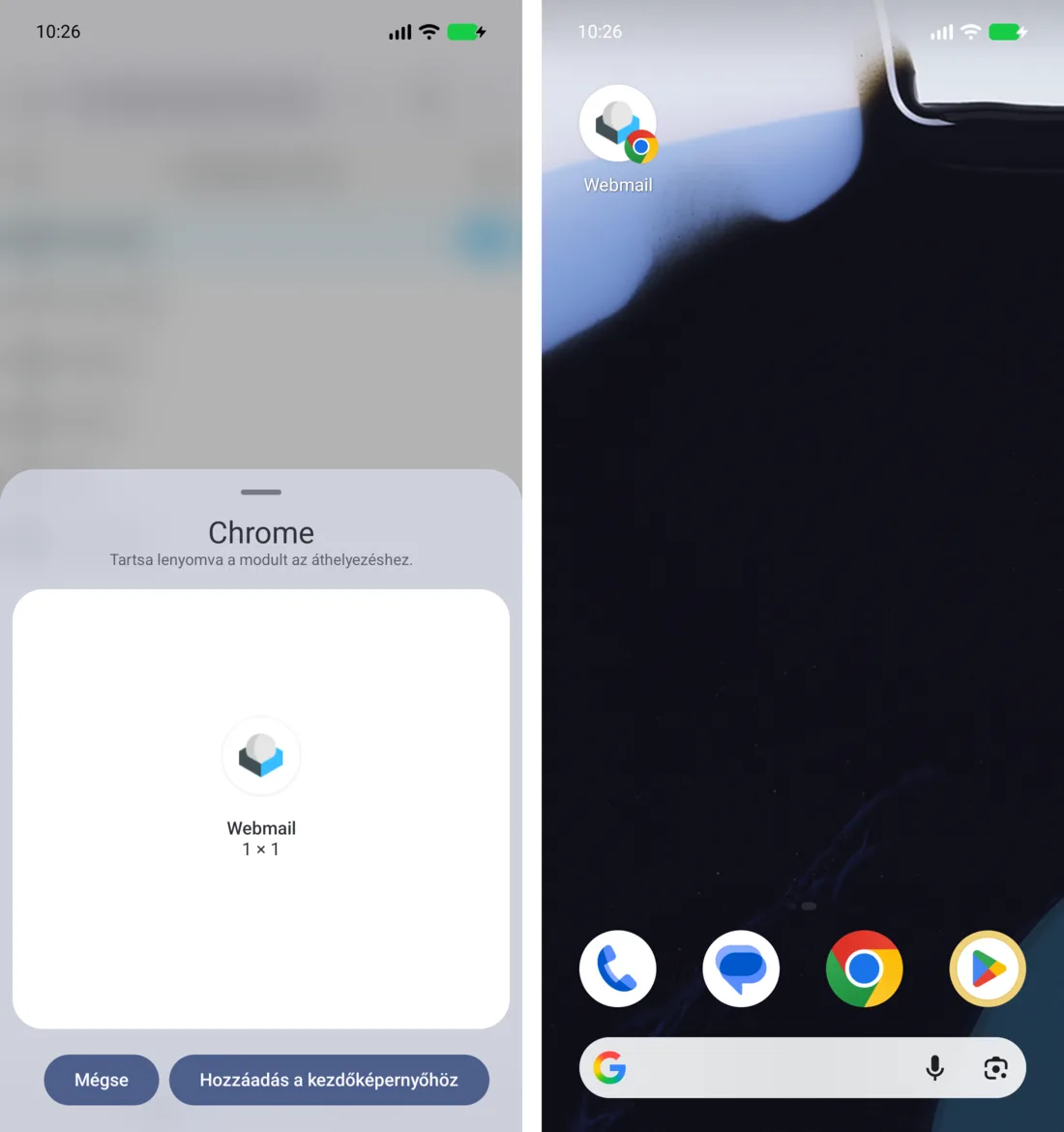
Tapping the icon opens webmail; in the test, you are taken straight to your emails after logging in. If your session has expired, you will need to log in again.
Log out
Always log out at the end of your session when using a public or shared device: in the top-left menu (☰), tap ‘Log out’. Our article on customising the Roundcube interface in webmail also covers this.