 English
 Magyar


An email signature is a pre-set block of text (name, job title, company name, contact details and, where applicable, a logo) which your email client automatically adds to the end of your emails. It is important to note that the signature is not added by the mail server, but by the program you are using to write the email: if you send emails via webmail, a desktop program and a mobile phone, you will need to configure it separately in all three places.
Roundcube webmail
In the Roundcube webmail associated with your email hosting:
- Log in to webmail and click on the Settings icon in the left-hand menu.
- Select the ‘Credentials’ section, then click on the email address for which you wish to create a signature. Here, you can also fill in the ‘Display name’ and ‘Organisation’ fields: the recipient will see this name as the sender.
- Enter your text in the ‘Signature’ field. You can switch to the formatted editor by clicking the HTML icon in the field’s toolbar, where you can use bold and italic text, links and images.
- Click the Save button.
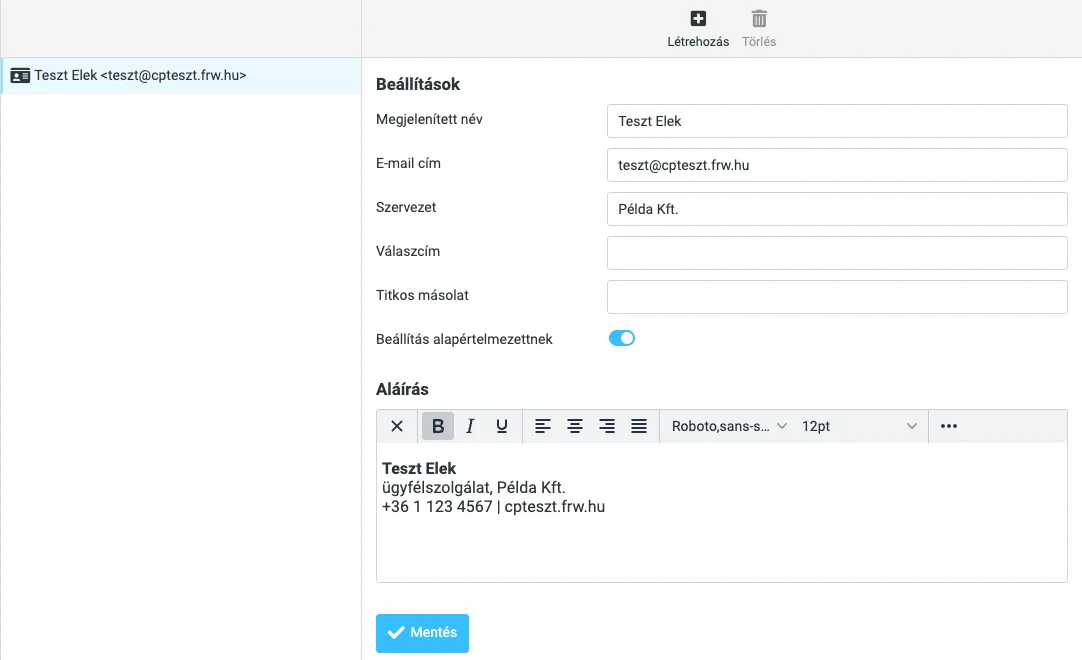
A formatted signature will only appear as formatted text in emails written in HTML format. By default, Roundcube writes plain-text emails, in which case the signature is added to the end of the email without any formatting. If you always wish to send formatted emails, on the Settings > Settings > Writing Messages **page, set the **‘Write HTML messages’ option to ‘Always’; for individual emails, you can also switch to HTML using the icon in the editor toolbar, at which point the signature will become formatted.
You can specify when the signature should appear in the email on the same page, under the ‘Signature settings’ section:
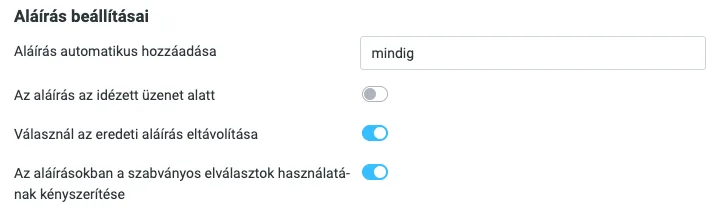
- Automatic addition of a signature: always, only for new messages, when replying or forwarding, or never. If you do not wish to have it added automatically, you can insert it using the ‘Signature’ button on the toolbar whilst composing an email.
- The signature appears below the quoted message: it will appear as expected if you reply by writing over the original message (Reply: write your message over the original). When disabled, the signature appears directly below your reply, above the quoted text; when enabled, it appears below the quote.
- Remove the original signature: omit the sender’s signature from the quoted email.
- Enforcing the use of standard separators in signatures: it inserts the standard ‘– ’ line before the signature, which email clients recognise as the start of a signature.
Email clients
- Outlook (Classic, Windows): File > Options > Mail > Signatures. Create your signature, then on the right-hand side, select which account and which types of messages (new message, reply/forward) it should be set as the default for.
- New Outlook and Outlook on the web: Settings (cog icon) > Accounts > Signatures.
- Thunderbird: Account settings > Account name > Signature text. To use an HTML signature, tick the ‘Use HTML’ option, or attach the signature from a file.
- Apple Mail (macOS): Mail > Preferences > Signatures; here you can set a different signature for each account.
- iPhone and iPad: Settings > (on newer versions of iOS: Apps >) Mail > Signature. This is a simple text signature that can be shared across all accounts or set individually for each account.
-
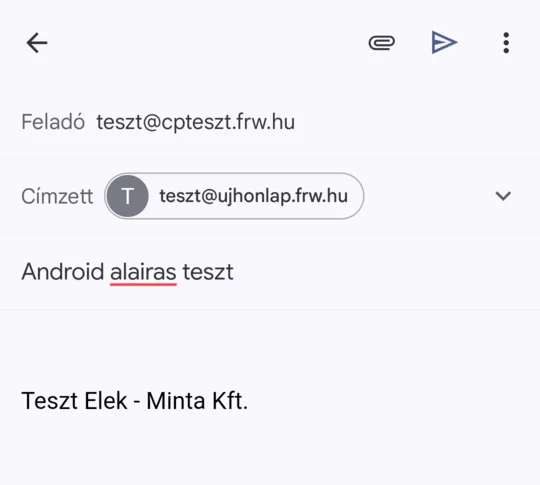
Android, Gmail app: in the top-left menu (☰), go to Settings > your mailbox > Mobile signature. This must be plain text only and must be entered separately for each account. In our test, the signature appeared below the text of the new email and was also received by the recipient.
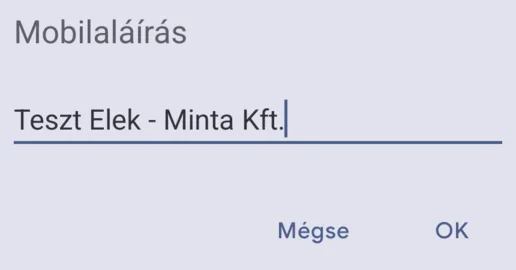
- Android and Thunderbird apps: when adding an account, you can enter it in the ‘Email signature’ field on the ‘Display settings’ page.
Our article comparing email clients provides information on how to set up and choose the right program.
What should it contain?
A good business signature is short, no more than four to six lines:
- full name and job title,
- company name,
- telephone number and website (there is no need to repeat the email address, as it appears in the email header),
- A small logo, if required.
Common errors
- Large or embedded images: a logo several hundred kilobytes in size increases the size of every email and is repeated numerous times in the thread of replies. Use a small, compressed image, or leave it out.
- Signatures consisting solely of an image: the text cannot be copied, and many email programs do not display images by default, so the recipient will see an empty box. Always enter your contact details as text.
- Out-of-date information: if your telephone number or address changes, please update your signature on all your devices.
- Different signatures for each employee: in a corporate environment, it is advisable to create a standard template and set it up the same way for everyone, so that emails sent externally present a consistent brand image.
Verification
Once you have completed the setup, send a test email to another address – for example, a free email account – and check it on both your computer and your mobile phone. This will show you whether the formatting, images and links are displayed correctly on the recipient’s end.