 English
 Magyar


The connection between the email client and the server is encrypted using TLS, but the email is stored in a readable format on both the sender’s and the recipient’s servers. If the contents of an email are to be readable only by the recipient, end-to-end encryption is required: the email is encrypted on the sender’s machine and can only be decrypted on the recipient’s machine. Even in this case, the email hosting servers still only store an unreadable attachment.
Two standards have become widely used for this: S/MIME and OpenPGP. Both work with a key pair: anyone can encrypt a message to you using the public key, whilst only you can decrypt the message using the private key.
Do you need this?
For most email communication, a properly configured TLS connection is sufficient. End-to-end encryption is justified when you regularly exchange content with the same partners that must not remain in a readable form on the server, such as medical, legal or business secrets. For individual sensitive files, it is simpler to use a password-protected compressed file, the password for which is communicated via a separate channel, such as by telephone. Further tips can be found in the article on secure email.
This method only works if both parties configure it. Your partner must also have a certificate or key, and you must obtain the public key.
S/MIME or OpenPGP?
| S/MIME | OpenPGP | |
|---|---|---|
| What is used to verify identity? | Certificate issued by a Certificate Authority (CA) | The parties verify each other’s keys (fingerprints) themselves |
| Cost | Usually a paid certificate that requires annual renewal | Free – you generate the key yourself |
| Where has it spread? | Companies, organisations | Private individuals, developers, journalists |
| Support | Thunderbird, Outlook and Apple Mail are integrated | Thunderbird is built-in; elsewhere, it is usually available as an add-on |
You can purchase an S/MIME certificate from a certification authority; we do not offer this type of certificate. This is not the same as the SSL certificates used for websites, as it is issued for a specific email address.
Configuration in Thunderbird
We tested these steps in October 2026 using Thunderbird version 159 on a Hungarian-language Ubuntu system, with our own test certificates, between a cPanel account and a web hosting email account. The process for adding the email account is described in the article on configuring Thunderbird for IMAP.
- In the menu in the top right-hand corner (☰), select ‘Mailbox settings’.
- In the list on the left, under ‘Mailbox’, click on ‘End-to-end encryption’.
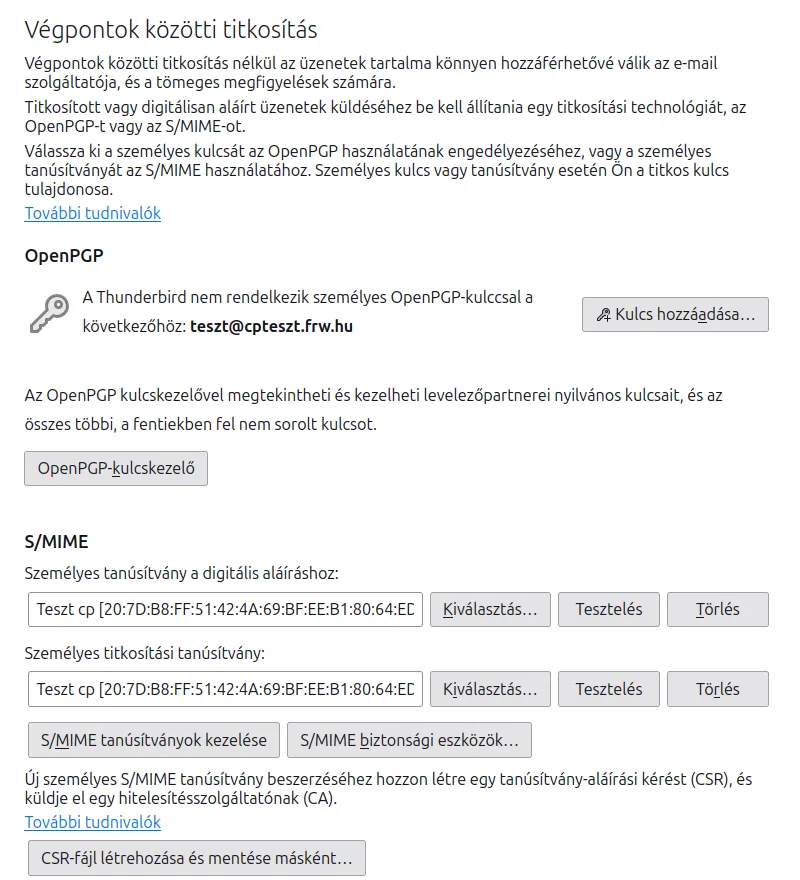
S/MIME
- Click on the ‘Manage S/MIME certificates’ button and import the certificate you received from your provider, together with the private key (typically a
.p12or.pfxfile). - Under ‘Personal certificate for digital signature’, click the ‘Select…’ button and choose the certificate. After clicking ‘OK’, Thunderbird will ask if you want to use the same certificate for encryption: select ‘Yes’.
- Write a digitally signed email to your partner and ask them to send you one in return. The signed email contains the sender’s public certificate, so you can then exchange encrypted emails with each other.
OpenPGP
- Click the ‘Add key…’ button and select ‘Create a new OpenPGP key’ if you do not yet have a key, or ‘Import an existing OpenPGP key’ if you do, then click ‘Continue’.
- You can manage your partners’ public keys in the window that opens when you click the OpenPGP key manager button. Before accepting a key, please verify its fingerprint with your partner via another channel, such as by telephone.
Send an encrypted email
Click the ‘Encrypt’ button on the toolbar in the email composition window, then send the email. You can configure the digital signature and the encryption technology in the ‘Security’ menu of the email composition window. If the recipient’s certificate or key is not available, the email cannot be sent in an encrypted form.
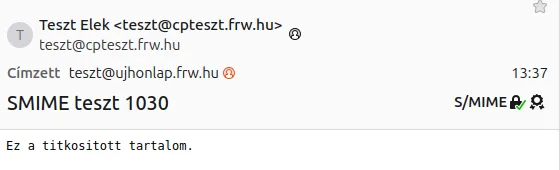
The recipient’s Thunderbird automatically decrypts the email, and an icon in the email header indicates that the signing and encryption were successful.
What encryption does not protect
In our own test, neither the text nor the attachment in the email stored on the server was legible; only an attachment named smime.p7m was visible. However, a few questions remain unanswered:
- The subject line is not encrypted. The subject, sender and recipient remain visible in the email header, so please do not include any sensitive information in the subject line.
- The path of the emails is visible. The servers can still see who wrote to whom and when.
- The recipient may forward this message. The recipient may forward or print the decrypted message in the same way as any other.
Limitations in practice
- Webmail: Roundcube webmail cannot open S/MIME-encrypted messages; it displays the following message: ‘The message is encrypted and therefore cannot be displayed.’ For OpenPGP, you can enable the Mailvelope browser extension on the Settings › Settings › Encryption page.
- Telephone: You can only read encrypted emails in an application that supports the chosen standard and in which the secret key is also stored.
- Loss of the private key: if you lose your private key or certificate, previously encrypted emails will remain permanently unreadable; we are unable to assist with this, and even a backup will not restore them. Make a password-protected backup of the key, and do not delete the expired certificate as long as you wish to read your old emails.
- Search: the server and webmail cannot search the text of encrypted emails.
- Spam and virus filtering: the server cannot view encrypted content, so it is unable to scan attachments either.
GnuPG in cPanel
In the cPanel Email section, on the Encryption page, you can create a GnuPG key on the server and import a public key. The private key created in this way is stored on the hosting server; therefore, for end-to-end encryption, a key created on your own computer – for example, in Thunderbird – is more secure.
Our blog post on everyday encryption provides more details on the basic concepts.