 English
 Magyar


Mozilla Thunderbird is the free, open-source email client for Windows, macOS and Linux, as well as Android. Follow the steps below to add your mailbox created on cPanel hosting or web hosting via IMAP. IMAP stores emails on the server, so you will see the same mailbox on your phone and in webmail.
We tested these steps in October 2026 using Thunderbird version 159 on a Hungarian-language Ubuntu 26.10 system, with one cPanel hosting account and one web hosting test mailbox. The account setup window looks the same on Windows and macOS.
Before you begin
You will need your full email address and your mailbox password. Thunderbird will usually detect the server settings automatically; if not, you can find the server name in the hosting control panel:
-
cPanel hosting: in the Email Accounts menu, click the ‘Connect Devices’ button next to the mailbox, then go to the ‘Secure SSL/TLS Settings (Recommended)’ section. Both the incoming and outgoing servers are
mail.<az Ön domainje>.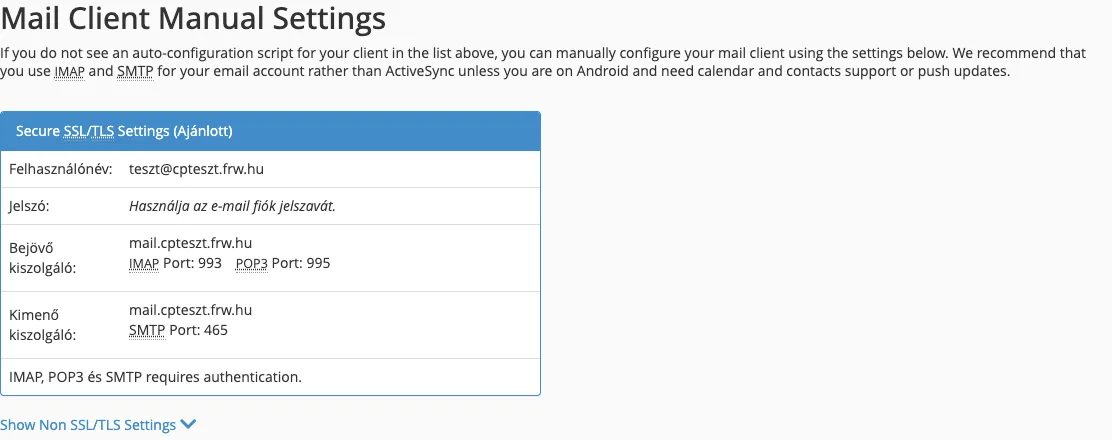
-
Web hosting (KeyHelp): on the Email addresses page, in the Mailbox connection details column, click on the Display link (see: Creating an email account on web hosting). The Server is the name of the hosting server, for example
k02.awh.hu.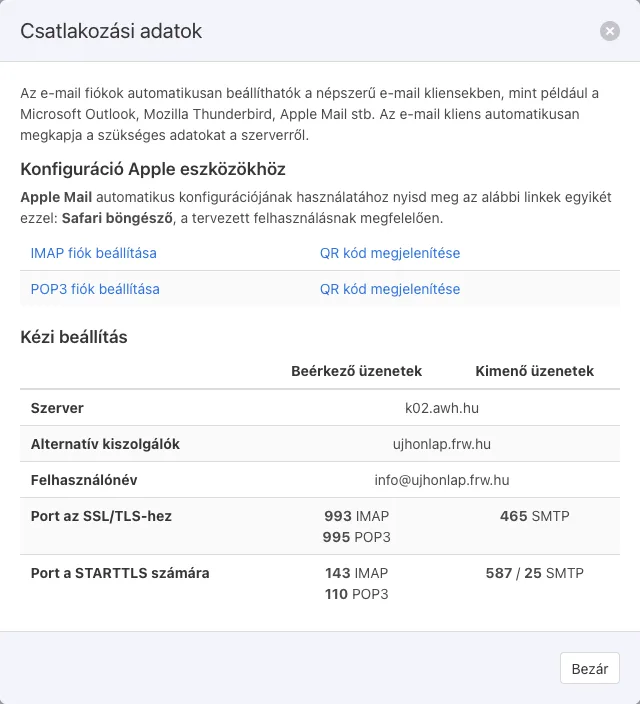
For web hosting, use the server name rather than the mail.<az Ön domainje> address: the mail server’s certificate is issued in the name of the server, so Thunderbird will report a certificate error when using your own domain (this is what happened in the test as well; see below).
Automatic configuration
-
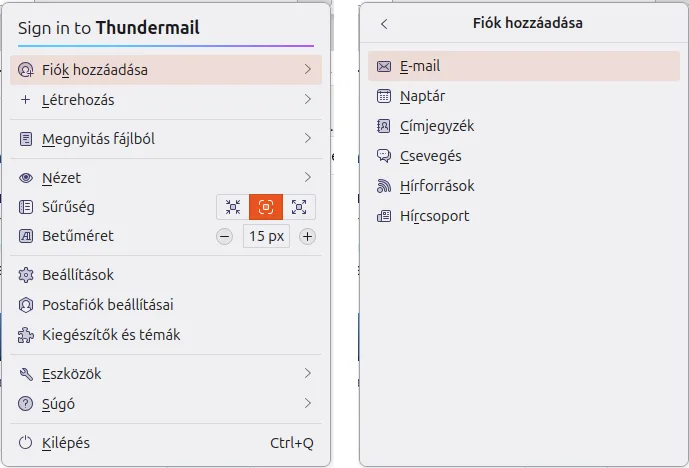
Launch Thunderbird. The first time you launch it, the account setup window will open automatically. If you already have an account set up, select Add Account > Email from the menu in the top right-hand corner (☰).
-
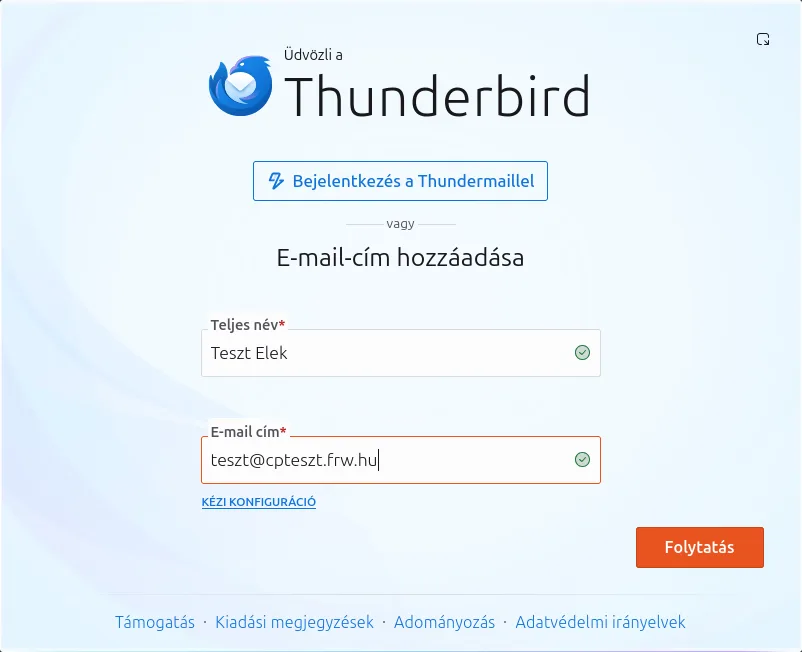
In the ‘Add email address’ **section, the **‘Full name’ field displays the name that recipients will see as the sender (Thunderbird fills this in with your computer’s user name, but you can change it). Enter your full email address in the ‘Email address’ field, then click the ‘Continue’ button.
-
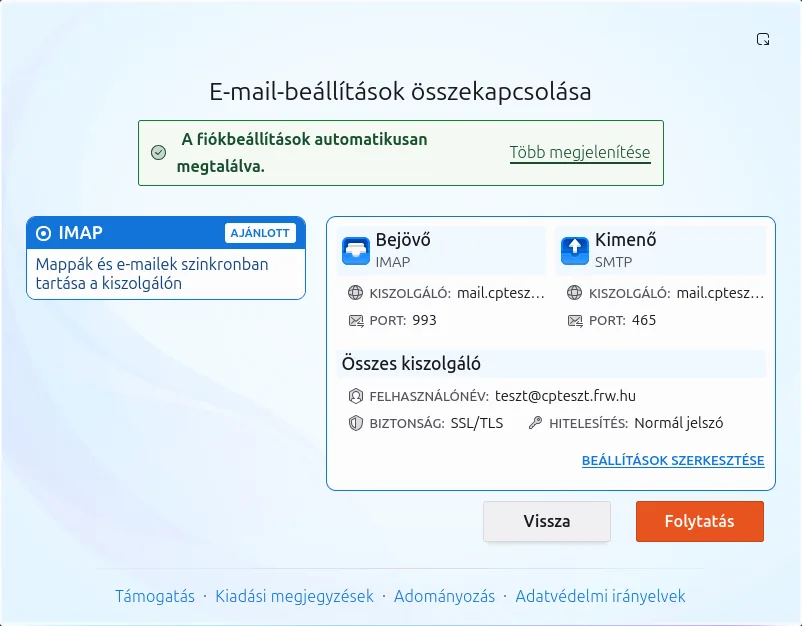
Thunderbird will query the server for the settings. Once it has found them, the message ‘Account settings found automatically’ will appear on the ‘Connect Email Settings’ page, with the incoming (IMAP) and outgoing (SMTP) servers, the ports, ‘Security: SSL/TLS’ and ‘Authentication: Normal password’ listed below it. Leave the ‘IMAP (RECOMMENDED)’ option selected and click the ‘Continue’ button.
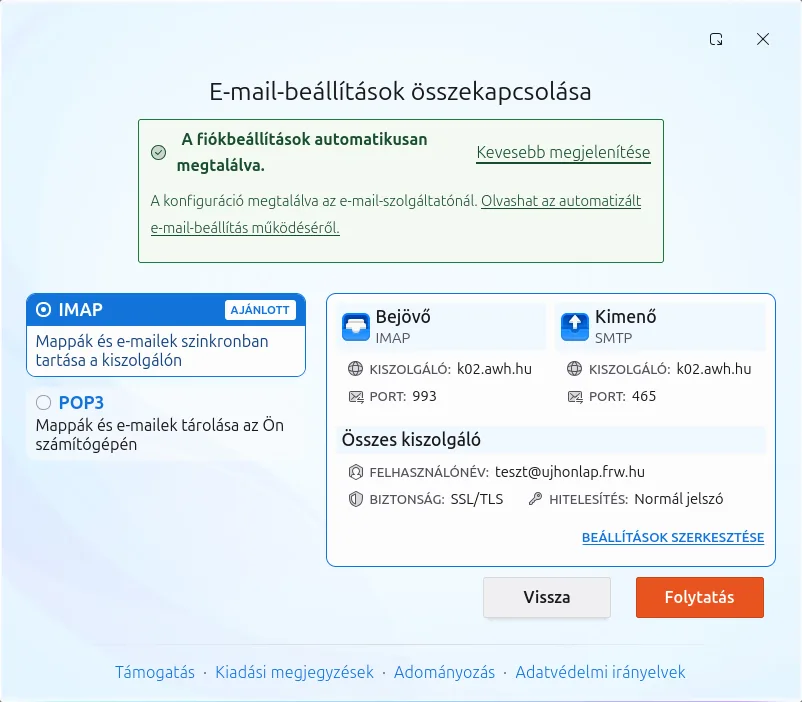
On the web hosting platform, this same page displays the name of the hosting server, and POP3 is also an option. Clicking on the ‘Show more’ link reveals where the data comes from: the configuration is found at the email provider, i.e. via the hosting provider’s automatic setup service.
-
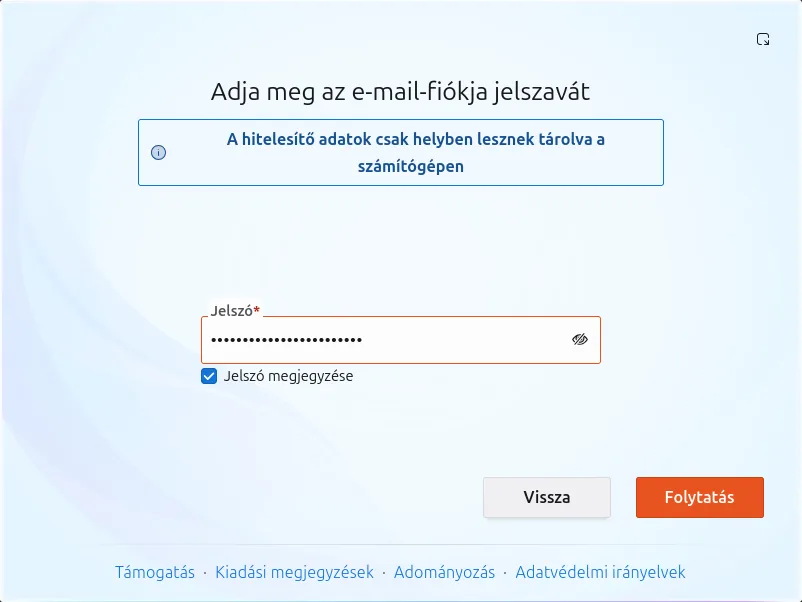
Enter your email account password. If the ‘Remember password’ box is ticked, Thunderbird will store it in its own password manager on your computer. Click the ‘Continue’ button.
-
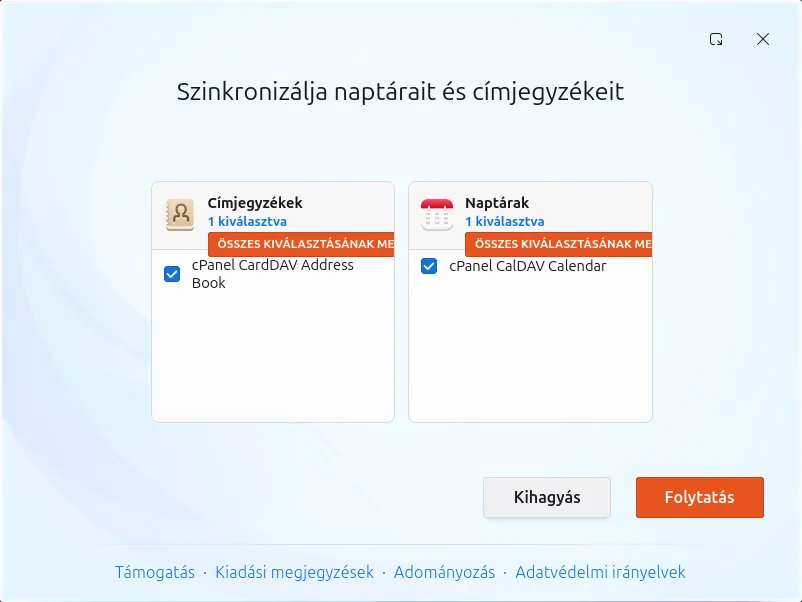
On cPanel hosting, Thunderbird will also find your mailbox’s calendar and address book (Synchronise your calendars and address books: cPanel CalDAV Calendar, cPanel CardDAV Address Book). If you wish to use these as well, click Continue; if not, click Skip. This step does not appear on web hosting.
-
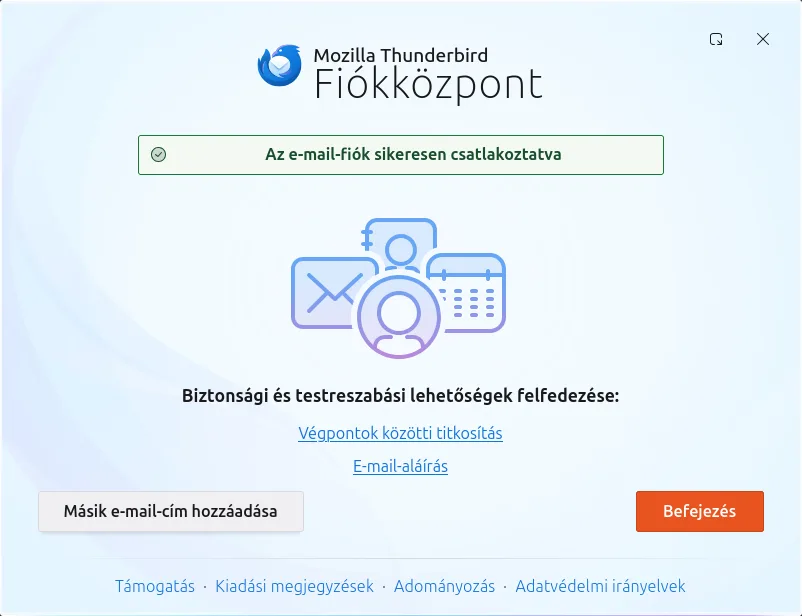
Once you see the message ‘Email account successfully connected’, click the ‘Finish’ button. You can add another email account by clicking the** ‘Add another email address’** button.
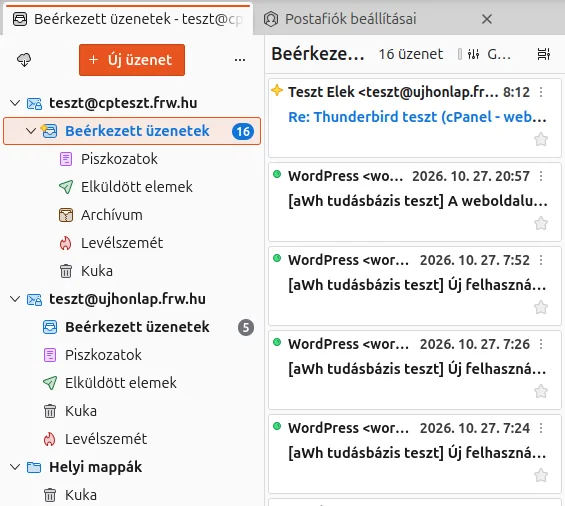
The folder list on the left shows the mailbox and the folders on the server (Inbox, Drafts, Sent Items, Junk, Bin), whilst the Inbox folder contains the emails stored on the server.
Automatic configuration works via the domain’s autoconfig subdomain, so it will only work if this subdomain points to the hosting account (i.e. the domain uses our name servers, or has been configured accordingly in the DNS). If Thunderbird cannot find the settings, please configure the account manually.
Manual configuration
Manual configuration is required if the automatic search is unsuccessful or if you wish to use different settings. You can start from two places:
- on the first page, via the MANUAL CONFIGURATION link below the Email address field, or
- For the settings found, click the ‘EDIT SETTINGS’ link (the fields will already be filled in).
-
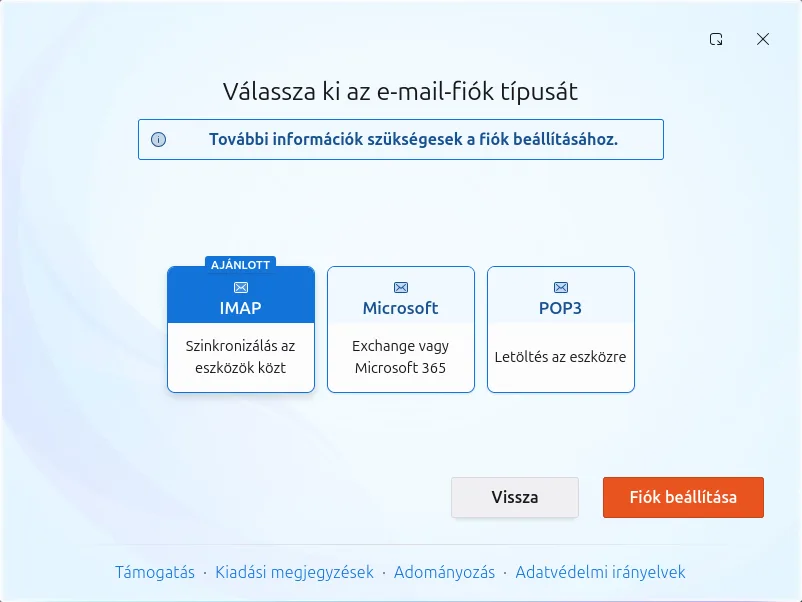
After clicking the MANUAL CONFIGURATION link, on the ‘Select your email account type’ page, leave the IMAP option selected and click the ‘Set up account’ button.
-
On the IMAP settings page, enter the details for the incoming and outgoing servers (you can scroll down the page):
Incoming server (IMAP) Outgoing server (SMTP) Machine name On cPanel hosting: mail.<az Ön domainje>; on web hosting: the name of the hosting server (for example,k02.awh.hu)Same as for incoming traffic Username the full email address Username matching the incoming server is highlighted Authentication method Standard password Standard password Connection security SSL/TLS SSL/TLS Port 993 465 When selecting SSL/TLS, Thunderbird automatically fills in the port. In the ‘Authentication method’ list for the outgoing server, ‘No authentication’ is also listed: do not select this, as the server only accepts authenticated messages.
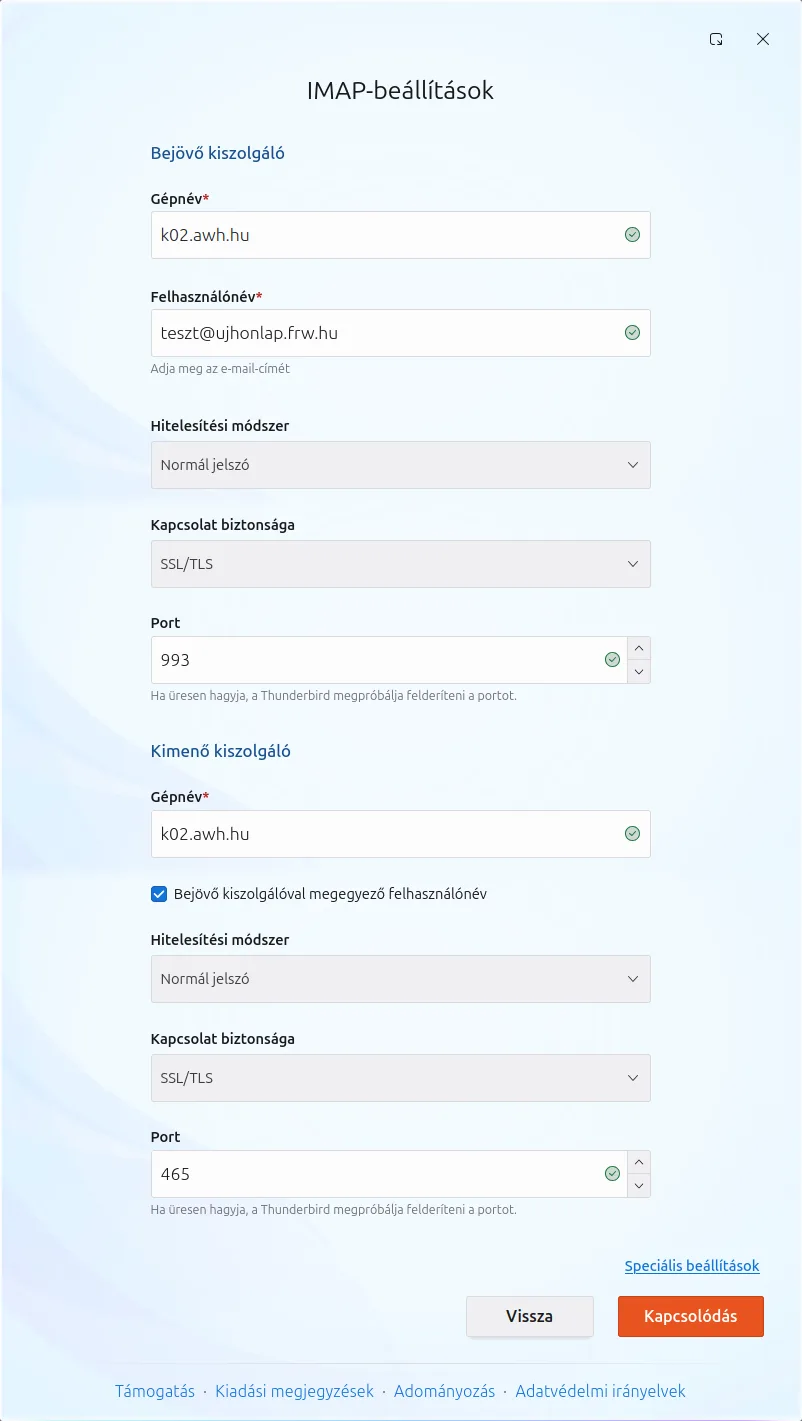
If your network blocks port 465, port 587 can also be used on the outgoing server with STARTTLS connection security; in our test, both servers accepted this.
-
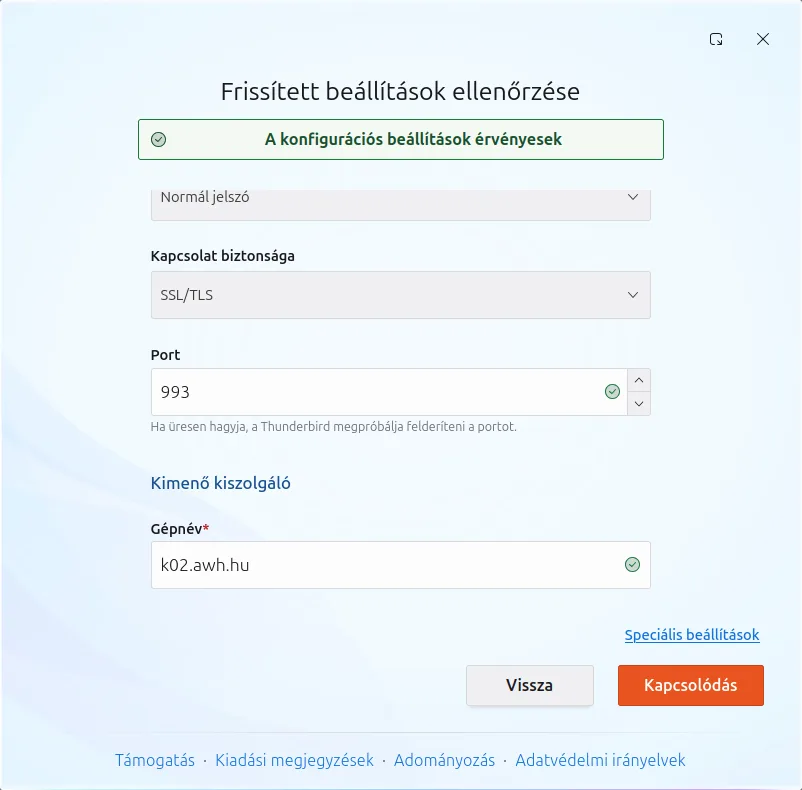
Click the ‘Connect’ button. Thunderbird will check the details you have entered; if they are correct, a message stating ‘Configuration settings are valid’ will appear. Click the ‘Connect’ button again.
-
Enter your password, click ‘Continue’, then ‘Finish’, just as you would with the automatic setup.
If Thunderbird cannot find the server
If you are unable to connect using the details provided, an error message stating ‘Mozilla Thunderbird could not find your email account settings’ will appear, with the text** ‘Server not found’ displayed** under the ‘Show more’ link. We encountered this during testing even when we entered the name mail.<domain> for the web hosting: the server was accessible, but its certificate was not issued for that name, and the account setup wizard does not offer an exception in such cases.
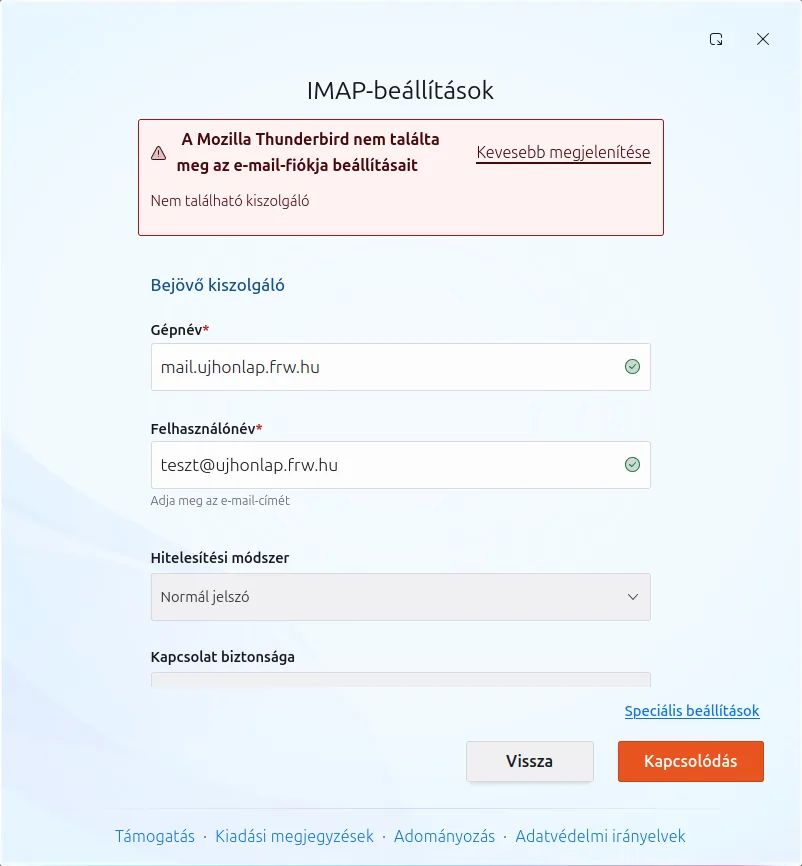
Check the server name (for web hosting, this should be the name of the hosting server), the port and the connection security. If everything is correct and the error persists, check that the domain’s DNS records point to the hosting server.
Certificate error with an existing account
If an existing account contains an incorrect server name (for example, from an older configuration or following a migration), Thunderbird will mark the account in the folder list with a red warning icon. Hovering the mouse over the icon reveals the message: Connection error. The certificate for … is not valid for this server.

Clicking on the icon opens the Server Settings page for your account. Under ‘Connection Security’, next to the error message, you will also see a link labelled ‘Add Exception’: do not use this, as doing so would cause the program to accept the certificate of a potential attacker.
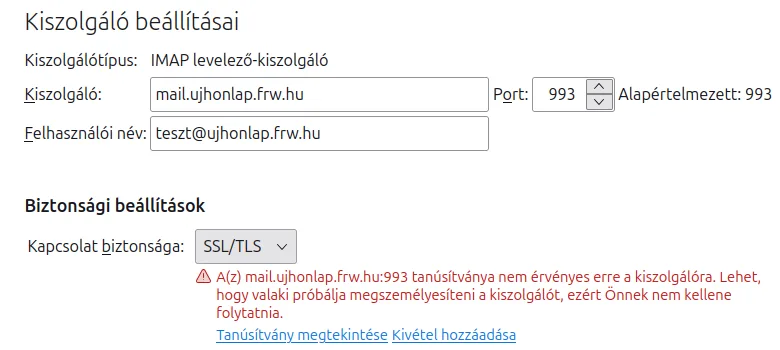
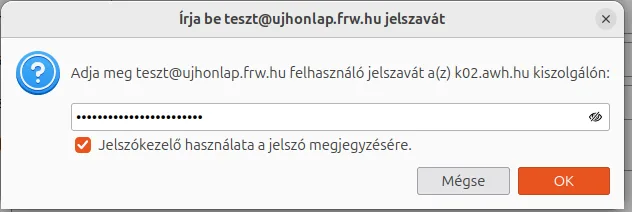
Instead, please change the ‘Server’ field to the correct name (mail.<domain> for cPanel hosting, or the name of the hosting server for web hosting). Thunderbird will then prompt you to restart (Restart), after which it will ask for your password again, as it links saved passwords to the server name. You can correct the outgoing server name at the bottom of the list on the left-hand side of the Mailbox Settings page, under ‘Outgoing Server’. The article on certificate errors displayed in the email client explains the causes of these errors in detail.
After configuration
-
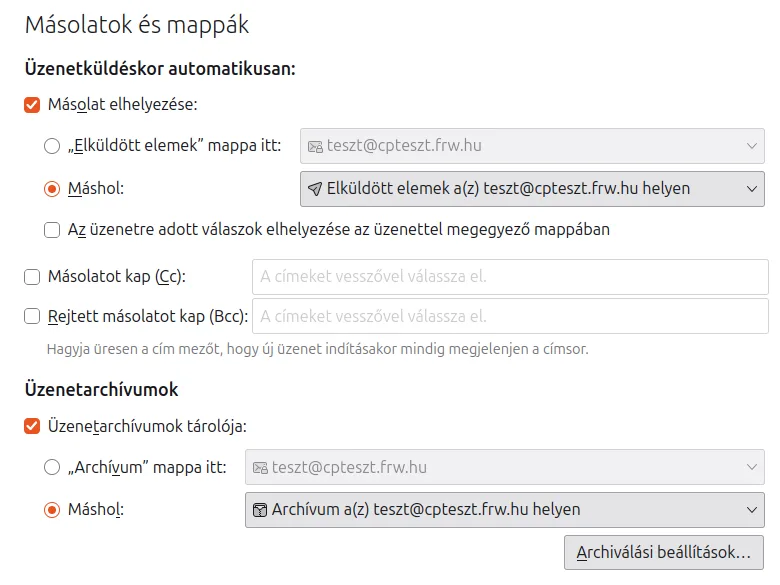
Sent emails: under the ‘Mailbox settings’ menu item (☰), on the ‘Copies and folders’ page below the account, you can check where copies of sent emails are stored. In the test, Thunderbird automatically selected the server’s ‘Sent Items’ folder, so the sent email also appeared in the webmail interface.
- Password change: if you change your email account password via the hosting control panel, Thunderbird will ask for the new password the next time you connect.
- Test: send an email to your own address or to another mailbox. In the test, the email was delivered in both directions between the two mailboxes.
Thunderbird on Android
The Android version of Thunderbird (Thunderbird for Android) is a separate app that can be downloaded from the Google Play Store. We tested the steps using version 24.0 on Android 17, installing the app from the official release without a Google account. The app is in Hungarian, but the initial buttons for adding an account are still displayed in English.
cPanel hosting
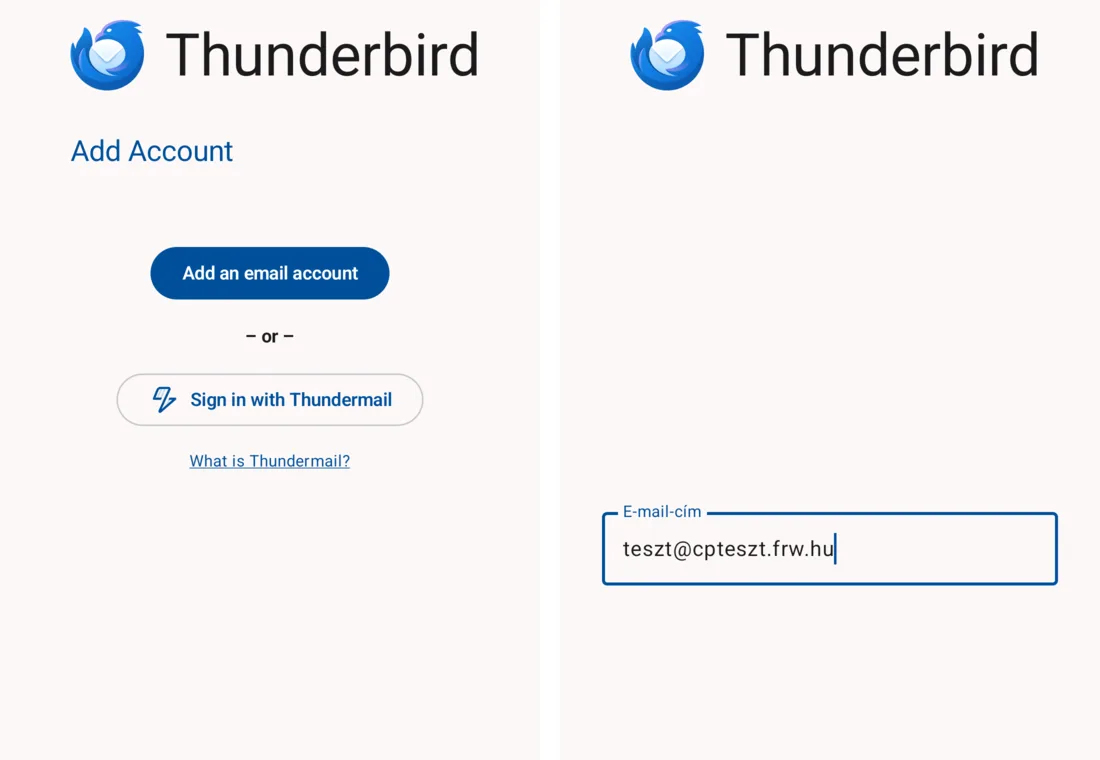
- Launch the app, tap ‘Getting started’, then tap the ‘Add an email account’ button. If you already have an account, tap the arrow next to the account name in the top-left menu (☰), then tap ‘Add account’.
-
Enter your full email address in the ‘Email address’ field and tap the ‘Next’ button.
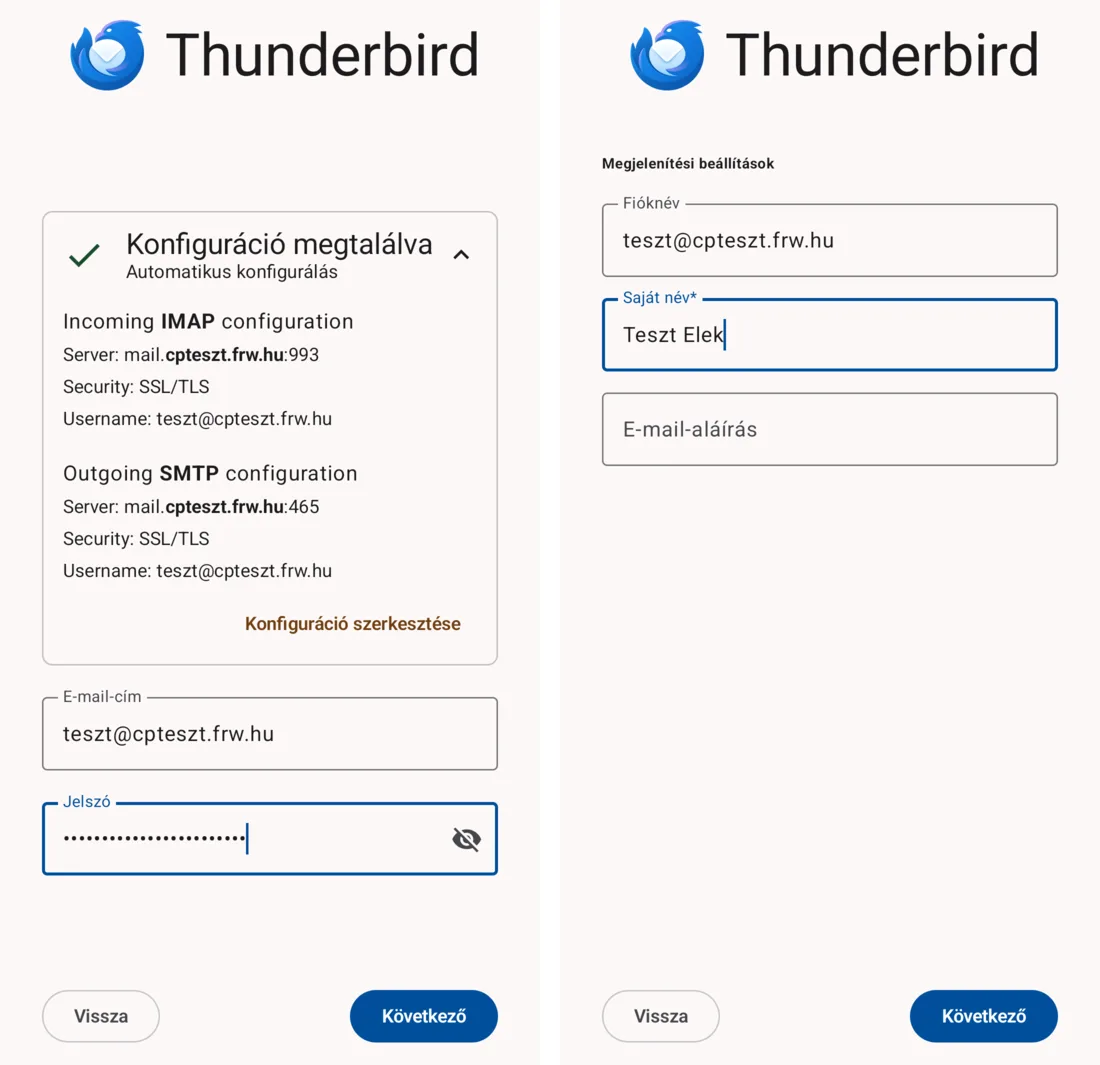
- Tap the ‘Configuration found’ line to view the settings:
mail.<domain>, IMAP 993, SMTP 465, SSL/TLS. Enter your password and tap the ‘Next’ button. -
Enter the name you want recipients to see as the sender in the ‘From’ field, then tap the ‘Next’ button. Proceed in the same way on the ‘Synchronisation settings’ page.
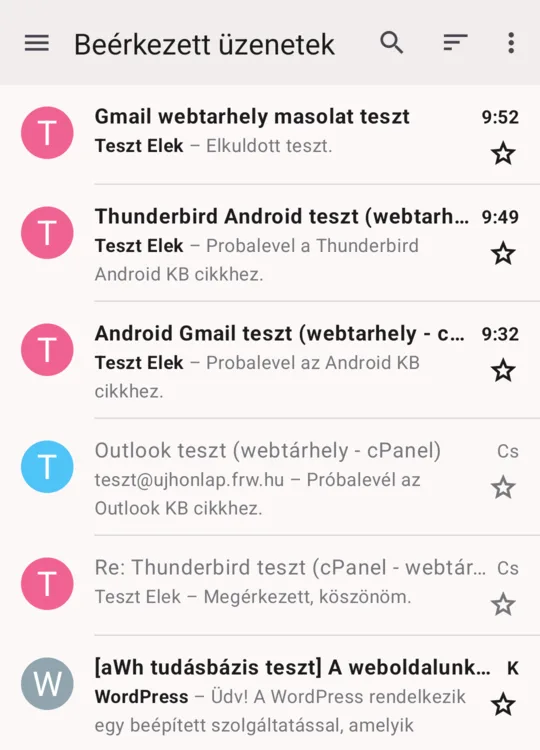
The ‘Inbox’ folder displays the emails stored on the server.
Web hosting
You will also find the settings for email accounts hosted on web hosting (the name of the hosting server, for example k02.awh.hu), but the process differs in two respects.
-
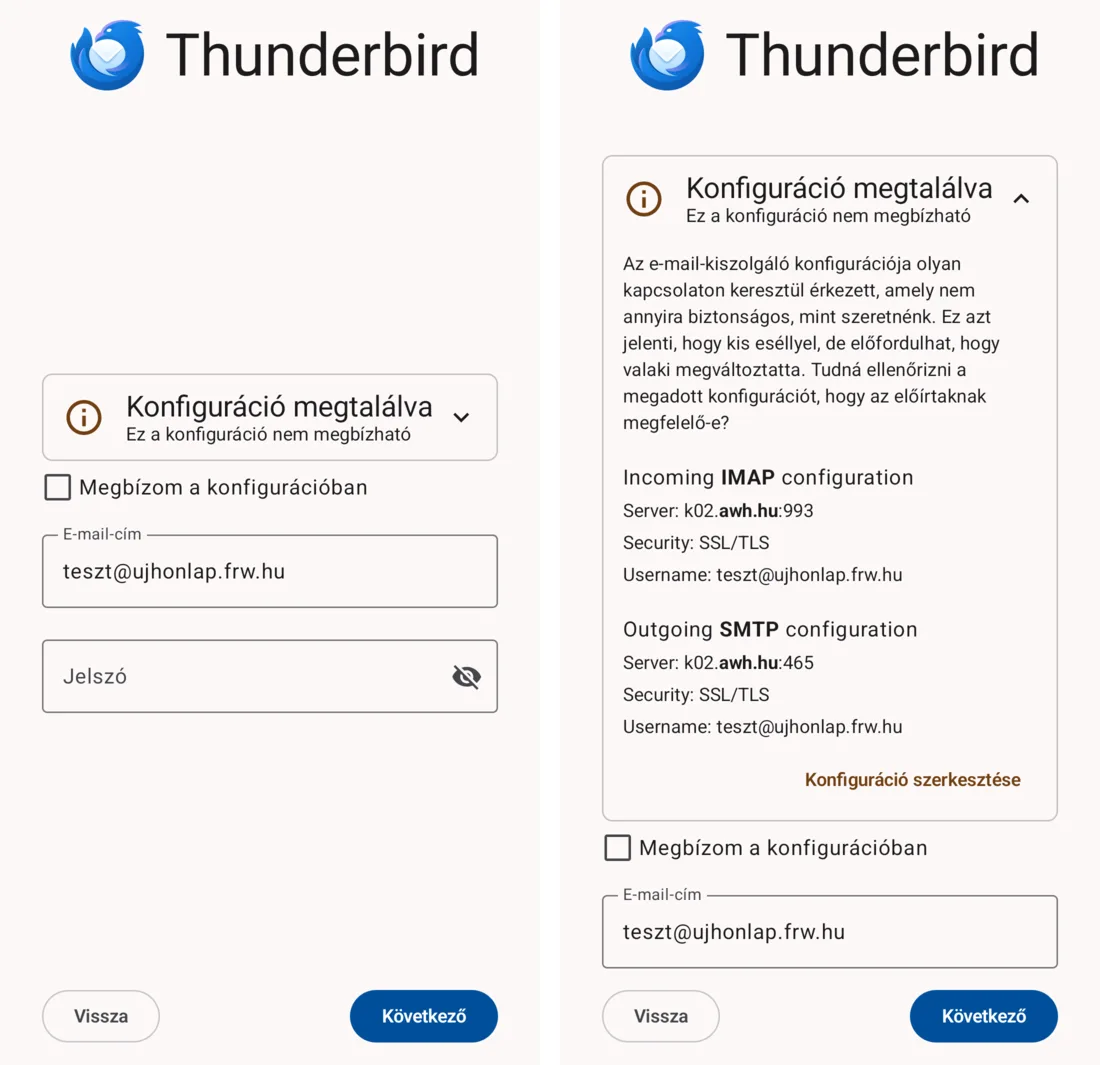
This configuration is not secure: Thunderbird displays this message if the settings were received via an unencrypted connection. Tap on the line and check that the server name matches the one shown in your hosting control panel. If so, tick the ‘Trust this configuration’ box, enter your password, and click the ‘Next’ button.
-
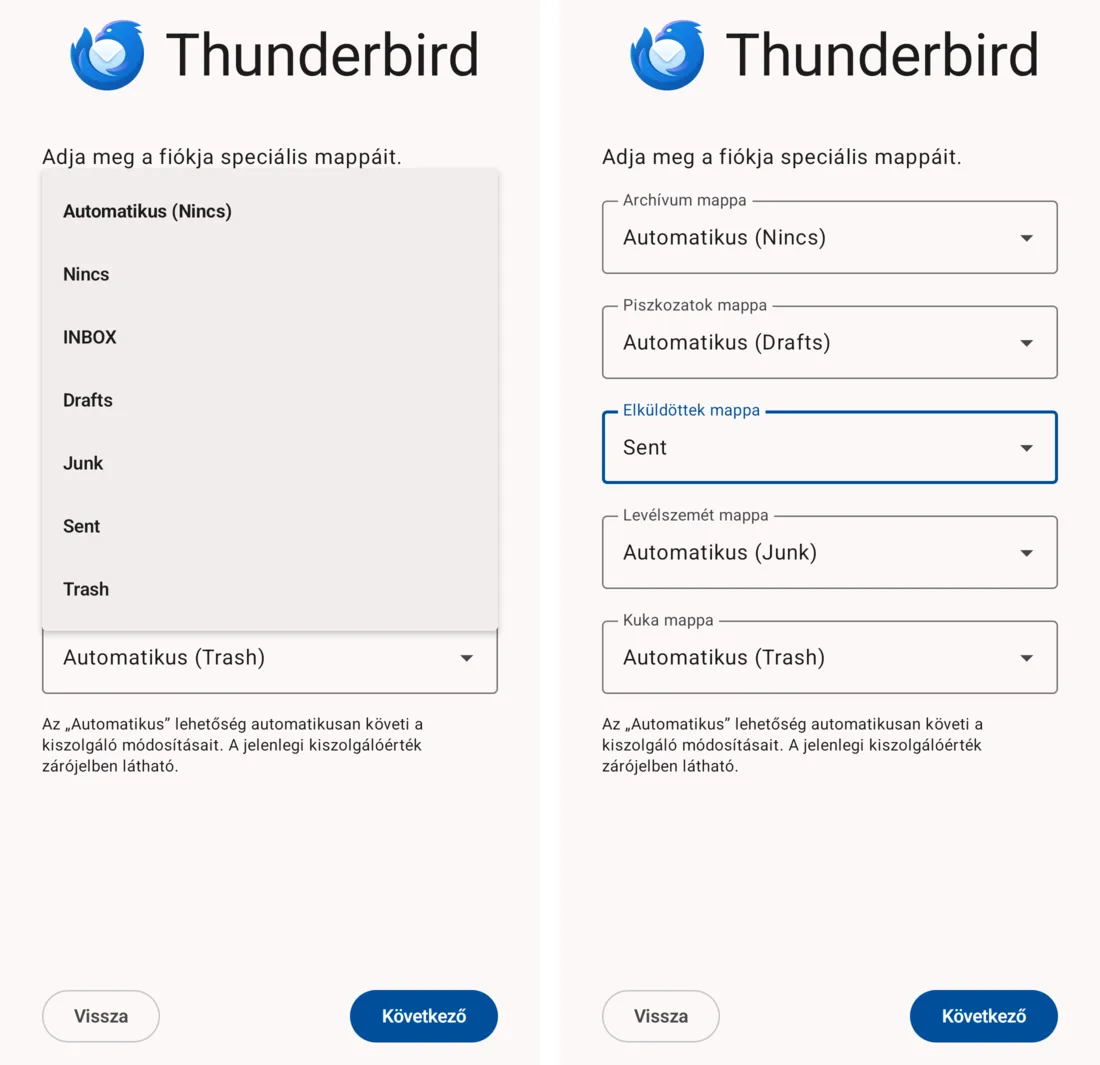
Enter your account’s special folders: the value for the Sent folder is set to Automatic (None), as the server does not specifically designate this folder. Tap on it, select the Sent folder, then tap the Next button. The Archive folder can remain as it is; the program will find the rest.
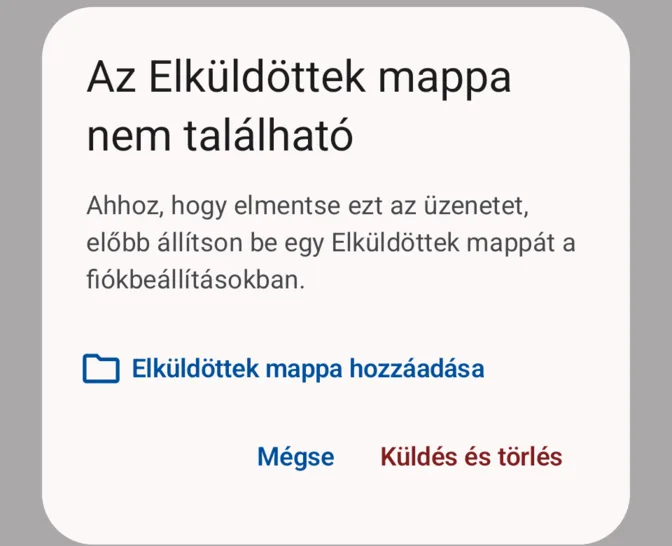
If you skip this step, the following error message will appear when sending an email: ‘The Sent folder cannot be found’. In this case, tap ‘Add Sent folder’, select the ‘Sent’ folder, and use the ‘Back’ button to return to the email: in the test, the email was then sent, and a copy was placed in the server’s ‘Sent’ folder. Do not select the ‘Send and Delete’ button, as this will leave you with no copy of the email.
Manual setup on Android
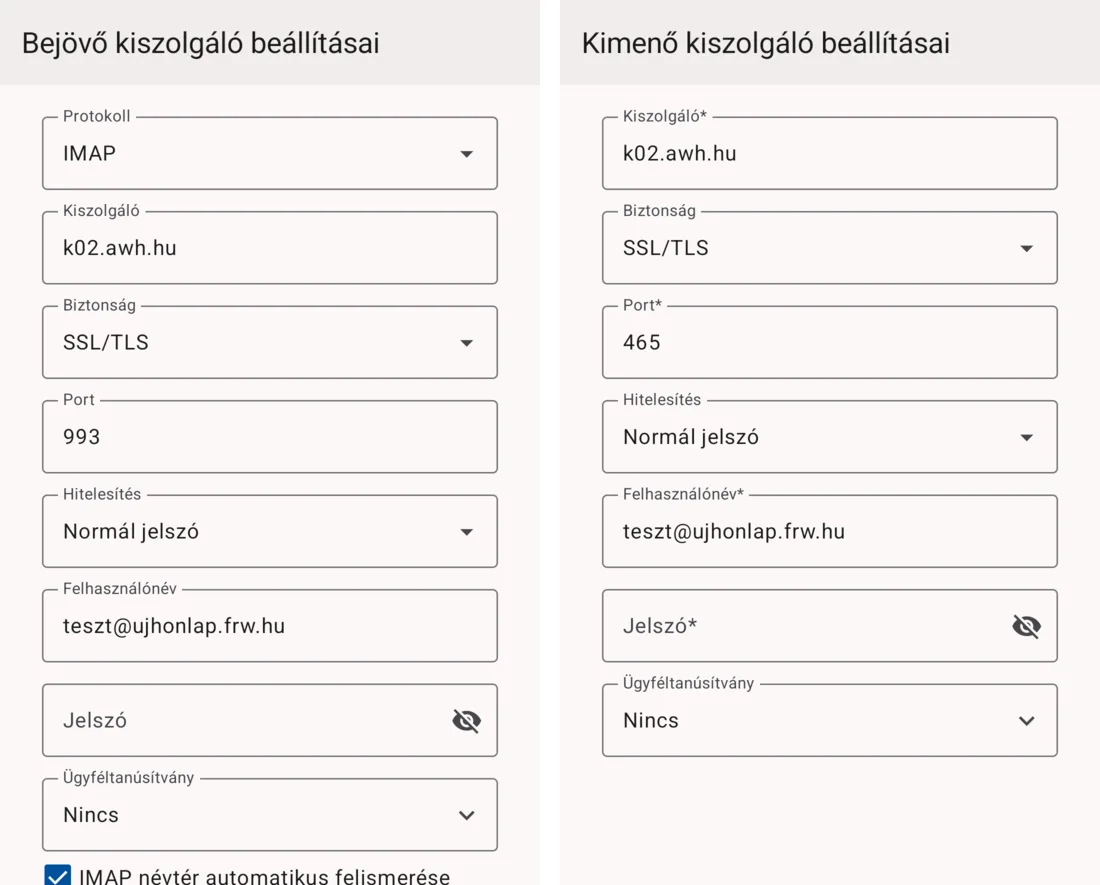
If Thunderbird cannot find the settings, or if you wish to change them, click on ‘Edit Configuration’ after opening the ‘Configuration found’ line. On the ‘Incoming server settings’ and ‘Outgoing server settings’ pages, enter the details shown in the table above; for ‘Authentication: Normal password’, you must enter the password on both pages.
The Gmail app can also be used on Android; see: Setting up email on Android using the Gmail app.
We have a separate article explaining the difference between POP3 and IMAP; for Outlook, our guide on setting up IMAP in Outlook will help.