 English
 Magyar


If your email client (Outlook, Thunderbird, Apple Mail, or your phone’s email app) warns you every time it starts up or when you send an email that the server’s certificate is invalid, untrusted or ‘does not match the server name’, the problem is almost always with the server name you have set, not with the email service itself.
Why does this warning appear?
The email client connects to the incoming (IMAP/POP3) and outgoing (SMTP) servers via an encrypted connection. At the start of the connection, the server presents its certificate, and the program checks whether the certificate is issued to the name specified in the settings. If the two do not match, it will issue a warning, as in this case it cannot be certain that it is actually connecting to its own server.
The most common causes:
- A server name has been entered for which no certificate exists, such as a server belonging to a former provider, or an
mail.pelda.huaddress that does not point to our server. - The server’s IP address is specified instead of a name. Certificates are not issued for IP addresses.
- The domain’s DNS is hosted elsewhere, and the
mailsubdomain does not point to the hosting provider’s IP address, so the hosting provider was unable to obtain a certificate for the namemail.pelda.hu. - After the migration, the program is still using the previous provider’s server.
It is not recommended to accept the warning (‘I accept’, ‘Continue’): doing so would mean the program would accept a potential attacker’s certificate without question.
What server name should I enter?
You can find the exact settings in cPanel:
- Log in to cPanel.
- In the ‘Email’ section, click on the ‘Email Accounts’ icon.
- Next to the mailbox, click on the ‘Connect Devices’ button.
- In the ‘Secure SSL/TLS Settings (Recommended)’ section, you can view the recommended incoming and outgoing servers, as well as the ports.
Recommended settings:
| Server | Port | Encryption | |
|---|---|---|---|
| IMAP | The server name recommended in cPanel | 993 | SSL/TLS |
| POP3 | The server name recommended in cPanel | 995 | SSL/TLS |
| SMTP | The server name recommended in cPanel | 465 | SSL/TLS |
If the domain uses our name servers, the recommended server name is usually mail.pelda.hu, for which AutoSSL automatically requests a certificate. If cPanel suggests the server’s own name (for example, in the form szerver.awh.hu), use that: a valid certificate is always issued for this name, regardless of where the domain’s DNS is hosted.
Step-by-step setup guide
The following articles cover how to change the server name in various programs:
- Setting up IMAP in Outlook
- Setting up Thunderbird for IMAP
- Setting up email on Android using the Gmail app
- Setting up IMAP in Apple Mail on a Mac
- Setting up email in the iPhone and Android Mail apps
This is what the warning looks like on Android
In the Gmail app, the ‘The certificate is not valid’ message appears; in the Thunderbird app, the ‘Warning: Certificate Error’ page appears. Both screenshots were taken when we entered the address mail.<domain> for a web hosting email account instead of the hosting server name. In this case, do not click the ‘Advanced’ button to proceed: in Gmail, select ‘Back’, and in Thunderbird, select ‘Go Back (recommended)’, then correct the server name.
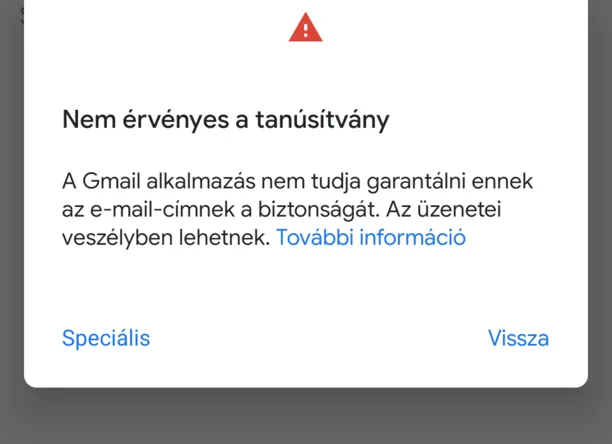
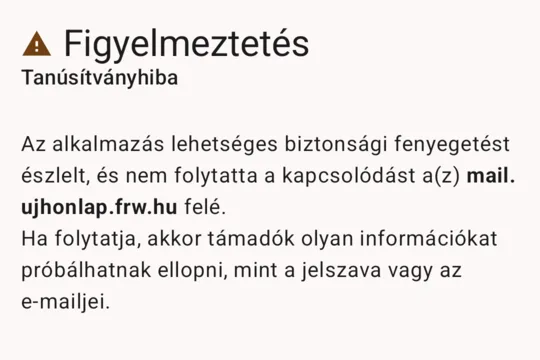
For web hosting, the correct server is the name of the hosting server (for example, k02.awh.hu), which you can find in the ‘Connection details’ column for the mailbox in the control panel.
If the server name is correct but the error still appears
- Check that
mail.pelda.huactually points to the hosting server’s IP address. If you manage your DNS elsewhere, configure it there. - Go to the ‘Status’ tab on the cPanel SSL/TLS Certificates page to check whether there is a valid certificate for the
mail.pelda.husubdomain. If there isn’t, the article on AutoSSL errors will help. - Older email clients (such as Outlook 2010 or older versions of Windows) do not support modern encryption protocols. In such cases, updating the program is the solution.
If the problem persists after this, please contact our support team and send a screenshot of the error message, along with the server name and ports you have configured.