 English
 Magyar


On an Android phone, using the pre-installed Gmail app, you can use not only your Gmail account but also your own domain’s email account via IMAP. The emails remain on the server, so you’ll see the same messages on your computer and in webmail. You don’t need a Google account to set this up: in our test, it worked even on a phone without a Google account.
We tested these steps in October 2026 on Android 17, in Hungarian, using a cPanel hosting account and a web hosting test mailbox, with the February 2026 version of Gmail. Manufacturers’ own email clients (such as Samsung Email) request the same details, but their screens differ.
Servers
| Incoming (IMAP) | Outgoing (SMTP) | |
|---|---|---|
| Server, cPanel hosting | mail.<az Ön domainje> |
mail.<az Ön domainje> |
| Server, web hosting | the name of the hosting server (for example, k02.awh.hu) |
the same |
| Username | the full email address | the full email address |
The guide on configuring Thunderbird shows you where to find the exact server name on both control panels. You do not need to specify a port during setup: Gmail automatically selects ports 993 (IMAP) and 465 (SMTP), with SSL/TLS encryption.
Adding a mailbox
-
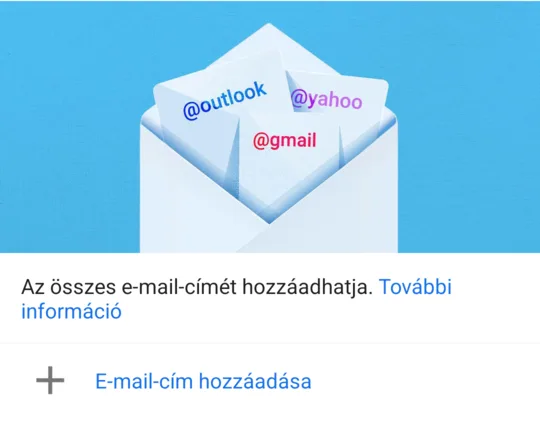
Open the Gmail app. If you don’t have an account yet, tap ‘Add email address’ on the home screen. If you already use Gmail, tap your profile picture in the top right-hand corner, then tap ‘Add another account’.
-
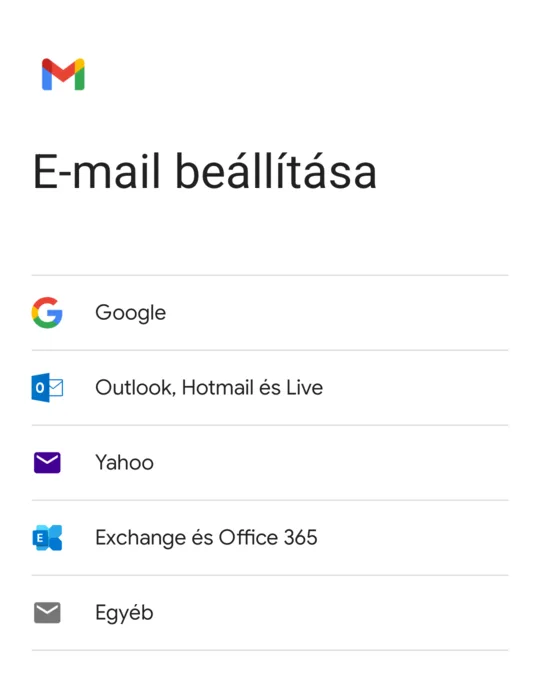
In the ‘Set up email’ list, select ‘Other’.
-
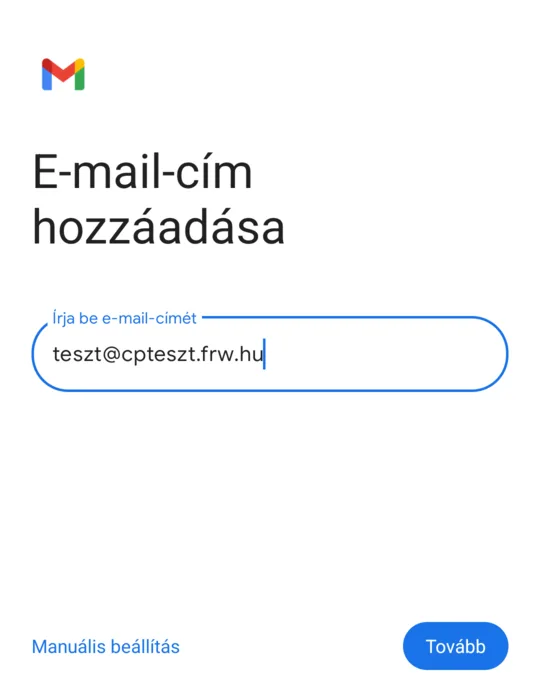
Enter your full email address and click the ‘Continue’ button.
-
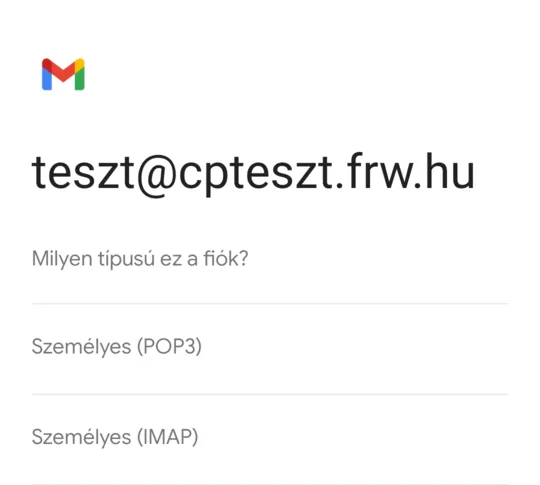
For the question ‘What type of account is this?’, select the ‘Personal (IMAP)’ option.
-
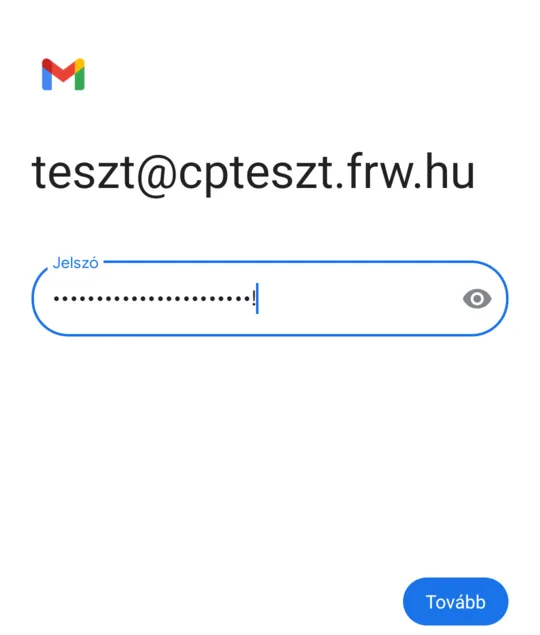
Enter your email account password and tap the ‘Next’ button.
-
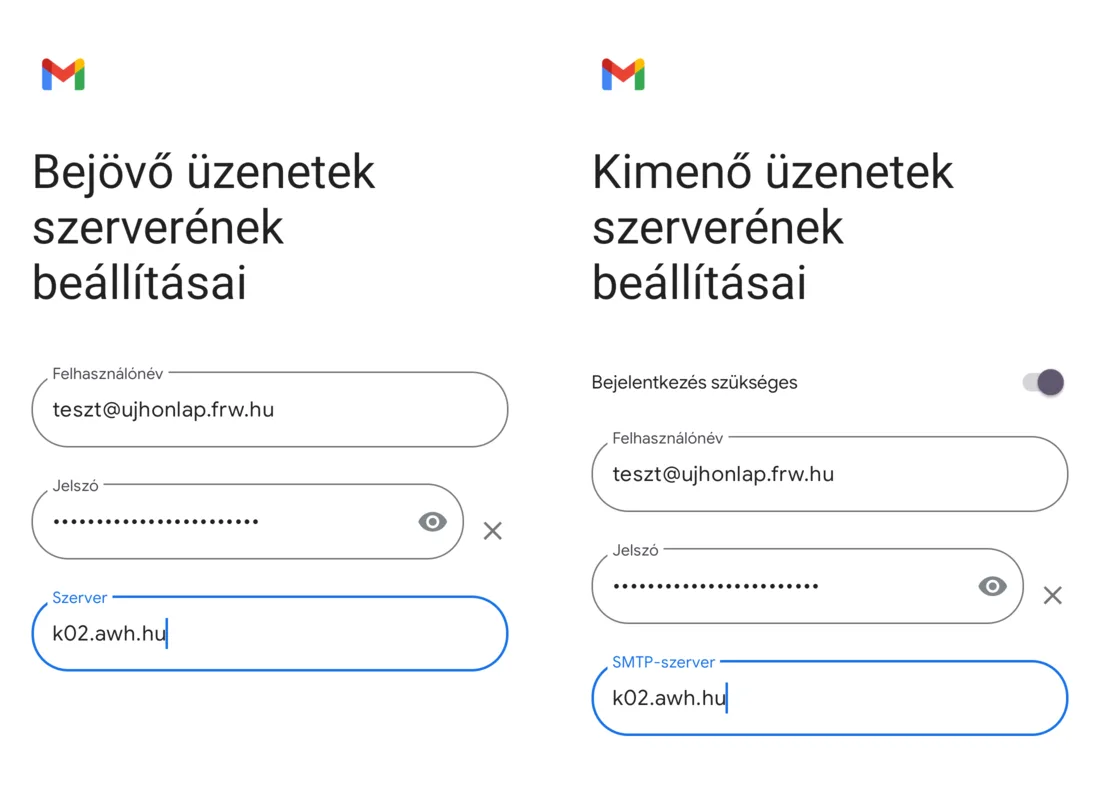
On the ‘Incoming mail server settings’ page, Gmail enters the domain name as the server name. Correct this according to the table, then tap the ‘Next’ button. On the next page, under ‘Outgoing mail server settings’, do the same for the SMTP server field. The ‘Login required’ switch should remain switched on; the username is your full email address.
On cPanel hosting, both servers use
mail.<az Ön domainje>: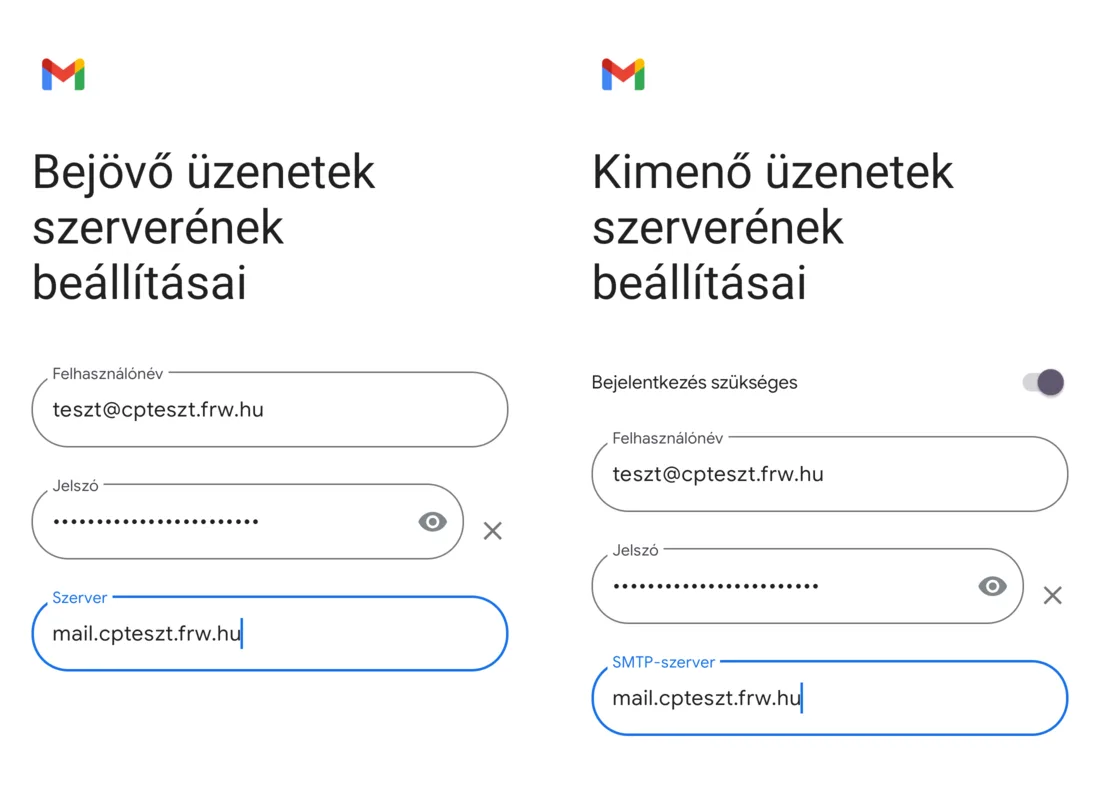
For web hosting, both refer to the name of the hosting server:
-
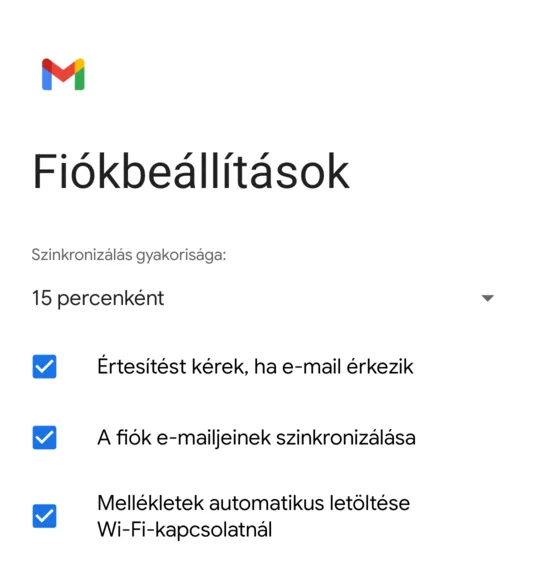
On the Account Settings page, you can specify how often Gmail should check for new emails (the default is every 15 minutes), then tap the Next button.
-
Enter the name you want recipients to see as the sender in the ‘Your name’ field (Gmail does not fill this in automatically), then tap the ‘Next’ button.
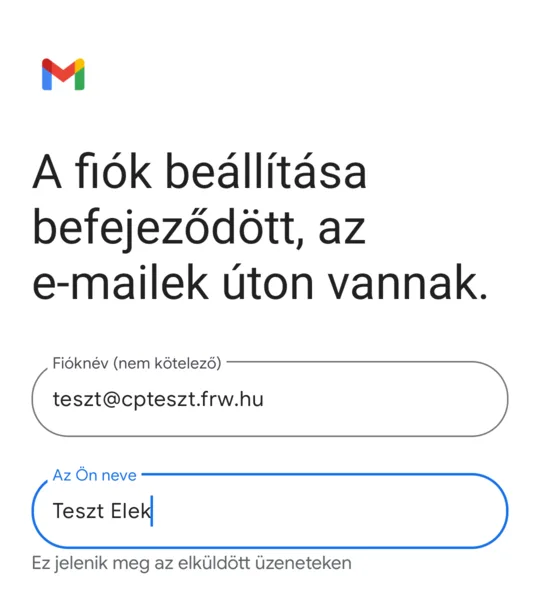
-
The email account will appear in the list. To add another account, tap ‘Add another email address’; otherwise, tap the ‘GO TO GMAIL’ button.
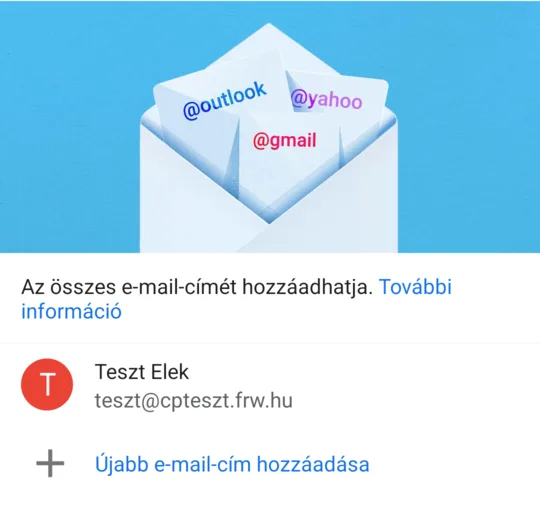
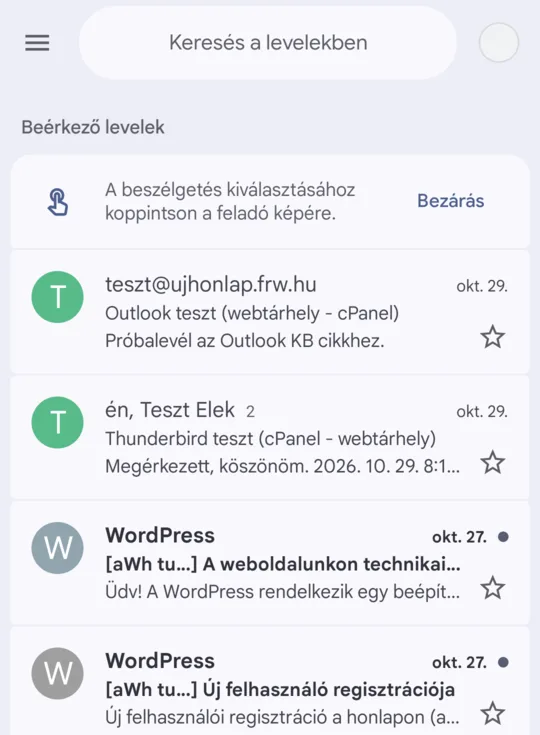
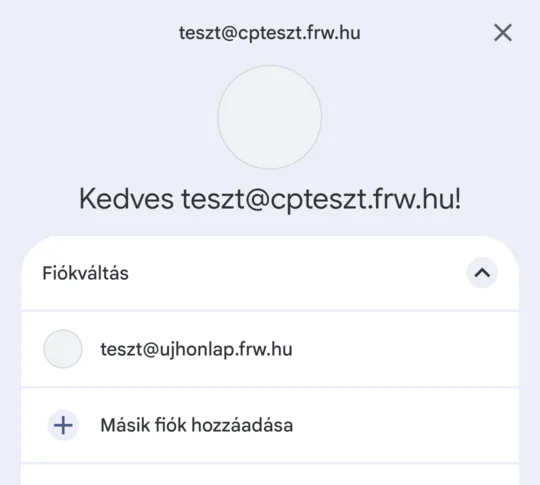
Emails stored on the server appear in the **Inbox **folder. You can switch between mailboxes by tapping the profile picture in the top right-hand corner.
If a certificate error is reported
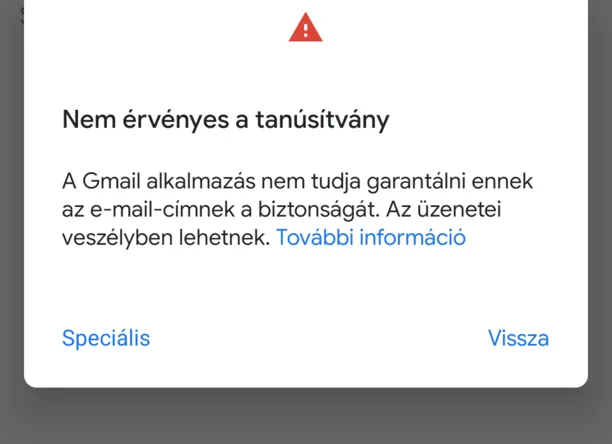
If the server name does not match that on the certificate, Gmail will display the following message: ‘The certificate is not valid’. In the test, this was carried out on this web hosting service using the name mail.<domain>, as the certificate is issued in the name of the hosting server. Do not click the ‘Advanced’ link; instead, use the ‘Back’ button to return and correct the server name as shown in the table.
Read more: Certificate error appearing in an email client.
After configuration
-
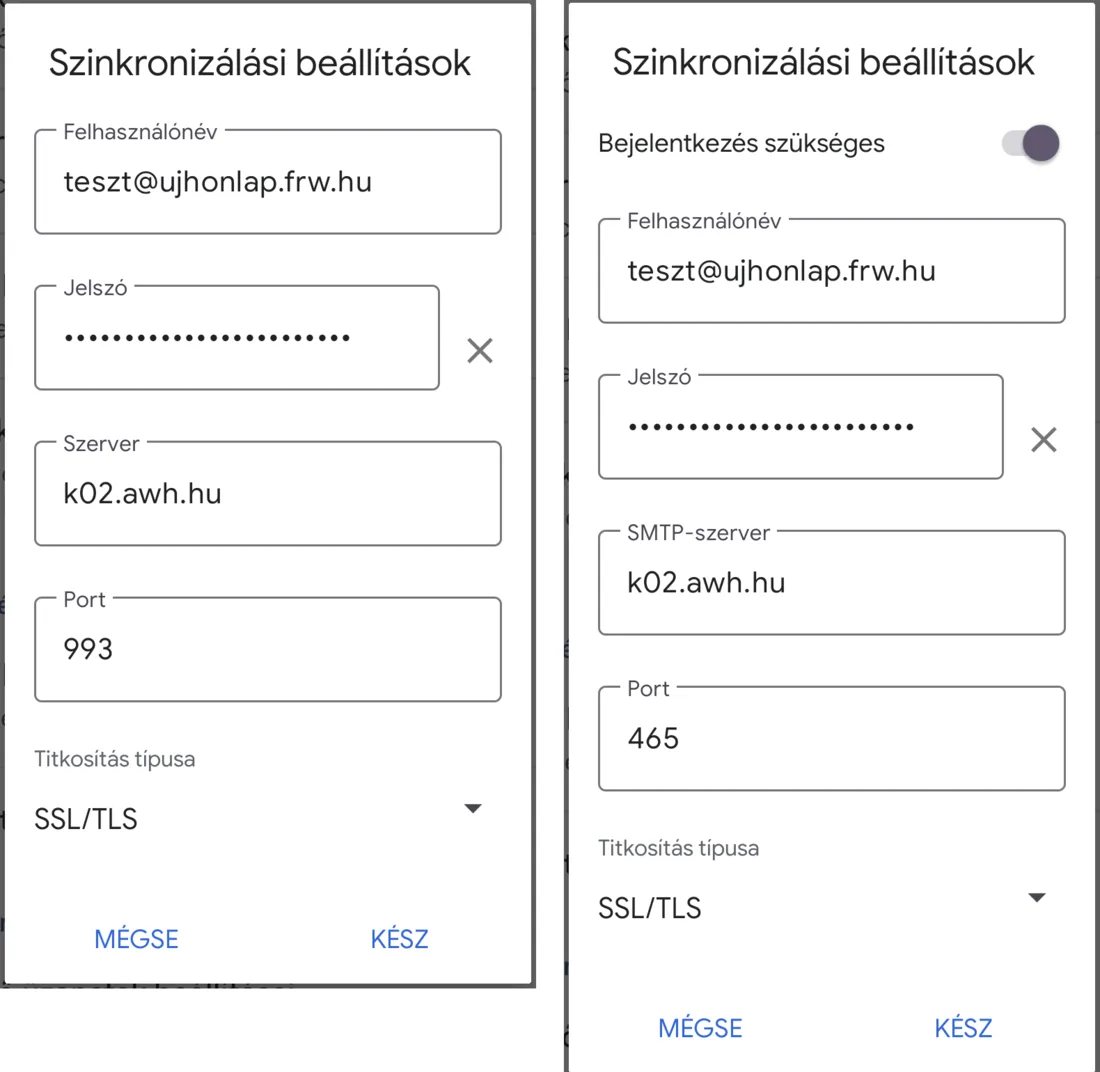
To check or change server settings: in the top-left menu (☰), select ‘Settings’, tap on your mailbox, and at the bottom of the page, under ‘Server Settings’, open either ‘Incoming Mail Settings’ or ‘Outgoing Mail Settings’. Here you will see the port (993 or 465) and the encryption type (SSL/TLS). If you have changed your password, enter the new one here as well.
- Sent emails: in the test, emails were sent from both mailboxes, and copies were placed in the server’s Sent folder, but this did not happen immediately: the Sent folder had to be refreshed by scrolling down.
- Removing an account: in your phone’s Settings app, under the Passwords & Accounts or Accounts menu (the name varies depending on the phone), select ‘Remove account’ next to the email account. This only deletes the account from your phone; it does not affect the emails stored on the server.
You can also use other Android email clients, such as Thunderbird. We have a separate article on choosing between POP and IMAP; for iPhone users, our guide to setting up email on iPhone and Android will help.