 English
 Magyar


There are two ways to add your own domain’s email account to Mail, the Mac’s built-in email program: automatically, using a configuration profile downloaded from the hosting control panel, or manually, by entering the server details. In both cases, the connection is made via IMAP, so your emails remain on the server, and you’ll see the same messages on your phone and in webmail.
We tested these steps in October 2026 on macOS 26.6 (Tahoe), using one test email account on a web hosting plan and one on a cPanel hosting plan.
Servers and ports
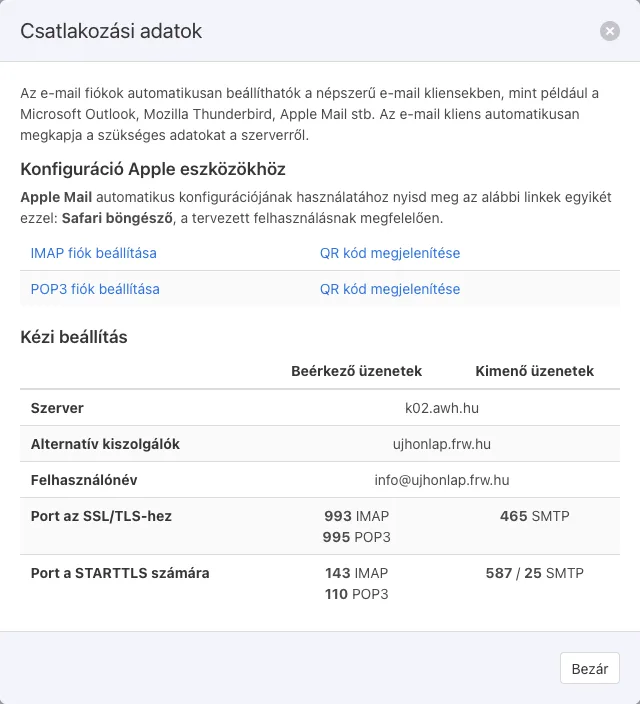
| Incoming (IMAP) | Outgoing (SMTP) | |
|---|---|---|
| Server, cPanel hosting | mail.<az Ön domainje> |
mail.<az Ön domainje> |
| Server, web hosting | the name of the hosting server (for example, k02.awh.hu) |
the same |
| Port | 993, SSL/TLS | 465, SSL/TLS |
| Username | the full email address | the full email address |
For web hosting, use the server name, not the mail.<az Ön domainje> address: the mail server’s certificate is issued in the name of the server. The guide on configuring Thunderbird shows you where to find the exact details in the two control panels.
Automatic setup using a configuration profile
The hosting control panel provides a configuration profile (a .mobileconfig file) designed for Apple devices, which contains all server settings; you simply need to enter your password.
1. Downloading the profile
Log in to the hosting control panel on your Mac using the Safari browser:
-
Web hosting (KeyHelp): on the Email Addresses page, in the Mailbox Connection Details column, click the ‘View’ link, then in the ‘Configuration for Apple devices’ section, click the** ‘Set up IMAP account’** link.
-
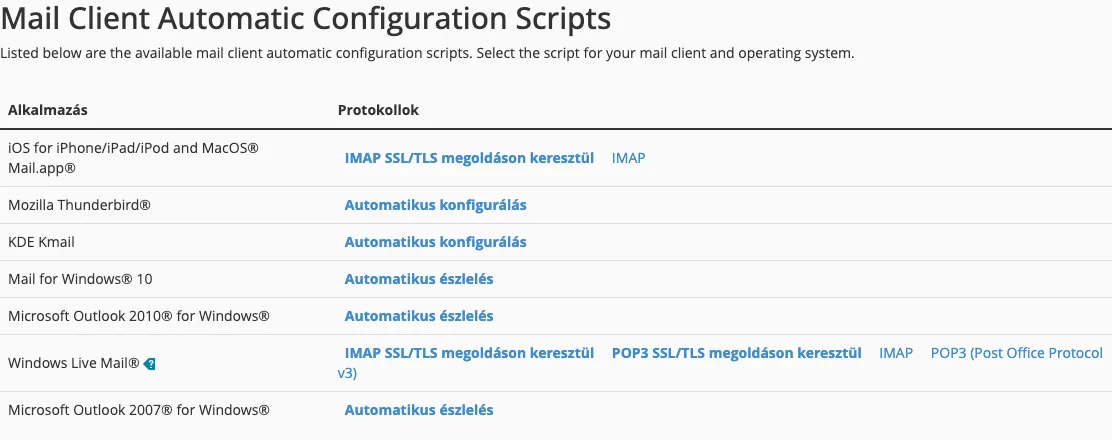
cPanel hosting: in the Email Accounts menu, click the ‘Connect Devices’ button next to the mailbox, then in the ‘Mail Client Automatic Configuration Scripts’ table, under the ‘iOS for iPhone/iPad/iPod and macOS® Mail.app®’ row, click the link for the IMAP SSL/TLS option.
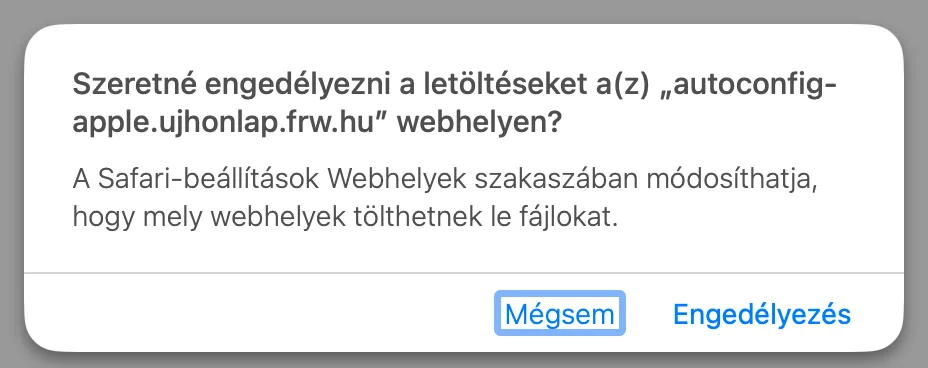
If Safari asks whether you want to allow downloads from this site, click the ‘Allow’ button.
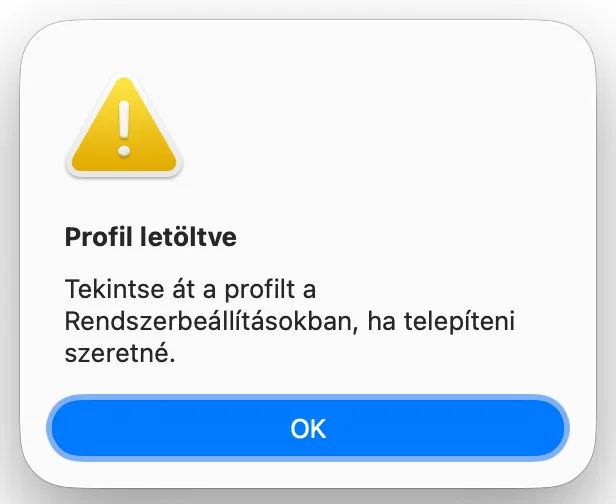
After downloading, the message ‘Profile downloaded’ will appear: the profile must be installed in System Settings. Click the OK button.
2. Installing the profile
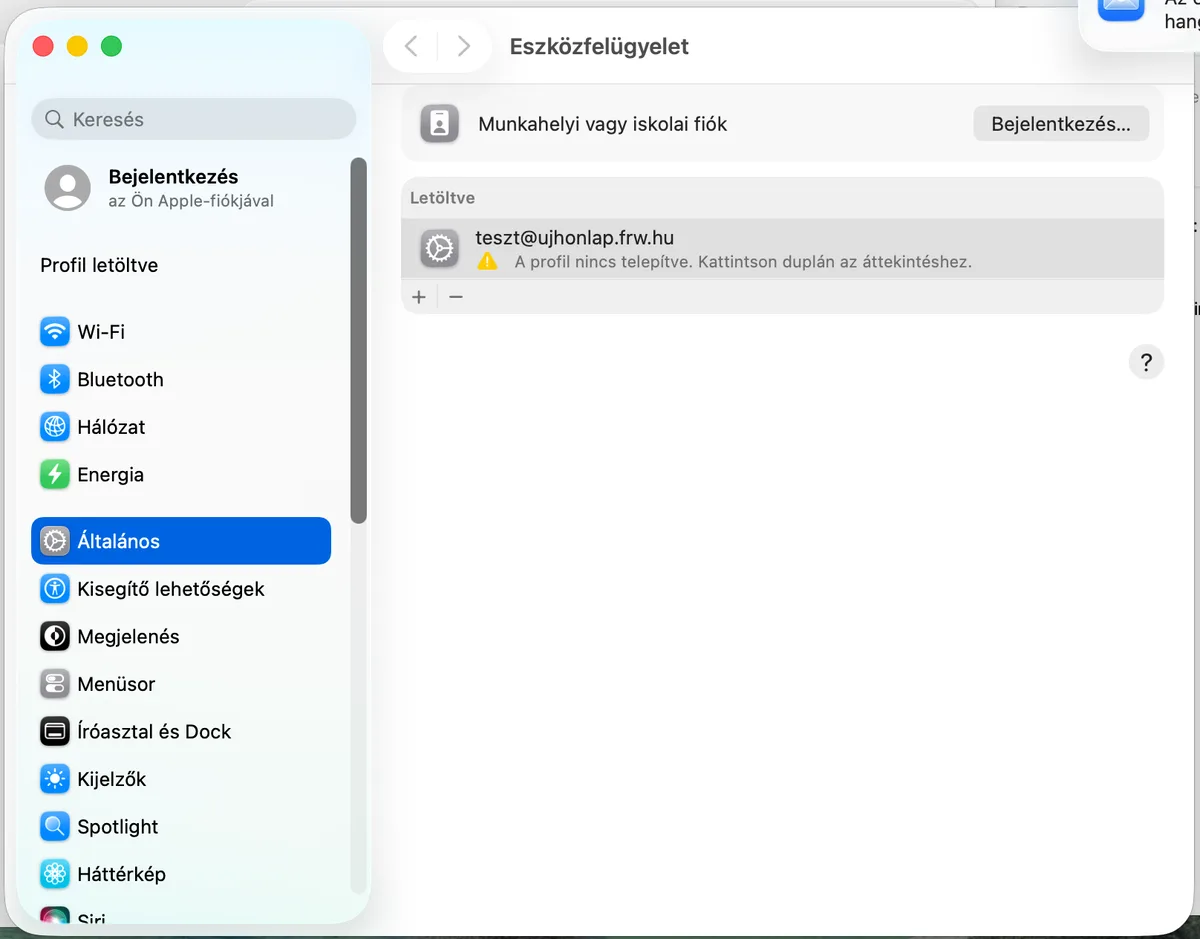
- Open the System Preferences menu in the Apple menu (top left corner) and click on ‘Profile Downloaded’ in the list on the left (or select General > Device Management).
-
Under ‘Downloads’, double-click on your mailbox profile.
-
In the ‘Are you sure you want to install this profile?’ window, check that the profile is addressed to your email address, then click the ‘Install…’ button.
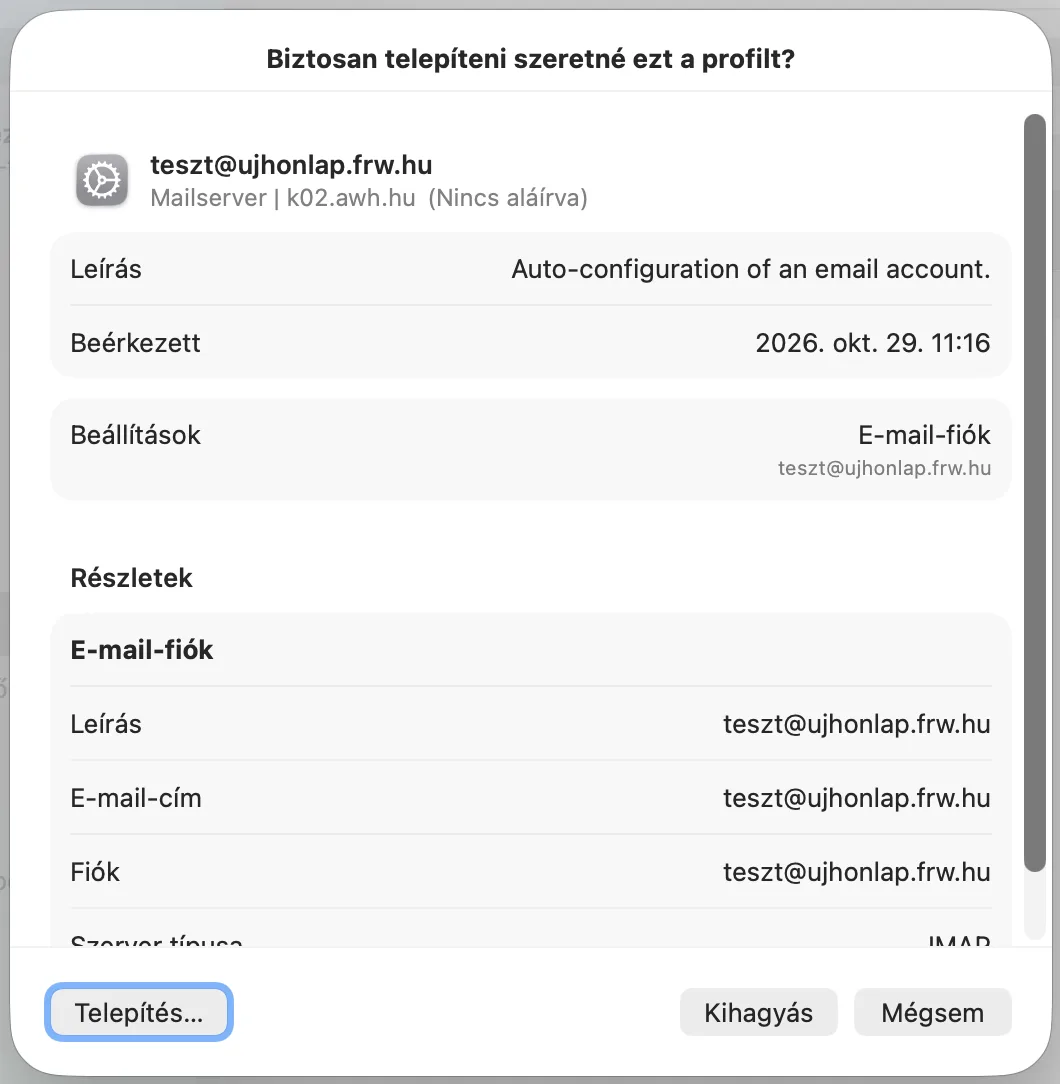
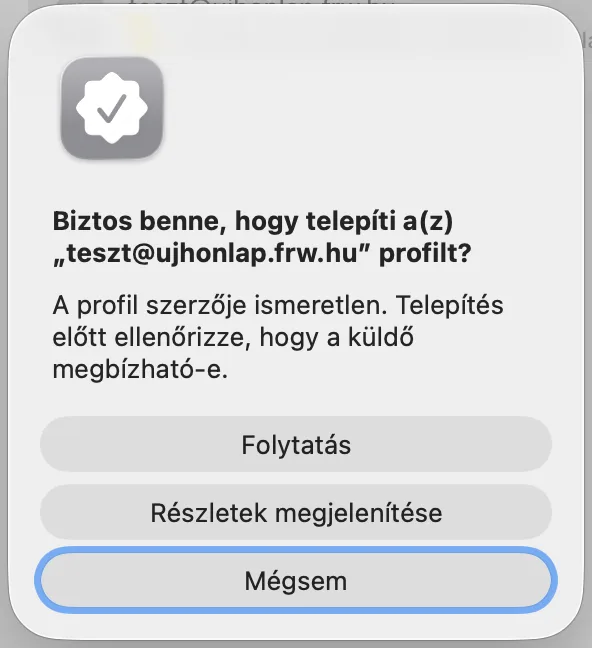
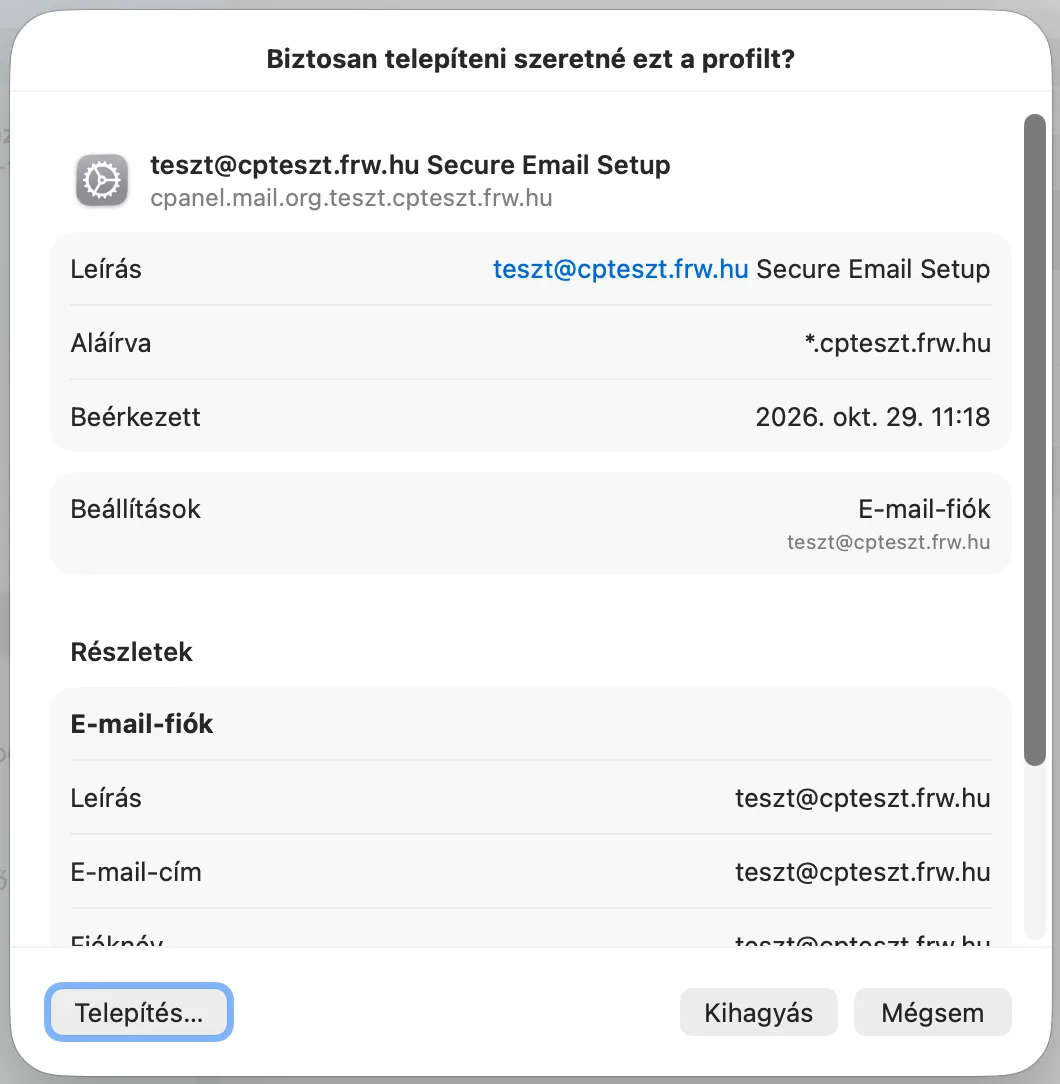
The web hosting profile is not signed, so macOS displays the following warning: ‘The author of this profile is unknown.’ If you downloaded the profile from your own hosting control panel, click the ‘Continue’ button. The cPanel hosting profile is signed (Signed by: domain name), so this warning does not appear there.
-
Enter your email account password (in the ‘Full Name’ field of your web hosting profile, enter the name that recipients will see as the sender), then click the ‘Install’ button.
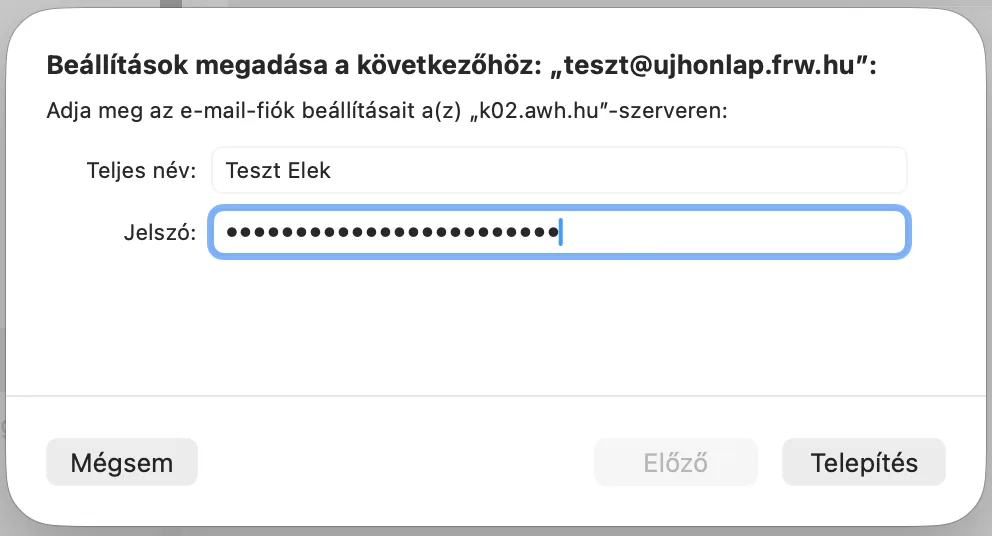
The installed profile appears under ‘User’, and the mailbox is immediately added to Mail. Both interfaces list ports 993 (IMAP) and 465 (SMTP) in the profile settings, with SSL/TLS.
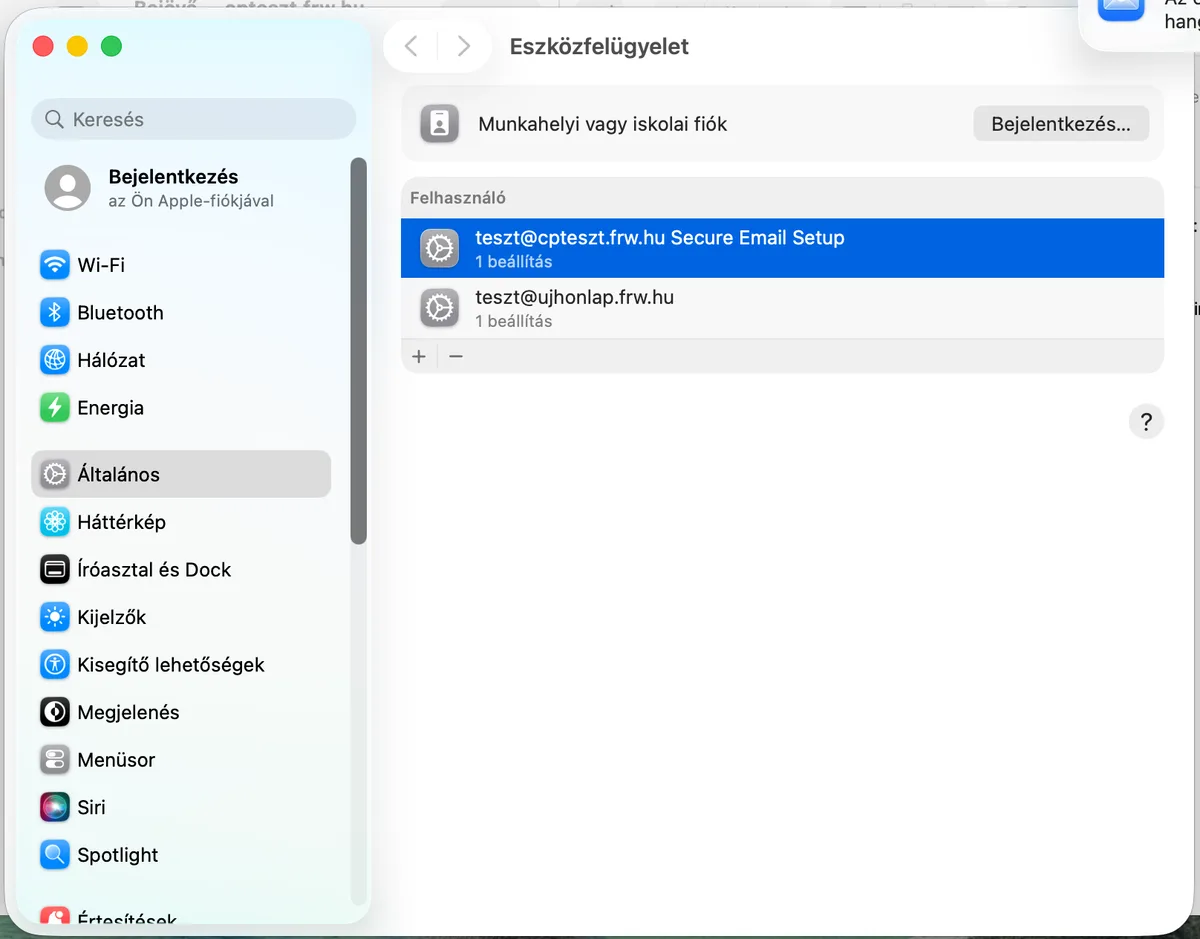
If you wish to delete the account at a later date, remove the profile from the Tool Management page: select it, click the – button below the list, then click the Remove button. In our test, the account disappeared from Mail after Mail was restarted. The emails remain on the server.
Manual configuration
1. Adding an account
-
Open the Mail app. If you do not yet have an account set up, the ‘Add Account’ window will appear automatically; if you already have one, select ‘Add Account…’ from the Mail menu.
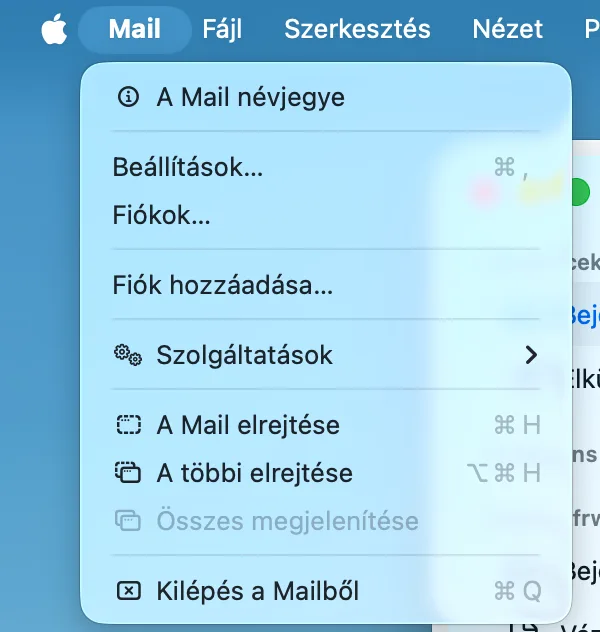
-
For email accounts on your own domain, the ‘Continue’ button is not active after you have entered your email address: click on the ‘Select from the list’ link, then select ‘Another email account’ at the bottom of the list.
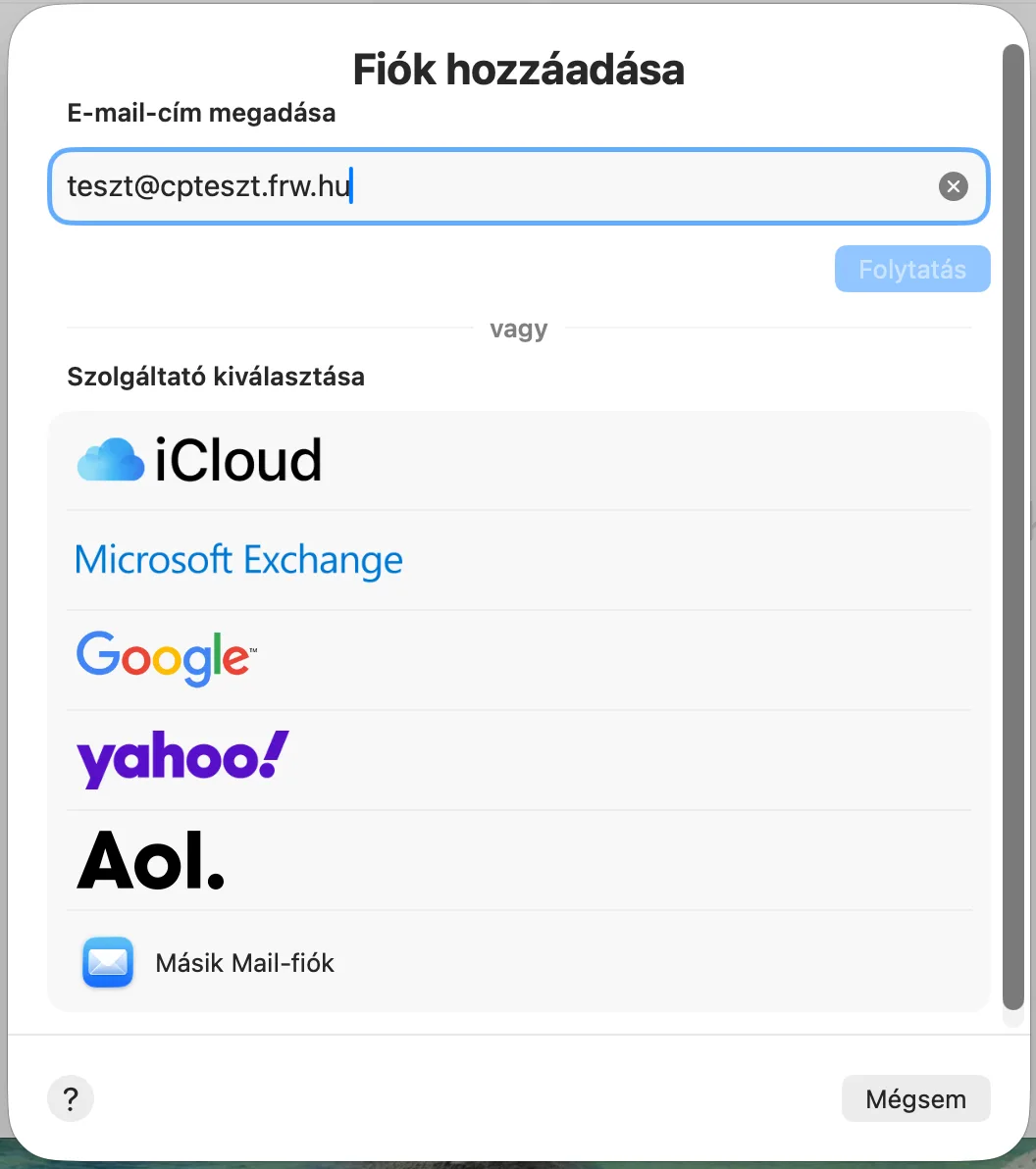
-
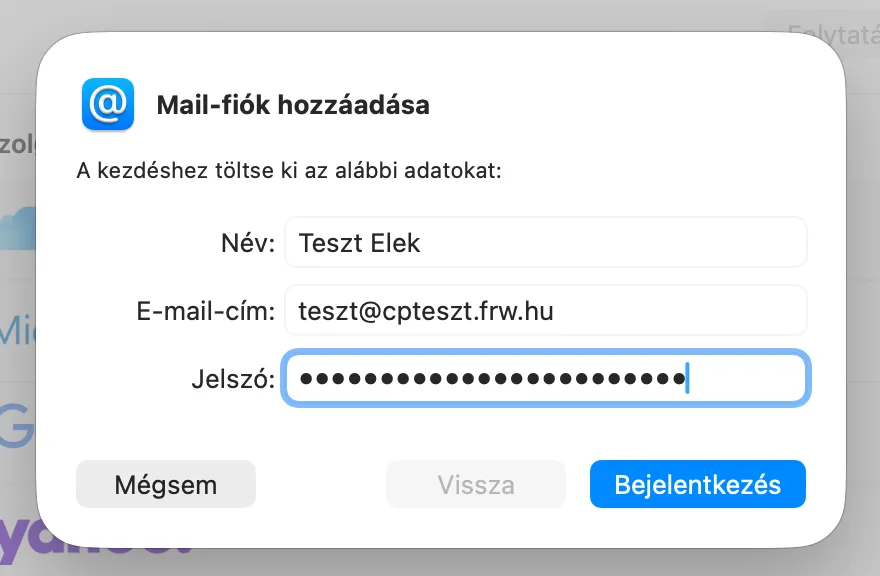
In the ‘Add Mail Account’ window, enter your name (this is what recipients will see as the sender), your full email address and your password, then click the ‘Log in’ button.
2. Specifying the servers
Mail cannot automatically detect the servers for a custom domain, so it displays the following message: ‘Unable to verify the account name or password.’ This does not mean the password is incorrect: the window will expand to show the server fields.
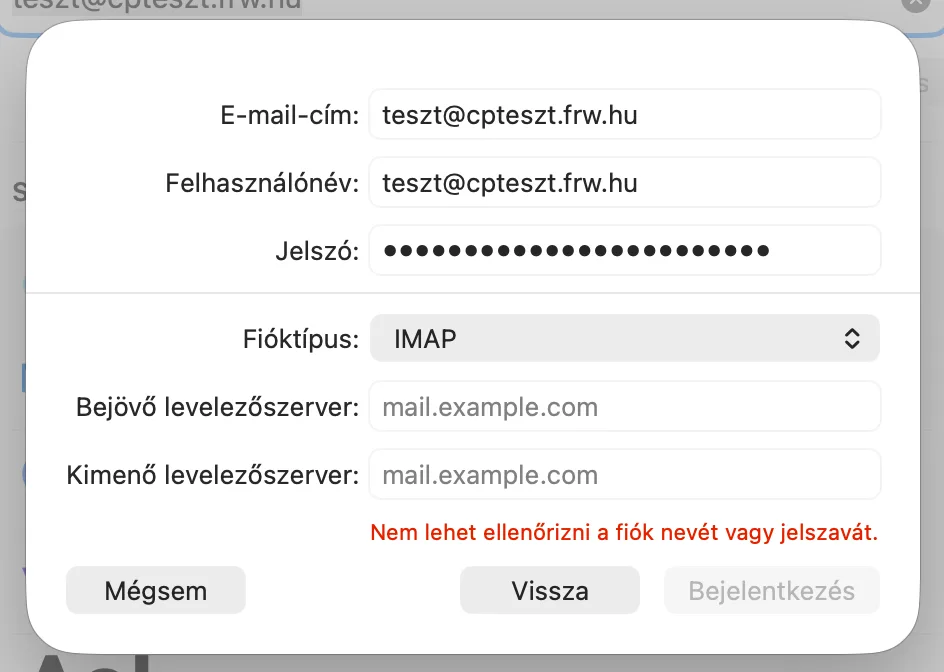
- The account type should remain IMAP.
- The Username can remain set to ‘Automatic’: in this case, Mail will use the full email address. (If you enter the full address, Mail will treat it in the same way.)
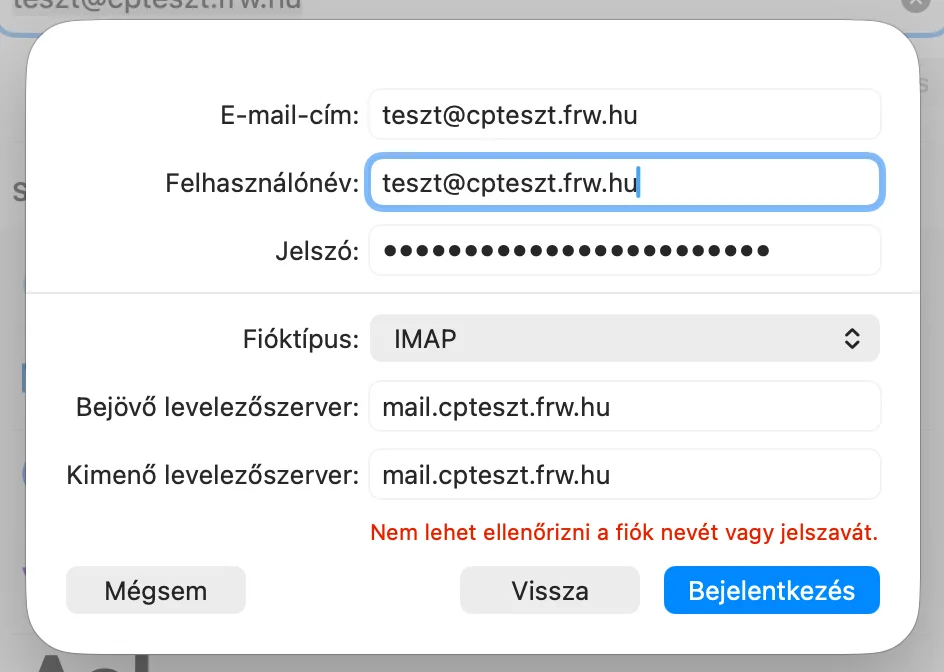
- Enter the server name in the ‘Incoming mail server’ and ‘Outgoing mail server’ fields as shown in the table above (
mail.<az Ön domainje>for cPanel hosting, or the name of the hosting server for web hosting). -
Click on the ‘Log in’ button.
-
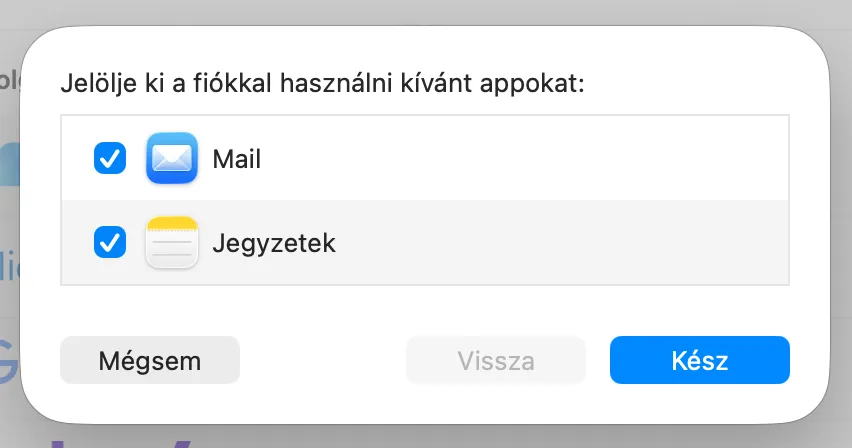
Select what you would like to use the account for (as well as Mail, Notes can also be saved to the mailbox), then click the Done button.
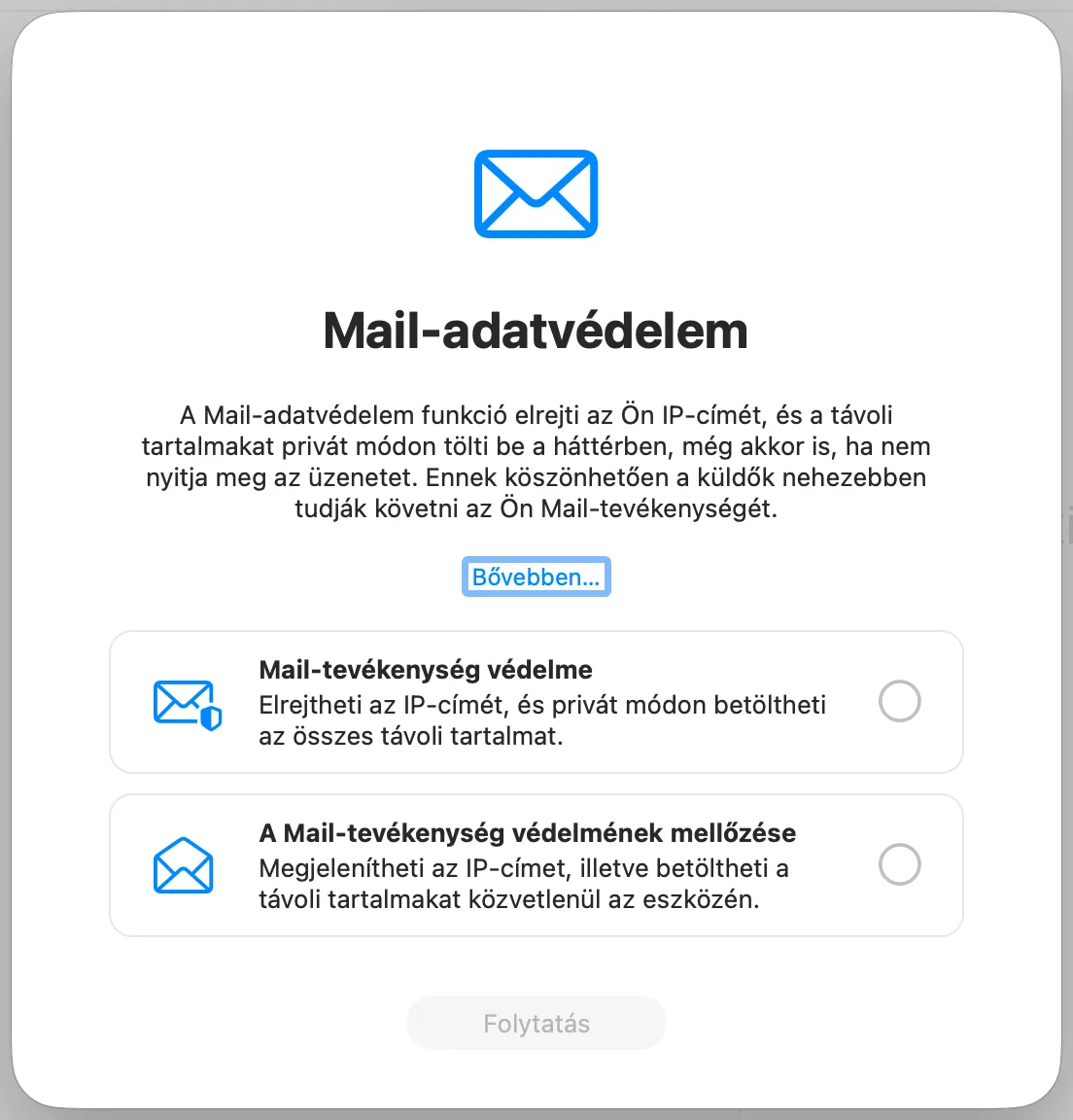
After adding your first account, Mail will also ask you to configure Mail privacy settings: ‘Protect Mail Activity’ loads remote content in emails (such as embedded images) privately. You can choose either option; this will not affect how the mailbox works.
3. Checking the ports
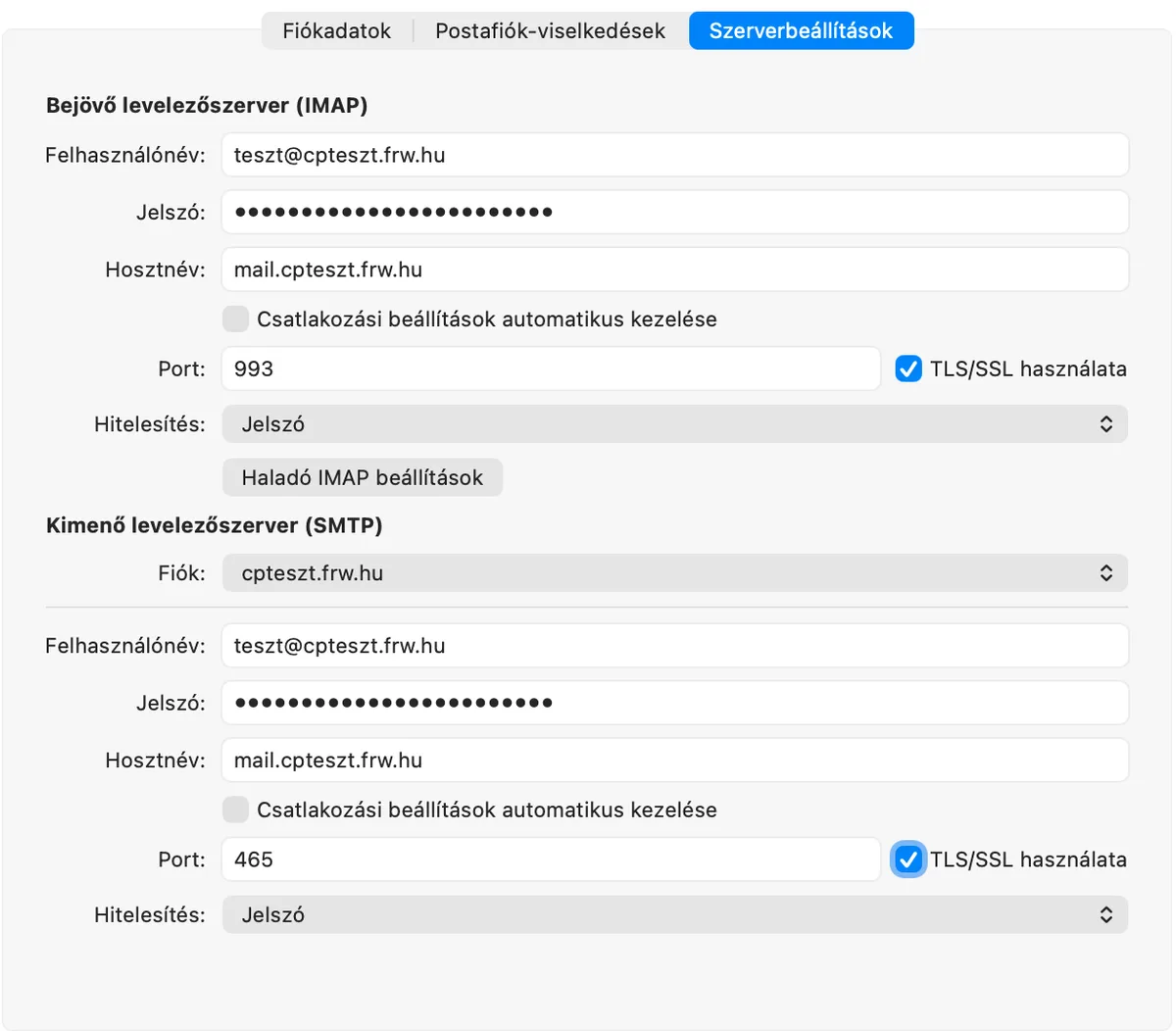
With manual configuration, Mail selects the port itself (Automatic management of connection settings). In the test, it selected ports 143 and 587, with an encrypted (STARTTLS) connection; this is also secure, but if you would prefer to use ports 993 and 465 as shown in the table:
-
In the Mail menu, select Settings…, then the Accounts tab, and select the mailbox.
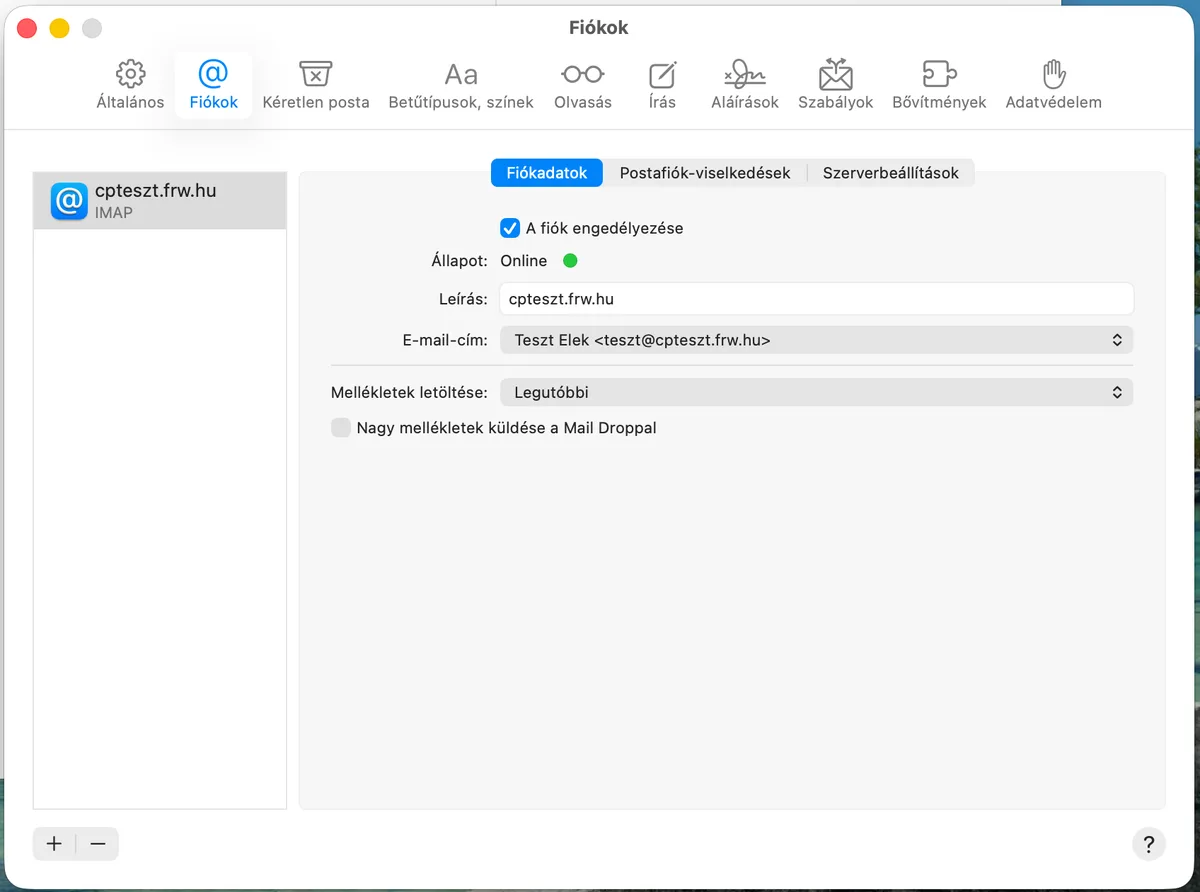
- Open the Server Settings tab. Under ‘Incoming mail server (IMAP)’ and ‘Outgoing mail server (SMTP)’, untick the box next to ‘Manage connection settings automatically’, enter 993 and 465 respectively in the ‘Port’ field, and leave the ‘Use TLS/SSL’ box ticked. The authentication method for both is ‘Password’.
-
Click the Save button.
After configuration
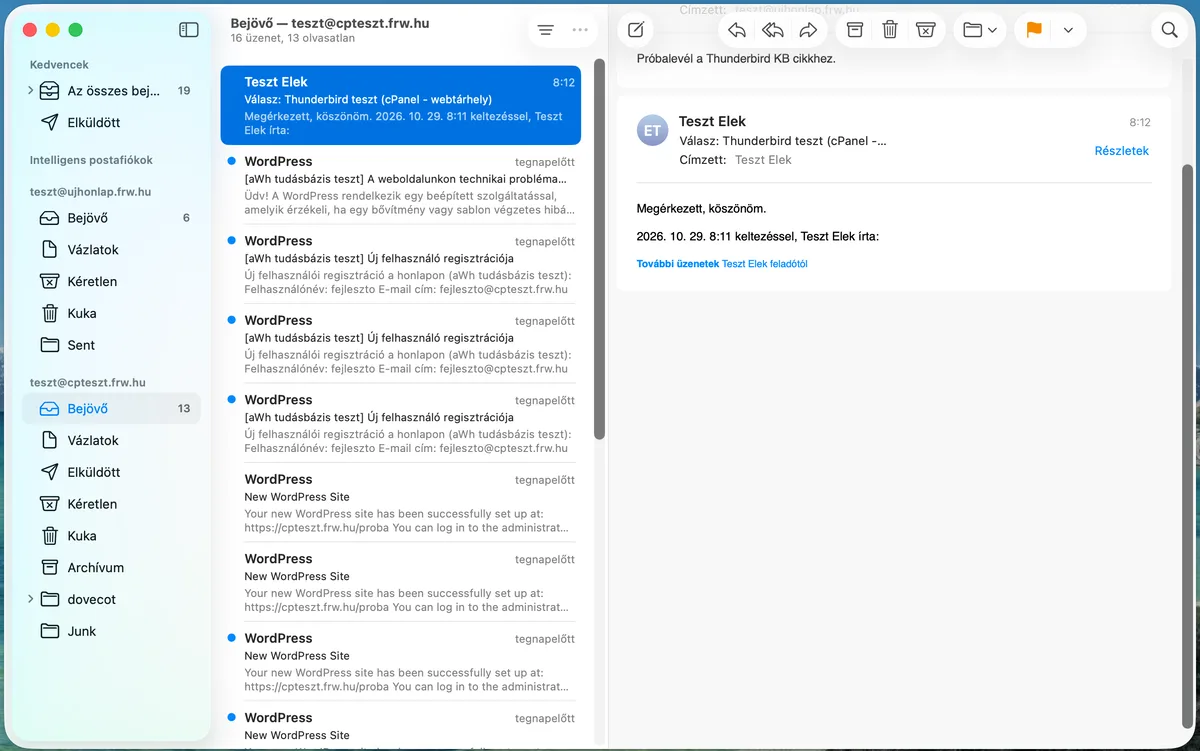
The mailbox appears in the list on the left-hand side of Mail, alongside its own folders (Inbox, Drafts, Sent, Bin, Archive, Junk). In the test, the email sent from Mail arrived, and a copy was placed in the server’s Sent folder, so it is also visible in the webmail interface.
- Certificate error: if your email client displays a warning about the server’s certificate, the server name you have entered does not match the one on the certificate; this article on certificate errors in email clients will help.
- Password change: if you change your password in the hosting control panel, Mail will ask for the new one the next time you log in.
- iPhone and iPad: the same profile works on your phone too; see: Setting up email in the iPhone and Android Mail apps.
We have a separate article explaining the difference between POP3 and IMAP.