 English
 Magyar


This guide explains how to add your own domain email account, created with aWh, to the new Outlook for Windows app using IMAP. The new Outlook is the free, built-in email program in Windows 11 and is also available as an option with a Microsoft 365 subscription. IMAP keeps your emails on the server, so you’ll see the same mailbox on your phone and in webmail.
We tested the steps in October 2026 on a Hungarian-language Windows 11 (26H2) system, using the new Outlook version 1.2026.1013, with one cPanel hosting account and one web hosting test mailbox.
Support for Outlook 2016, 2019 and 2021 has ended; these versions no longer receive security updates. The supported desktop versions of Outlook are now the Outlook included with a Microsoft 365 subscription and Outlook 2024; you can read about setting up the classic Outlook at the end of this article.
Servers and ports
| Incoming (IMAP) | Outgoing (SMTP) | |
|---|---|---|
| Server, cPanel hosting | mail.<az Ön domainje> |
mail.<az Ön domainje> |
| Server, web hosting | the name of the hosting server (for example, k02.awh.hu) |
the same |
| Port | 993 | 465 |
| Type of secure connection | SSL/TLS | SSL/TLS |
| Username | the full email address | the full email address |
The guide on configuring Thunderbird shows you where to find the correct details on the two control panels. For web hosting, use the server name, not the mail.<az Ön domainje> address: the mail server’s certificate is issued in the name of the server.
Adding your first email account
-
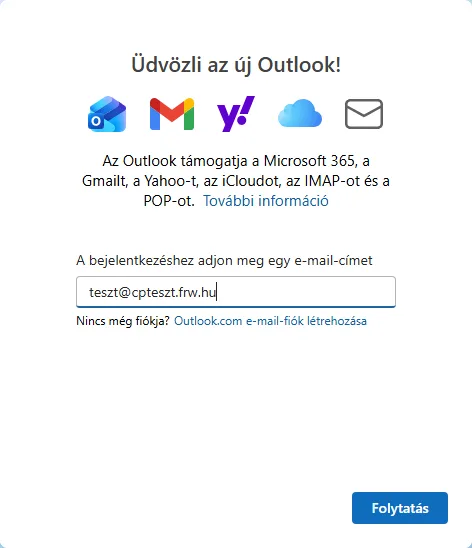
Launch the Outlook application. If you do not yet have an account set up, the ‘Welcome to the new Outlook!’ window will appear. Enter your full email address and click the ‘Continue’ button.
-
Outlook recognises that this is an IMAP account and asks for the password. Before entering it, tick the ‘Show more’ box: this will allow you to see which servers Outlook recommends (‘Use recommended settings’).
For cPanel hosting, the recommendation was correct: the Incoming Mail Server (IMAP) is
mail.<domain>, the port is 993, and the secure connection type is SSL/TLS (recommended).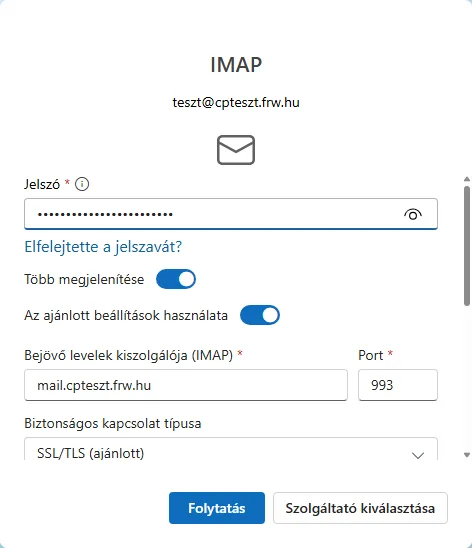
-
Scroll down. The SMTP username is your full email address; you can leave the SMTP password field blank (Outlook will then use the password above); the Outgoing Mail Server (SMTP) for cPanel hosting is also
mail.<domain>, on port 465, with an SSL/TLS connection. If everything matches the table, click the Continue button.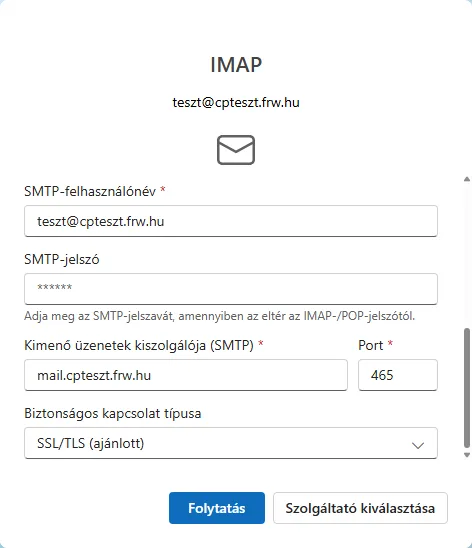
-
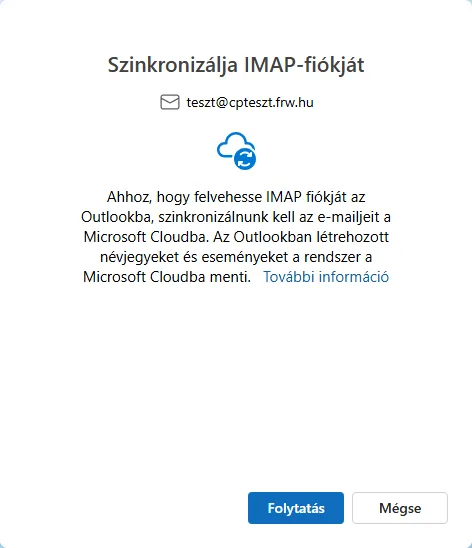
The ‘Synchronise your IMAP account’ window informs you that the new Outlook manages non-Microsoft email accounts via the Microsoft cloud: your emails are downloaded from your inbox by Microsoft’s servers, and outgoing emails are also sent from there (in our test, the Microsoft server appeared before our own mail server in the header of the outgoing email). If you accept this, click the ‘Continue’ button; if not, use a different email client (see the end of the article).
-
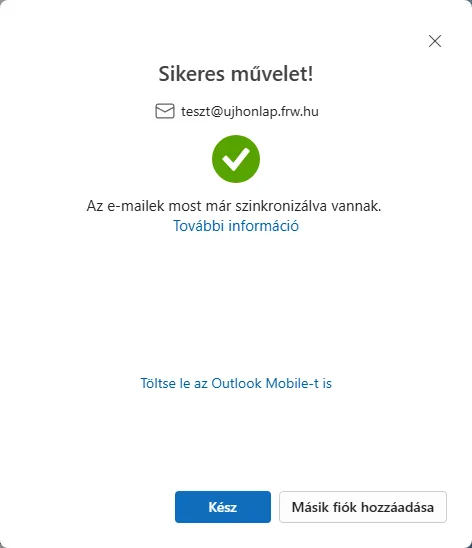
After the ‘Operation successful!’ message appears, click the ‘Done’ button, or the ‘Add another account’ button if you wish to set up another email account.
When you first launch Outlook, it will ask you a few more questions: about sending optional diagnostic data (‘We’re better together’), about linked services, about data processing by Microsoft’s advertising partners (‘Reject all’ or ‘Accept all’) and about the layout of adverts. These settings do not affect the functioning of your mailbox; the free new Outlook also displays adverts in the mail list (labelled ‘Advertisement’).
Web hosting email accounts: servers must be entered manually
For web hosting email accounts, Outlook suggests the correct incoming server but the wrong outgoing server: the domain name for incoming mail, and for outgoing mail, an address beginning with smtp.-vel’ on port 587, for which the server’s certificate is not valid. Logging in with these settings failed (An error has occurred. Please try again.), so the servers must be entered manually:
-
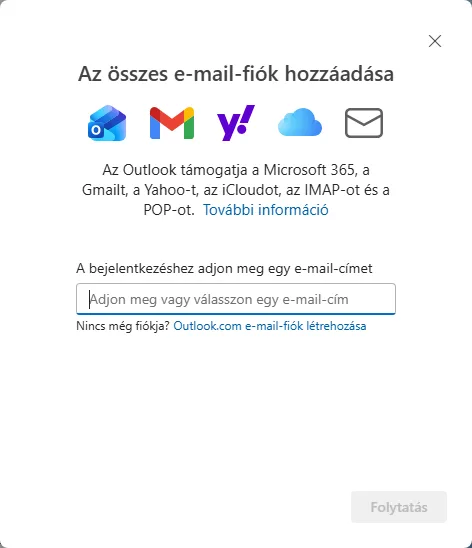
At the bottom of the folder list, click on ‘Add account’ (or, for your first account, follow step 1 above), enter your email address, and click on the ‘Continue’ button.
-
Tick the ‘Show more’ box. The suggested incoming server is the domain name (
ujhonlap.frw.huin the image), whilst further down the outgoing server issmtp.frw.hu, port 587, StartTLS. The latter cannot be used, so in the steps below we will replace both with the name of the hosting server.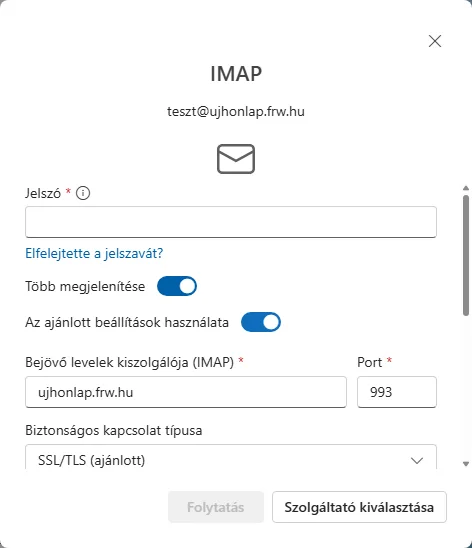
-
Enter your password, then switch off the ‘Use recommended settings’ toggle. In the ‘Incoming mail server (IMAP)’ field, enter the name of the mail server (
k02.awh.huin the image), port 993, and the connection type SSL/TLS (recommended).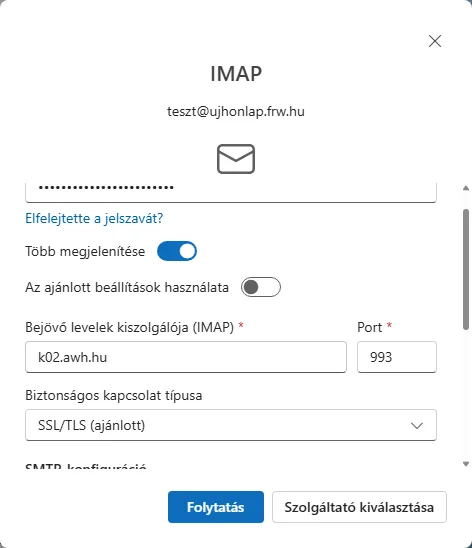
-
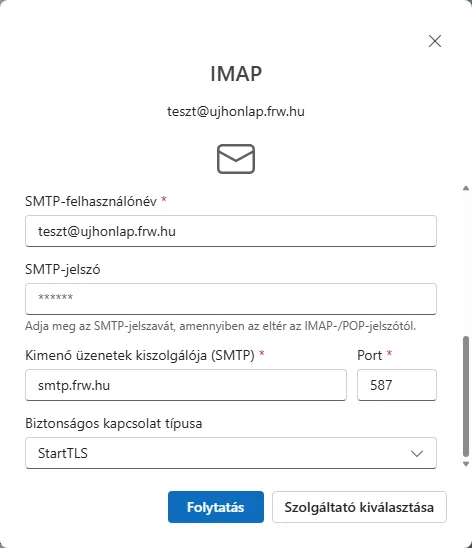
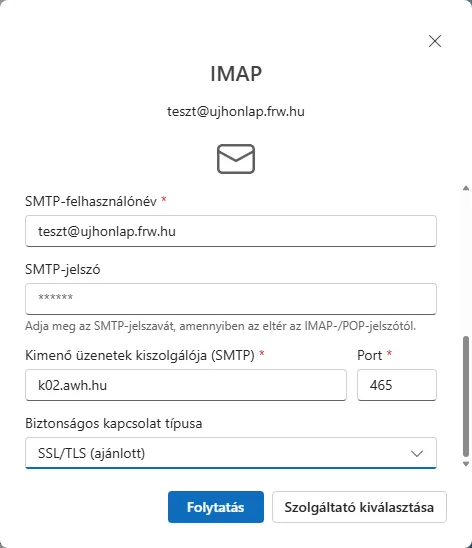
Scroll down: the Outgoing Mail Server (SMTP) is the same server name, Port 465, and the Secure connection type is SSL/TLS (recommended) (select this from the list instead of StartTLS). Click the Continue button.
-
In the synchronisation window, click the Continue button, then the Done button. In the test, the email sent from the account configured in this way was received, and a copy was placed in the server’s Sent folder.
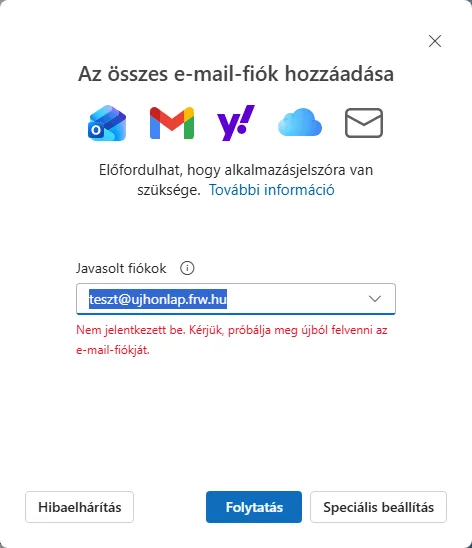
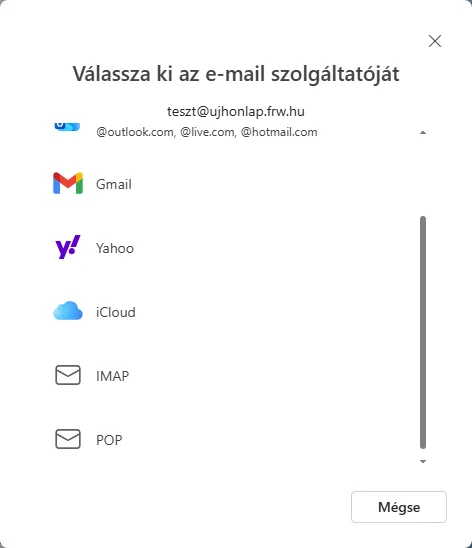
If you are unable to log in, Outlook will return to the start screen. Here, you can select the account type directly using the ‘Advanced settings’ button: scroll down and click on ‘IMAP’; the same form as above will then appear.
After configuration
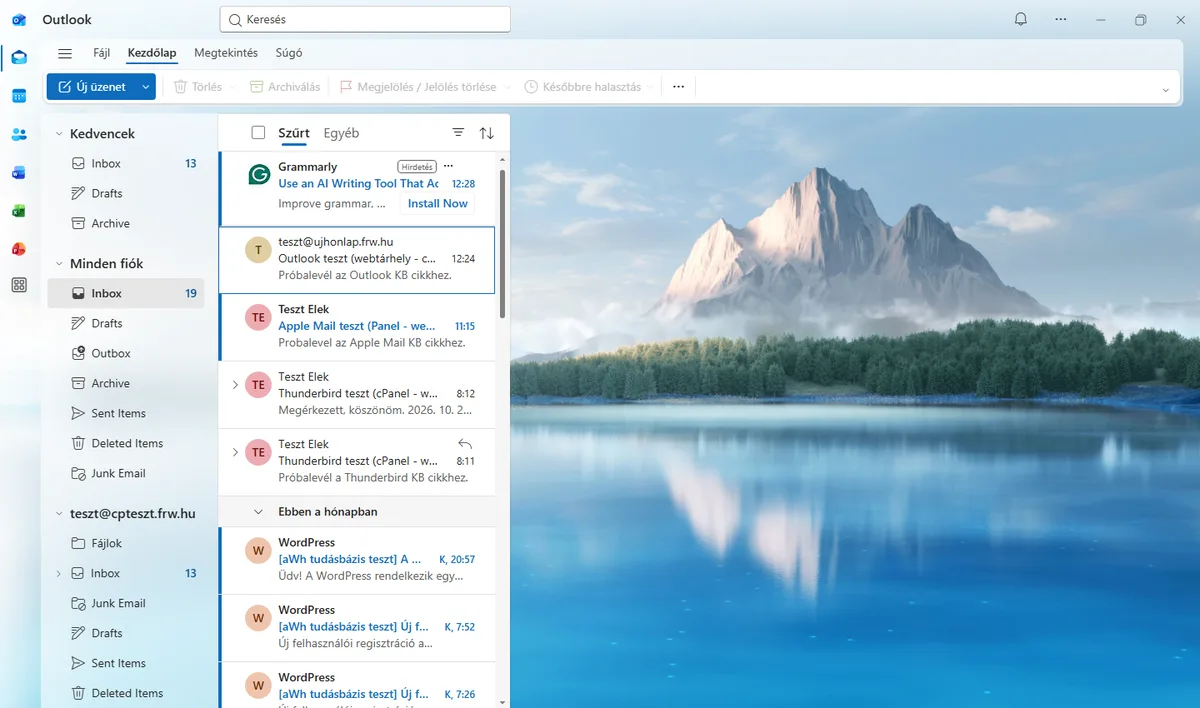
Both mailboxes appear in the folder list on the left, and you can also view your emails in a combined view under ‘All Accounts’.
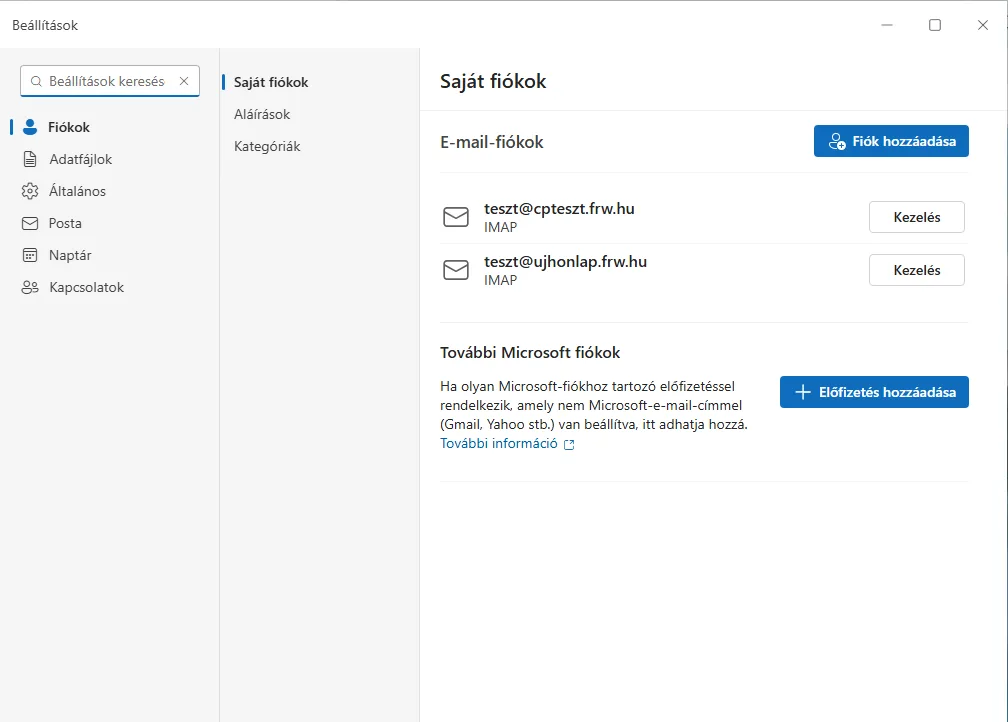
You can manage your accounts in the top right-hand corner on the … > Settings > Accounts page (My Accounts). The Manage button next to the account opens the Account Details page, where the server settings are read-only.
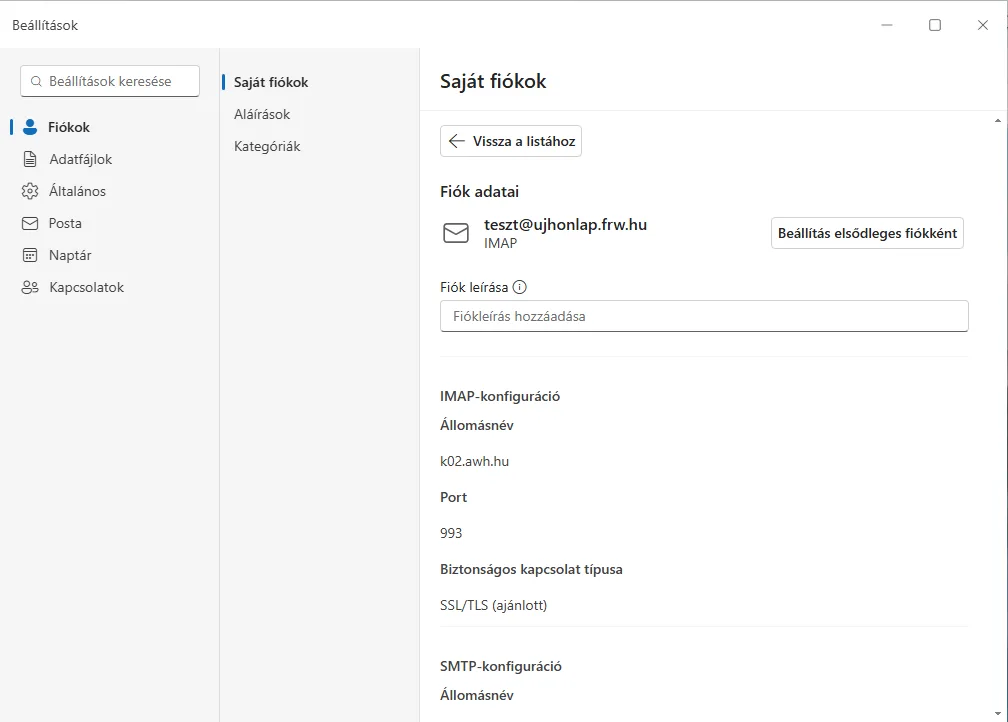
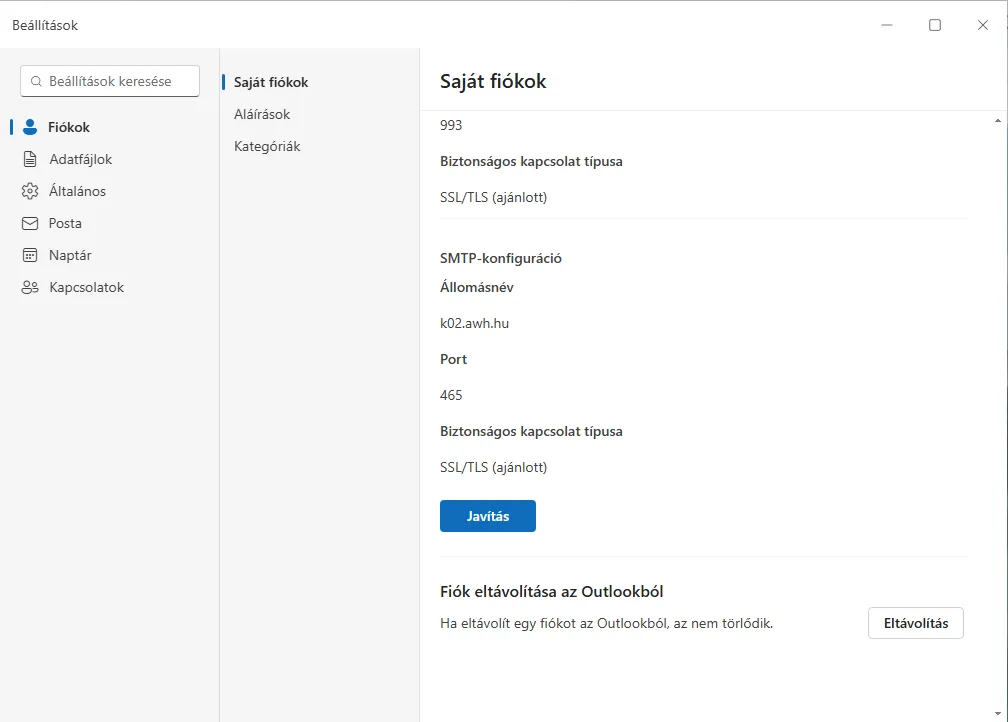
- Changing your server or password: the ‘Repair’ button at the bottom of the page reopens the login window (showing the password field and server settings); after changing your password, enter the new one here.
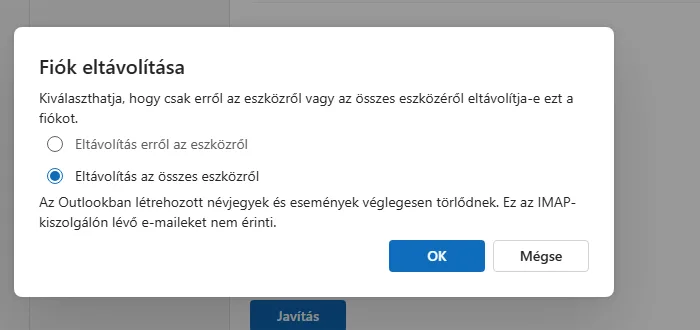
- Removing an account: use the ‘Remove’ button. You can choose to remove it from this device only or from all your devices; contacts and events created in Outlook will be deleted, but emails stored on the server will not be affected.
Classic Outlook (Microsoft 365, Outlook 2024)
We have not tested this section; the steps follow Microsoft’s instructions. Classic Outlook connects directly to the mail server rather than via the Microsoft cloud.
- Click on the File menu, then click the Add Account button.
- Enter your email address, click on the ‘Advanced settings’ link, tick the ‘Set up my account manually’ option, then click on the ‘Connect’ button.
- Select the IMAP account type and enter the servers, ports and encryption (SSL/TLS) as shown in the table above. Do not tick the ‘Secure Password Authentication (SPA)’ box.
- Enter your password, then click ‘Connect’ and finally ‘Done’.
If it isn’t working
- The program is reporting a certificate error: the server name does not match the one on the certificate; the article on certificate errors in email clients will help you choose the correct name.
- “An error has occurred”, “you may need an application password”: you do not need an application password for your mailboxes. Check the servers and ports as shown in the table; on your web hosting account, disable the recommended settings.
- An incorrect password is indicated: please try logging into webmail using the same details; if that does not work either, change your password via the hosting control panel.
If you do not want your emails to be synchronised via the Microsoft cloud, use the classic Outlook or another email client, such as Thunderbird. On a Mac, the guide on setting up Apple Mail will help. We have a separate article on choosing between POP and IMAP.