 English
 Magyar


With our web hosting plans, you can create your own email addresses for your registered domains (for example, info@cegnev.hu) and set up forwarding so that emails sent to one address are forwarded to another. You can do all this via the ‘Email addresses’ menu item in the KeyHelp control panel. A general overview of the control panel is provided in the article summarising the first steps with KeyHelp. If you are using cPanel hosting, the process of creating a mailbox is explained in the guide on setting up an email account in cPanel.
Before you begin
- The domain should be listed under the ‘Domains’ menu item.
- In order for emails to be delivered to the hosting account, the domain’s MX record must point to the hosting provider’s mail server. If the domain uses the hosting provider’s name servers, this is the case by default, and the zone also contains the SPF, DKIM and DMARC records (DNS editor).
- The number of email addresses that can be created within a plan depends on the plan itself; you can see how many you have used at the top of the control panel and the Email Addresses page.
Creating a mailbox
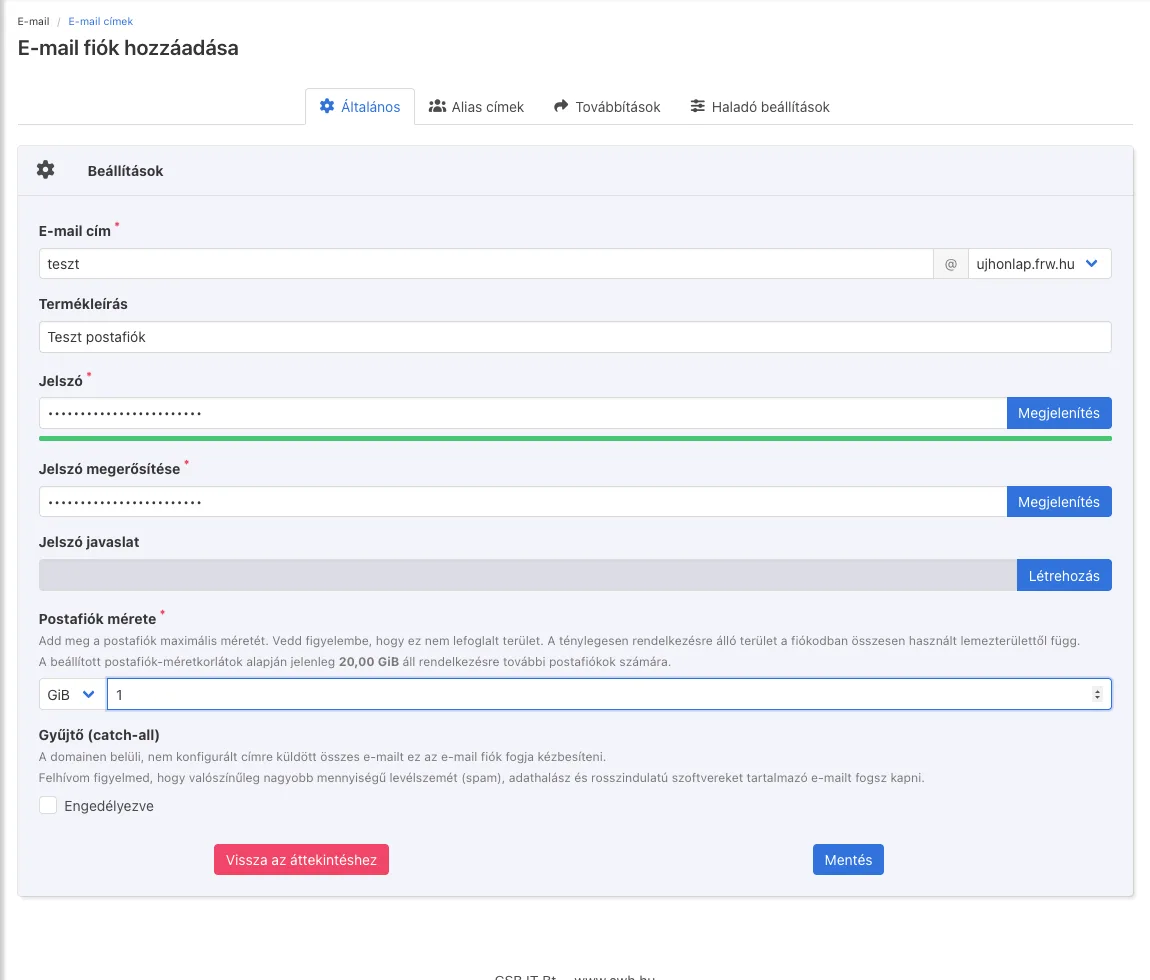
- In the menu on the left, open the ‘Email addresses’ menu item and click on the ‘Add email account’ button.
- On the ‘General’ tab, enter the part of the address that comes before the
@in the ‘Email address’ field, and select the domain from the list next to it. - You can enter a short comment (for example, a colleague’s name) in the ‘Product description’ field; this is only visible in the control panel.
- Enter a strong password in the Password and Confirm Password fields. You can also use the Create button in the Password Suggestions row to generate a strong password.
- In the ‘Mailbox size’ field, specify the maximum size of the mailbox (for example, 1 GiB). This does not reserve space in advance: emails are stored in the plan’s shared storage.
- Only enable the** ‘Catch-all’** option if you wish to receive all emails sent to non-existent addresses on the domain in this mailbox. This may result in a large amount of spam; for further details, see the article on catch-all email addresses.
- Click the Save button.
Alias addresses
On the ‘Alias addresses’ tab, you can assign additional addresses to your mailbox (using the** ‘Add alternative email address’** button). Emails sent to an alias are delivered to the same mailbox, without requiring a separate password or storage. For example, emails sent to kapcsolat@ and ajanlat@ can both be delivered to the same mailbox.
Setting up forwarding
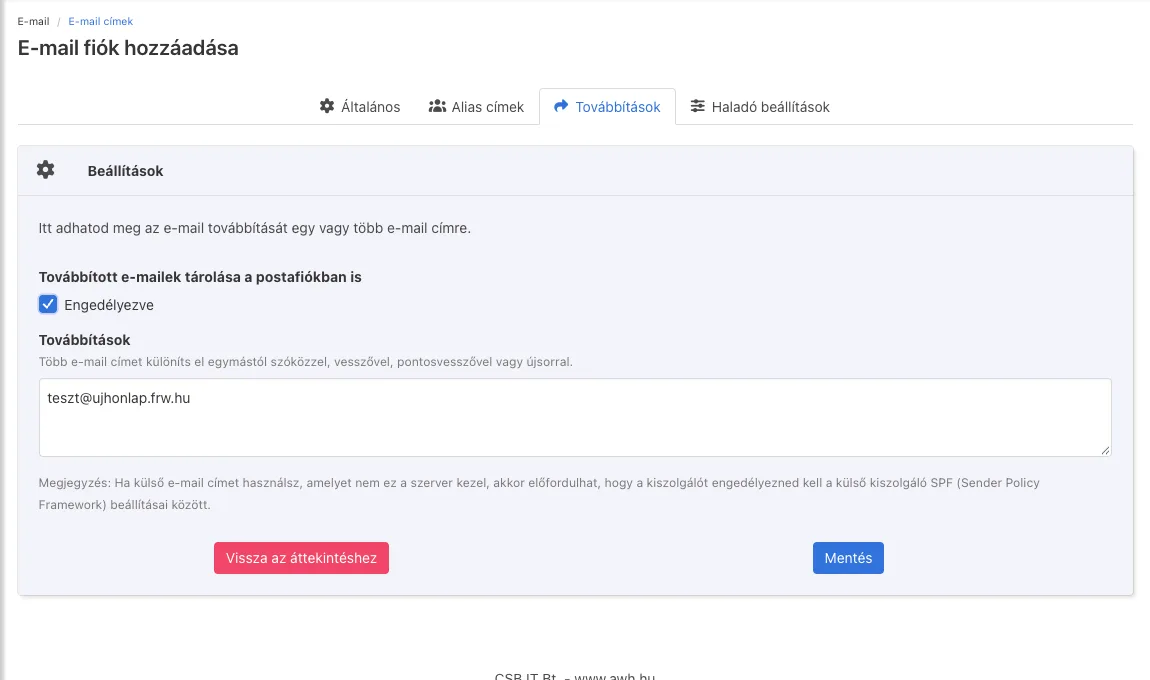
On the ‘Forwarding’ tab, you can specify the addresses to which the server should forward emails received in the mailbox:
- Enter the destination address in the ‘Forwards’ field. You can separate multiple addresses using spaces, commas, semicolons or new lines.
- If you tick the ‘Enabled’ option under ‘Store forwarded emails in the mailbox as well’, the email will also be retained in your mailbox; if not, it will only be delivered to the destination address.
- Click the Save button.
If you forward emails to an address hosted by a third-party provider (such as Gmail), the destination provider may apply stricter filtering to the forwarded emails; our article on forwarding explains the background and potential pitfalls. Do not set up two addresses to forward to each other, as this will result in emails going round in circles.
Spam filtering and other settings
On the Advanced Settings tab, spam and virus scanning of incoming emails is enabled by default, and unwanted emails are moved to the Spam folder in your mailbox. Here you can set custom spam scores, block and allow lists (for addresses or domains), and specify that emails older than a specified date in the ‘Spam’ and ‘Bin’ folders should be automatically deleted.
List of created addresses
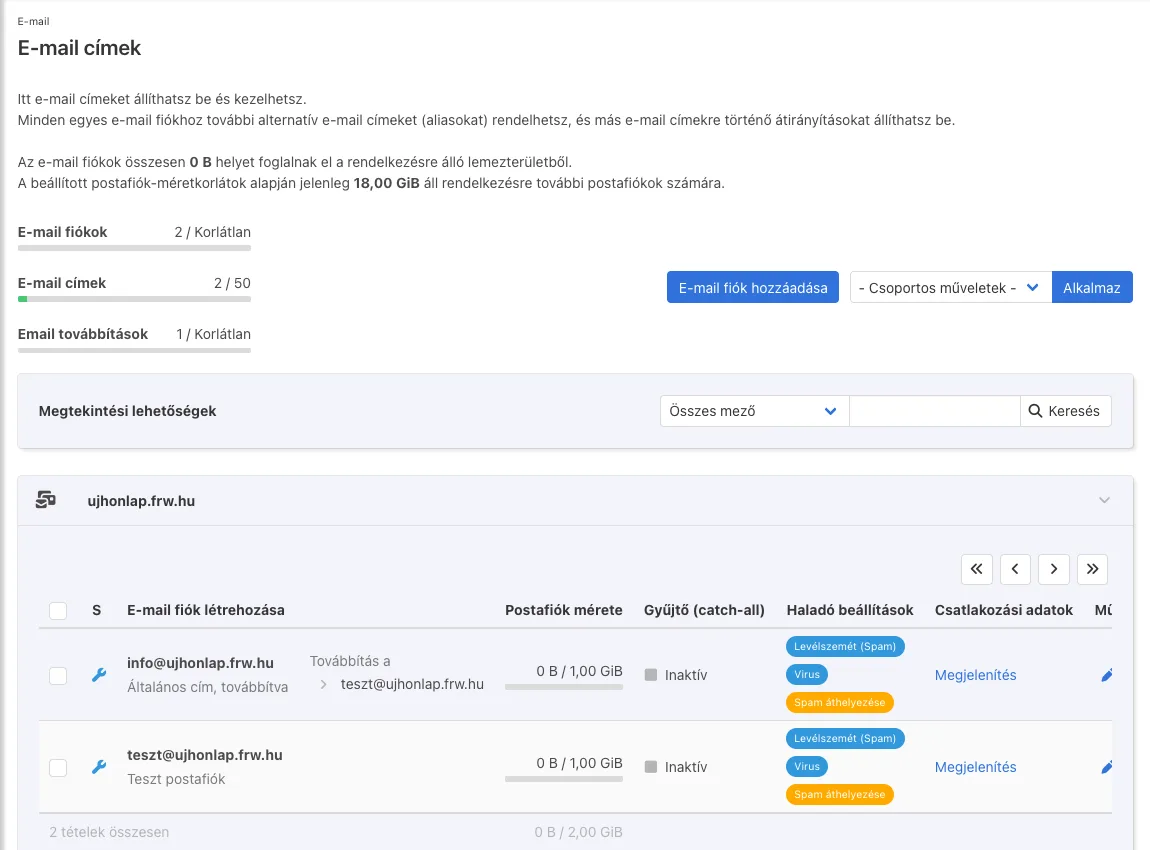
On the Email Addresses page, you can view the details for each domain: the mailbox size and usage, the forwarding destination, the catch-all status and the security settings that are enabled. You can use the pencil icon next to the address to change the settings or password at a later date.
Setting up an email client
The ‘Show connection details’ link in the ‘Connection details’ column displays the information required for your email client:
- Server: the name of the hosting provider’s server, or alternatively, your own domain;
- Username: your full email address;
- SSL/TLS ports: IMAP 993, POP3 995, SMTP 465;
- STARTTLS ports: IMAP 143, POP3 110, SMTP 587 (or 25).
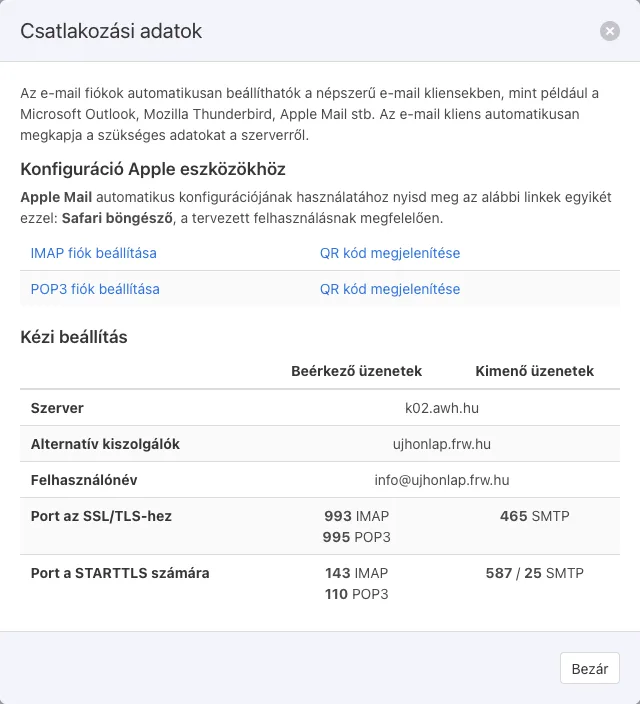
On Apple devices (iPhone, iPad, Mac), you can set up your IMAP **account automatically via a link or by scanning the QR code in the Safari browser. We have guides for other programs such as Outlook, Thunderbird and Android; our article on choosing between POP3 and IMAP will help you decide whether to use IMAP or POP3. You can also access your emails from your browser via the **‘Webmail’ menu item in the user interface.